
An automated webinar runs a session on a schedule you set, playing a video you prepared earlier, so the event goes ahead whether or not you are at your desk that day.
Automated webinars, how to?
Let us take a look at how the Automated Webinars work in MyOwnConference.
What are automated webinars, and how do they work?
An Automated Webinar is a scheduled automatic event that takes place regardless of the presence of the hosts. You just need to select a video, schedule an event and invite participants. If you want, you or other presenters can moderate such automated webinars and step into their course, depending on what you need.
You can upload suitable videos for the automated webinar to the system or select a recording of a previously held webinar.
Read also a beginners’ guide to webinars.
Scheduled playback, not on demand
This is worth settling before you plan anything around it, because the phrase "automated webinar" covers two different models and only one of them is what you get here.
MyOwnConference automates how the event runs, not when it starts. You choose the dates, people register for one of them, and the video plays to everyone who arrives at that time, the same way a live session would. What it does not do is begin a fresh session the moment somebody lands on your page.
That shapes which events suit it. A weekly introductory session, a course you repeat on fixed dates, or a lecture you cannot deliver in person all fit comfortably. Something advertised as watch instantly whenever you like does not, and a recording behind a link serves that need better.
One more consequence follows from the same design. "Time and duration" fills itself in from the video and then stays read only, so the session runs for exactly as long as the file does, and a different length means attaching a different video.
Who can use the automated webinar service?
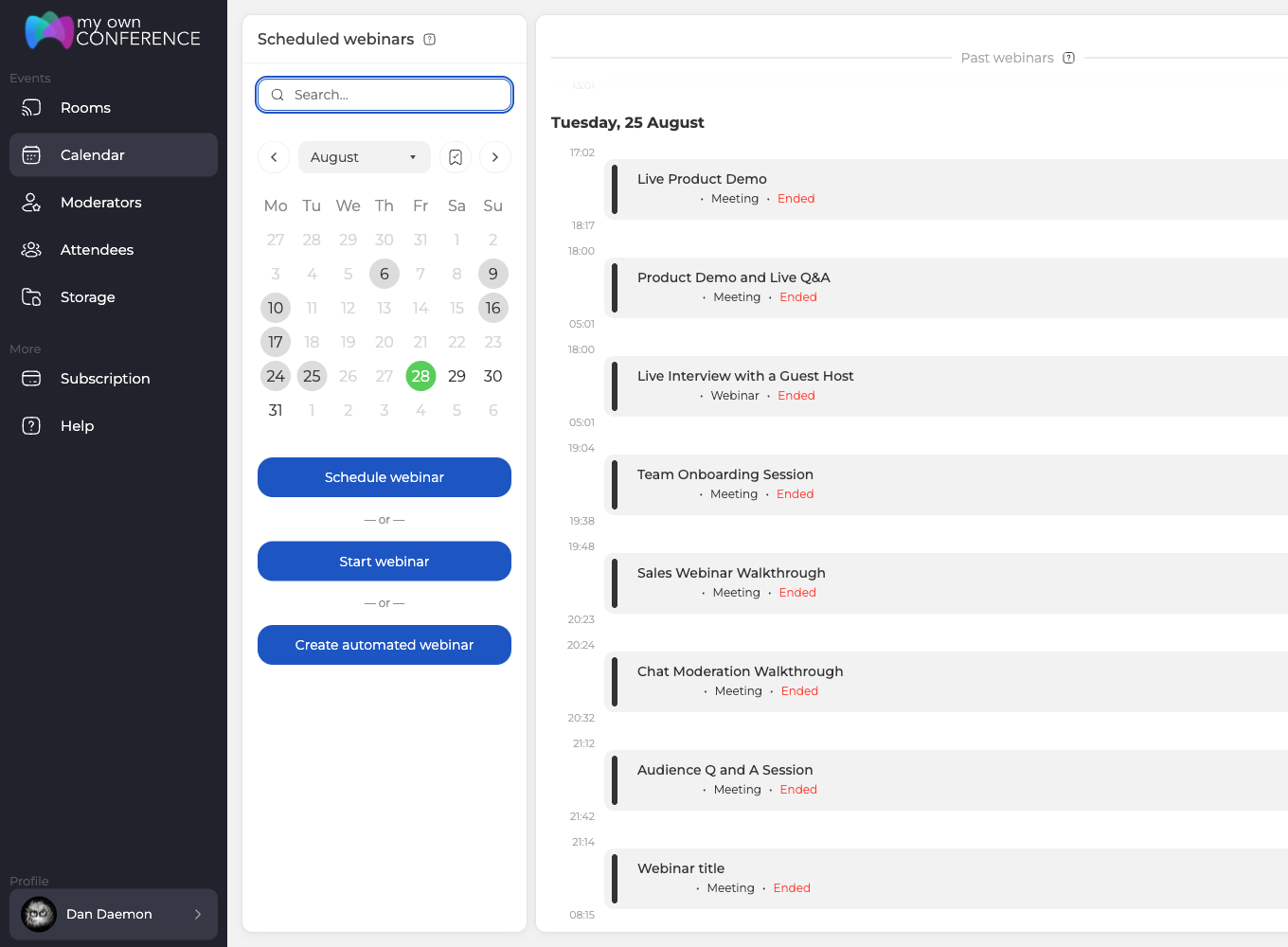
Every MyOwnConference account can run automated webinars, the free Starter plan included, so you can try one before paying anything. The plan decides how many rather than whether, because Starter allows one a day while the paid plans have no daily cap.
What are the limitations of automated webinars on a free account?
Most of the Starter limits are the ones any webinar has there, which is 5 attendees in the room, 2 speakers on camera at once and 500 MB of cloud storage shared by your uploads and your recordings. One limit belongs to automated webinars alone and it is the one to plan around, because Starter runs a single automated webinar a day while the paid plans have no daily cap.
Read more about the MyOwnConference free plan.
What settings are available for automated webinars?
The room settings are the ones you already know from a live event, so colours, banners and the arrangement of elements all behave the same way. The tabs are where it differs, because an automated webinar has no "Record", "Files", "Polls" or "Tests" tab and carries "Bots", "Chat" and "CTA" instead. Planning an automated webinar walks through the whole setup screen by screen.
How to invite participants to the automated webinar?
Participants can get to the automated webinar both by the general link and by personal invitation link. The invitation to the automated webinar and letters for participants are configured in the same way as for a "live" event.
Read next: Tired of users complaining about your newsletters and webinar invitations? Here’s how not to get into spam
Will participant information and chat history be saved?
Yes, the webinar history saves all information about the participants and their activities. There you will also find the chat history with all the messages.
How can you use webinars on autopilot?
You can use Automated Webinars as a stand-alone event or just as part of an online seminar. For example, at the beginning of the webinar, you can show a recording of a previous lecture or other video material, then join as a presenter later to communicate with the audience "live".
Can the automated webinar be interrupted?
The video shown at the automated webinar can be interrupted by the presenter who created it. Only users with Moderator or Administrator rights are allowed to end the event.
Can I record an automated webinar?
During the Automated Webinar, the recording function will not be available since you are already broadcasting a previously recorded event. However, if you still need to keep a record, you can use third-party programs.
How do I plan an automated webinar series?
By creating an automated webinar, you can immediately plan a series of events with the same settings. You can later edit each event separately. You can also:
- Add a new event or remove a webinar from the chain.
- Change the Automated Webinar start time and room settings.
- Swap videos for some webinars in a chain.
What options do participants have during the webinar?
As a host, you can set the options available to participants during the planning of the automated webinar or in the webinar room.
Is it possible to conduct a survey during the broadcast of the automated webinar or show the sales buttons?
Sales buttons yes, surveys no. An automated webinar has no "Polls" or "Tests" tab. It carries three of its own instead, "Bots", "Chat" and "CTA", where buttons are prepared in advance and shown at set moments in the video. To step into the broadcast live, there must be a second presenter at the webinar with the rights of a Moderator.
We recommend adding at least two hosts with Moderator rights to the automated webinar in which you plan to interfere. This will allow you to regain control of the event at any time. It is also better to test a webinar on behalf of a backup presenter.
What does an automated webinar look like for a participant?
The view of the webinar room for all participants of your automated webinar is the same as for a regular webinar. The video that you will broadcast is shown in the material display area. You can expand it to full screen to maximize the focus of attendees on the presentation.
Why is the automated webinar good?
- It saves repeated effort, because you do not have to deliver the same introductory session every week.
- It gives people more times to choose from, since an event you need not attend can sit on dates that suit the audience rather than your calendar.
- It covers the gaps, whether that is a week you are away or a slot you would otherwise cancel.
- It can look busy from the first minute, because virtual attendees and a scripted chat are timed against the video on the "Bots" and "Chat" tabs.
Disadvantages of automated webinar
At its core, an automated webinar is not a "live" event. No matter the careful preparation and use of good webinar service, advanced users will be able to distinguish between a live webinar and a recording.
With skillful planning, an automated webinar can replace the lecture format of a webinar. It will back you up during vacation or unforeseen circumstances. You can also use a recording as just one segment of a live event, which saves you time and energy.
But remember, an automated webinar cannot conduct an interactive lesson with a group, and it cannot replace live communication.
Think of the automated webinar as a helper, not a substitute for yourself. This way, both you and your members will get the most out of it.
FAQ
What exactly is an automated webinar and how does it function?
An automated webinar is a scheduled event that runs without the hosts being present. You upload or select a pre-recorded video, schedule it, and participants join as if it were live. You or other presenters may intervene during the broadcast depending on your permissions.
Who is eligible to use the automated webinar feature?
Every account can, the free Starter plan included. The plan decides how many rather than whether, because Starter allows one automated webinar a day while the paid plans have no daily cap.
What are the limits of automated webinars on a free account?
Starter holds 5 attendees with 2 speakers on camera and gives you 500 MB of cloud storage shared by uploads and recordings, which are the limits any webinar has there. The one specific to automation is the daily cap of a single automated webinar, against no cap on the paid plans.
Can a moderator interrupt the automated webinar or take control?
Yes, users who have Moderator or Administrator rights may interrupt or conclude the event. During setup it is wise to assign at least two moderators so that control can be regained if needed.
Is it possible to include polls or sales buttons during an automated webinar?
An automated webinar has no Polls or Tests tabs. Instead it has three of its own, Bots, Chat and CTA, so you can schedule call-to-action buttons and a chat script tied to specific moments in the video.