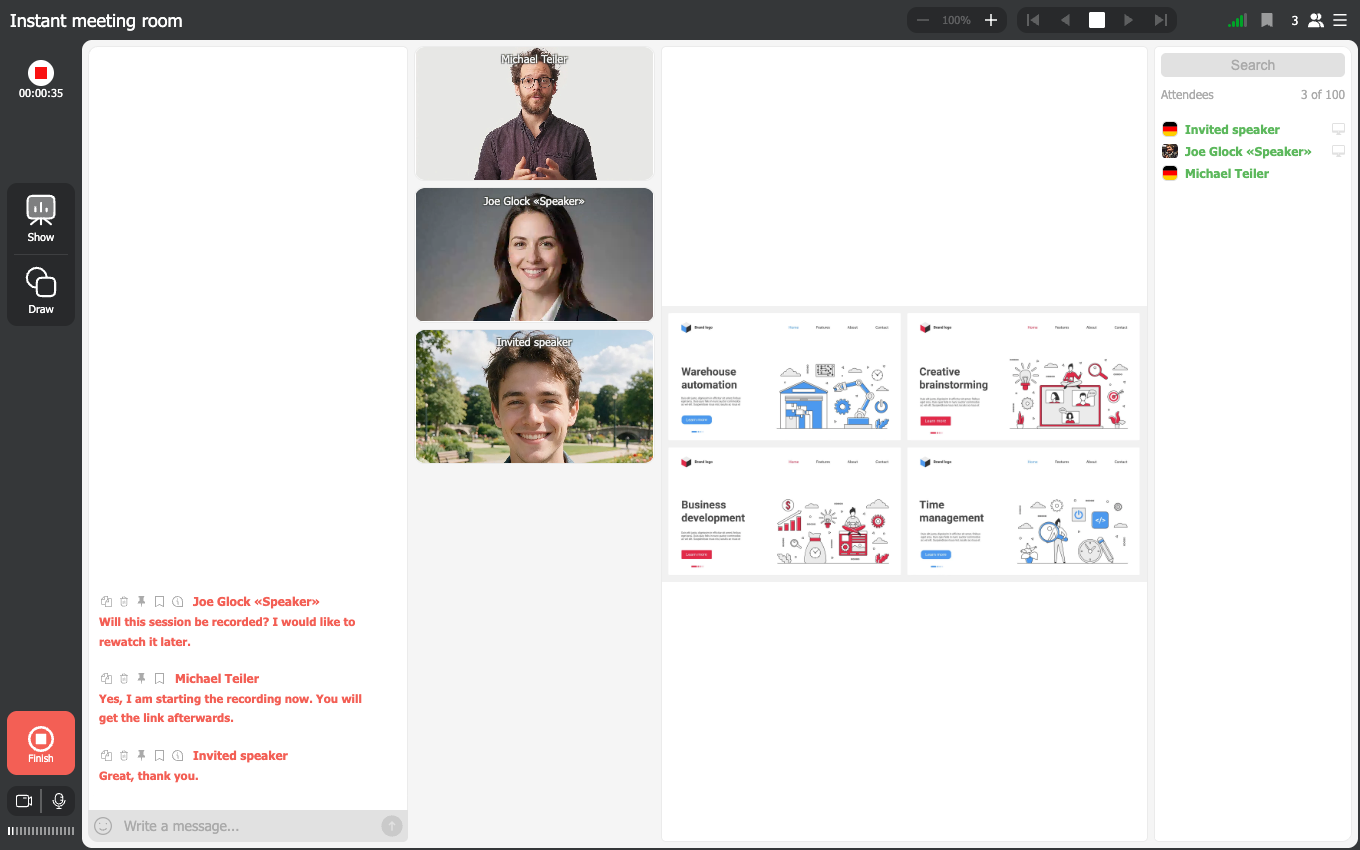
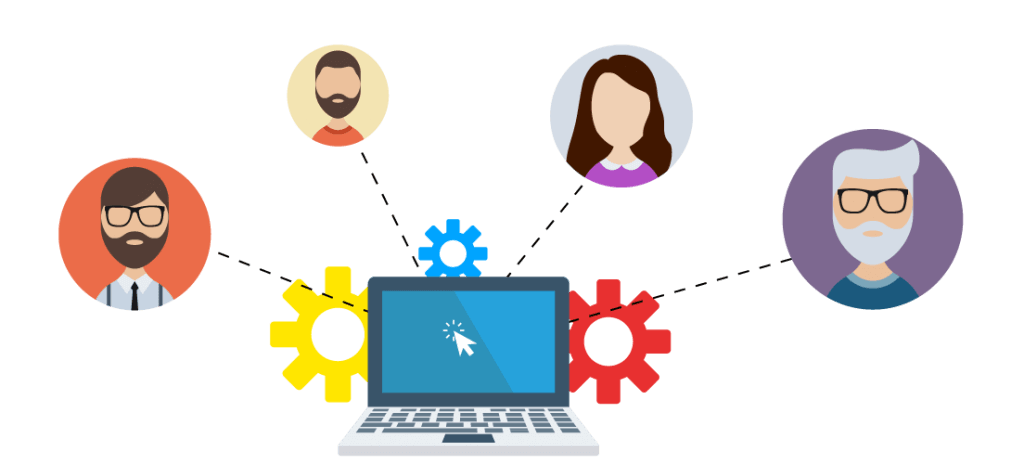
Hosting a webinar takes a lot of work. From organizing to presenting, and fixing any issues that arise, there’s a lot to juggle.
Assigning roles for your webinar
That’s why most webinars are run by a panel of people, each with a different but vital role to play in the webinar’s success.
When you create a webinar in MyOwnConference, you can assign roles for each member of your team. By doing that, you’re able to set what each person can and can’t do when they enter the webinar room.
Here’s how that works
The platform gives everyone on your side of the event one of four roles, and the role decides what that person can do in the room. Every one of them takes a speaker slot in the room, so how many you can put on air at once depends on your plan.
Account owner
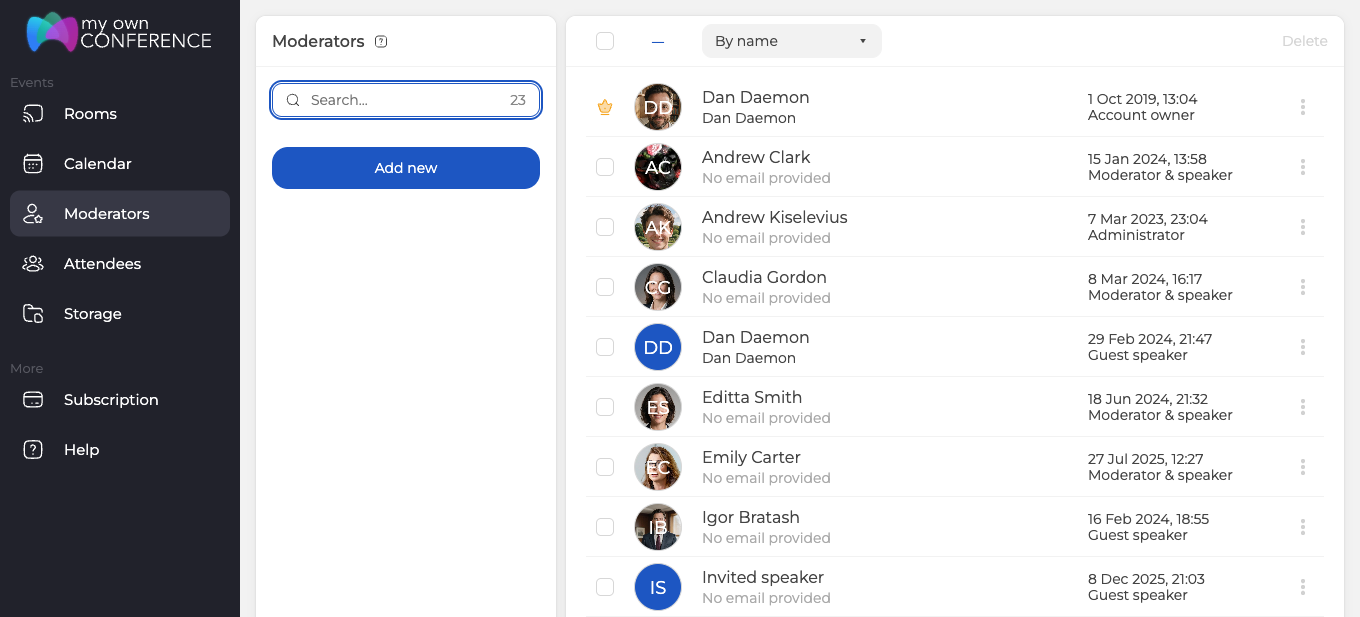
This is you. The owner is on every event automatically and cannot be removed from it, which is why the row carries a crown instead of a checkbox.
Administrator
An administrator can do everything in the room that a moderator and speaker can, and the role does not open the dashboard. Whoever runs the account alongside you needs a sub-user account for that, which you set up in your profile.
Moderator & speaker
This person runs the event itself, which covers going on air and moderating the chat. Their job is to keep the webinar moving so the speakers can concentrate on speaking.
Learn more about why you need moderators for a successful webinar.
Guest speaker
A guest speaker joins to present and does without the wider controls. These are the "stars of your show," often a subject-matter expert invited for one event. The same role is how you bring in somebody who is not presenting in the usual sense, an interpreter for instance.
TIP: Depending on the size of your webinar, you can have several speakers at a single event. It’s helpful to take on speakers who bring different angles to the same topic, or ones with substantial followings, to give your webinar more exposure.
Overview of roles
| Role | What it reaches |
|---|---|
| Account owner | Everything, and cannot be removed from an event |
| Administrator | The same as a moderator and speaker, in the room only |
| Moderator & speaker | The event itself: going on air and moderating the chat |
| Guest speaker | Presenting, without the wider controls |
How to change somebody’s role
Assign each member of your team one of these roles, either when you add them or at any point afterwards. You can edit a role during a webinar too.
- Click "Moderators" on the left-hand side of the Dashboard.
- Click "Add new", or open an existing person from the list.
- Fill in the name, and the email if you want the platform to be able to write to them.
- Choose the role under "Permissions".
- Click "Add", and that’s it.
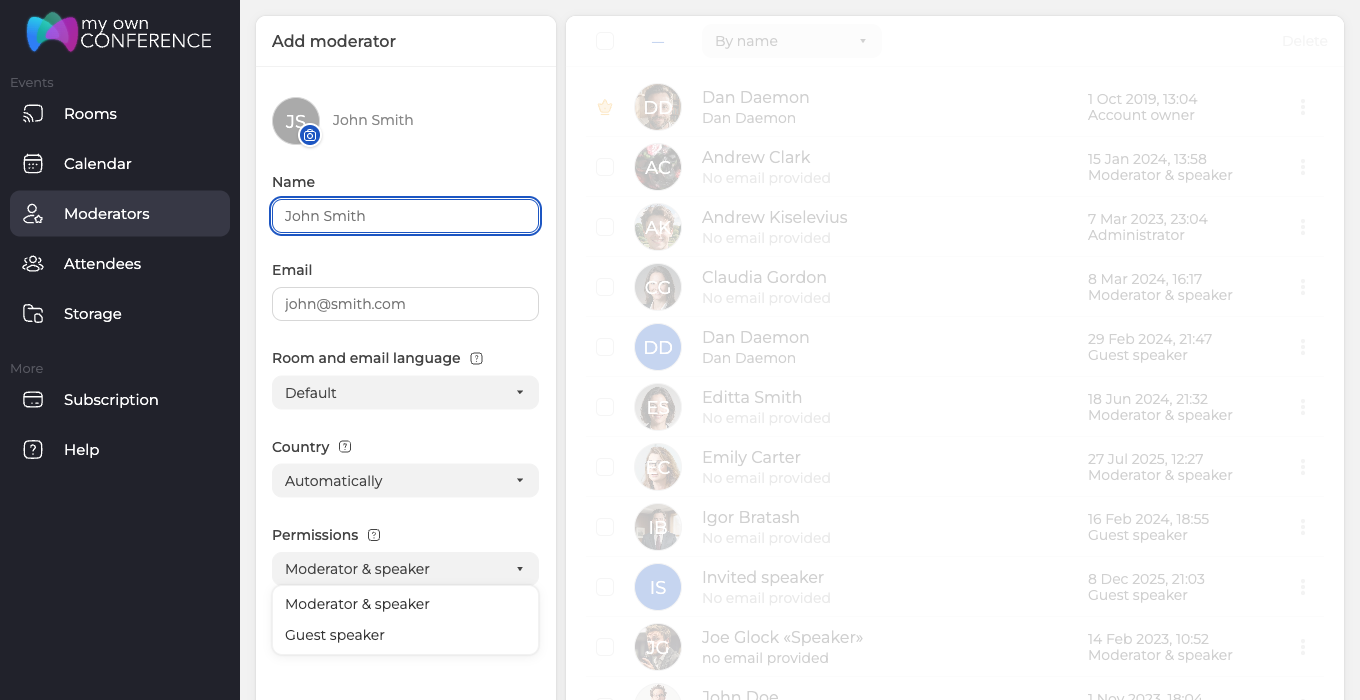
One thing surprises people here. "Permissions" offers two of the four roles only, "Moderator & speaker" and "Guest speaker". Administrator is not something you hand out from this form, although you will see it under the name of anyone who already holds it, and account owner is yours alone. Moderator and presenter management covers the rest, including how each person gets their own personal link into the room.
Other roles you need for your team
Especially for larger webinars, it’s useful to have a few other people on board. Once you’ve covered the basics, consider adding these extra members to your team:
Designer
Attractive graphics can make or break a presentation. By nature, a webinar is a flat medium, so it relies on powerful visuals to tell a story. Appoint a designer to bring your webinar to life.
It’s the job of a web or graphic designer to create:
- Engaging presentation materials like slides, charts, and presenter bios.
- Marketing visuals for landing pages or promotional graphics for the webinar.
First impressions really matter. While anyone can start with a template, a professional graphic designer can create clean and impressive visuals that match your specific needs. This kind of work helps build strong trust in your brand.
Great designs also communicate who you are. Visual branding should be consistent and memorable and symbolize what your brand stands for.
Learning designer
Are you running a workshop or training module? Get a learning designer on board to help craft your educational content.
Learning designers, or instructional designers, do just what you would expect. They create interactive experiences that improve learning and retention. Consult them to align your webinar content with learning outcomes, and create immersive course materials.
Also, learning designers help make a workshop a two-way street. They’ll help you design a course that gets your attendees participating, not just consuming the content passively.
Digital marketer
Webinar marketing is becoming increasingly popular as it’s cost-effective and mutually beneficial. Your attendees receive useful information while you promote yourself in the process, so everyone benefits.
Add a digital marketer to your team to make sure your webinar meets the goals of your overall marketing strategy.
Digital marketers perform jobs like:
- Promoting your webinar on the right channels at the right time, so that you have an audience.
- Generating new leads and following up with email lists after the webinar is over.
- Driving conversions by crafting a brand message that shows how you can solve your attendees’ pain points.
Finally, when the webinar is over, it’s crucial to measure the success of your event. How many subscribers did you gain? What feedback did you get from surveys? A digital marketer’s job is to analyze this data, then give recommendations for future webinars.
Technical support assistant
Finally, having somebody manning technical support is always a good idea.
This person is your first port of call to solve any technical issues that arise, like problems with the presenters’ audio. They’re also on standby to monitor the chat and respond to any FAQs that the presenters don’t get around to answering.
If your technical support can be there in person, even better. They can set up any equipment before the webinar starts.
Final thoughts on assigning webinar roles
Of course, one person can handle several roles or even take care of everything mentioned above. However, when more people join the effort, the work becomes much easier and there is less risk of interruptions.
Most importantly, your team members should cooperate closely to run an effective webinar. When everyone clearly understands their responsibilities, you are well prepared to host a great event.
FAQ
What is the difference between the roles in a webinar?
An administrator and a moderator and speaker run the event itself in the same way, which covers going on air and moderating the chat, and neither role opens the dashboard. A guest speaker joins to present and does without the wider controls. Above all three sits the account owner, who is on every event automatically.
Can I change someone’s role during a live webinar?
Yes, you can change a person’s role at any time, including during the webinar. Open Moderators in the Dashboard, pick the person, choose the new role under "Permissions", and save.
Why should I assign extra roles like designer or tech support when hosting a large webinar?
Because for large events you want to offload tasks so the core team can focus on content and interaction, while designers craft visuals and tech support solves technical issues behind the scenes.
How many speakers can there be in one webinar?
As many as your plan allows, because every role takes a speaker slot in the room. The free Starter plan allows two speakers on air at the same time.
Is it possible for one person to perform several roles in a webinar?
Yes, one person can take on more than one role, but having distinct people for each role helps reduce errors and makes the event smoother.