
Moderator and presenter management
Everyone on your side of a webinar is a presenter in the loose sense, but the platform gives them one of four roles, and the role decides what each of them can do in the room. Every one of them takes a speaker slot in the room, so how many you can put on air at once depends on your plan. Who does what during the event itself is covered by assigning roles for your webinar. The free Starter plan allows two speakers at the same time.
The four roles
- "Account owner" is you. The owner is on every event automatically and cannot be removed from it.
- "Administrator" can do everything in the room that a moderator and speaker can. No role opens the dashboard, so a colleague who should work there with you gets a sub-user account instead.
- "Moderator & speaker" runs the event itself, which covers going on air and moderating the chat.
- "Guest speaker" joins to present and does without the wider controls.
A guest speaker is also how you bring in somebody who is not presenting in the usual sense, an interpreter for instance, which sign language interpretation goes through.
Whichever role somebody holds is shown under their name everywhere they appear afterwards. The two you assign yourself are moderator and speaker, and guest speaker.
Who is on an event already
Open the settings of your webinar and go to the "Moderators" tab. The panel is headed "Webinar presenters" and lists everyone in your account, with a tick against the ones attached to this event.
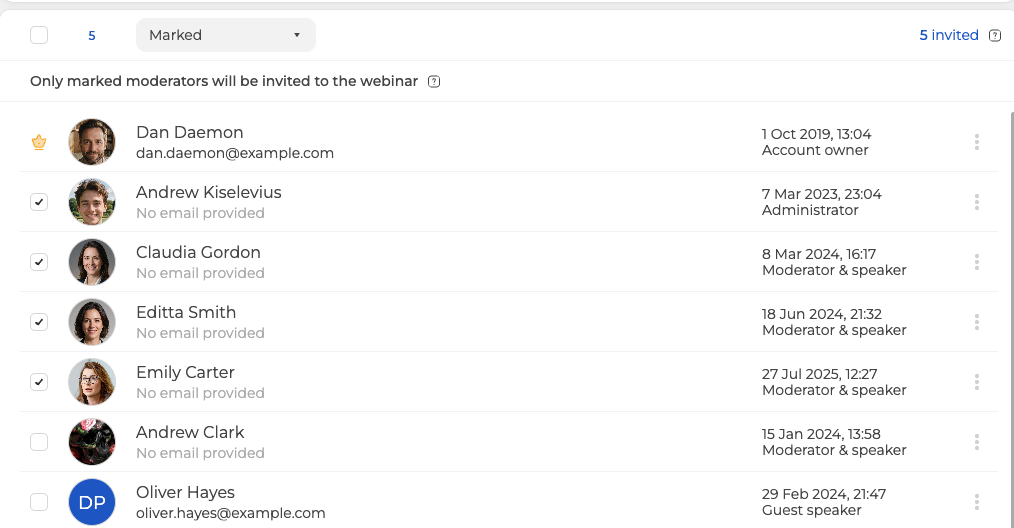
The account owner carries a gold crown instead of a checkbox, because the owner always has access and cannot be unticked. If you tick nobody else, the owner stays the only host of the event.
The notice above the list says it plainly. Only marked moderators are invited. The counter on the left is how many are marked, and the figure on the right tells you how many have been invited.
To take everyone in one go, use the checkbox in the header row of the list, beside that counter. Clicking it a second time clears the selection again. There is no button labelled "Select all", so do not go looking for one.
Adding somebody new
"Add new" opens a short form. A name is all that is strictly required, and the email is what decides whether the platform can write to that person at all.
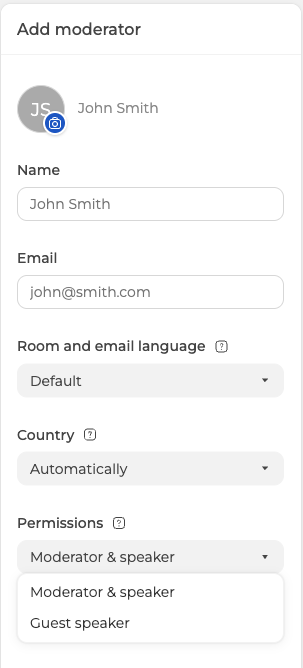
"Room and email language" sets the language of the room and of any message sent to them. "Permissions" offers two of the roles, "Moderator & speaker" and "Guest speaker". Administrator is not on that list, so it is not something you hand out from this form, although you will see it under the name of anyone who already holds it. Somebody added without an email is listed as "No email provided", which matters later.
A permanent room works the same way, through its own "Moderators" tab. The difference is timing rather than mechanics. A room invitation carries no date, so the person can walk in whenever they like instead of waiting for a scheduled slot. Permanent link to the webinar room covers the room itself.
Handing out the links
Every host gets their own link, and it is personal to them. Open the three dots on the event or the room and choose "Links".
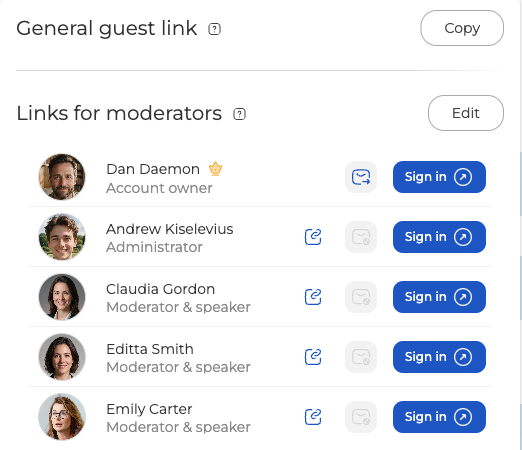
"General guest link" at the top is the one address everybody in the audience uses. Under it, "Links for moderators" gives each host a row of their own with three controls.
- The copy icon puts that person's personal link on your clipboard, ready to paste into a messenger or anywhere else.
- The envelope mails them the invitation. It is greyed out for anyone with no email on file, which is the practical reason to fill that field in.
- "Sign in" opens the room as that person. Use it to enter yourself, or to see what a given host will see before the event starts.
What hosts can do that attendees cannot
The chat rules you set for an event apply to your audience, not to your host team. If you block chatting, you and your hosts can still write. With pre-moderation switched on, attendees send messages as usual, but nobody outside the host team sees those messages until one of you publishes them, though the sender goes on seeing their own. Links work differently. The "Links in messages" switch is off by default, which means links are prohibited, so an attendee's message still arrives with the addresses taken out of it for everyone except your host team and the sender. Nothing waits for approval there, so somebody who keeps posting is rejected or banned instead. Chat moderation covers both.
If somebody on your team cannot do something their role is meant to allow, open the online chat and tell us the event, their name and the role you gave them.
Frequently asked questions
How many of my team can be on air at the same time?
That depends on your plan, because every one of the four roles takes a speaker slot in the room. The free Starter plan allows two speakers at the same time. A guest speaker takes a slot just as a moderator does, so the role you give somebody does not change that arithmetic.
Does somebody I added once stay on my next webinar automatically?
No, they stay in your account but each event is ticked separately. The "Moderators" tab lists everyone in your account with a tick against the ones attached to this event, and the notice above the list says it plainly, only marked moderators are invited. To take everyone in one go, use the checkbox in the header row of the list, beside the counter, and click it a second time to clear the selection again.
Why is the envelope greyed out for one of my moderators?
Because that person has no email on file, so there is nowhere for the invitation to go. Somebody added without an email is listed as "No email provided", which is the practical reason to fill that field in. Until it is filled in, the copy icon in the same row puts their personal link on your clipboard, ready to paste into a messenger or anywhere else.
How do I make somebody an administrator?
Not from this form. "Permissions" in the "Add new" form offers two of the roles only, "Moderator & speaker" and "Guest speaker", so administrator is not something you hand out there, although you will see it under the name of anyone who already holds it. In the room an administrator can do everything a moderator and speaker can, which covers going on air and moderating the chat, and neither role opens the dashboard.
Do moderators of a permanent room have to wait for a scheduled time?
No, a room invitation carries no date, so the person can walk in whenever they like instead of waiting for a scheduled slot. Everything else works the same way, through the room's own "Moderators" tab, and each host still gets a personal link from "Links" on the three dots of the room. Permanent link to the webinar room covers the room itself.
