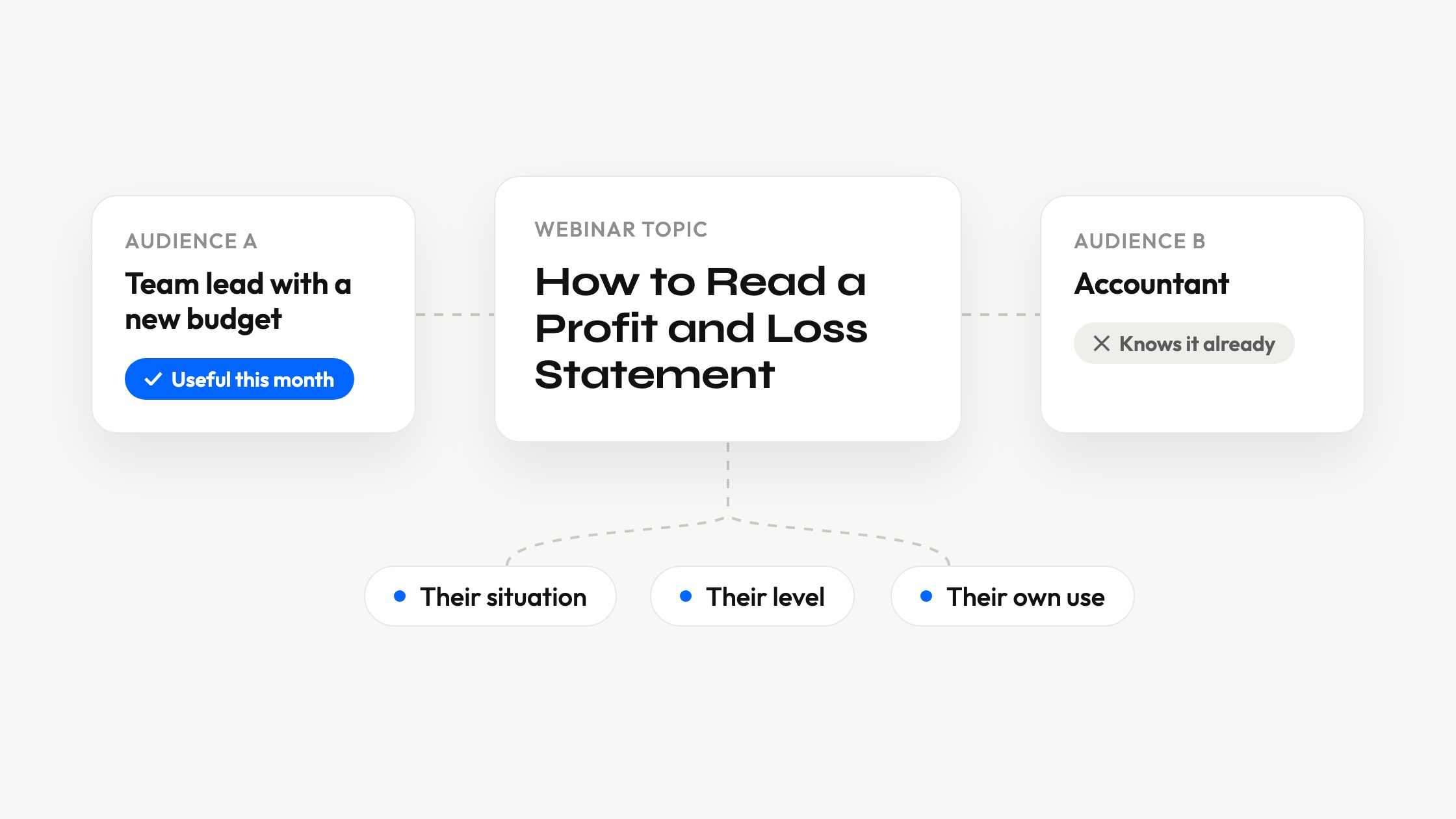
Take a webinar called "How to Read a Profit and Loss Statement". For a team lead who has just been given a budget, it may be the most useful hour of the month. For an accountant, it is an hour of things they already know. The topic is the same, but its value is not.
So usefulness is not a property of a topic. It belongs to the pair of a topic and one particular audience. Research on teaching and motivation explains much of that fit, and you can check most of it before you announce a webinar. If you are still collecting ideas, start with the step-by-step process of choosing a topic, then come back to test your shortlist.
A topic is useful to someone, never in general
Most advice on webinar audiences starts with age, job title and interests. Those details tell you who people are. They do not tell you what these people need this month.
The jobs-to-be-done theory, associated with Clayton Christensen, looks at people another way. The Christensen Institute describes a "job" as the progress a person is trying to make toward a goal in a particular situation. It sets this against the usual marketing approach, which looks at customer demographics or at product features. The theory was built to explain why people buy things. The same logic fits a webinar, because people give you an hour when they expect it to move something forward for them.
Compare two ways to describe the same audience.
- Marketing managers aged 30 to 45.
- Marketing managers who must show the finance director what last quarter's campaigns earned.
The first group is too broad to plan a session for. The second group has a deadline, a reader for the report and a question to answer. Almost every decision about the webinar follows from that situation, from the examples you choose to what attendees should be able to do afterwards.
Without such a situation, even a good webinar may change nothing. An evaluation of a public health webinar series in Canada shows the gap between planning to use something and using it. In a survey sent right after the webinars, 92.6% of those who answered said they intended to use the method or tool they had seen. A second survey six months later reached fewer people, and only 37% of them had used it in their work. According to the authors, people had not used it because no opportunity had come up in their work. Because so few people answered the second survey, the authors ask readers to treat it with caution.
The level has to match what they already know
Even in the same situation, people bring different amounts of knowledge, and that changes what helps them. Teaching techniques that work well for beginners can stop working for more experienced learners, and they can even have negative consequences. Researchers in education call this the expertise reversal effect. Slava Kalyuga and his colleagues described it in a 2003 review.
A 2025 meta-analysis by Leonard Tetzlaff and his colleagues measured how strong this effect is. It combined 60 experiments with 5,924 participants.
- Learners with little prior knowledge learned better from instruction that gave them more support (effect size d = 0.505).
- Learners with a lot of prior knowledge learned better from instruction that gave them less support (d = −0.428).
- The authors call the gap between the two groups a strong effect.
- The effect was especially clear in higher education. The evidence was less clear for younger students and for the humanities and language learning.
In a webinar, support means worked examples, definitions, slow step-by-step demos and summaries. For a beginner, they make the session possible to follow. For an expert, they repeat what is already known and take up time and attention.
The authors draw a practical conclusion. Do not teach content that learners already know. Do not teach content they cannot follow because it builds on something they have not learned yet. For a webinar, this means the level belongs in the topic itself. "Pivot tables in Excel" is a vague promise. "Your first pivot table in Excel" and "Pivot tables for monthly reports from several sources" are two different topics. Each one can be useful to its own audience.
Sometimes you cannot split the audience. The same meta-analysis helps here too. It found that the effect is not symmetrical. Support helped beginners more than removing it helped experts. This suggests a rule for a mixed room. Keep the support, but make it easy to skip. Say when it starts, for example "the next five minutes are for people who have never done this". Keep it short. Then show a summary slide, so experienced attendees know where to rejoin.
These experiments took place in schools, universities and training courses, not in webinars. But a webinar is also a form of teaching. For every explanation in it, ask whether it helps the people in front of you or repeats what they already know.
Why the host is the worst judge of that level
The person least able to see a level problem is often the host. In 1989, economists Colin Camerer, George Loewenstein and Martin Weber named this the curse of knowledge. In their experiments, better-informed people could not ignore what they knew, even when doing so was in their own interest. Market conditions reduced the effect by about 50%, but they did not remove it.
Pamela Hinds tested the same problem with a real task. In a 1999 study, experts, intermediate users and beginners predicted how long beginners would need to finish a complex task. The more expertise people had, the worse their predictions were, and methods meant to correct the bias did not help. People in the middle, with some experience but not much, may be better at predicting how beginners will do.
So when you judge whether a topic is too basic or too advanced, do not rely on your own sense of it alone. Three other sources are more reliable.
- A newer colleague, or a customer who learned the subject last year, can read your outline and mark every step that felt skipped.
- Questions from past webinars and support chats show the level at which people get stuck.
- A short test at the start of the session shows the level of the people who actually came.
People need to name the use in their own words
Even a well-chosen topic at the right level can feel useless if attendees cannot see where it fits in their own work. Psychologists who study motivation have a name for how useful something seems to a person. They call it "utility value".
Studies of online courses for professionals point the same way. A 2024 study surveyed 593 teachers in Germany after 61 online training courses chosen at random. The more relevant teachers found a course to their own work, the more engaged they said they had been. The data come from one survey at the end of each course, so the study shows a link, not cause and effect.
Experiments show what can change that judgment. Chris Hulleman and Judith Harackiewicz ran a randomized field experiment with high school students, published in Science in 2009. Some students were asked to connect what they were learning in their science class to their own lives. For students who did not expect to do well, this raised both their interest in science and their course grades.
Three later lab studies added an important detail. In Teach It, Don't Preach It, Elizabeth Canning and Judith Harackiewicz taught university students a new mental math technique.
- When students were told directly why the technique was useful, those who lacked confidence lost interest and performed worse.
- When students wrote about its usefulness themselves, the effect was positive.
- When students got the explanation and also the chance to find their own examples, the negative effect was reduced.
- Students who lacked confidence benefited more from everyday examples than from examples about school or careers.
These were students, not webinar attendees, so treat the details with care. The lesson for a host is still clear. A slide titled "Why this matters to you" may not do what you expect. It may even put off the people who feel least sure of themselves. Give one or two examples, then ask attendees to name their own. One question in the chat in the first ten minutes is enough, such as "Where would you use this next week?" The answers also tell you whether the topic fits the people in the room.
A five-question fit test before you announce the webinar
Before you write the description and the slides, answer five questions. A weak answer is a sign to change either the audience or the topic.
| Question | Weak answer | Strong answer |
|---|---|---|
| Whose situation does the webinar change? | "Marketers" | "Marketers who report campaign results to finance every quarter" |
| What do they already know, and how do you know it? | "Probably the basics" | "The questions from our last three webinars and the support chat" |
| Has someone at your audience's level checked the outline? | "Only I have" | "A colleague who learned this last year" |
| What will attendees do differently the next day? | "Understand reporting better" | "Build their first report from their own data" |
| Does the title tell the wrong people to skip it? | "Reporting tips for everyone" | "Your first campaign report for the finance team" |
Fix every weak answer before you announce the webinar. A topic with two or more weak answers may still be a good topic, but not yet for this audience.
Checking the fit in MyOwnConference
A webinar platform cannot choose a topic for you, but it can help you check the fit before, during and after the session.
Before the webinar, see who signed up
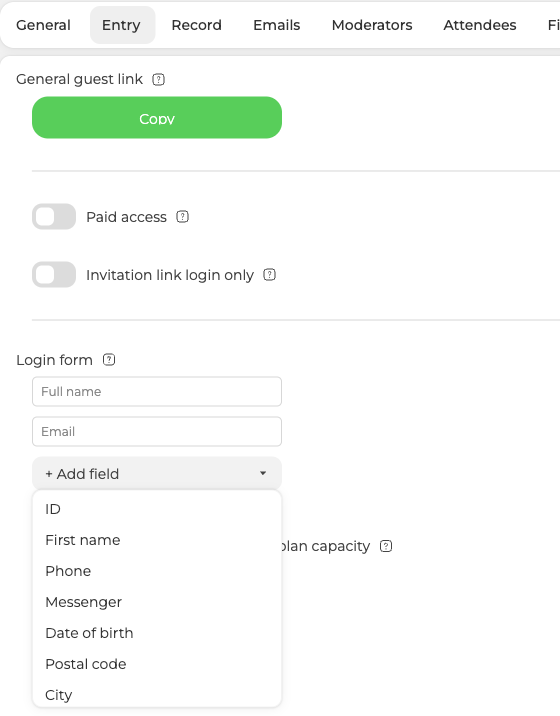
The login form on the "Entry" tab asks for a name and an email by default. "+ Add field" adds more, including "Position", "Specialty" and "Company". Every field you add is required by default, so add only the one or two that tell you about your attendees' situation. In the webinar statistics, "View" beside the attendee count opens the list of people registered for the webinar, and "Export" turns it into a file. Compare the job titles you see with the situation you planned for, while there is still time to change your examples. Webinar statistics and reports explains the rest of the report.
At the start, check the level
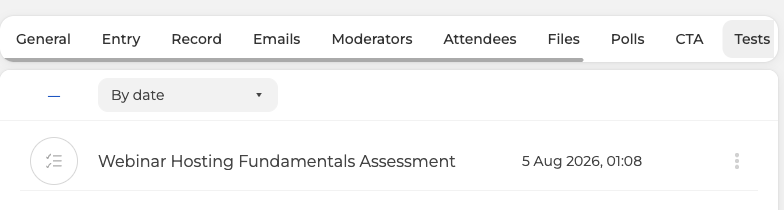
Prepare a short test of three or four questions on the "Tests" tab of the webinar settings. Set each question's answer type to "one correct answer" and switch on "Evaluate questions", and the platform scores the answers for you. The test does not start on its own, so launch it by hand in the first minutes. The results show which parts of your plan to slow down on and which to shorten. The polls and surveys page shows what else polls and tests can do. There is also a help article on building polls and tests.
During the session, let attendees name the use
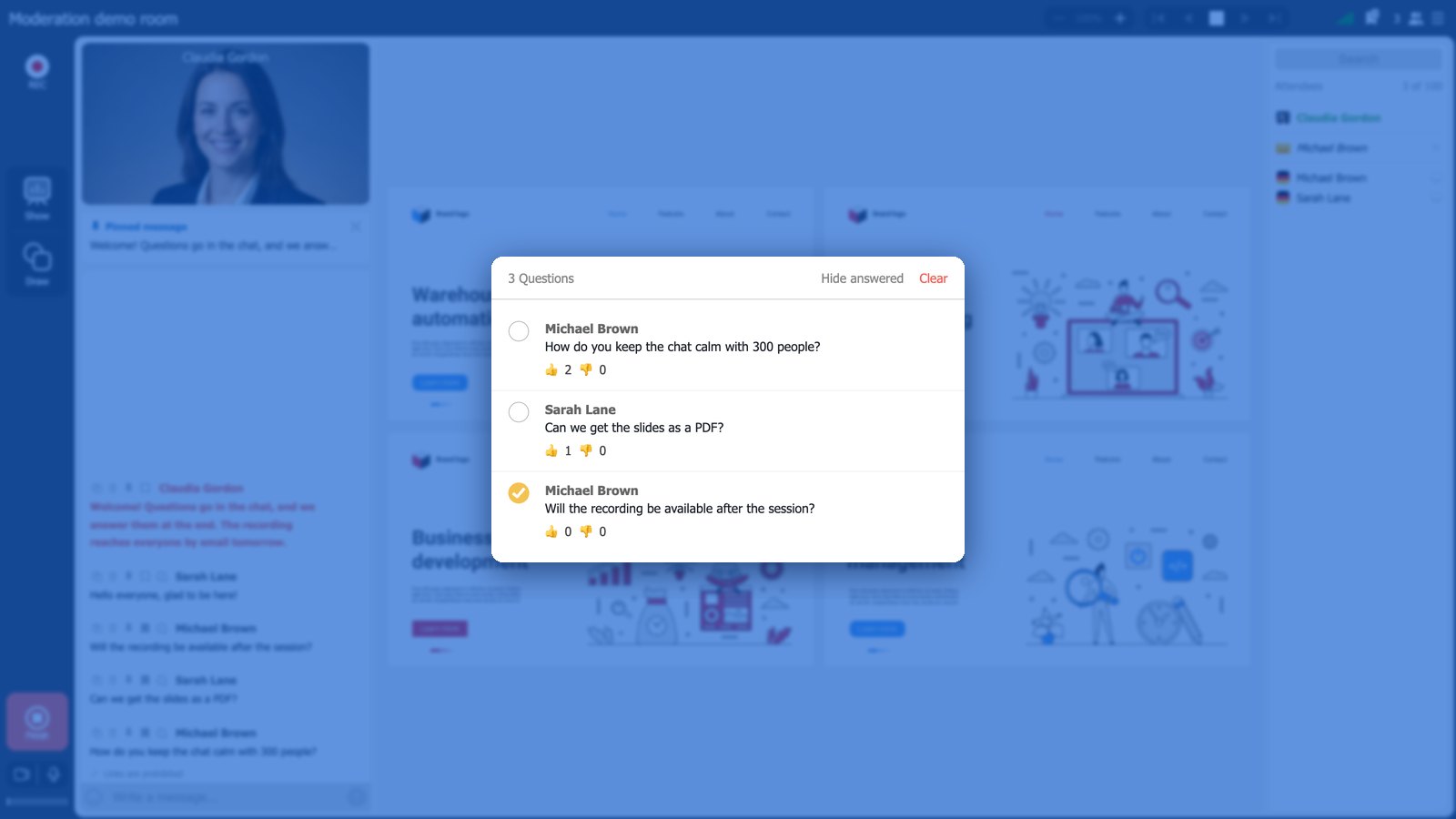
Ask in the chat where people would use what they learn next week. With "Enable Q&A section" turned on, moderators can highlight questions in the chat, and attendees vote for the ones they want answered. The questions with the most votes rise to the top of the list. A basic question with many votes is a sign that your plan assumed too much.
After the session, read what people wrote
The "Chat" tab of the report keeps every message with its sender and time. The answers to "Where would you use this?" are good material for the title and the examples of your next webinar.
Split the topic when the levels are too far apart
Open the three dots on a webinar and choose "Duplicate". In the "Clone webinar?" dialog, turn off "Webinar series with the same link" and "Attendee list included". You get a separate webinar for a different audience, for example an advanced session next to the one for beginners. The webinar series guide explains both switches.
FAQ
Can one webinar work for beginners and experts at the same time?
Sometimes it can. A 2025 meta-analysis of 60 experiments found that extra support helps beginners more than removing it helps experts. In a mixed room, keep short explanations for beginners and make them easy to skip. If the gap between the groups is large, run two webinars and put the level in each title.
How do I find out what my audience already knows?
Use three sources. Read the questions from your past webinars and support chats. Ask someone who learned the subject recently to review your outline. Then run a short test at the start of the session. Your own sense of the level is the least reliable guide. In a 1999 study, the people with the most expertise were the worst at predicting how long beginners would need for a task.
Should I tell attendees why the topic is useful to them?
Give an example or two, but do not stop there. In lab studies by Canning and Harackiewicz, students who lacked confidence lost interest and did worse when told directly why a technique was useful. Writing about its usefulness themselves helped. Ask attendees to name where they would use what they learn.
What is the difference between a popular topic and a useful one?
A popular topic is one that many people search for or talk about. A useful topic changes what one particular audience can do. A popular topic can still be useless to your audience if it is pitched at the wrong level or does not fit their situation.
How specific should a webinar title be?
Specific enough that the right people recognize themselves and the wrong people skip it. Name the situation and the level. "Your first campaign report for the finance team" tells people far more than "Reporting tips".