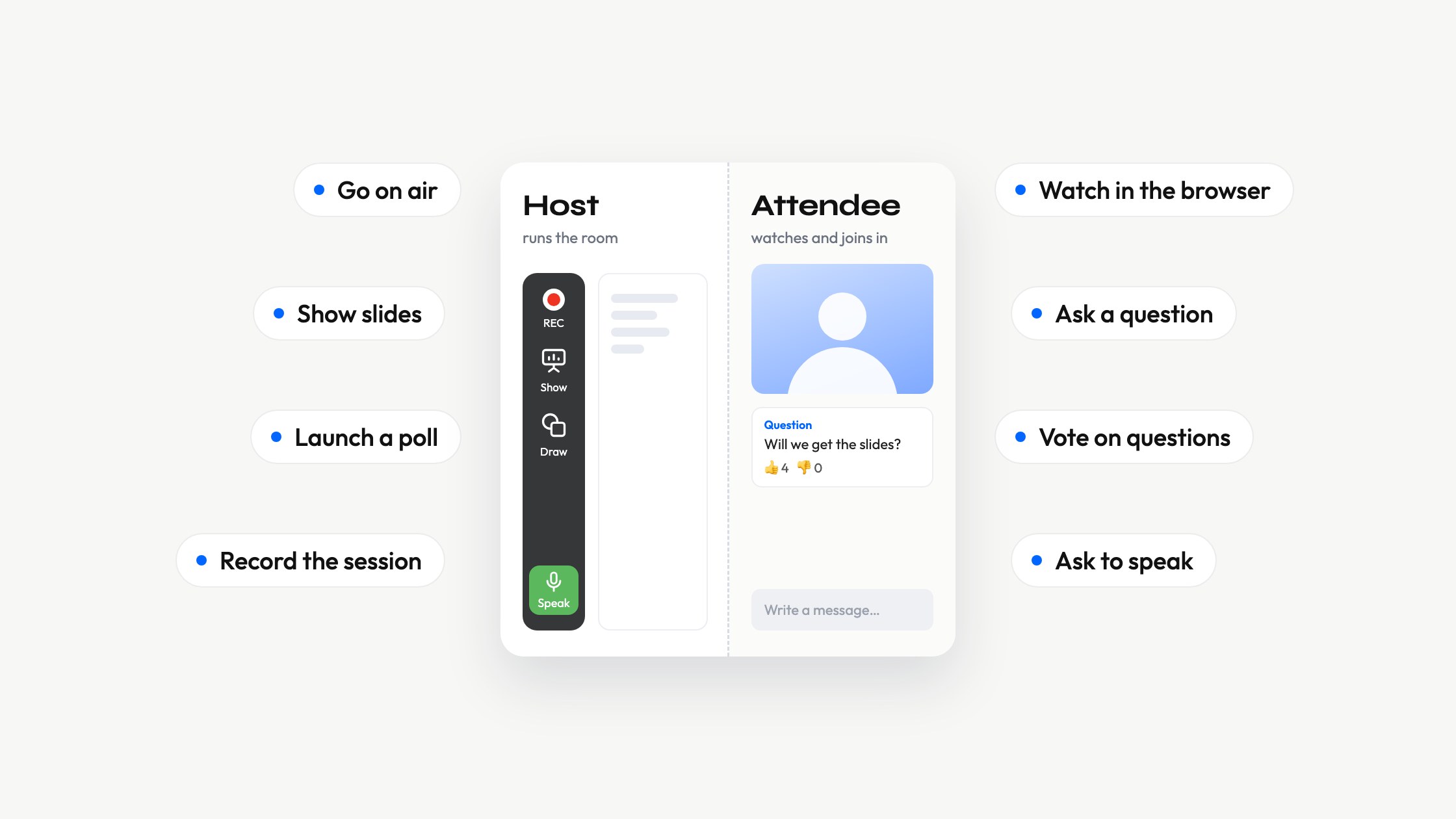
A live webinar has two sides. The host runs it from the control panel and the webinar room. The attendee opens a link and watches in a browser. Both sides are in the same room, but they see different things and can do different things.
This article follows one event in MyOwnConference, a platform for live webinars in the browser, from the invitation to the replay. At every stage it shows what the host does and what the attendee sees at that moment. Each side also has its own step-by-step guide. Hosts can read how to host a webinar step by step, and attendees can read how to join a webinar.
One room, two roles
Every scheduled event gets its own webinar room, created together with the event. What people can do in that room depends on one setting, the event mode. You choose it on the "General" tab when you plan the event.
"Webinar" mode is made for a live audience. Attendees watch, read and write in the chat. Their cameras and microphones stay off, and their screen has no control to turn them on. "Meeting" mode gives everyone a voice from the start, which suits a working session where all the people need to talk. You can change the mode later in the control panel, but if the event is already running, everyone in the room has to reconnect. So decide before you send the invitations. The rest of this article describes "Webinar" mode.
The host side has roles. The account owner sets up the event and has every control. A "Moderator & speaker" goes on air and manages the chat and the attendees. A "Guest speaker" only presents. Every host on air uses one speaker slot of your plan. The free Starter plan has two, and the largest plans have twelve.
| Topic | Host | Attendee |
|---|---|---|
| Needs an account | Only the account owner. Other hosts use a link | No |
| Installs something | Our small app, to share a screen | Nothing |
| Camera and microphone | On after pressing "Speak" | Off, unless they accept an invitation to speak |
| Writes in the chat | Yes | Yes, when the host allows it |
| Shares a screen | Yes | No |
| Starts polls, recordings and calls to action | Yes | No |
Before the event
What the host sets up
You create the event in "Calendar" with "Schedule webinar". Then you go through its settings tabs. Three choices shape what attendees will find.
- The entry form, on the "Entry" tab. By default it asks for a full name and an email address. "+ Add field" asks for more, such as a phone number or a company, and the fields you add are required by default. "Allow sign-up with social accounts" adds one-click sign-in with Google or Microsoft.
- The doors. "Allow entry before" sets how many minutes before the start attendees can get in. It stays at 30 minutes until you change it.
- The emails, on the "Emails" tab. It holds eight automatic emails, and you can attach a calendar invite to them.
The "General" tab has one more group worth a decision. Under "Feedback" you find three switches, "Enable Q&A section", "Allow request to speak" and "Enable private chat with moderators". Each one adds a feature to the attendee's room. When a switch is off, that feature does not exist for them at all.
What the attendee receives
The attendee registers on the entry page or gets a personal link from you. From then on, the emails arrive on their own.
| When it arrives | |
|---|---|
| Confirmation | Right after registration |
| 3-day reminder | Three days before the start |
| 1-day reminder | One day before the start |
| 1-hour reminder | One hour before the start, with the link to join |
| Latecomers | After the start, to people who have not joined yet |
| Post-webinar | One hour after the end |
| Rescheduled or Cancelled | Only when the date changes or the event is called off |
The help article on when webinar email notifications are sent gives the exact rules.
A personal link belongs to one person. Forwarding it does not add a seat. It moves the seat, so whoever opens the link last gets in. For a public event, share the "General guest link" instead. Anyone can use it, and each person fills in the entry form.
Joining on the day
The attendee
An attendee needs no account and installs nothing. The room runs in the browser on a computer, a phone or a tablet. Two details matter on phones and tablets. On an iPhone or an iPad, use Safari. On Android, use Google Chrome.
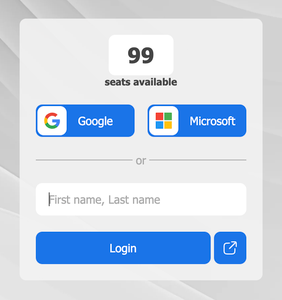
The link opens the entry page. The attendee fills in the form, or signs in with Google or Microsoft if the host allowed it. Then they accept the cookie notice, which the session needs. A counter above the form shows how many seats are still free. When it reaches zero, the room is full.
The speed an attendee needs depends on how many people are on camera. Each speaker reaches the attendee as a separate stream of about 3.2 Mbit/s. On a weaker line the room keeps going. It lowers the picture quality first and keeps the sound. Anyone who wants to be sure can run the connection check for attendees before the event.
On a company network, an attendee needs only TCP port 443, the same port a website uses. If the network still blocks the room, the webinar attendee guide lists the three domains to give to the IT department.
The host
Every host you invite gets a personal login link by email. The link opens the room, but nobody sees or hears the host yet. The room shows a host to the audience only after they press "Speak". On the way in, the room offers a check of the equipment and the connection. You can also check your equipment days before the event.
A host sends about 1.6 Mbit/s with a camera and a microphone, and about 3.2 Mbit/s while sharing a screen or playing a video. Wear a headset, ideally a wired one, because speakers next to a microphone cause echo. In the browser, the camera runs at 180p, 360p or 720p.
On the usual browser route, the host installs one thing, and only to share a screen. Screen sharing goes through a small app of ours. Slides, videos and the whiteboard work without it. If a host's connection keeps faltering, the account owner can switch the room to our alternative broadcasting route, and then every speaker runs the app. Attendees never do.
If more people arrive than your plan allows, "Increase seats" in the room menu adds 100 seats on the spot. The extra seats last until the event ends, and the free Starter plan has this option too. No room on the platform goes past 5,000 attendees. The article on extra seats during a webinar explains how the purchase works.
Inside the room
What the attendee sees
The attendee's screen has three parts. The chat runs down the left side. When nothing is shown, the presenter's camera fills the middle. When the host shows slides, a screen, the whiteboard or a video, that takes the middle, and the camera moves into the corner.
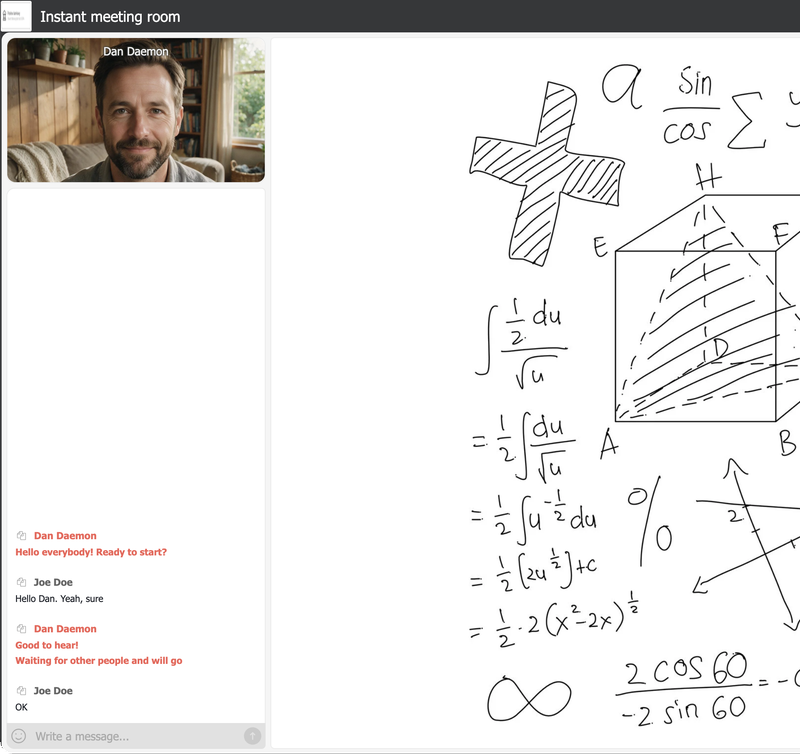
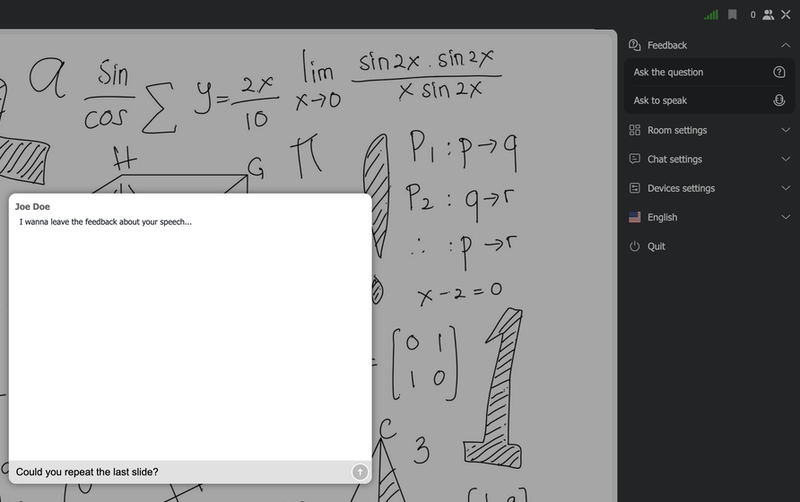
The attendee's menu sits in the top right corner. "Feedback" holds the questions and the request to speak. "Room settings" has "Full screen mode", and "Chat settings" has the text size. "Devices settings" covers the speakers, the camera and the microphone. A flag near the bottom of the menu switches the room into another language. The room interface comes in 34 languages, and each attendee picks one for themselves. On a phone, the room folds into one column, with the presenter above the chat.
What the host sees
The host is in the same room with more controls. Down the left edge are "REC" for the recording, "Show" for your materials, "Draw" for the whiteboard and the green "Speak" button. The camera and microphone switches sit under it. The header holds the connection meter, the attendee count and the room menu.
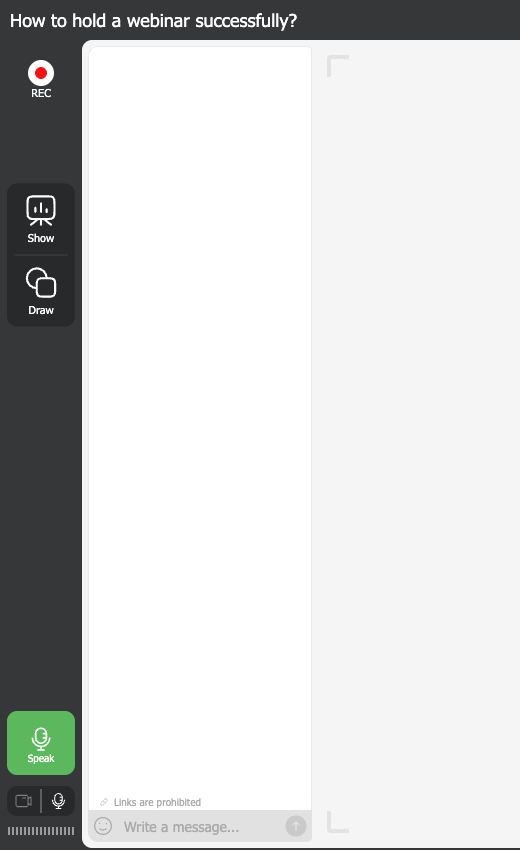
"Show" opens seven tabs. They are "Presentations", "Media", "Screen", "Recordings", "Polls", "Surveys" and "CTAs". The host's room menu adds "Pause" for a break, "Increase seats", the chat switches and "Blur background" for the camera.
The webinar room page shows the whole room. The presenter guide to the webinar room explains every control.
Taking part
This is where the two sides meet. Each way of taking part has a host control behind it.
The chat
All attendees write in one public chat. The host decides how open it is. "Pre-moderation" holds each attendee message until a moderator approves it. The sender does not notice this, because they see their own message at once. "Links in messages" is off at the start, so attendees cannot post links. "Messaging" can close the chat for attendees while the hosts keep writing. An emoji picker next to the message box is there for quick reactions.
A host can pin a message at the top of the chat. Attendees who arrive late see it too, so it is a good place for the rules and the agenda.
Attendees cannot send private messages to each other. A private conversation always runs between an attendee and the hosts.
Questions
There are two ways to ask a question.
A private question goes through "Ask the question" in the attendee's "Feedback" menu. It opens a private chat that any moderator can answer. This item exists only when the host switched on "Enable private chat with moderators".
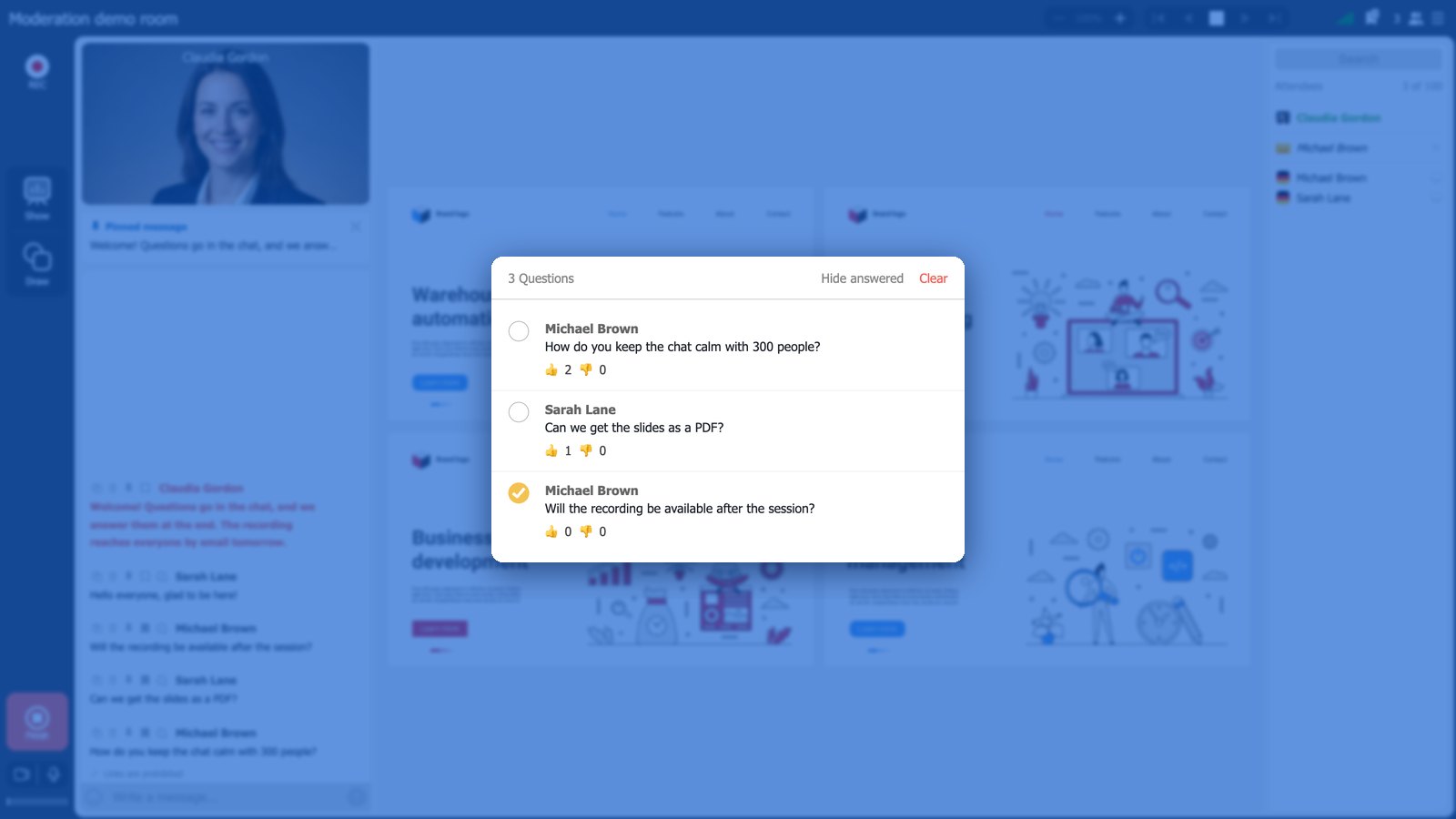
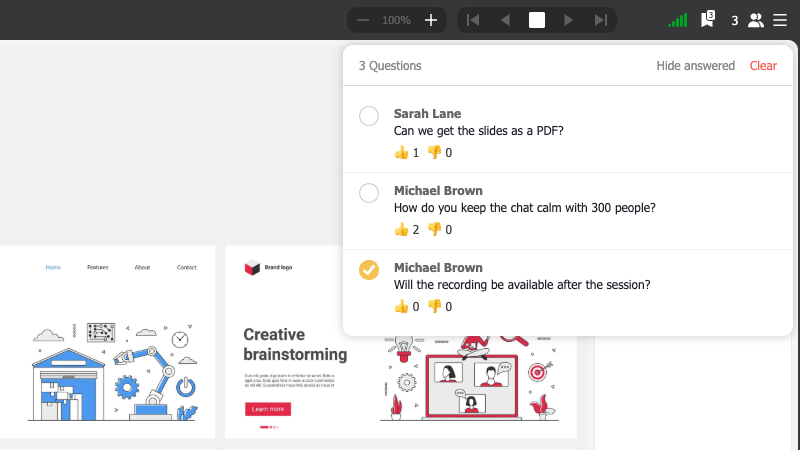
A public question goes in the chat. With "Enable Q&A section" on, a moderator adds good questions to a list called "Questions" with "Bookmark question". Attendees see that list. They give each question a thumbs up or a thumbs down. The host sees both counts and marks a question as answered when the speaker has dealt with it. Pick the next question by its counts, not by its place in the list.
Speaking on camera
An attendee comes on air only by invitation. With "Allow request to speak" on, the attendee has "Ask to speak" in the "Feedback" menu. The host sees the request and accepts it. Then the attendee confirms and allows the browser to use the camera and the microphone. The host can also offer the floor first. Either way, nothing turns on without the attendee's yes.
An attendee on air can speak and be seen, but cannot share a screen. A guest who needs to present should be added before the event with the "Guest speaker" role. The help article on inviting an attendee to speak covers both routes.
Polls, surveys and calls to action
A poll is one question with up to ten answers. A survey is a longer set of questions, with a time limit, scores and shuffled questions if the host wants them. Both open on top of the slides, so the presentation keeps running. The window stays until the attendee answers. The host sees the share of each answer and how each person voted. Our page on polls and surveys shows what you can build.
A call to action is a text with a button or a picture banner. The host places it over the whole screen, over the working area or above the chat. It stays for the whole session or for 1 to 20 minutes.
Who can see and hear whom
Most attendees have the same questions before their first webinar. Here are the plain answers, with the host control behind each one.
Can the host see or hear an attendee? No. The room never turns on an attendee's camera or microphone by itself. The browser asks for permission only after the attendee accepts an invitation to speak. People can join without a camera or a microphone at all.
Who sees an attendee's name? By default, other attendees see the name a person signed in with. The host can change that. "Anonymize attendee names" shows initials instead of names. The attendee list can show names only, names with country flags, names with Gravatars, only the number of attendees, or nothing at all. The hosts always see the full list.
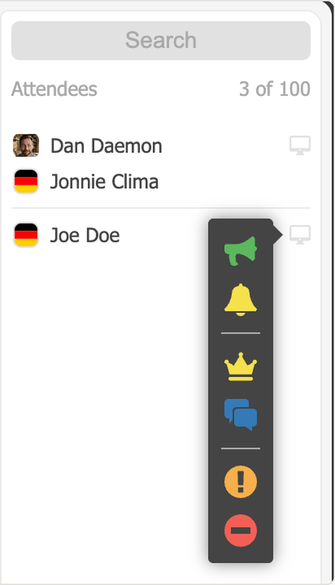
What does the host learn about an attendee? Everything the entry form asked for, such as the name and the email address. After the event, the report shows when each person joined and left, what share of the session they stayed for and which device they used. The public chat is saved with names and times.
Does an attendee know that the webinar is recorded? Not from the room. Attendees see no recording indicator, so telling them is the host's job. Hosts, say it in the invitation and again at the start.
Are an attendee's messages or name in the recording? Only if the host chooses so. By default, the recording leaves the chat out. The "Including chat" switch adds the public chat. The recording mode that captures the whole room, interface included, adds the chat as well. Messages that pre-moderation held back never get into the file. "Including a list of attendees" adds the list with names and pictures. It works only when the recording includes the interface and the list is visible in the room.
Can a disruptive attendee be removed? Yes. "Reject attendee" blocks a person for a while or until the event ends. "Ban attendee" keeps them out for good.
How live is live
Hosts hear each other almost at once. The delay between presenters is usually 100 to 600 milliseconds, so they can talk as if they were in one room.
Attendees are a little further behind, on purpose. Their stream carries a small buffer that smooths over a weak or changing connection. On a poor line the delay can grow to a few seconds, and it shrinks again when the connection recovers. So when you ask the audience something, give them a few seconds before you read the answers.
One route is slower by design. Streaming from OBS Studio gives a 1080p picture, but the audience is about 10 seconds behind, and up to 20. The help article on broadcast latency explains where each delay comes from.
After the event
For the attendee, the event ends in one of two ways. The room shows that the webinar has finished, or it sends them to a thank-you page the host chose. That page can hold a survey, an offer or a simple thank you.
An hour after the end, the "Post-webinar" email arrives. The host sends it to everyone who registered, only to those who came or only to those who missed the event. It can carry a link to the recording. The recording link needs a paid plan of a month or longer, and the host can set it to expire. The replay opens in the same room, so the same entry form and the same password apply.
For the host, the recording converts on its own. One file runs up to 10 hours. The quality follows your plan. Plans below 500 attendees record up to 1080p, and plans from 500 attendees up to 2160p. "Statistics" in the event's three-dot menu opens "Webinar insights". Its four tabs show the registrations and countries, the attendance of each person, the full chat and the clicks on your calls to action. You can export the attendance and the chat to CSV or Excel. Our pages on webinar analytics and webinar recording cover both in more depth.
What the free plan covers
You can try all of this before you pay. The free Starter plan runs real webinars for 5 attendees with 2 speakers on air. Branding, polls, surveys, calls to action, the Q&A list and the reports are all included.
The limits are elsewhere. Starter is meant for non-commercial events, and it places our watermark on the live picture and on the recording. A recording stops at 20 minutes, and there is no recording link to send. Streaming from OBS Studio needs a paid plan of a month or longer, and the public API needs a paid plan too. The pricing page lists every plan.
A checklist for both sides
| When | Host | Attendee |
|---|---|---|
| Before the event | Choose "Webinar" mode, set the entry form and the three "Feedback" switches, upload the slides the day before, check the equipment | Find the invitation, use Safari on an iPhone and Chrome on Android, run the connection check |
| At the start | Say that the session is recorded, pin the rules in the chat | Open the link 10 to 20 minutes early, accept the cookie notice |
| During the event | Read the chat, bookmark questions, invite people on air, launch polls | Write in the chat, ask privately, vote on questions, ask to speak |
| After the event | Send the recording link, read the report, export the chat | Watch the replay from the follow-up email |
The moderator's part of this work has its own article, webinar moderation techniques. For events that play a recording at a set time instead of going live, read how automated webinars work in MyOwnConference.
FAQ
What does the host see about attendees in MyOwnConference?
The answers from the entry form, such as the name and the email address, and the public chat. After the event, the report shows when each person joined and left, what share of the session they stayed for and which device they used. Attendee cameras and microphones stay off unless a person accepts an invitation to speak.
Do attendees need an account or an app to join?
No. Attendees open the link from the organiser and join in the browser. On an iPhone or an iPad, use Safari, and on Android, use Google Chrome. Attendees never install anything. Hosts need our small app to share a screen.
Does the recording show attendees or their chat messages?
Not by default. The host can add the public chat with "Including chat" and the attendee list with names and pictures with "Including a list of attendees". Attendees see no recording indicator in the room, so the host should tell them about the recording.
How many people can join a live webinar?
The free Starter plan holds 5 attendees and 2 speakers on air. Paid plans go up to 5,000 attendees and 12 speakers on air. During an event, "Increase seats" adds 100 seats at a time until the webinar ends.
How far behind the presenter is the audience?
Presenters hear each other within 100 to 600 milliseconds, and the audience gets a small buffer on top of that. On a weak connection the delay can reach a few seconds and then shrinks again. Streaming through OBS Studio puts the audience about 10 to 20 seconds behind by design.