
Webinar series
A webinar series is a run of events tied together by a theme, a goal or an audience. It can keep a steady rhythm, weekly for example, or run as a campaign with a start and a finish.
What makes it a series rather than a pile of separate events is the link. You hand out one address, and it takes each person to whichever session is next, so nobody has to be invited again before every date. Permanent link to the webinar room compares that with the other ways of keeping one address across several events.
There are two routes to building one, and the rest of this page is those two.
From the calendar, by picking several dates
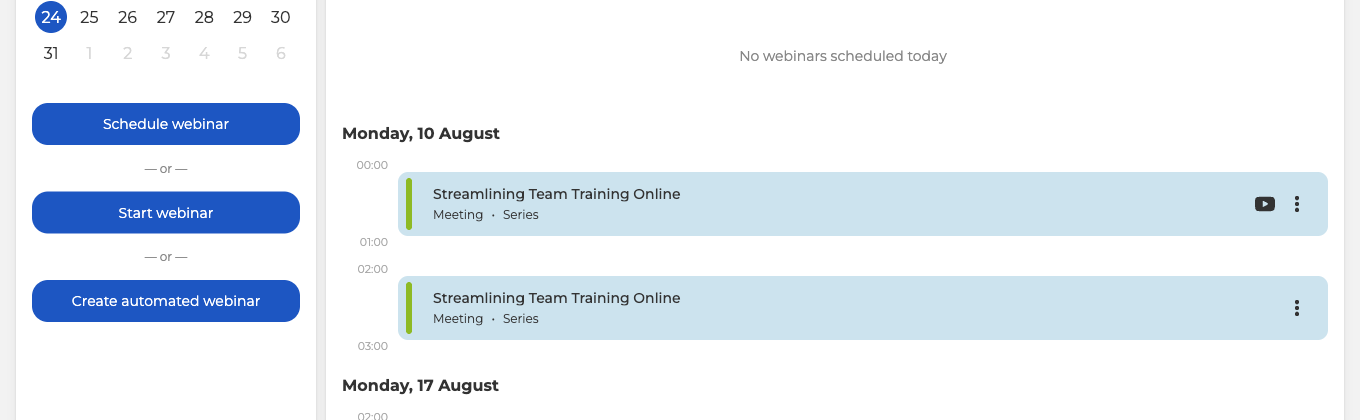
Open "Calendar" and click "Schedule webinar", the first of the three buttons in the left column.
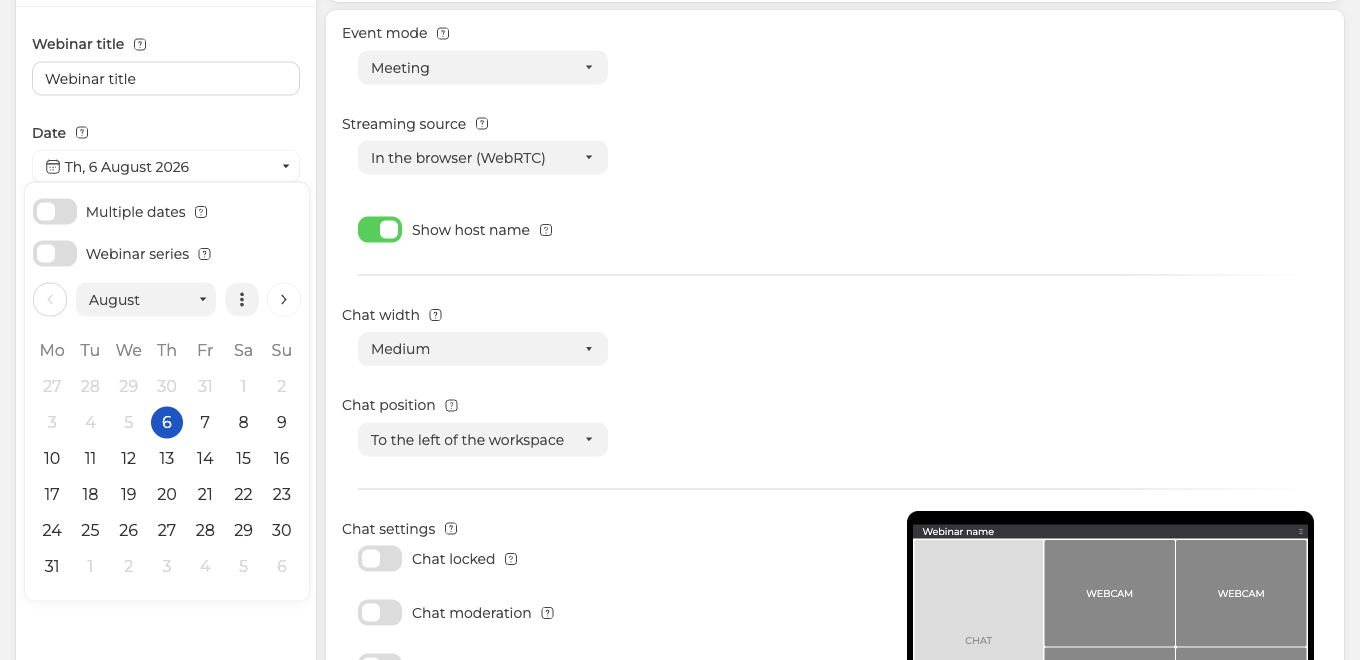
Fill in the title, then open the "Date" field. Two switches sit above the month grid.
Turn on "Multiple dates". "Webinar series" comes on by itself at the same moment, and that second one is what ties the dates together on a single link rather than leaving you with unrelated events. Now click every day the series runs on.
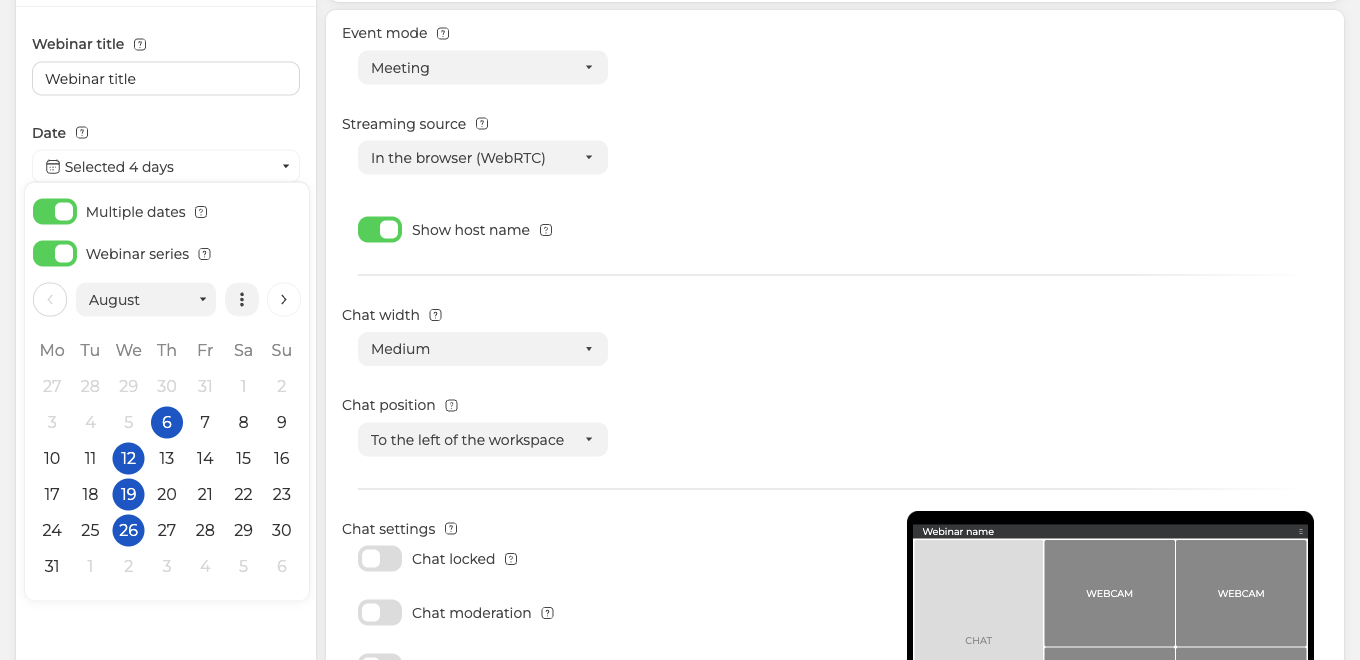
The field stops showing one date and starts reporting the count instead, so "Selected 4 days" is your confirmation that all four were registered. Set the rest of the webinar up as usual and click "Done". Every date then appears in the calendar as its own event, each marked "Series".
From an existing webinar, by cloning it
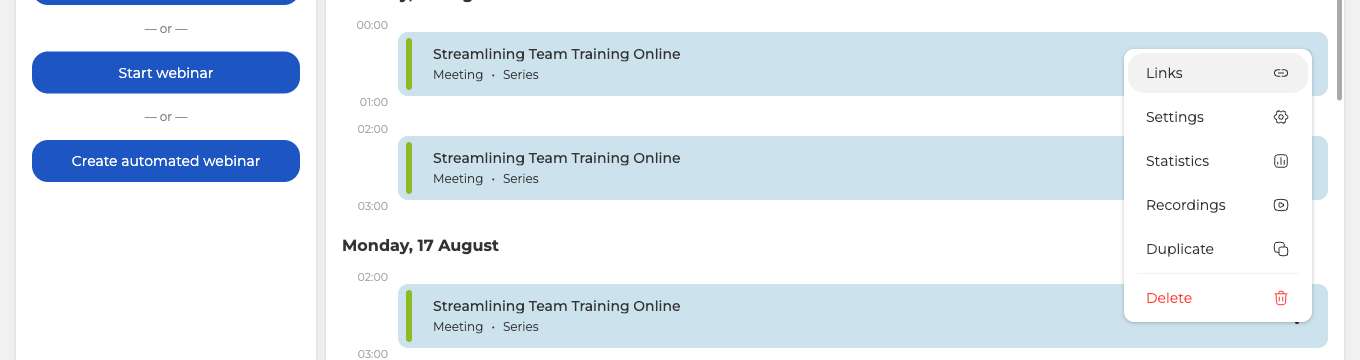
If one event is already configured the way you want, copy it rather than building the next from scratch. Open the three dots on that webinar and choose "Duplicate".
A dialog headed "Clone webinar?" opens with two switches, both on.
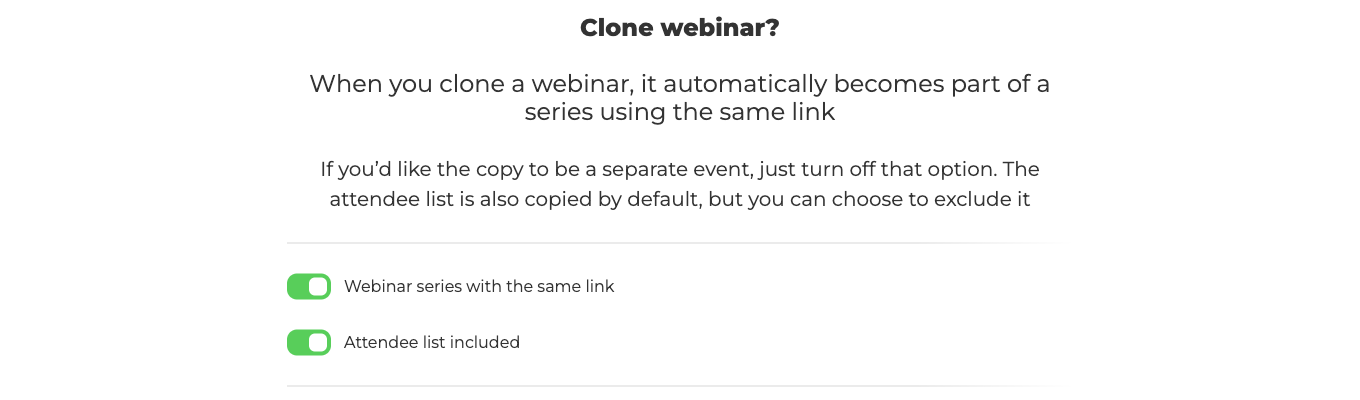
- "Webinar series with the same link" is the one that matters here. Left on, the copy joins the original as a series on the shared address. Turn it off and you get an ordinary standalone event instead, which is worth knowing because the switch is easy to flip past.
- "Attendee list included" carries the invited people across. Turn it off when the next event is for a different audience.
"Duplicate" confirms and "Cancel" backs out without copying anything.
Where to collect the link
A series lives in the calendar rather than in "Rooms", so its address comes from the "Links" item in the webinar's own menu, the same menu the "Duplicate" step uses. The general guest link at the top of that panel is the one your audience gets. Starting a scheduled webinar covers the rest of that panel and how a session goes live.
Each event of a series keeps its own statistics and its own recordings, exactly as a standalone webinar does, so you can compare the sessions afterwards and see which topics landed.
Planning a webinar walks through the settings tabs that each event of the series carries.
If one date in a series does not behave like the others, open the online chat and tell us the series name and which date is out of step.
Frequently asked questions
Do I have to invite everyone again before each date?
No. You hand out one address, and it takes each person to whichever session is next, so nobody has to be invited again before every date. When you build the series by cloning, "Attendee list included" carries the invited people across, and you turn it off when the next event is for a different audience. Permanent link to the webinar room compares that with the other ways of keeping one address across several events.
How do I know every date I clicked was registered?
The "Date" field stops showing one date and starts reporting the count instead, so "Selected 4 days" is your confirmation that all four were registered. After you set the rest of the webinar up and click "Done", every date appears in the calendar as its own event, each marked "Series".
I duplicated a webinar and got a standalone event instead of a series. What went wrong?
The "Webinar series with the same link" switch was turned off, and off it gives you an ordinary standalone event rather than a copy that joins the original on the shared address. Both switches in the "Clone webinar?" dialog are on when it opens, so the switch is easy to flip past. Open the three dots on the original again, choose "Duplicate", and leave that switch alone.
Does each session of a series keep its own recording and statistics?
Yes. Each event of a series keeps its own statistics and its own recordings, exactly as a standalone webinar does, so you can compare the sessions afterwards and see which topics landed. The three dots menu on each event carries "Statistics" and "Recordings" beside "Duplicate".
Why is my series not listed in "Rooms"?
A series lives in the calendar rather than in "Rooms", so its address comes from the "Links" item in the webinar's own menu, the same menu the "Duplicate" step uses. The general guest link at the top of that panel is the one your audience gets. Starting a scheduled webinar covers the rest of that panel and how a session goes live.
