A moderator makes sure a live webinar runs smoothly while the speaker talks. The moderator looks after the chat and the questions. They also deal with attendees who want to speak and with anyone who keeps posting links. When this work is done well, the audience remembers the talk and not the problems.
This article lists the techniques in the order you need them. Each one comes with the control for it in the MyOwnConference webinar room. If you are not sure yet that you need a moderator, start with what a webinar moderator does.
Split the work before the event
The first technique is simple. Do not give one person two jobs. A speaker who reads the chat while presenting loses track of what they are saying. A chat that nobody reads fills up with repeated questions. Even a small event works better with one person who presents and one person who runs the room.
Give the person who runs the room the role "Moderator & speaker". With this role, a person can go on air and manage the chat and the attendees. Give the role "Guest speaker" to someone who only presents. Everyone with one of these roles is a host. Every host uses one of your plan's speaker slots, so your plan decides how many hosts can be on air at the same time. On the free Starter plan, that number is two. Moderator and presenter management explains how to add people and send them their personal links.
Then agree who does what, and write it down.
| Task | Who does it |
|---|---|
| Starting and stopping the recording | Moderator |
| Reading the chat and collecting questions | Moderator |
| Launching polls and calls to action | Moderator, when the speaker gives the signal |
| Bringing attendees on air | Moderator |
| Answering questions out loud | Speaker |
| Keeping time | Whoever is not talking |
Do two checks in the days before the event. First, open the event's three-dot menu in the control panel and choose "Links". Click "Sign in" next to a host's name to see the room exactly as that person will see it. Second, ask every host to check their equipment on their own computer. This way, you find a weak microphone or a slow connection while there is still time to fix it.
Prepare the room the day before
Many moderation problems are easier to prevent in the settings than to fix during the event.
Start with the chat switches. The room remembers how they were last set, including changes made during the previous event. If you closed the chat for a difficult audience last time, it is still closed. You set the starting values in the webinar or room settings, on the "General" tab, in the "Chat settings" group.
Next, decide how attendees can reach you. The same tab has a "Feedback" group with three switches, "Enable Q&A section", "Allow request to speak" and "Enable private chat with moderators". Each switch adds an item to the room. When a switch is off, its item is not there at all. So make this choice before the event, not during it.
Prepare the interactive parts in advance. Polls, tests and calls to action (CTAs) are kept in "Storage" in the control panel. Attach the ones you need to the event. A poll or a test never starts by itself during a live webinar. The moderator decides when to launch it. The help articles on building polls and tests and on CTA buttons explain how to set them up. Upload the presentation the day before as well. Every file is processed before it can be shown, and a large file takes time.
Open the room with the ground rules
The first two minutes set the tone for the chat. Tell people how the session works before anyone has to ask.
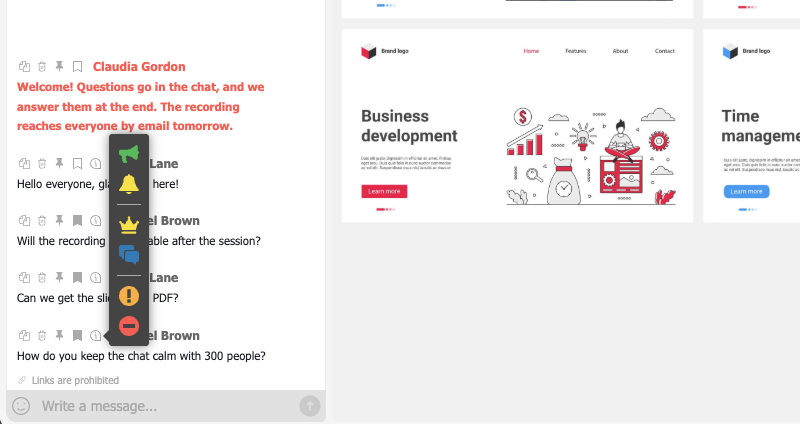
Pin a welcome message. Write the rules in the chat. Then hover over the message and choose "Pin the message" from the icons above it. The message stays at the top of the chat under the heading "Pinned message", so people who join late see it too. A moderator can unpin it with the cross in its corner. Three short lines are enough. Write where questions go, when the speaker answers them and whether attendees will get the recording.
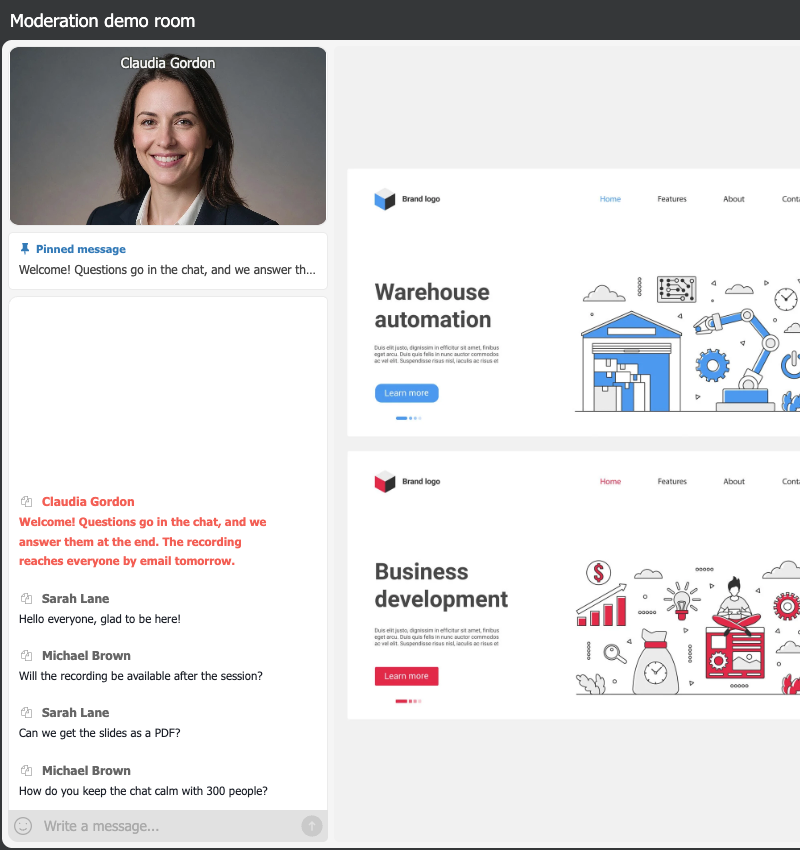
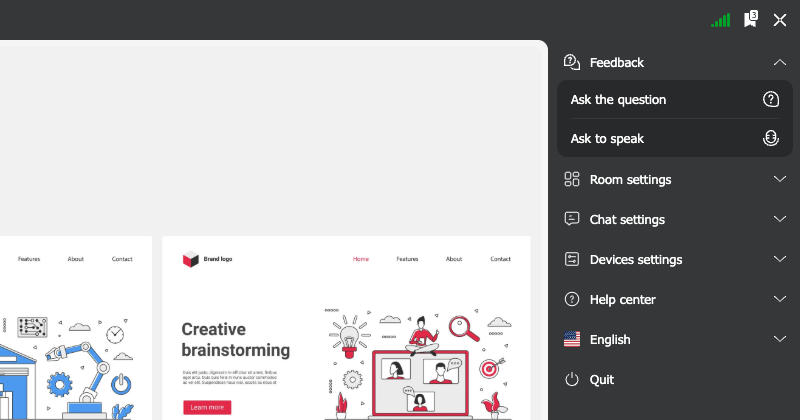
Say the rules out loud as well, because not everyone reads the chat in the first minutes. Public questions go in the chat. A private question for the team goes through "Ask the question". "Ask to speak" lets attendees ask to come on air. These two items appear only if their switches are on.
Start the recording at the agreed moment with "REC" at the top of the left panel. A recording stops by itself after 10 hours. On the free Starter plan it stops after 20 minutes, so keep this in mind for a long session. Webinar recording covers the rest.
Also check the line above the field where you type messages. It shows every limit that is on, such as "Text chat is closed", "Links are prohibited" or "Chat pre-moderation is active". Attendees do not see this line. It is the fastest way to see what a co-moderator changed while you were busy.
Choose how open the chat should be
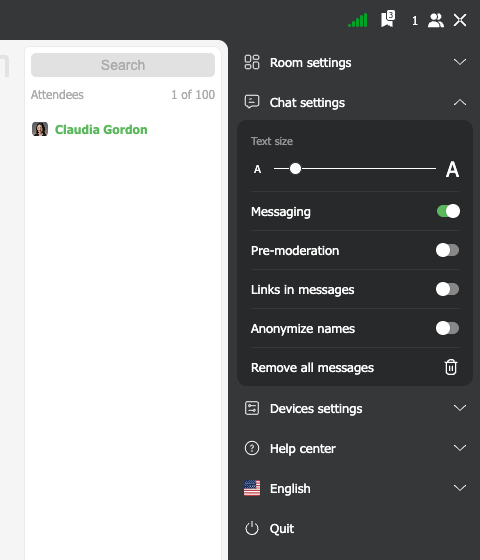
Match the chat to the audience. If the mood in the room changes, change the settings during the event. All the controls below are in the room menu under "Chat settings". Our guide to chat moderation shows what attendees see with each control.
| Your audience | Chat setting that fits |
|---|---|
| A small group where people know each other | Open chat, links allowed if people need to share them |
| A large or public audience you cannot predict | "Pre-moderation" on |
| A keynote where the chat would only distract | "Messaging" off, so only hosts can write and attendees read |
| People who should stay anonymous to each other | "Anonymize names" on |
"Pre-moderation" holds every attendee message until a moderator approves it. To publish a message, click the ring next to it. Its tooltip says "Post message". The sender sees their own message as if it were already published. Nothing tells them that it is waiting. So if moderators approve messages slowly, the same question arrives two or three times. Someone has to keep up with the queue, which is a good reason to have a second moderator.
"Links in messages" is off by default, and off means that links are not allowed. A message with a link still arrives, but other attendees see it without the web address. The sender and your hosts still see the full text. This makes link spam useless. A spammer often keeps posting without noticing that the other attendees do not see the links.
When you turn "Messaging" off, every attendee's chat box turns grey and shows the words "Chat blocked". You and the other hosts can still write. A few minutes with the chat closed can calm a flood of messages.
"Anonymize names" shows attendees to each other by their initials only. In a small group, people may still recognise each other by their initials. So see it as a courtesy, not as a guarantee of privacy.
Run the questions so none get lost
A speaker cannot answer one question and read the next one at the same time. So the moderator collects the questions, sorts them and gives the speaker the next good one at the right moment.
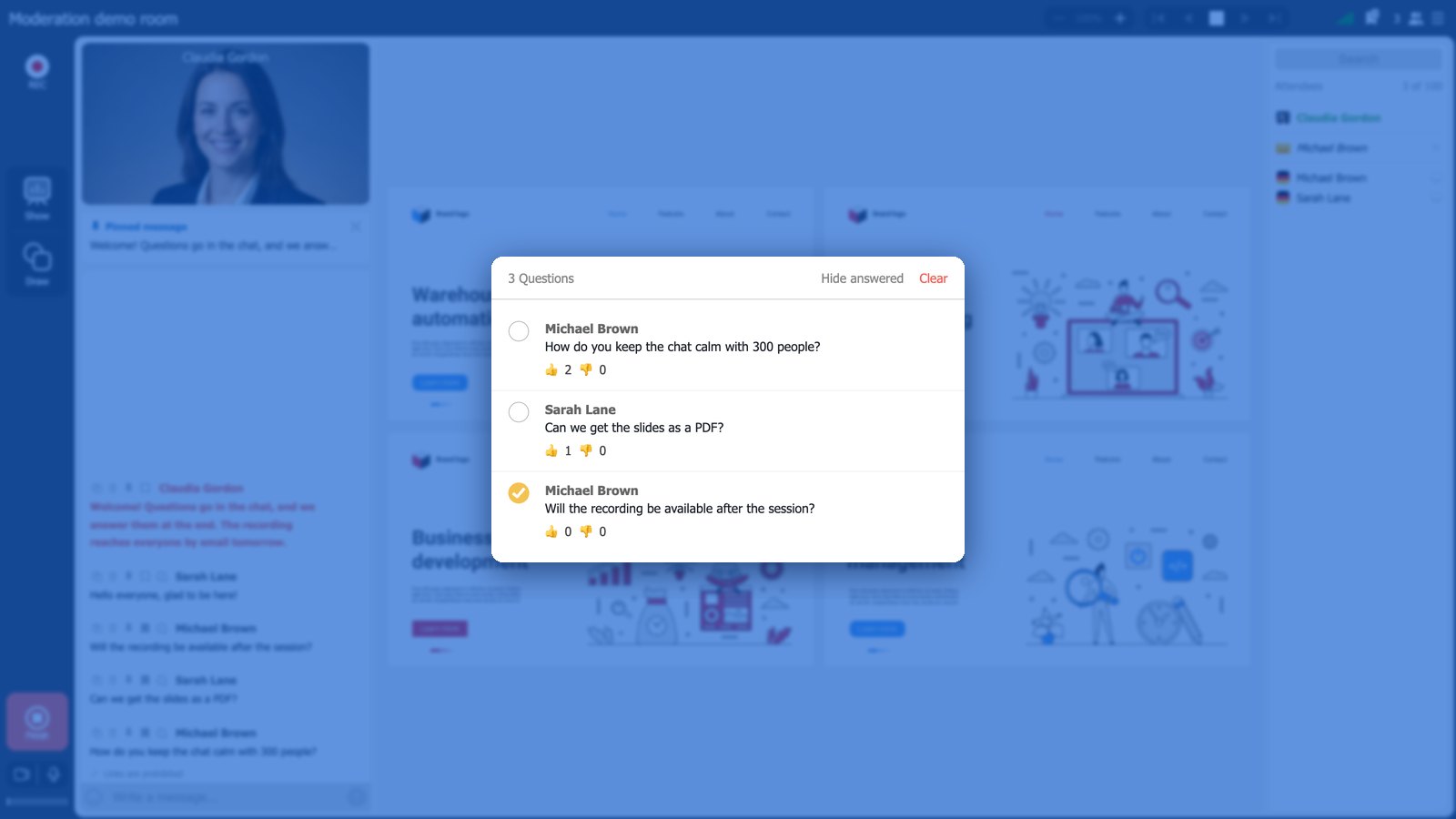
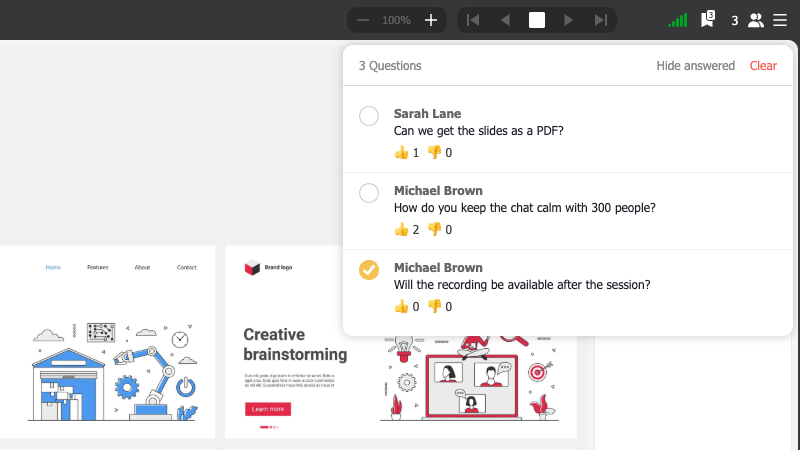
Keep a list of the questions worth answering. This needs "Enable Q&A section" to be on. Hover over a question in the chat and choose "Bookmark question". The question goes into a list called "Questions", which opens from an icon with a counter in the top bar of the room. Attendees see the list too. They can give each question a thumbs up or a thumbs down. You see both numbers for every question. When the speaker has answered a question, mark it as answered and it leaves the list. "Show answered" shows the answered questions again, but only to you. "Clear" empties the list after you confirm, which is useful when a new section starts. When you choose the next question, look at the counts and not at its place in the list.
Group questions instead of interrupting the speaker. Collect them during a section and combine the ones about the same topic. Then give them to the speaker at a natural break. Read each question aloud before the answer. The recording does not include the chat, and someone who watches it later needs to hear the question.
Give private questions their own channel. Questions about an account, a price or one person's technical problem should not go to a room full of strangers. When "Enable private chat with moderators" is on, attendees find "Ask the question" under "Feedback" in their room menu. It opens a private chat that any moderator can answer. You can also start a private chat yourself with "Send message" next to an attendee's name.
Some questions cannot be answered during the event. Promise a reply afterwards and keep that promise. The section on closing the session shows where to find these questions.
Bring attendees on air without awkward silences
Four simple habits prevent the usual problems when you bring an attendee on air. Inviting an attendee to speak shows every screen involved.
Announce the invitation before you send it. Click the person's name in the attendee list and choose "Invite to conversation". The room asks you to confirm first. Then the attendee sees a box that asks whether they are ready to join the hosts. People often refuse an invitation that comes without warning. So first write something like "Anna, we are inviting you on air now" in the chat.
Watch the attendee list, because requests to speak make no sound. With "Allow request to speak" on, attendees can ask to speak themselves. No window appears and no sound plays when they do. The request appears as an italic entry in the attendee list and as a number in brackets next to the attendee count. If you say no, tell the person in the chat. Nothing on their screen tells them.
Tell the attendee how to go off air. Muting the microphone does not take an attendee off air. To go off air, the attendee clicks the cross on their own camera window. The cross appears only while the mouse pointer is over the window.
Do not bring a scheduled speaker on air from the audience. An invited attendee always appears on camera, through the browser, and has none of a host's controls. Add the speaker as a "Guest speaker" with their own personal link instead.
Deal with disruption in steps
Match your response to the problem and go one step at a time. This way, you keep the trust of the rest of the audience.
| What is happening | First response | If it continues |
|---|---|---|
| A message is off topic or posted again and again | Delete it, or answer it briefly | "Send message" to talk to the person privately |
| Someone posts links to other sites | Do nothing, because other attendees see no links by default | "Reject attendee" |
| Someone insults or harasses others | "Reject attendee" with "Block until event ends" | "Ban attendee" |
| Many people flood the chat | "Pre-moderation" on, or "Messaging" off for a few minutes | "Remove all messages" |
Start with "Reject attendee" and keep "Ban attendee" for serious cases. "Reject attendee" is temporary and asks you for a reason. "Ban attendee" is permanent. You cannot undo it inside the room, and the control panel has no list of banned attendees. The only way to undo a ban is the attendeesUnbanned command in our public API.
Use "Remove all messages" with care. It clears the live chat for everyone at once, and there is no confirmation step. The saved transcript of the chat stays untouched.
Try inviting the person on air before you use the ban button. An attendee who keeps writing sometimes just wants to be heard. A short turn on air often stops the stream of messages.
Keep the pace of the session
The moderator also watches the time and how engaged the audience is.
Launch a poll after a topic ends, not in the middle of it. The poll opens on top of whatever is on screen, so the presentation stays on screen. The results show the share of votes for each answer and how each person voted. Our page on polls and surveys shows what you can build.
Pause briefly after you ask another host a question. Between hosts there is a short delay, usually 100 to 600 milliseconds. The room matches it to the slowest connection. So wait a moment before you decide that nobody is answering. Delay between presenters explains why this happens.
For breaks, use "Pause" in "Room settings". It pauses the event without ending it. Before the break, the room asks how long you will be away and whether to lock the room for attendees only or for everyone. It also asks for a comment that the audience sees while they wait.
Add seats when more people come than you planned. "Increase seats" in the same menu adds 100 seats per purchase, and these seats last until the webinar ends. A room can never have more than 5,000 attendees. Extra seats during a webinar has the details.
Avoid full-screen mode when you need the chat. In this mode attendees see only the presentation, without the chat. You cannot switch the chat back on while the mode is active.
Choose the right moment for the call to action as well. Show it when the talk has prepared the audience for it, not in the first minute. A CTA can stay on screen with no time limit or for one to twenty minutes. Our webinar CTA article covers what to put on it.
Close the session and follow up
Before you finish, go through the unanswered questions once more and answer the ones that need only a short reply. Then stop the recording and tell people where they will get it.
After the event, open the event's three-dot menu in the control panel and choose "Statistics". The "Webinar insights" panel opens. Its "Chat" tab holds the whole conversation, even if you cleared the chat, and has an "Export" button. Its "CTA" tab shows the clicks on your calls to action. Use the transcript to find the questions you promised to answer by email. Webinar statistics and reports describes the other tabs of this window.
Finally, switch off any chat restriction you turned on, because the room keeps the setting. Otherwise the next event starts with a closed chat, and nobody will remember why.
A moderator's checklist
| When | What to do |
|---|---|
| Before the event | Assign roles, check the chat switches and the three Feedback switches, attach polls and CTAs, upload the presentation, test the equipment |
| At the start | Pin the welcome message, say the rules out loud, start the recording |
| During the event | Match the chat to the audience, bookmark and group questions, announce attendees before they go on air, handle disruption step by step |
| At the end | Answer the waiting questions, stop the recording, say where to find it |
| After the event | Export the chat transcript, follow up on unanswered questions, switch off the chat restrictions you turned on |
If attendees have sound or video problems, our guide on what to do when attendees complain about sound or video gives the moderator ready answers. Send attendees to the attendee guide.
FAQ
How many moderators does a webinar need?
At least one besides the speaker, so that nobody has to present and read the chat at the same time. Add a second moderator for a large audience or when pre-moderation is on, because then every attendee message waits for a moderator. Every host uses one of the plan's speaker slots, and the free Starter plan allows two hosts on air at the same time.
What is the difference between Reject attendee and Ban attendee?
"Reject attendee" is temporary. It asks for a reason and offers "Block until event ends". "Ban attendee" is permanent and cannot be undone inside the room. The only way to undo a ban is the attendeesUnbanned command in the public API. When you are not sure, choose "Reject attendee".
Do attendees know that their message is waiting for approval?
No. With pre-moderation on, the sender sees their own message as if it were already published. That is why slow approval leads to repeated questions. Someone has to publish the waiting messages with the "Post message" ring throughout the event.
How can attendees ask a question privately?
Switch on "Enable private chat with moderators" in the "Feedback" group of the webinar settings. Attendees then find "Ask the question" under "Feedback" in their room menu. It opens a private chat that any moderator can answer.
Do chat settings reset after the webinar?
No. The room remembers the switches in "Chat settings" in the room menu. They stay the same at the next event in that room. Check them before every event and switch off any restriction you turned on for a difficult audience.