
Polls and tests
Polls and tests are the two ways to get your audience to respond during a webinar. A poll gathers opinions and keeps people involved. A test checks whether the material landed, which matters when your webinar is educational or leads to certification.
Where to find them
Everything you build is kept in "Storage" in the control panel, which has a tab for each kind of material. The row reads "Files", "Recordings", "Polls", "CTA", "Tests" and "Trash", so polls and tests each have a tab of their own.
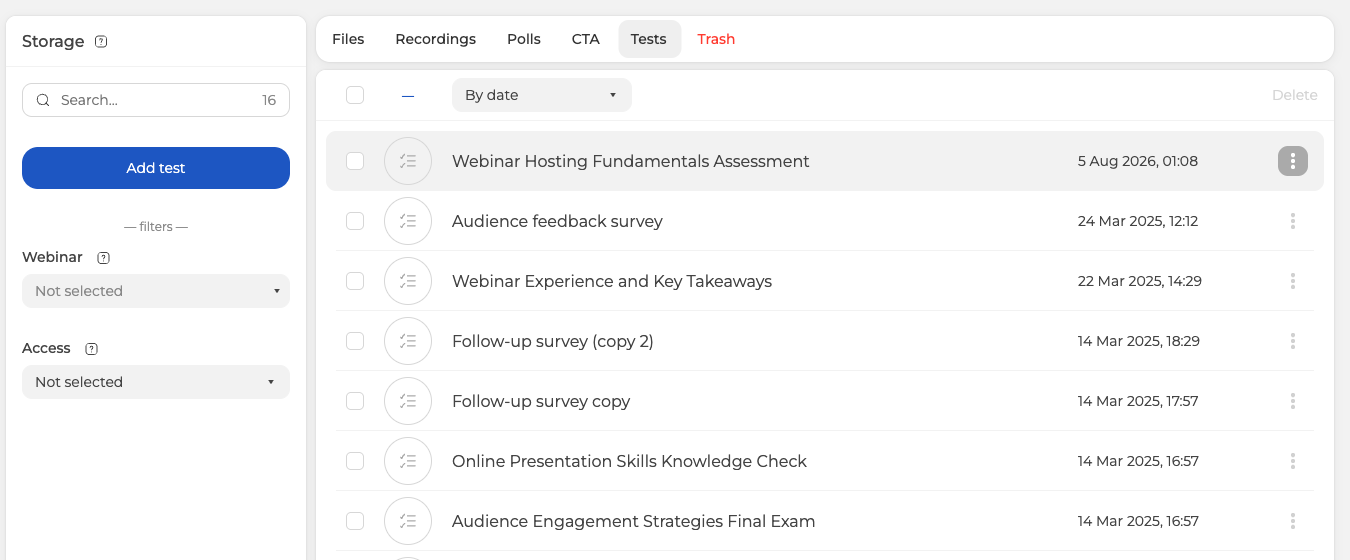
"Add poll" and "Add test" are the buttons that start a new one, and the filters on the left narrow a long list down by webinar and by access. The three dots at the end of a row handle the rest.
You can also build them from inside the webinar room while it is running, and a scheduled webinar has its own "Polls" and "Tests" tabs in its settings. Preparing them in advance is worth the effort either way, because you are not writing questions while an audience waits. Assigning a ready one to an event works the same way as assigning an uploaded presentation.
Running them during a webinar
Nothing starts on its own. You launch a poll or a test by hand during the event, which means you pick the moment. Right after you finish a topic usually works better than interrupting yourself mid-point. Attendees answer in the webinar room, without leaving it.
Seeing the results
Once attendees have answered, you can review the results. For a poll that is usually enough to tell you whether to slow down or move on. For a test it tells you how well the material was understood, which is what you need when the webinar is a training session or leads to a certificate. The certificate itself is yours to issue, because the platform scores the test and hands you the results but does not produce or send certificates of its own.
Each webinar keeps its own polls and tests, so you can prepare a different set for every event. What you have built stays in "Storage" afterwards, ready to attach to the next one, and Finding a recording shows the same section from the recordings side.
If a poll or a test does not behave the way this describes, open the online chat and tell us the event and which of the two you built.
Frequently asked questions
What is the difference between a poll and a test?
A poll gathers opinions and keeps people involved, while a test checks whether the material landed. The distinction matters when your webinar is educational or leads to certification, because a test result tells you how well the material was understood rather than just how the room feels. They are stored apart too, so "Polls" and "Tests" each have a tab of their own in "Storage".
Will a poll open by itself at the right moment?
No, nothing starts on its own, so you launch a poll or a test by hand during the event and pick the moment yourself. Right after you finish a topic usually works better than interrupting yourself mid-point. Attendees answer in the webinar room, without leaving it.
The webinar has already started and I prepared nothing. Can I still add a poll?
Yes, you can build polls and tests from inside the webinar room while it is running. Preparing them in advance is still worth the effort, because you are not writing questions while an audience waits. A scheduled webinar also has its own "Polls" and "Tests" tabs in its settings.
Can I use the same test again in my next webinar?
Yes. Each webinar keeps its own polls and tests, but what you have built stays in "Storage" afterwards, ready to attach to the next event. Assigning a ready one works the same way as assigning an uploaded presentation.
I have built a lot of polls. How do I find the right one?
Each kind sits on its own tab, so you look for a poll under "Polls" and a test under "Tests". The filters on the left then narrow a long list down by webinar and by access. The three dots at the end of a row handle the rest.
