
Webinar statistics and reports
Every webinar keeps a record of who registered, who turned up and how long they stayed. That record exists before the event as well as after it, so you can watch registrations build in the run-up and read the attendance once it is over.
Where the figures live
Open the three dots on a webinar and choose "Statistics". The screen that opens is headed "Webinar insights", and it works for events still to come and events already run.
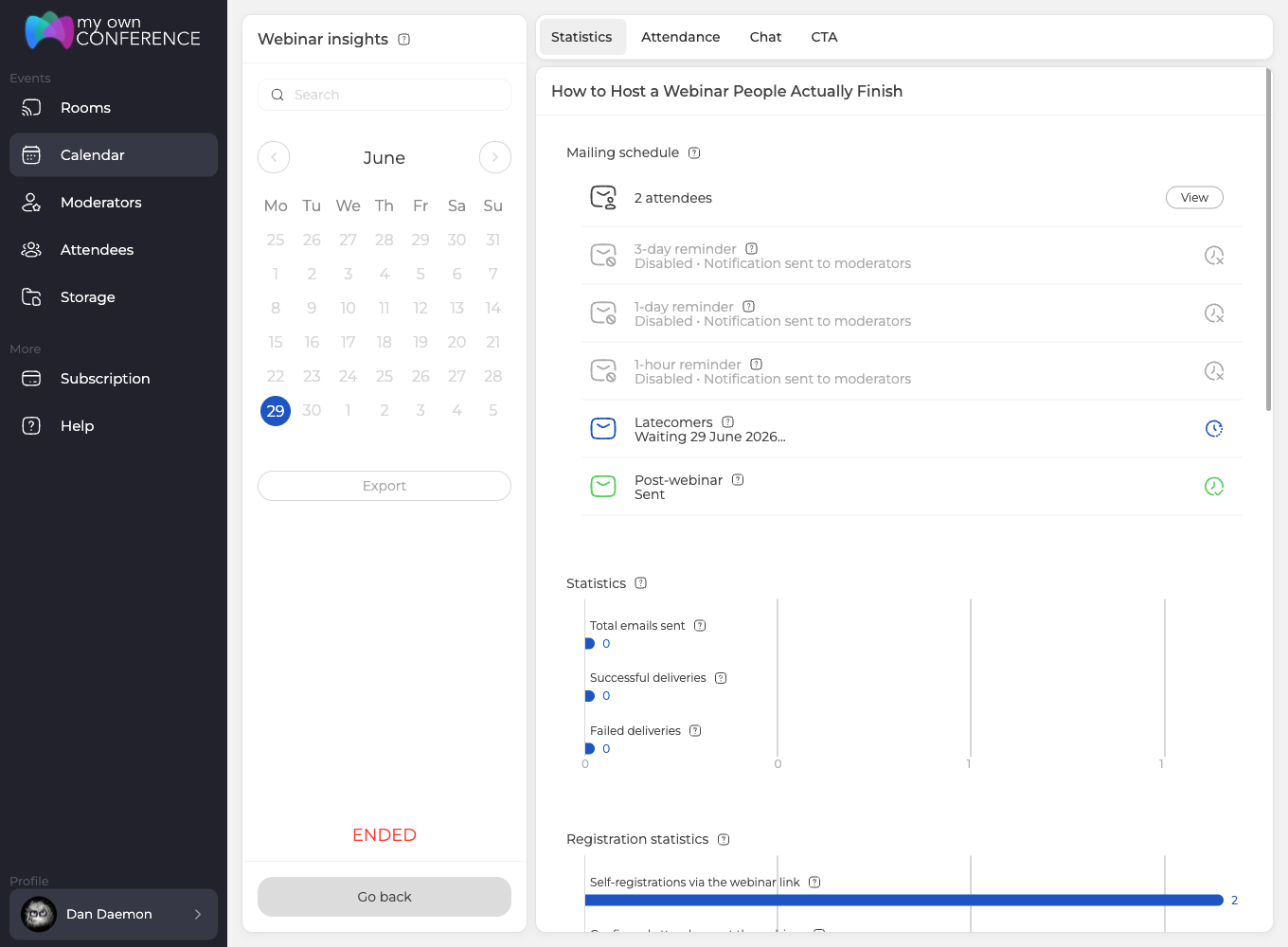
Four tabs run across the top, and they are the whole report.
- "Statistics" is the numbers, and it opens by default.
- "Attendance" lists the people who joined and how much of the session each one caught.
- "Chat" holds the transcript.
- "CTA" counts what your call-to-action elements did. An event that had none reads "Nothing here yet".
The left column carries a search box, a month calendar with the day of the event marked, and an "Export" button. Under them sits the status of the event and "Go back".
Reading the Statistics tab
Six blocks stack down this tab, and each one answers a different question.
"Mailing schedule" comes first. It shows how many attendees the event has, with a "View" button beside the number, and then every automatic email with its own state, whether that is "Sent", "Disabled" or a note that it is still waiting for its moment.
"Statistics" counts the mail itself, so total emails sent, successful deliveries and failed deliveries.
"Registration statistics" separates self-registrations through your webinar link from confirmed and declined attendance, which are the answers people give in the invitation.
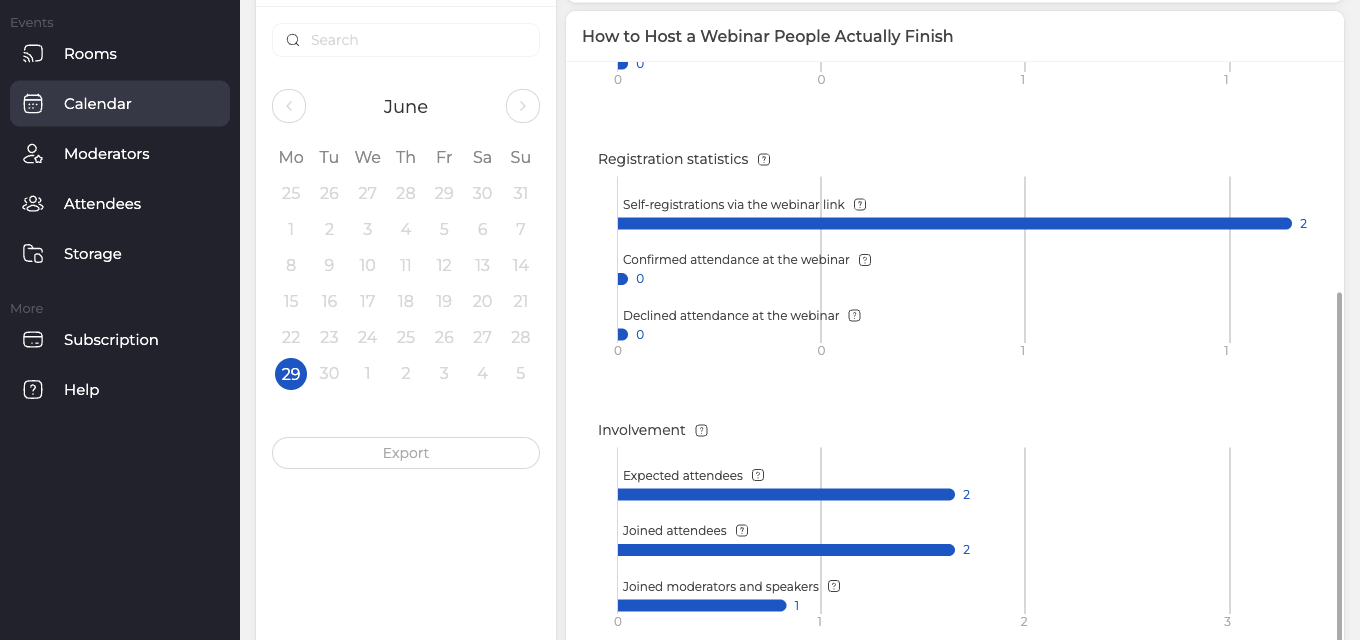
"Involvement" puts three numbers side by side, the attendees you expected, the attendees who joined, and the moderators and speakers who joined.
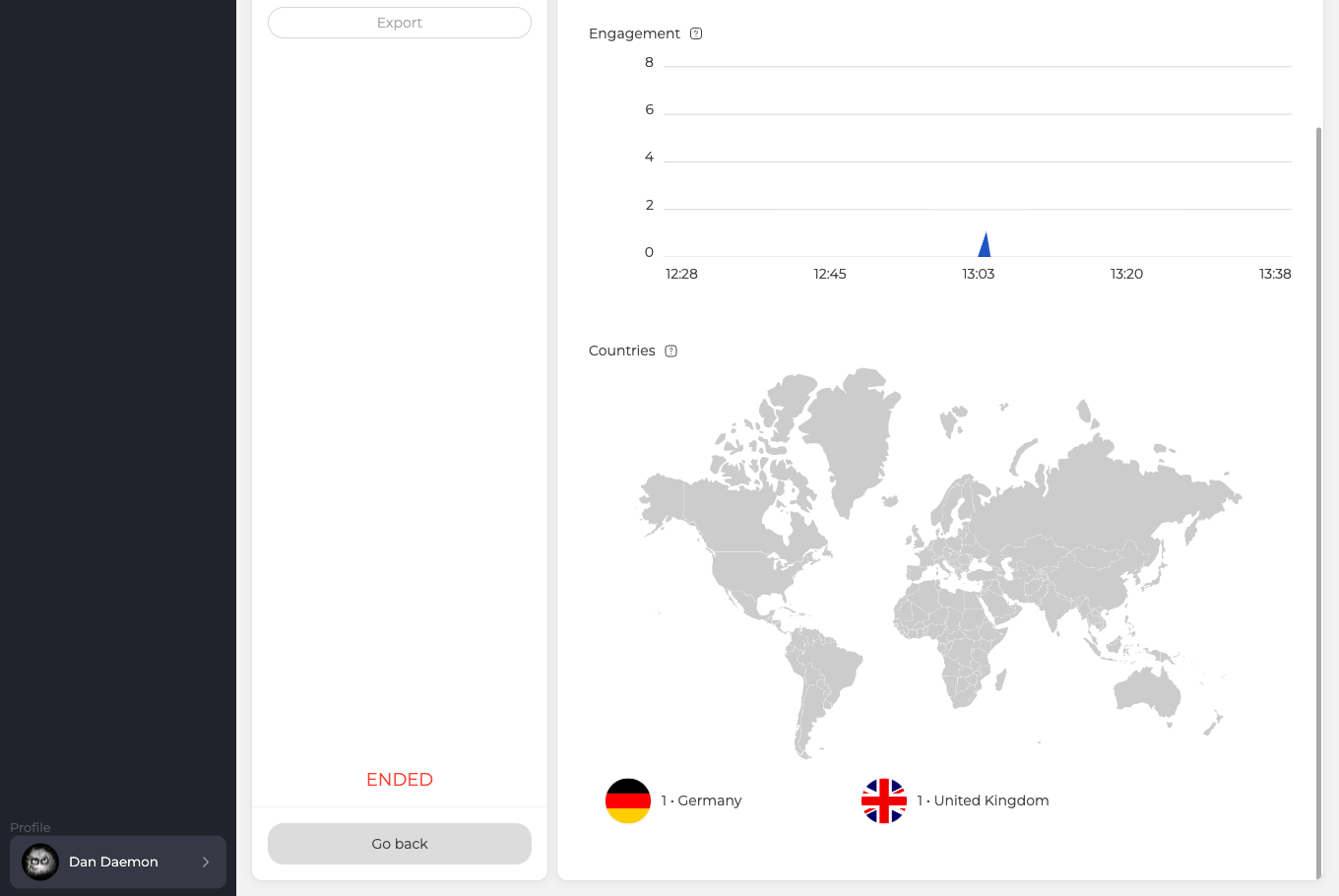
"Engagement" plots how many people were in the room across the session, so you can see the moment they arrived and the moment they drifted away.
"Countries" maps where they connected from and lists each country with its count.
The list behind the count
"View" beside the attendee count opens the list of people attached to this webinar. Every row says whether the person signed up through your link or was imported, which is the distinction that matters when you are working out whether your promotion or your own address book filled the room.

Once the event has ended that list is read only, and the screen says so in red. Add and remove people while the event is still ahead of you.
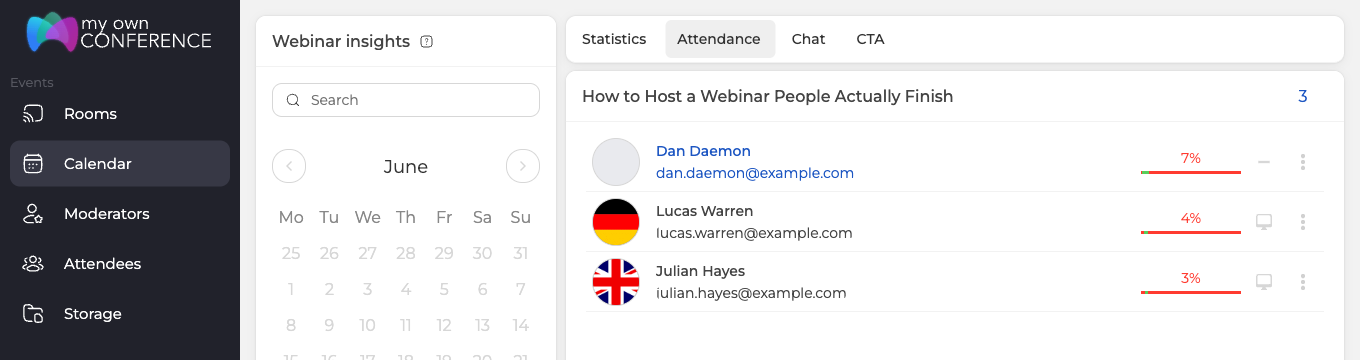
Who attended, and for how much of it
The "Attendance" tab gives one row per person, with a percentage rather than a duration. That percentage is the share of the session that person was present for, drawn as a bar so a room of stayers and a room of leavers look different at a glance. An icon on the right shows the kind of device they joined from.
Webinars held on a permanent link keep their history exactly as individual events do, and so do webinars created by duplicating an earlier one, which is what keeps a whole series comparable in one place.
The chat transcript
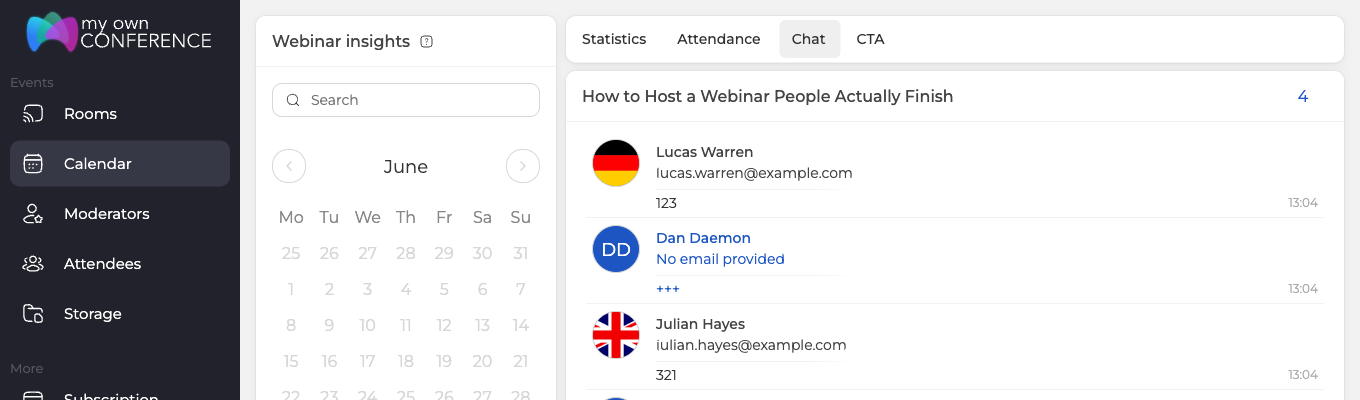
"Chat" keeps every message with its sender, their address and the time it was posted, including the lines the room posts itself when somebody starts or finishes the broadcast.
Exporting the audience
"Export" turns the list into a file. It opens a panel headed "Export attendees" where you pick the columns you want, and there are twenty of them, from the plain name and email through country, job and company to the autologin link and the payment status.
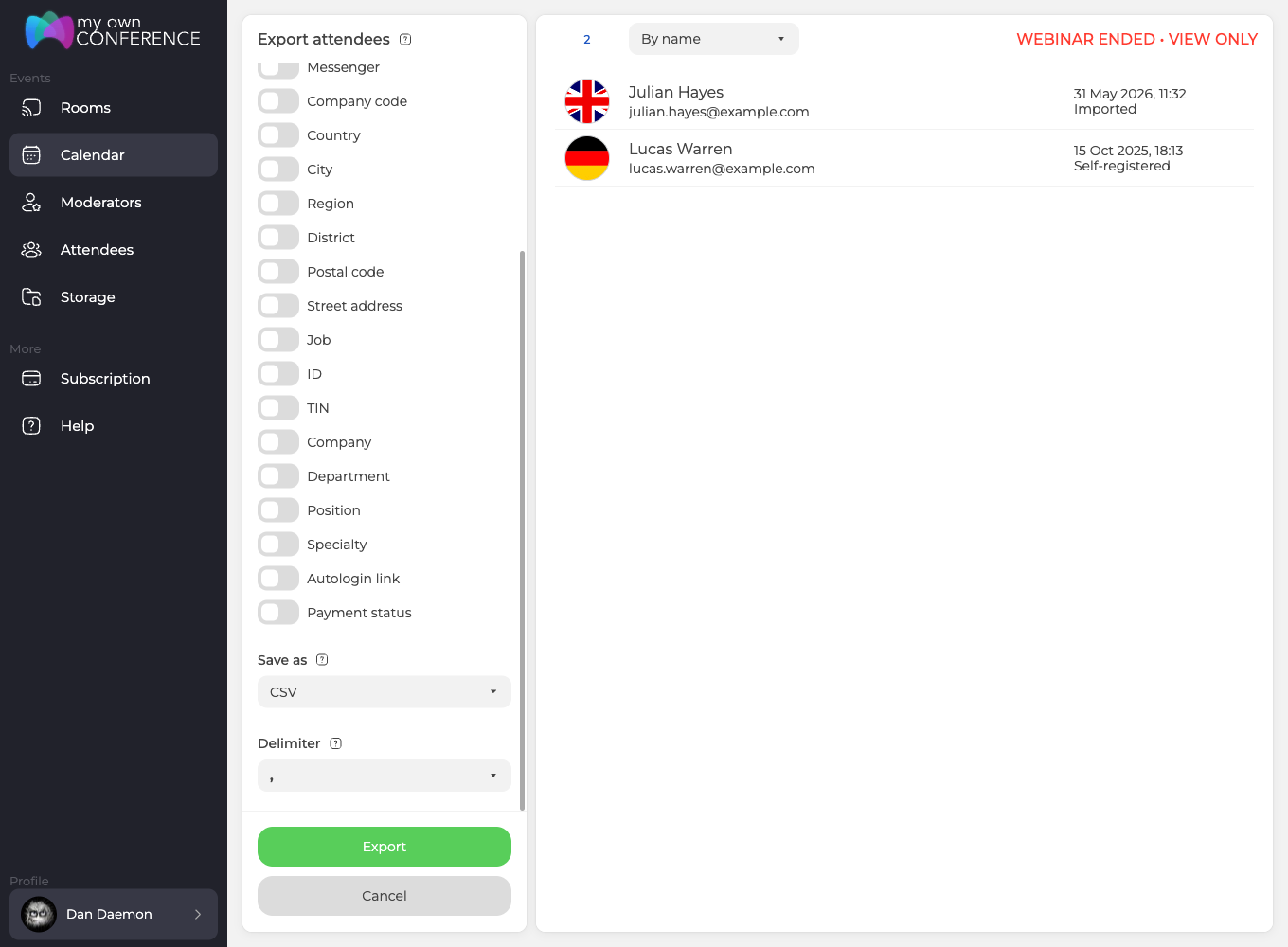
"Save as" chooses between CSV and EXCEL, and "Delimiter" chooses between a comma and a semicolon, which matters because a spreadsheet in one locale reads a comma-separated file quite differently from one in another. "Export" then downloads it.
Filtering the audience
The "Attendees" section of the sidebar holds your whole address book, and eight filters run down its left column.
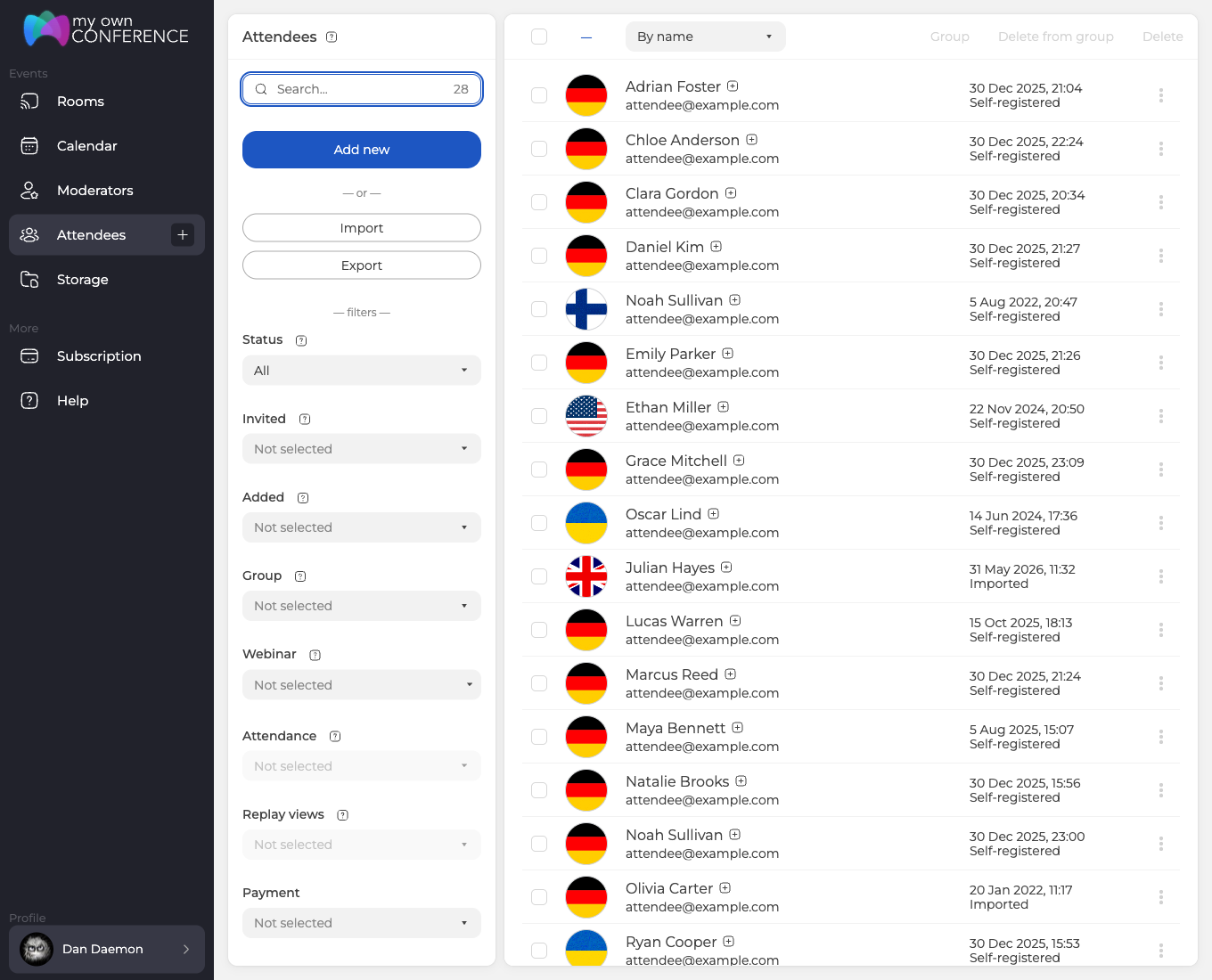
Status, invitations, how somebody was added, group, webinar and payment are all live. Two of them, "Attendance" and "Replay views", stay greyed out. Choosing a webinar does not wake them, so treat those two as unavailable for now and use the "Attendance" tab of the webinar's own insights screen instead. Attendee invitations and management covers what each filter means and what the statuses are.
Marking rows arms the three actions along the top, which are adding people to a group, taking them out of one, and deleting them. Exporting is not one of them, because "Export" works on the list you have filtered rather than on the rows you ticked.
Registrations without an email address
An attendee can reach a webinar without an address on record, and those people do not appear in the "Attendees" section of your dashboard. They are counted only in the statistics of the webinar they joined. Ask for an email whenever you intend to follow up afterwards.
Seeing where your audience came from
UTM tags added to the general guest link stay with an attendee for the whole session and follow them through to your thank you page, though a link that carries tags of its own keeps them instead. UTM tags explains which set wins and where the tags do not reach.
The "Entry" tab of the webinar settings also carries a "GTM ID" field and a "Facebook Pixel ID" field, so a Google Tag Manager container or a Meta pixel can watch the registration page for you.
How long the data is kept
Webinar history is kept for one year, which is 365 days, on free and paid plans alike. Anything older is removed from your account automatically, so export whatever you need for longer-term reporting before it ages out. A free account has a second limit on top of that, because an account nobody signs in to is deleted along with its history well before the year is up.
Pulling the data out programmatically
The public API returns the same records. webinarsHistory takes the webinar alias and a type, where visits gives the attendance history and chats gives every text message. Each row holds the timestamp, the attendee name, the message text, a g or m marker for guest or moderator, and the attendee email.
For the audience itself rather than one event, attendeesList is the command that mirrors this screen, since it takes the same filters and the same field list that the export panel offers. Our public API guide has the request format and the full response structure for both.
Still stuck
If a figure on this screen does not match what you saw during the event, open the online chat and tell us the webinar name, the date it ran and which number looks wrong.
Frequently asked questions
Can I still add people to the attendee list once the webinar has finished?
No. Once the event has ended the list behind "View" is read only, and the screen says so in red. Add and remove people while the event is still ahead of you.
Can I export only the rows I ticked?
No. "Export" works on the list you have filtered rather than on the rows you ticked, so narrow the audience with the filters first and then export. Marking rows arms three other actions instead, which are adding people to a group, taking them out of one, and deleting them.
Why does attendance show a percentage instead of the minutes someone stayed?
Because the figure is the share of the session that person was present for rather than a duration, drawn as a bar so a room of stayers and a room of leavers look different at a glance. The tab gives one row per person, and an icon on the right shows the kind of device they joined from.
Someone attended but I cannot find them in "Attendees". Where are they?
An attendee can reach a webinar without an address on record, and those people do not appear in the "Attendees" section of your dashboard. They are counted only in the statistics of the webinar they joined. Ask for an email whenever you intend to follow up afterwards.
Do free accounts keep their webinar history for less time than paid ones?
No, webinar history is kept for one year, which is 365 days, on free and paid plans alike, and anything older is removed from your account automatically. A free account has a second limit on top of that, because an account nobody signs in to is deleted along with its history well before the year is up. Export whatever you need for longer-term reporting before it ages out.
Industry benchmarks, meaning which days draw more people and how long a successful webinar usually runs, are collected in the blog article on how to measure statistics of a webinar.
