
Your video freezes for the audience while your tab is hidden
You are presenting, you switch to another tab to open a document, and the chat starts filling up. Your picture has turned into a slideshow, roughly one frame a second, and it stays that way until you click back to the room. Your voice, meanwhile, is fine. Nobody mentions the sound at all.
This is not your connection, and it is not a fault in the room. It is what every browser does to a tab you are no longer looking at, and it is worth understanding before you go looking for a setting that will not help.
What the audience sees
The picture does not stop, which is what makes this confusing to diagnose. It advances, just very slowly, in visible steps. If you move your hands or turn your head, the audience gets the beginning and the end of the movement and nothing in between.
Everything else stays normal at the same time. Your sound is uninterrupted, the chat works, slides you change still change, and nobody drops out of the room. That combination is the fingerprint of this problem, and it is what separates it from a weak connection, where the picture and the sound suffer together and people fall out of the room.
Why the sound is fine and the picture is not
A browser treats a hidden tab as work that can wait. It stops the drawing loop that pages use to produce animation, and it wakes the tab's timers roughly once a second instead of many times a second. The room is not put to sleep and the connection is not dropped, because a page holding a live camera is given the gentler treatment rather than the harsh one. It is simply run slowly.
Sound comes out of a different part of the browser, one that keeps its own timing and is not tied to the page being on screen. So the voice goes out at full quality while the picture waits for a tab that is only woken once a second.
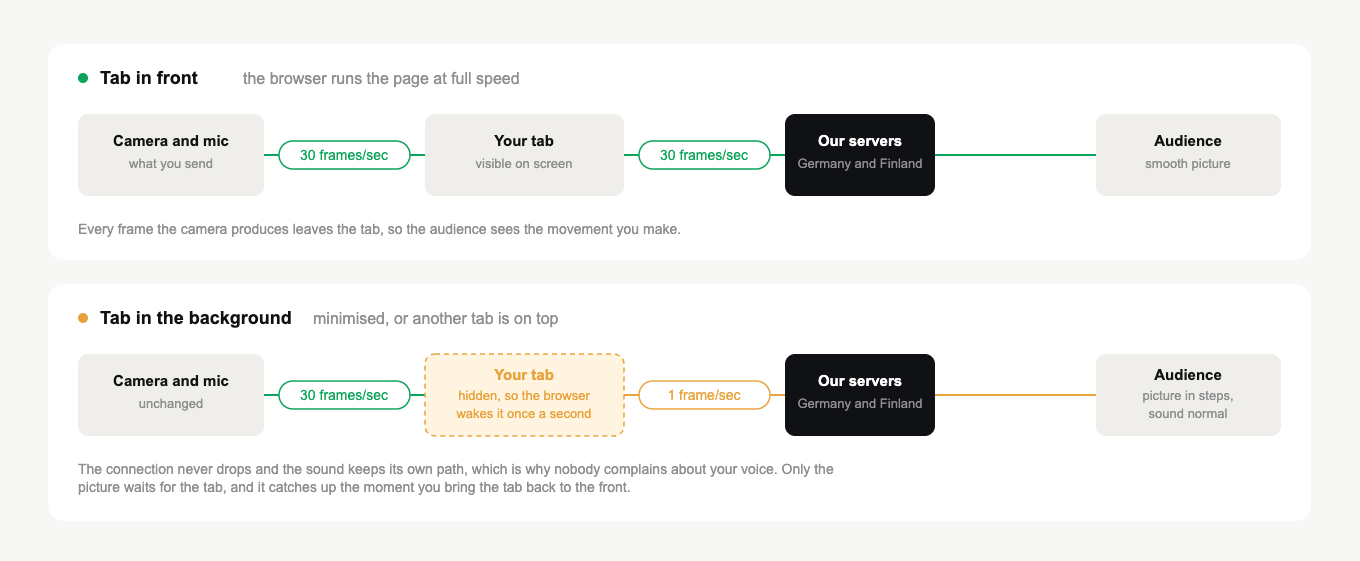
Nothing is lost while this happens. The moment the room is the tab you are looking at again, the picture returns to normal speed on its own.
What actually fixes it
Keep the room visible for as long as you are on air. That is the whole fix, and it is the only reliable one, because the slowdown is not a setting that can be switched off.
Visible does not mean fullscreen, and it does not mean you cannot use anything else. A browser slows a tab down when it is hidden, not when it is merely small or unfocused. So:
- Put the room in its own window and place that window beside whatever else you need, rather than behind it. Two windows sharing a screen both stay visible.
- On a second monitor, leave the room on one screen and work on the other.
- Open documents, slides and notes on a second device, such as a phone or tablet, and leave the computer to the webinar alone.
- If you must look at something on the same screen, hand the microphone to a co-presenter first. Assigning roles for your webinar covers how to have somebody ready for exactly that.
- Do not minimise the browser. A minimised window is hidden as far as the browser is concerned, even if nothing is covering it.
Sharing your screen is the exception worth knowing. While you share, the room keeps producing a picture of what you are showing, so opening a document in front of the room is what the audience is supposed to see.
What does not fix it, and why
These come up often, and none of them addresses this particular symptom. Knowing why saves an evening.
Turning off the browser's energy saver. Chrome does freeze background tabs when its Energy Saver is on, but a tab holding a live camera, a microphone, a screen share or an open call is explicitly exempt from that freezing. The room was never a candidate, so switching the feature off changes nothing here.
Turning off sleeping or discarding of inactive tabs. Worth doing, but for a different problem. Those settings stop a tab being unloaded from memory, which shows up as the room disconnecting and reloading, not as a slow picture. Disabling browser tab sleep mode covers that one, and the addresses it tells you to protect are worth getting right regardless.
Developer flags and registry policies. They exist, they are not meant for everyday use, and they do not restore the drawing loop, which stops in a hidden tab no matter what else is switched off.
Buying more bandwidth. Measure the line if you like, in the connection tester. It will come back clean, because the connection was never the problem.
Frequently asked questions
Does this affect the recording as well?
The recording is made from the same outgoing picture, so the slow section is in it too. If part of your event matters enough to be watched later, keep the room in front of you while it happens.
Why does nobody complain about the sound?
Because the sound never slowed down. It leaves the browser by a path that does not depend on the page being on screen, which is why the symptom is so lopsided.
Does it happen on every browser?
Slowing a hidden tab is standard behaviour across browsers rather than a quirk of one of them. The exact wake-up interval differs, but a hidden tab is a slow tab everywhere, phones and tablets included, and mobile browsers are stricter than desktop ones.
The picture froze and did not recover when I came back. What then?
Then this is not what you were looking at, because this one clears up by itself as soon as the tab is in front. A picture that stays frozen points at the connection or the camera, so start with connection quality.
Can I check it myself before an event?
Yes, and it is worth doing once. Open the room on a second device as an attendee, start your camera, then switch away from the room on the presenting computer and watch the second screen. You will see the steps appear within a few seconds, and disappear as soon as you switch back.
