
A muted browser tab has no webinar sound
You joined the webinar. The presenter is talking, and other people hear everything. You hear nothing at all.
Before you check your speakers, look at the browser tab with the webinar. Very often the sound of that tab is switched off.
The speaker on the tab
When a page plays sound, the browser shows a small speaker on its tab. In most browsers, one click on that speaker turns off the sound of the whole tab. It is easy to click it by accident and forget about it.
When the sound is off, the speaker looks different.
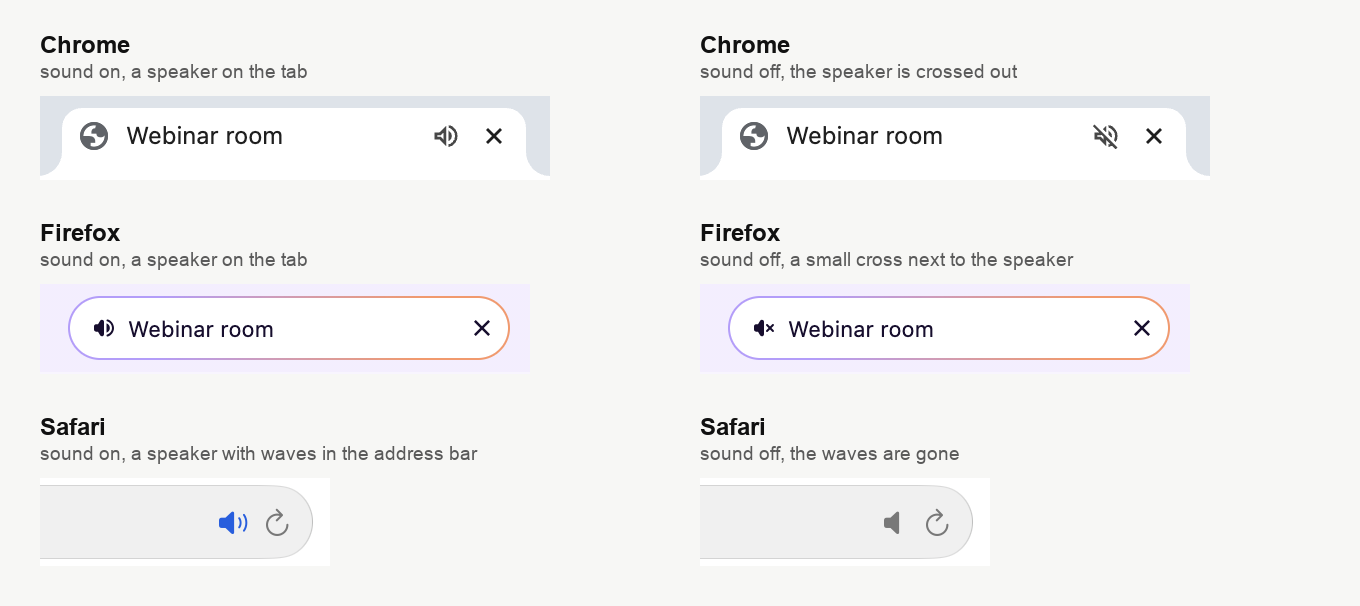
- Chrome crosses the speaker out when the sound is off. Edge, Opera and Brave also show the speaker on the tab.
- Firefox shows the speaker on the left side of the tab. When the sound is off, a small cross appears next to it.
- Safari shows the speaker in the address bar. When the sound is off, the waves next to it disappear.
Some browsers show the tabs in a column at the side of the window. In that case, look at the small icon of the site. The speaker then appears in the corner of that icon.
How to turn the sound back on
Click the speaker once. The sound comes back straight away.
- Firefox. Click the speaker on the tab.
- Safari. Click the speaker in the address bar.
- Chrome. Click the crossed-out speaker on the tab. If nothing changes, read the next section.
Reloading the page does not help. Chrome and Firefox keep the tab muted after a reload.
When Chrome mutes the whole site
Chrome has one more way to turn the sound off. If you right-click a tab and choose "Mute Site", Chrome mutes the whole site. The sound stays off in every tab of that site. Chrome remembers this, so the sound is still off after a reload, in a new tab and after you restart the browser.
You can spot it by a second crossed-out speaker. It sits at the right end of the address bar.

To turn the sound back on:
- Right-click the tab with the webinar.
- Choose "Unmute Site".
You can also click the crossed-out speaker in the address bar. Then choose the option that starts with "Always allow sound on", followed by the address of the room.
Why the room cannot warn you
The browser does not tell the page that its tab is muted. For the webinar room, the sound keeps playing as usual. So the room cannot show you a warning, and it cannot turn the sound back on. Only you can do that.
If you are the presenter
A muted tab works the same way for you. You will not hear your co-presenters or an attendee who is speaking.
The others still hear you. Muting the tab only turns off what you hear. It does not switch off your microphone.
Sometimes one attendee writes that they hear nothing, while everybody else hears you. Send them this line in the chat.
"No sound? Look at the small speaker on your browser tab or in the address bar. If it shows the sound is off, click it once."
You can also send them the link to this page.
On a phone
Phones work differently. If a phone stays silent, it is usually in silent mode. A phone in silent mode has no webinar sound explains what to do.
If the tab is not muted
Then the cause is somewhere else. Check the volume in the room and on your computer, as sound settings in your operating system shows. The attendee guide covers the other common problems.
Frequently asked questions
Other websites play sound. Why is only the webinar silent?
Because the sound is off in one tab only. In Chrome, "Mute Site" turns it off for one site. Your computer and your other tabs keep their sound. Look at the tab with the webinar.
I reloaded the page and still hear nothing
A reload does not bring the sound back. Chrome and Firefox keep a muted tab muted. In Chrome, "Mute Site" even stays after you restart the browser. Click the speaker, or choose "Unmute Site" in Chrome.
Can the organiser turn my sound back on?
No. The setting belongs to your browser. The webinar room cannot see it and cannot change it. Only you can click the speaker.
Does a muted tab switch off my microphone?
No. It only turns off the sound of the tab. If you are speaking in the webinar, the others still hear you.
Can I mute the tab by accident with the keyboard?
In Firefox, yes. The keys Ctrl and M pressed together mute or unmute the tab. On a Mac it is Control and M. Press the same keys again to get the sound back.
