
Disabling browser tab sleep mode
If you run a webinar in your browser with several other tabs open, the connection can falter once the webinar tab is no longer the one you are looking at. Browsers do this deliberately. Putting an unused tab to sleep frees memory and saves power, and every browser gives the feature its own name while the behaviour is the same everywhere.
That trade is sensible for most sites. A webinar room is not one of them, because it holds a live connection for as long as you are in it. Telling your browser to leave our addresses alone takes a minute, and it is worth doing before the event rather than during it.
If the room stays connected and only the picture reaches the audience in steps while your voice is fine, that is a different problem with a different cause, and a hidden tab slowing the picture down covers it.
Start with the right addresses
This is the part that catches people out, so it is worth getting right before you open any settings.
The webinar room does not run on the address you sign in at. Your control panel is on myownconference.com, and that is the one people usually add. The room itself is on mywebinar.com, which means an exception list holding only the first address leaves the tab that matters unprotected.
Chrome and Edge keep a per-site list, so these are the entries to put in it. Firefox and Opera have no such list, and their sections below switch the behaviour off altogether, which means the addresses do not matter there.
Use the full host, exactly as your address bar shows it:
www.mywebinar.com, which is where the room runs and the one that actually mattersapp.myownconference.com, which is your control panel
Add go.myownconference.com or go.myownconference.co as well if you reach your rooms through one of those, and if you turned on the Custom domain feature your rooms open on the name you picked instead, so add that one too. Access when the platform is blocked covers the alternative addresses in full.
There is an easier way to get this right in Chrome, which the next section comes to, because Chrome can read the addresses straight off the tabs you already have open.
Google Chrome
Open your webinar room in one tab and your control panel in another before you begin. Chrome can then take both addresses off the tabs themselves, which is quicker than typing them and impossible to get wrong.
Type chrome://settings/performance into the address bar and press Enter. Find "Always keep these sites active" and click "Add".
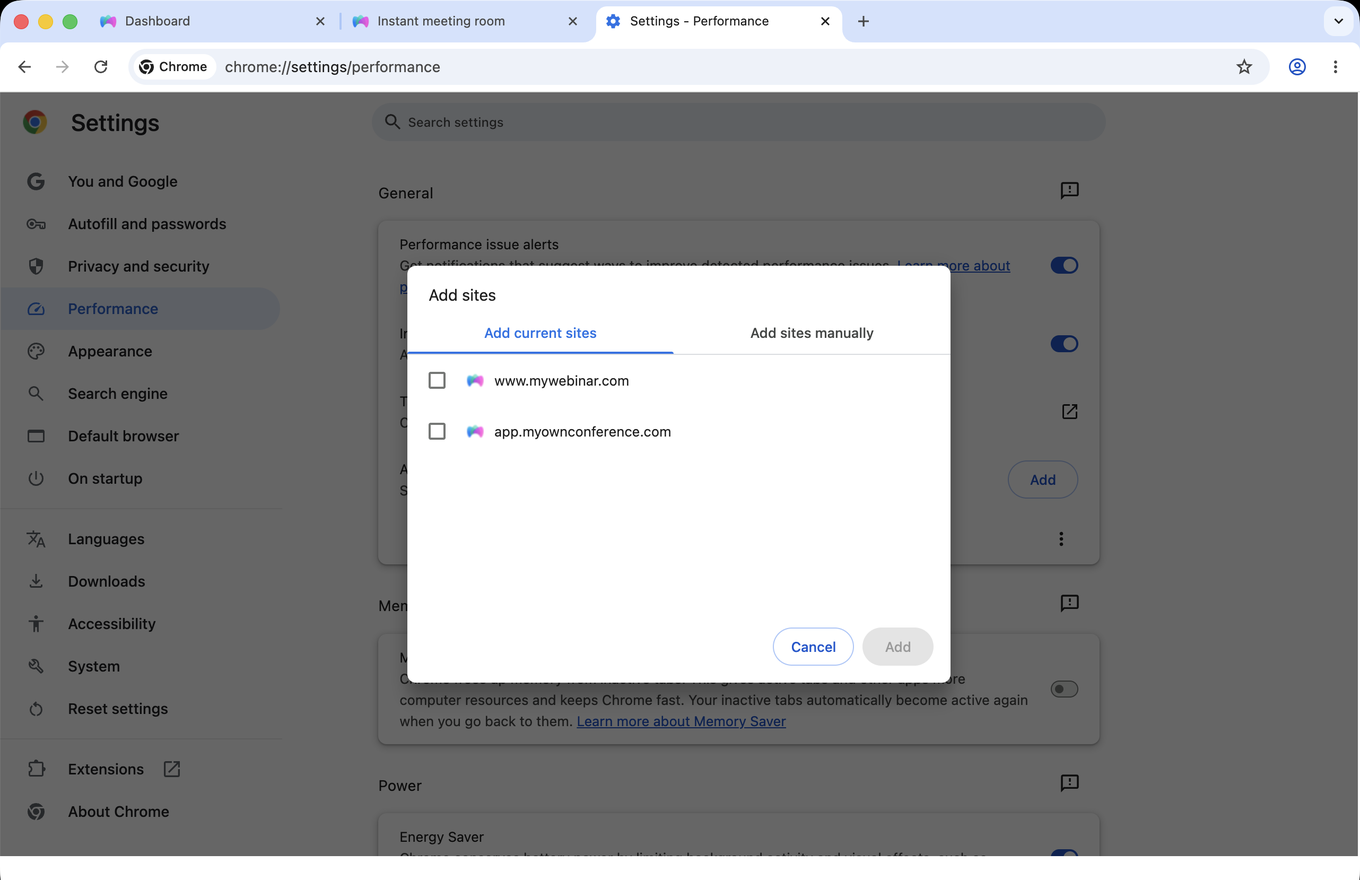
The dialog opens on "Add current sites" and lists what you have open. Tick the room and the panel, then click "Add". Because the addresses come from the tabs, this route also picks up a custom domain without you having to remember it.
"Add sites manually" is the other tab, for addresses you are not currently on. Chrome takes a plain host there, with no wildcard.
The list sits above "Memory Saver", which is the feature doing the sleeping. Leaving Memory Saver on is fine once your sites are listed, since the list is what it checks before putting anything to sleep.
Microsoft Edge
Type edge://settings/system/managePerformance into the address bar and press Enter, which opens "System and performance" on its Performance page.
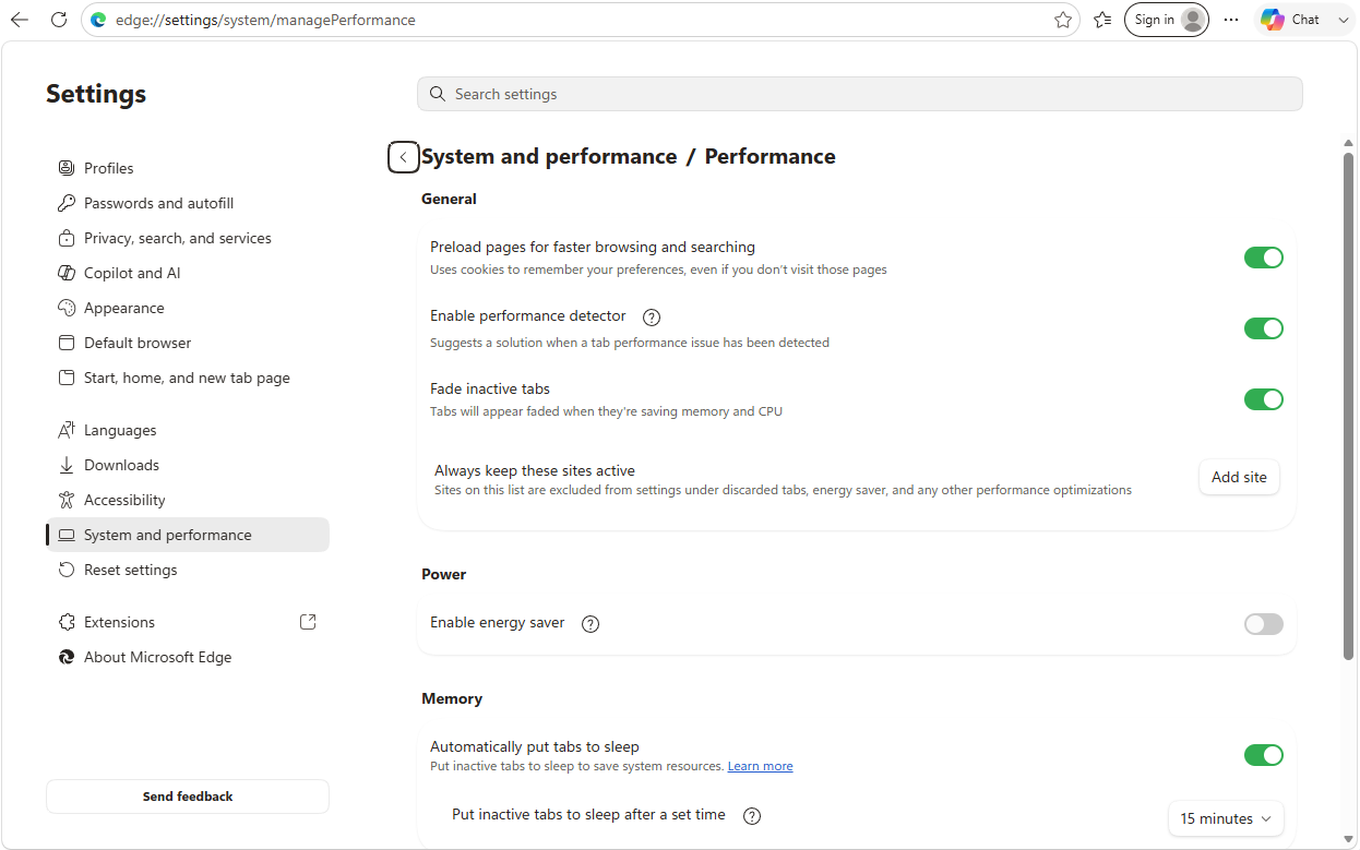
Two things there are worth reading before you change anything. Under "Memory", "Automatically put tabs to sleep" is the feature itself, and "Put inactive tabs to sleep after a set time" is how long a tab has to sit idle before it happens, which is 15 minutes unless you have changed it.
The list you want is "Always keep these sites active", the same name Chrome uses for its own, with an "Add site" button beside it. Click it and enter one address at a time.
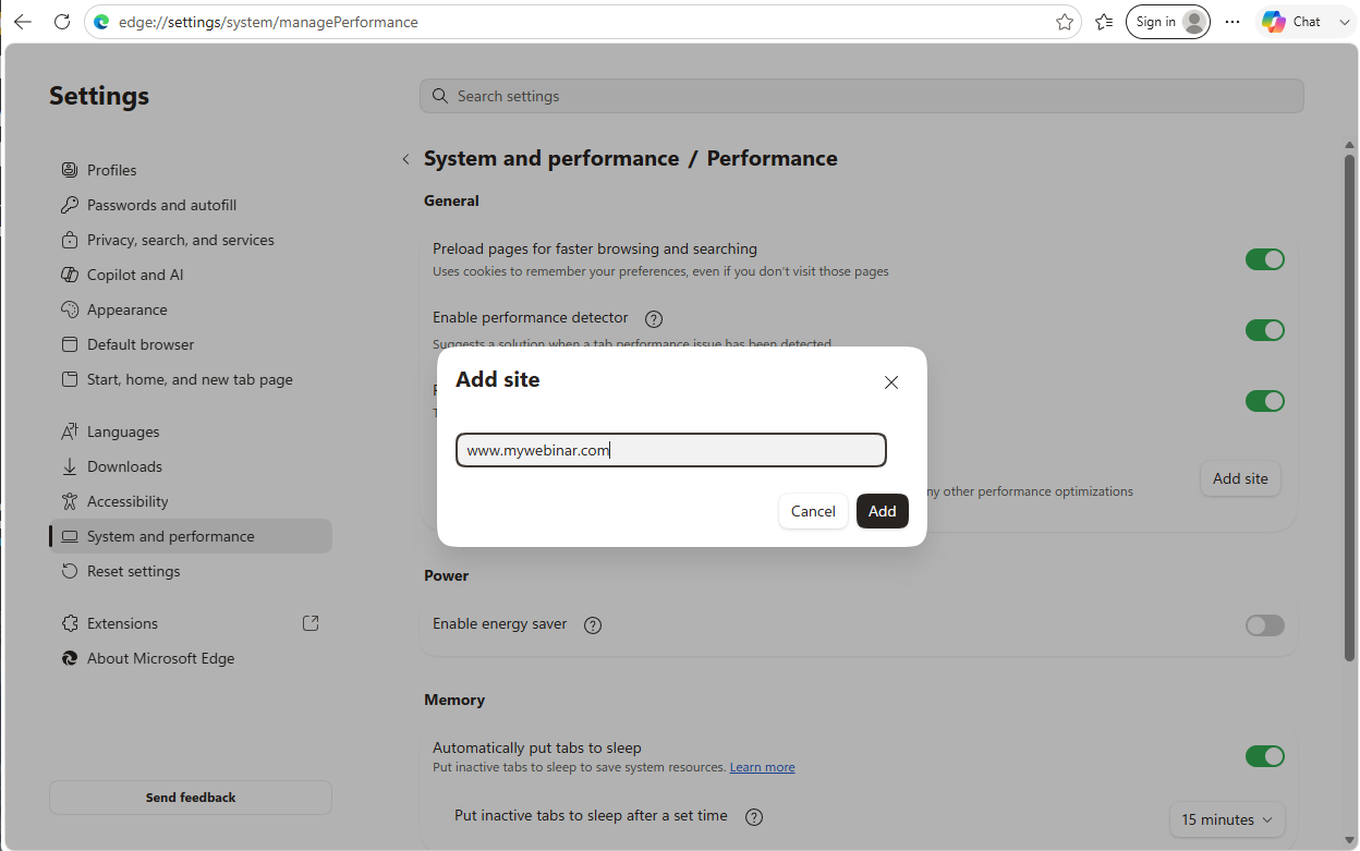
Edge takes a plain host here, so www.mywebinar.com rather than a wildcard pattern, and it stores the entry exactly as you typed it. Repeat for each address.
Mozilla Firefox
Firefox has no per-site list for this, so the behaviour is switched off wholesale in the advanced preferences.
Type about:config in the address bar and press Enter. Firefox warns you before it lets you in.
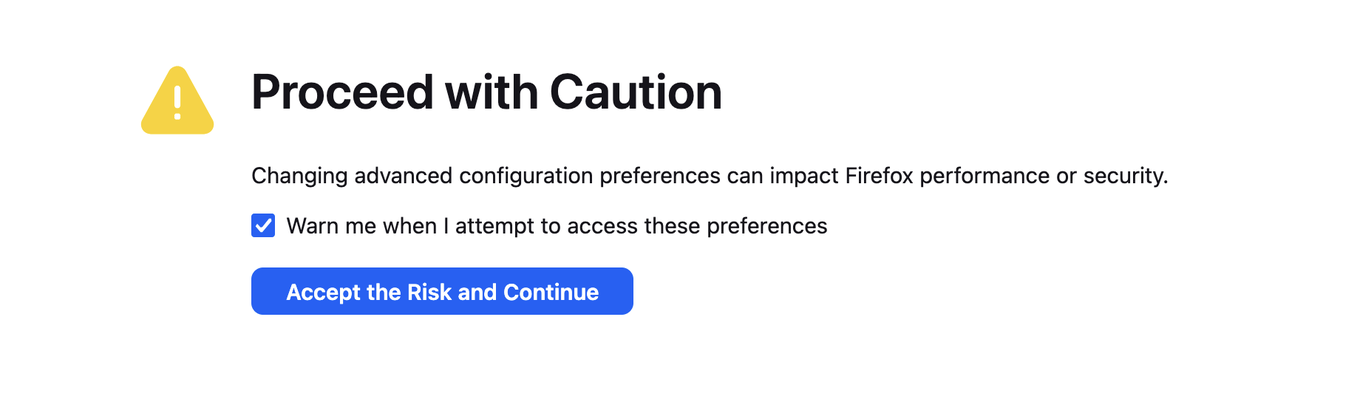
Click "Accept the Risk and Continue", then search for browser.tabs.unload.

Two preferences share that prefix, and only the first one matters here.
browser.tabs.unloadOnLowMemory is the one to change. It is true by default, which is what lets Firefox discard a background tab when the machine runs short of memory. Use the toggle button at the end of its row to set it to false.
Leave browser.tabs.unloadTabInContextMenu alone. That one only decides whether an "Unload tab" item appears when you right-click a tab, so switching it off changes a menu and protects nothing.
Firefox only unloads tabs under memory pressure rather than on a timer, so this matters most on a machine that is already short of memory, which is also the machine most likely to struggle with a webinar for other reasons.
Opera
Opera has no per-site list either, and its switch is the easiest of the four to reach.
Open opera://settings, type snooze into the settings search at the top right, and turn off "Snooze inactive tabs to save memory".

The switch is on by default. Searching for memory finds the same row, because that word sits in the name as well, while searching for sleep finds nothing at all, which is worth knowing before you go hunting for it under the name the other browsers use.
Phones and tablets
Mobile browsers reclaim background tabs far more aggressively than desktop ones do, and they offer no exception list to protect a site with. The practical answer is to keep the webinar in the foreground for the whole event, and to avoid switching to other apps while you are on air.
Worth doing in advance
Change these settings before an event rather than in the middle of one. It takes a minute now and saves a disconnection during a webinar that matters.
If you have already checked all of this and are still being dropped, the cause is usually elsewhere. Webinars and power saving modes on macOS and iOS covers the other common one, and internet speed for the webinar room covers the connection itself. If neither fits, open the online chat and tell us which browser you were using.
Frequently asked questions
I added myownconference.com to the list and the tab still went to sleep. Why?
Because the webinar room does not run on that address. Your control panel is app.myownconference.com, while the room itself is on mywebinar.com, so a list holding only the panel leaves the tab that matters unprotected. Add www.mywebinar.com too, and access when the platform is blocked covers the alternative addresses if you reach your rooms through one of those.
Can I enter a wildcard instead of typing each address?
No, both lists take a plain host. Chrome accepts one on the "Add sites manually" tab with no wildcard, and Edge takes www.mywebinar.com rather than a wildcard pattern and stores the entry exactly as you typed it. Chrome's "Add current sites" tab avoids the typing altogether, because it reads the addresses off the tabs you already have open, which also picks up a custom domain.
Is there a per-site list in Firefox or Opera?
No, neither has one, which is why their sections switch the behaviour off altogether and the addresses do not matter there. In Firefox you set "browser.tabs.unloadOnLowMemory" to false in about:config, and in Opera you turn off "Snooze inactive tabs to save memory". Firefox only unloads tabs under memory pressure rather than on a timer, so it matters most on a machine that is already short of memory.
Do I have to turn Chrome's Memory Saver off as well?
No, leaving "Memory Saver" on is fine once your sites are listed, since the list is what it checks before putting anything to sleep. "Always keep these sites active" sits directly above it on the same page. Switching the feature off wholesale would also give up the memory it frees and the power it saves on every other tab.
I have changed the setting and I am still being dropped mid-webinar?
Then the cause is usually elsewhere, because tab sleep is only one of several. Webinars and power saving modes on macOS and iOS covers the other common one, and internet speed for the webinar room covers the connection itself. If neither fits, open the online chat and tell us which browser you were using.
