
Broadcasting from a corporate network
Presenting from inside a company network is the moment most hosts start to worry. The firewall is strict, the laptop is managed by somebody else, the VPN is compulsory, and there is no way to test any of it until the day. The short answer is that in most cases you have nothing to do, because the room handles a restrictive network on its own.
This article sets out what happens without you, how to tell that it worked, and the narrower set of cases where running our app is worth it.
What the network actually blocks
Browsers carry live audio and video through WebRTC, which sends its media over UDP. Corporate security rarely likes UDP. A firewall that permits only TCP on ports 80 and 443, a VPN that tunnels TCP and drops everything else, an appliance that inspects packets and distrusts what it cannot classify, each of those will stop a WebRTC stream without ever announcing it.
That is a real constraint and it is common in finance, government, healthcare and large enterprises. It is not, however, the end of your webinar.
What already happens without you
We run our own adaptive broadcasting protocol alongside the browser route. It is not based on WebRTC, in most cases it needs nothing beyond TCP port 443, and it switches on by itself for every permanent webinar room and every scheduled event. Port 443 is the port every HTTPS site in the world uses, so the traffic travels the path your firewall already keeps open.
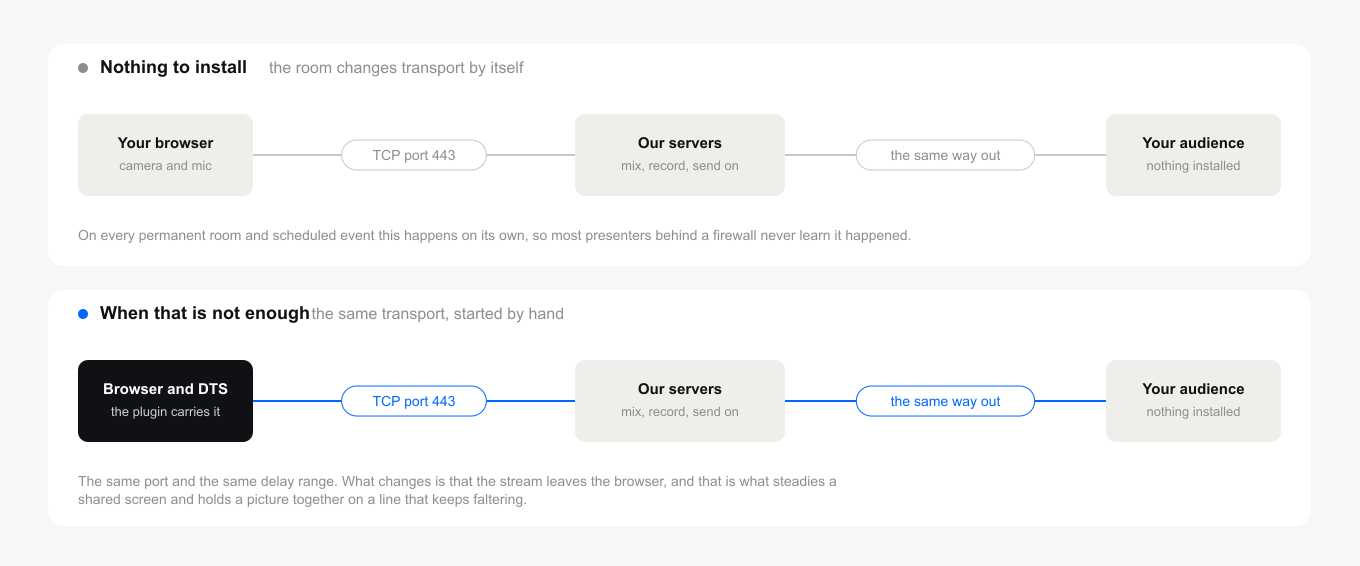
The point worth holding on to is that both routes end up on the same transport. Running the app does not put you on a faster or slower protocol, it starts the same one by hand. Technical requirements describes the protocol, and broadcast latency sets out the delay you can expect, which is 100 to 600 milliseconds between presenters on a healthy line, with the same range for your audience plus a small smoothing buffer.
What no protocol can do is invent bandwidth. A line that is genuinely too slow or too unstable still costs your audience the picture, and what to do when video freezes or attendees drop out works through that separately.
How to check before the event
Do not wait for the day. Open our connection tester from the machine and the network you will present from, ideally at the same time of day, because a corporate line at nine in the morning is not the line you tested at seven in the evening.
Then open the room itself once. It offers a check of your equipment and your connection as you enter, and that check is the one that exercises the real path. If your camera appears and your voice registers, the network is not in your way.
What running the app adds
The DTS app is the manual mode of the transport above. Since it already runs, the question is what changes when you start it by hand, and the answer is that the stream leaves the browser.
That matters in two situations. The first is screen sharing, because a browser sharing a screen under packet loss produces blocky or blurred text, and our app is built to keep those losses down so the picture stays legible. Why screen sharing requires our software covers the reasoning in full. The second is a line that keeps faltering, where the browser route spends its time recovering and the app holds the stream together instead.
Notice what is not on that list. The app does not buy you lower delay, and it does not rescue a connection that has no bandwidth left.
What the app costs
It runs on Windows and macOS, so a presenter on Linux stays on the browser route. The account owner switches the room over in the dashboard, and from that point every speaker in the room needs the app installed, while attendees install nothing and join exactly as before.
You install it once and then launch it before each broadcast, because it does not start on its own. On this route the room also gains two sound controls the browser does not have and loses "Blur background", which is not available here yet. Alternative broadcasting technology (DTS app) is the full setup guide, and audio quality for webinars explains the sound controls.
That last loss is really a Windows one. On a Mac, macOS applies its own "Portrait" blur and its own "Background" replacement before the picture reaches any app on the machine. Ours receives a frame that already carries the effect, and both keep working in full. Virtual backgrounds on macOS covers turning them on and how to tell whether this Mac offers "Background" at all.
Working through a VPN
A compulsory company VPN is not a blocker. The well-known corporate services carry the room, and the automatic transport above is what makes that possible. Free VPN services are a different matter, because their bandwidth is rarely enough for steady audio and video, so keep them away from anything you are broadcasting.
Two products need a rule of their own before they will pass the room through. Broadcasting from Opera with the built-in VPN gives the exact bypass, and WebSocket connection issues with BitDefender VPN covers the other one.
If the platform itself is blocked
Some networks go further than blocking a protocol and block our address outright, which looks different, because the room does not load at all rather than loading without your camera. Mirror domain access when the platform is blocked is the route around that, and it is worth knowing before you need it.
Frequently asked questions
My company blocks UDP. Do I have to install anything?
Usually not. The adaptive protocol switches on by itself for every permanent room and scheduled event, and in most cases it needs nothing beyond TCP port 443, which your firewall already allows for ordinary web traffic. Install the app when screen sharing has to stay sharp, or when the browser route keeps faltering on a weak line.
Does the app make the delay shorter?
No. It runs the same transport the room already uses, so the delay sits in the same range either way, which is 100 to 600 milliseconds between presenters on a healthy line. What the app changes is stability rather than speed, because a stream that is not recovering is a stream that is not falling behind.
Do my attendees need anything on a corporate network?
No. Attendees install nothing and join through the usual link. The app goes only on the machines of people who speak in the room, and the same automatic transport carries the stream to an audience sitting behind a firewall.
Can I test the network before the event without booking a room?
Yes. Our connection tester runs from the machine and the network you plan to present from, and it is worth running at the time of day the event will happen, since a corporate line behaves differently across the working day.
Our security team wants to know which ports to open. What do I tell them?
TCP port 443, the same port HTTPS uses. The adaptive protocol is not based on WebRTC and in most cases needs nothing else. Technical requirements is the page to send them, and platform security covers how the stream is protected on the way.
If your network turns out to be stricter than any of this, open the online chat and tell us what the room does when you press "Speak". We will work through it with you.
