
What to do when video freezes or attendees drop out
MyOwnConference broadcasts live. Everything your attendees see and hear travels in real time, so the picture and the sound depend directly on the internet connection at both ends. A recorded video is a different thing, because nobody is waiting for an answer and the player can hold as much of it in reserve as it likes.
A live room cannot do that. It holds a short run of stream ahead of what your audience is watching, which smooths over a wobble, a dropped packet or a change of address, and it is also why the room runs a little behind real time, which broadcast latency puts in numbers. The weaker the line, the more it has to hold and the further behind it falls. On a bad enough line the reserve runs out and the picture stops.
How a weak connection shows up
- The same attendee keeps leaving and rejoining. From your side it looks like one person appearing and disappearing over and over.
- Your camera freezes for that attendee, or never appears at all.
- The chat fills up with "frozen" and "the picture is gone", usually before the sender works out that the fault is at their end.
Measure before you change anything
Guessing costs webinar time, so start with a number.
Send a struggling attendee to our connection check for attendees. One click measures speed, ping and jitter, and it answers in plain words instead of handing back a table of figures.
Our connection tester is the fuller check for anyone going on air. It works through the connection, the ports and protocols the room needs, the speed in each direction, and then the camera, the microphone and the speakers.
As a presenter you can run the same check without leaving the event. Open the room menu with the button in the top right corner and expand "Help center", where "System test" sits above "Documentation".
Then compare what you measured against what a broadcast actually needs. Internet speed for the webinar room has the figures presenter by presenter, and they are more modest than people expect, because the room caps a video track at 1.2 Mbit/s.
What attendees can do
Paste this list into the chat if the room is struggling as a whole, or send it to one person from the attendee list with "Send message". The first steps cost nothing and can be done without leaving the room.
- Close other tabs and programs. Only the webinar tab needs to be open.
- Pause downloads. A file arriving in the background, or any app pulling a lot of traffic, competes for the same bandwidth as the stream.
- Switch the connection. Mobile data instead of Wi-Fi, or the other way round. A cable instead of Wi-Fi is steadier still where a cable is an option.
- Reload the room. The entry link works as many times as they need.
- Restart the Wi-Fi router. This is the one that clears a stubborn case, and it costs a couple of minutes off the network, so it is worth doing between sessions rather than in the middle of one.
- Check the browser extensions. One that interferes with the room shows up as freezing, and technical requirements lists the browser versions below which the room will not open at all.
- Restart the device. Some problems clear only after a reboot.
What you can do
If a lot of people are struggling at once, reduce what you are asking their connections to carry.
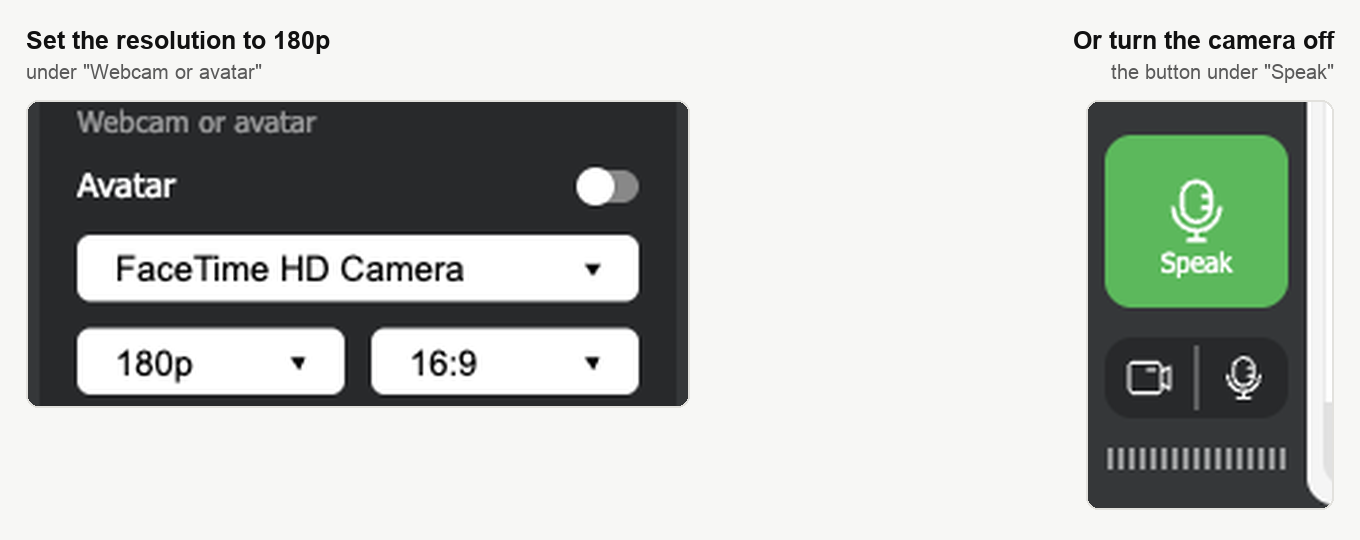
Open the room menu, expand "Devices settings", and under "Webcam or avatar" set the resolution to 180p. Or switch the camera off altogether with the camera button under "Speak" and carry on with your voice and your slides, which is the lightest the room gets.
If your own line keeps faltering event after event, there is a sturdier route than the browser. The account owner can switch the room to alternative broadcasting technology, which runs over TCP through a small app and holds a steadier stream on a difficult line. It has to be set in the dashboard before the event, and everyone who speaks in that room needs the app.
Some attendees have no way of improving their internet, and nothing you change in the room reaches that.
If they keep dropping and the line measures fine
Then it is probably not the line. A browser that puts a background tab to sleep will disconnect somebody who switched away for a minute, and browser tab sleep mode covers how to stop that in each browser. On Apple hardware the other common cause is power saving, which webinars and power saving modes on macOS and iOS covers.
If the problem stays
Open the online chat and tell us what the tester measured and what the room did. There is also a longer walkthrough of connection fixes in 10 practical ways to fix slow internet for webinars on our blog.
Frequently asked questions
How fast does an internet connection actually have to be?
More modest than most people expect, because the room caps a video track at 1.2 Mbit/s. Internet speed for the webinar room has the figures presenter by presenter, so measure the line first and then compare it against them. Guessing costs webinar time, so start with a number.
Can I check my connection without leaving the webinar?
Yes. Open the room menu with the button in the top right corner and expand "Help center", where "System test" sits above "Documentation". It runs the same check as our connection tester, which works through the connection, the ports and protocols the room needs, the speed in each direction, and then the camera, the microphone and the speakers.
An attendee dropped out. Can they get back in on the same link?
Yes, the entry link works as many times as they need, so reloading the room is one of the first things to ask them to try. Closing other tabs and programs and pausing downloads cost nothing and can be done without leaving the room either. If that same person keeps leaving and rejoining, the pattern is itself the sign of a weak connection at their end.
Can I switch the room to the alternative broadcasting technology in the middle of an event?
No, it has to be set in the dashboard before the event, and it is the account owner who switches a room over. Everyone who speaks in that room then needs the small app it runs through, which makes it a decision for a line that keeps faltering event after event rather than a fix for today. Alternative broadcasting technology covers what it changes.
Does turning my camera off actually help?
Yes, and it is the lightest the room gets, since your voice and your slides are all that is left travelling to your audience. The camera button sits under "Speak". If you would rather stay on camera, open the room menu, expand "Devices settings" and set the resolution under "Webcam or avatar" to 180p, which is the same idea applied more gently.
