
Chat moderation
The chat is where your audience asks questions and talks to each other, and sooner or later that needs a hand. Everything you need sits in one place, and you, your moderators and your presenters all have it.
Where the controls are
Open the room menu with the icon in the top right corner and expand "Chat settings". Six controls sit there, and those six are the whole of it.
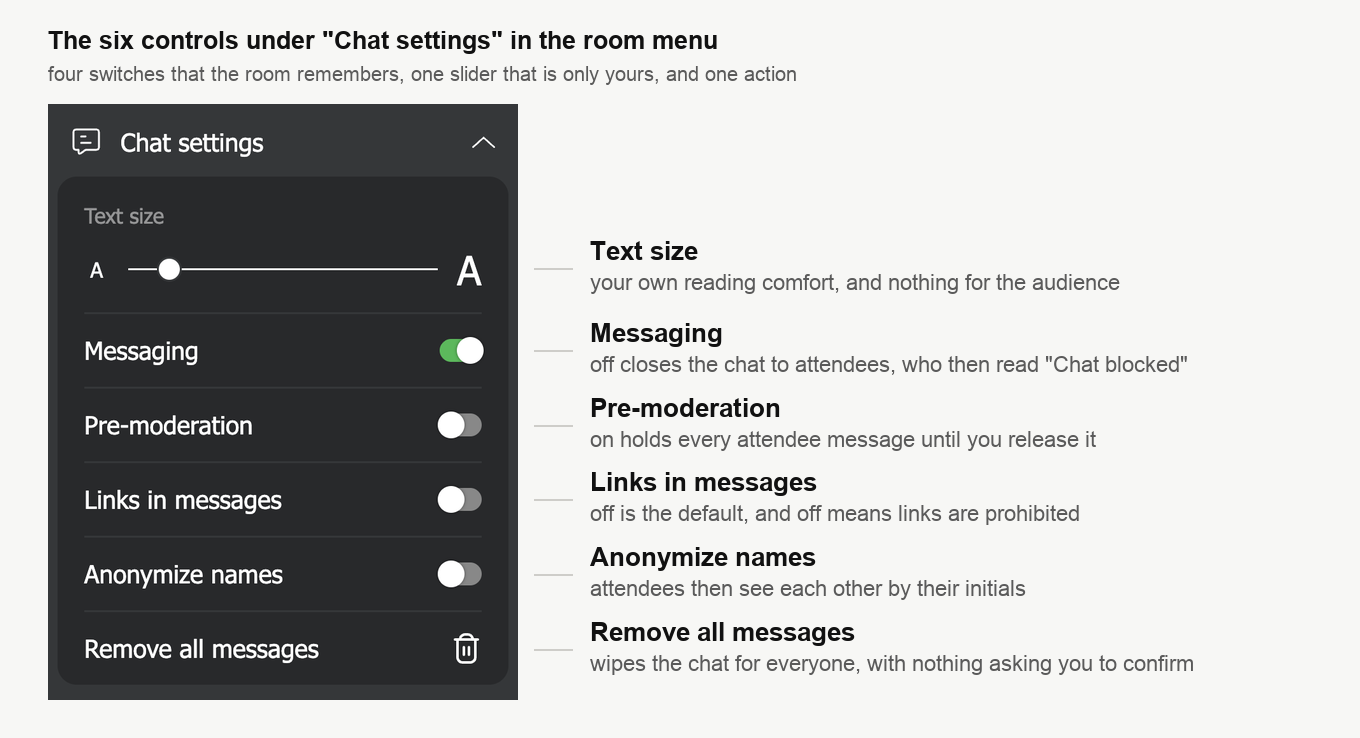
The four switches keep whatever you set them to. They belong to the room rather than to your session, so they survive you leaving and coming back, and they are still set that way at your next event in the same room. Remember that if you tightened something for one difficult audience.
The same four have a twin in the control panel, on the "General" tab of a room's or a webinar's settings, under a group also called "Chat settings". Those are the presets you arrive with. The ones in the room are the ones you reach for while the event is running.
The slider at the top is the odd one out. It sets how large the text in your own chat is, anywhere between the small A and the large one.
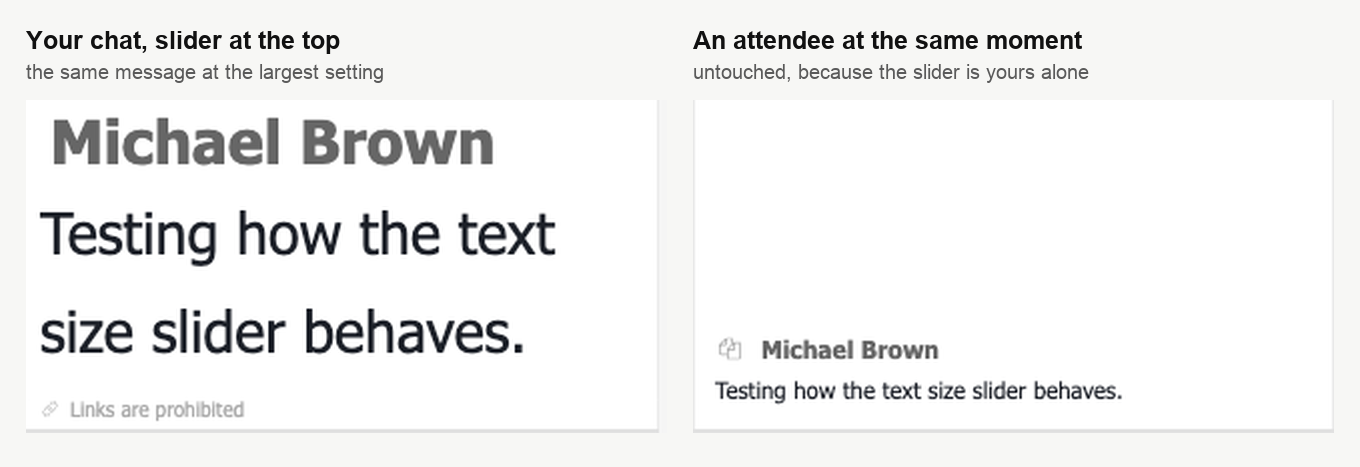
Moving it changes nothing for anybody else, and nothing about it is stored with the room's chat settings, so it is reading comfort rather than moderation.
Letting attendees write, or not
"Messaging" is on by default. Switch it off and every attendee's chat box is greyed out and reads "Chat blocked".
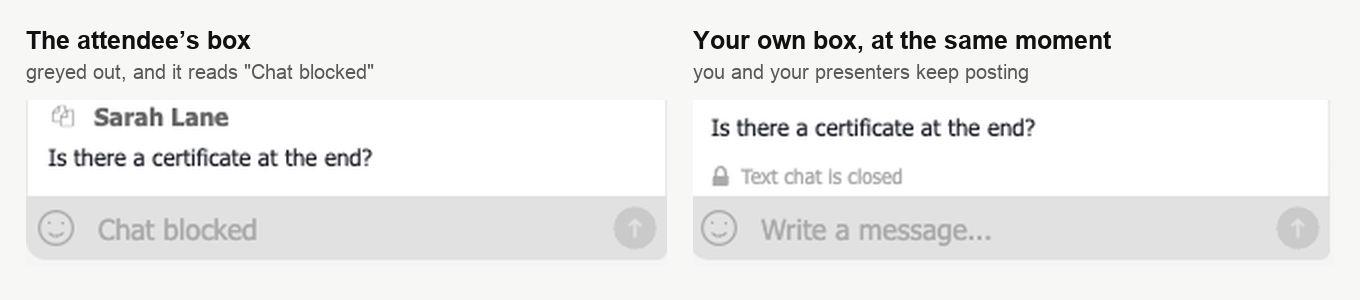
Your own box is untouched, and so are your moderators' and your presenters'. You can go on making announcements into a room that has gone quiet, which is what makes this different from closing the chat altogether.
Pre-moderation
"Pre-moderation" is the middle ground between an open chat and a closed one. With it on, attendees write and send exactly as before, but nothing reaches the rest of the room until you let it through.
A held message arrives in your chat with a ring beside it. Click the ring, whose tooltip reads "Post message", and the message goes out to everyone.
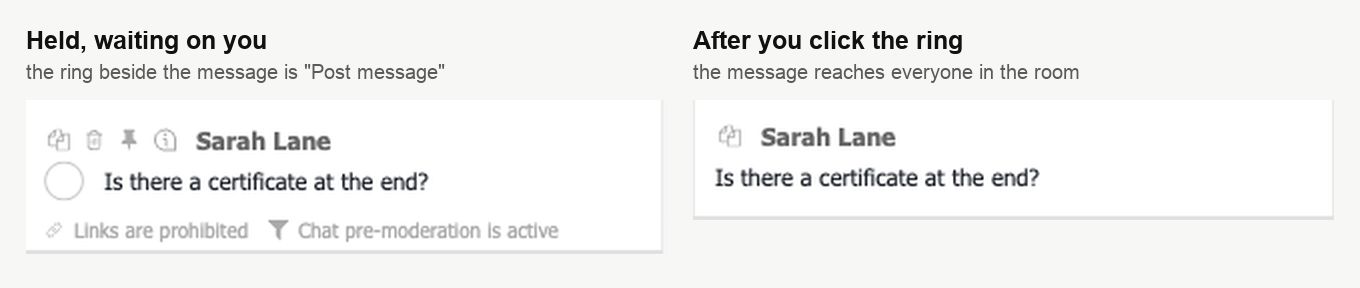
Know one thing before you switch it on. The sender sees no sign of any of this, because their message appears in their own chat looking published, so somebody whose question is waiting may well ask it a second time. Keeping up with the queue is the price of the setting.
It earns its keep with large audiences and with a crowd you cannot predict. Privacy and compliance requirements are the other common reason to use it.
Links in messages
"Links in messages" decides whether your audience can share addresses. It is off by default, and off means links are prohibited.
Prohibited does not mean the message is stopped. It arrives, and the addresses are taken out of it on the way.
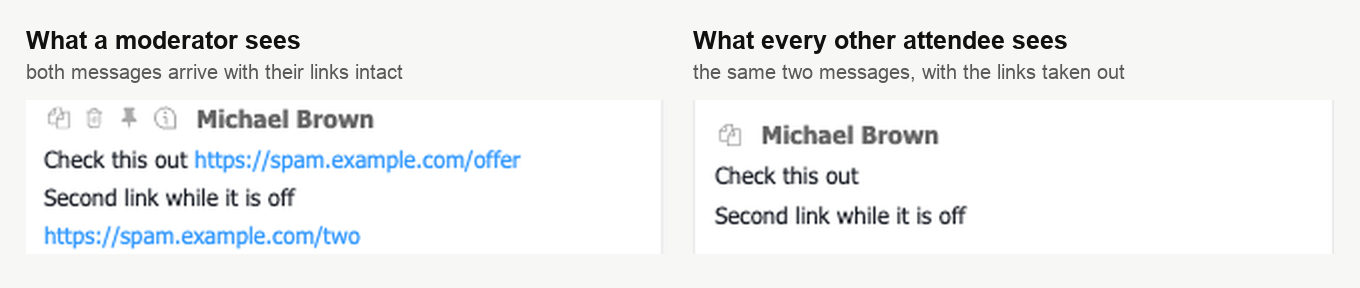
You, your moderators, your presenters and the sender all still see the full text. Everyone else gets the message with the links removed, which is why somebody posting spam often keeps going without realising that none of it is landing.
Turn the switch on and links are allowed and visible to everyone. There is no middle setting and no approval step for an individual link, so a person who will not stop is dealt with further down this page rather than here.
Anonymize names
"Anonymize names" hides who is speaking from the rest of the audience, and how much it hides deserves to be stated precisely.
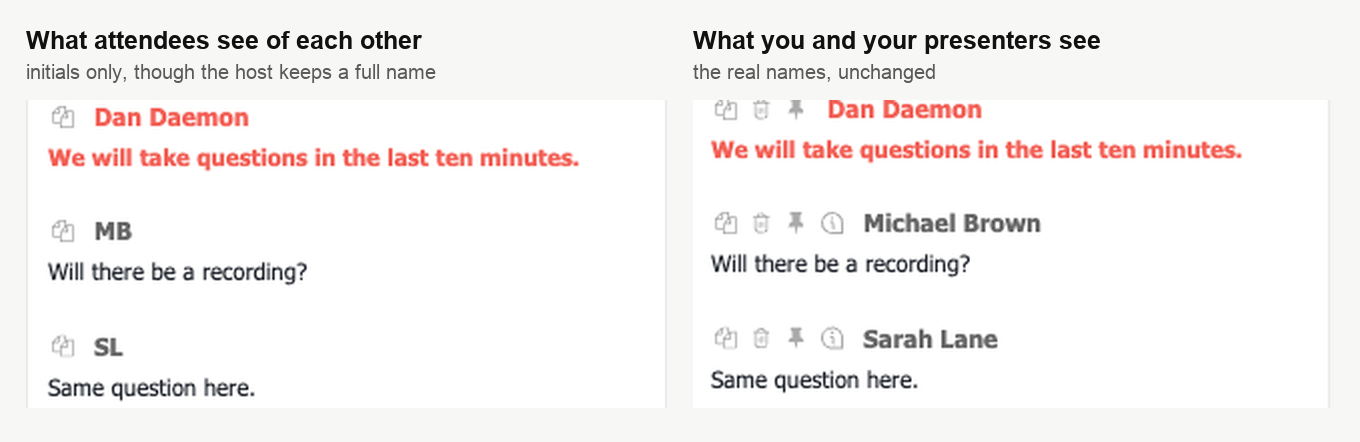
Attendees see each other by initials, so Michael Brown appears as "MB". Those are not neutral labels, and in a small group or a room where people already know each other, initials can still point at a person. Your moderators and presenters go on seeing full names, which is what lets them run the room, and your own name as host is not anonymised at all.
Anonymous webinar and participant data protection under GDPR covers the wider case, including hiding the attendee list.
Remove all messages
The last row wipes the chat area for everyone in the room, you included, and a note confirms it with "Text chat cleared for all attendees".
There is no "are you sure" step. One click and the chat is empty, so treat that row with more care than its neighbours.
It is a live clean-up rather than a deletion. The stored transcript is untouched, and the last section of this page says where to read it.
Reading the room at a glance
You do not have to open the menu to see what is switched on. A line above your own chat box names each limit that is active.
- "Text chat is closed" when Messaging is off
- "Links are prohibited" when Links in messages is off
- "Chat pre-moderation is active" when Pre-moderation is on
Attendees do not see these lines. They are yours, and they are the quickest way to find out what a co-moderator changed while you were presenting.
When one person will not stop
Hover their message and a row of icons appears above it, holding copy, delete and pin, then one more that opens the rest.
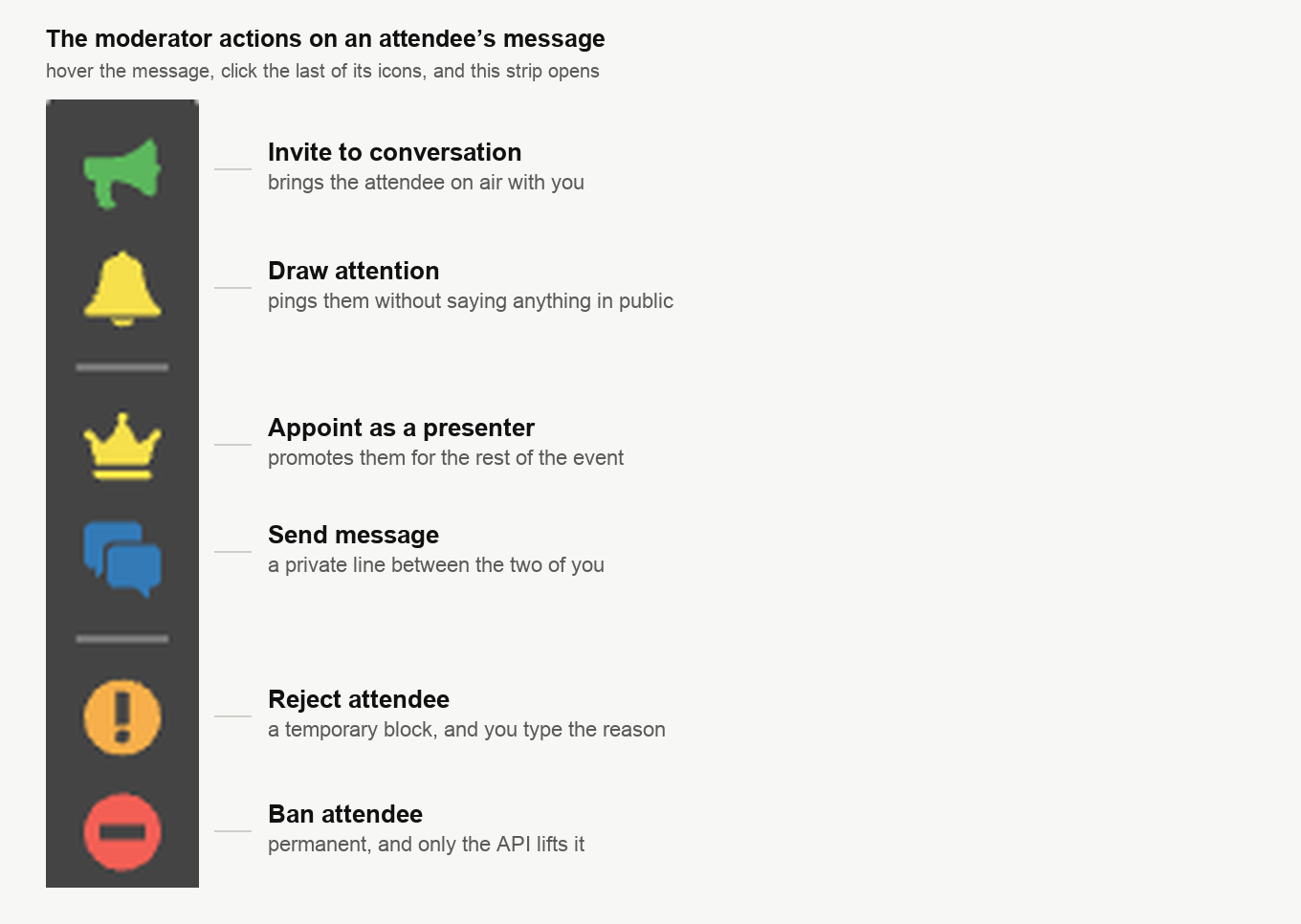
The two at the bottom are the ones that end a problem, and the difference between them matters.
"Reject attendee" is the temporary one. It asks you to type a reason and offers "Block until event ends", so it suits the person who needs to cool off rather than to be gone for good.
"Ban attendee" is permanent, and its own wording says so, asking whether you want to permanently ban the user from accessing the room.
A ban is not undone from inside the room, and there is no blocked list to edit in the control panel. The one way back is the public API, whose attendeesUnbanned command lifts a ban and takes one email address or several at once. So reach for Reject unless you mean it.
Not every disruption calls for either. The green megaphone at the top of the same strip invites the attendee to speak, and a stream of chat messages often turns into a short conversation on air and ends there.
Full-screen mode takes the chat away
In full-screen mode your attendees see the presentation only and the text chat is not available to them, and the room will not let you switch the chat back on while you are still in that mode. If the conversation matters to your event, full-screen is not the mode for it.
What happens to the chat afterwards
Attendees can reach the conversation only while the webinar is running. Once it is over, the messages live in your control panel.
Open the event's three dots, choose "Statistics", and the "Webinar insights" panel opens with a "Chat" tab that holds the whole conversation, a date to pick and an "Export" button. Webinar statistics and reports covers the rest of that screen.
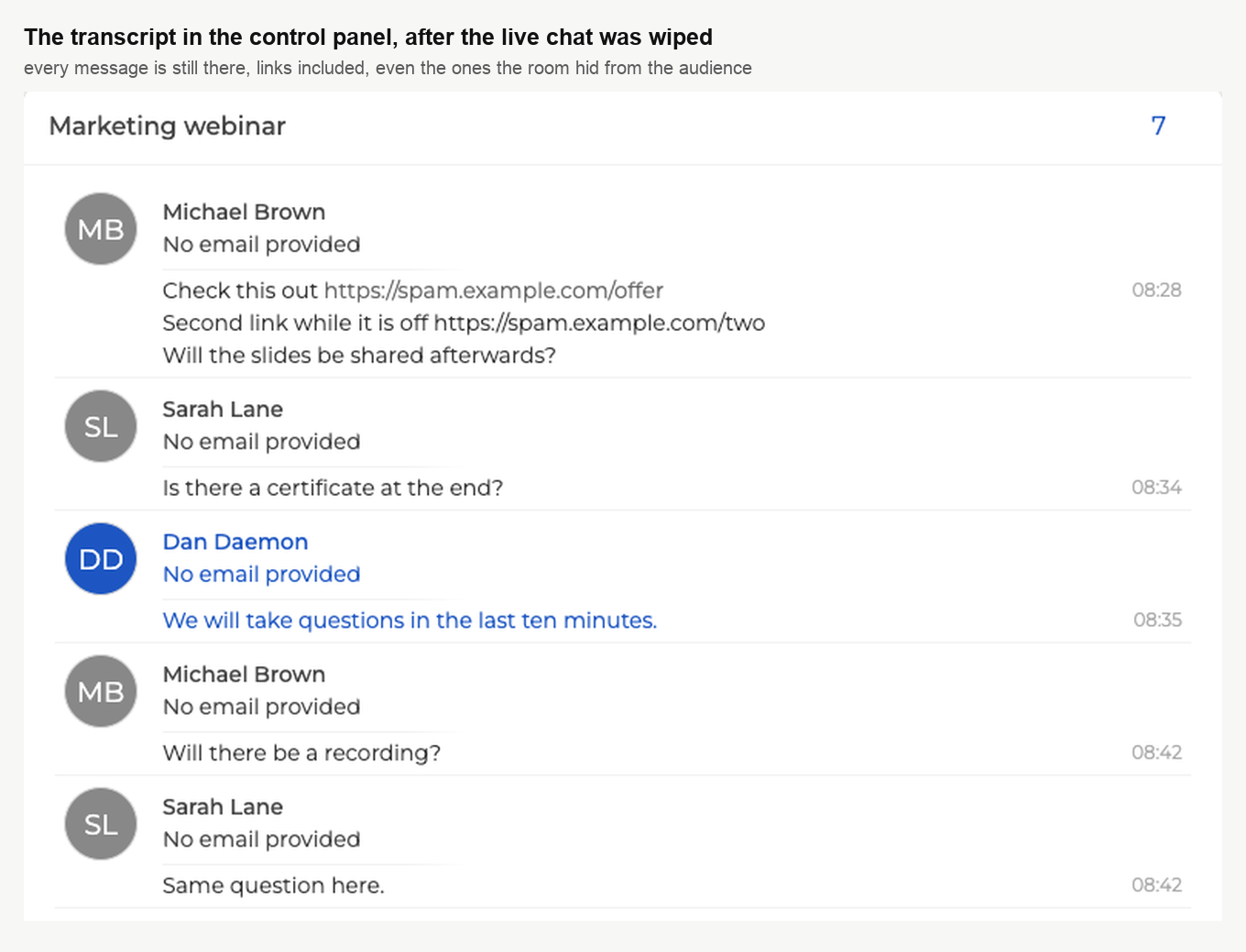
Clearing the chat during the event does not touch any of this, and neither does hiding links. The transcript keeps the addresses your audience never saw, which is what you need if you have to work out afterwards what somebody was posting.
Still stuck
If one of the chat controls does not do what this page describes, open the online chat and tell us the event and which of the six you had switched on.
Frequently asked questions
Will these settings still be on at my next webinar?
Yes. The four switches belong to the room rather than to your session, so they survive you leaving and coming back, and they are still set that way at your next event in the same room. Their presets live in the control panel, on the "General" tab of a room's or a webinar's settings, under a group also called "Chat settings". Worth remembering if you tightened something for one difficult audience.
Can I make the chat text bigger for everyone?
No. The slider at the top of "Chat settings" sets how large the text in your own chat is, and moving it changes nothing for anybody else. Nothing about it is stored with the room's chat settings either, so it is reading comfort rather than moderation.
Does an attendee know their message is waiting for approval?
No, and this is the one thing to know before switching pre-moderation on. The sender sees no sign of any of it, because their message appears in their own chat looking published, so somebody whose question is waiting may well ask it a second time. A held message reaches the room when you click the ring beside it, whose tooltip reads "Post message", so keeping up with the queue is the price of the setting.
I banned the wrong person. Can I let them back in?
Not from inside the room, and there is no blocked list to edit in the control panel. The one way back is the public API, whose attendeesUnbanned command lifts a ban and takes one email address or several at once. Reach for "Reject attendee" instead when you are unsure, since it asks you to type a reason and offers "Block until event ends".
If I clear the chat, are the messages gone for good?
No, it is a live clean-up rather than a deletion, so the stored transcript is untouched. Open the event's three dots in the control panel, choose "Statistics", and the "Webinar insights" panel opens with a "Chat" tab that holds the whole conversation and an "Export" button. The transcript even keeps the addresses your audience never saw while links were prohibited, which is what you need if you have to work out afterwards what somebody was posting.
