
How to show a pointer on your slides
There is a pointer and you already have it, but there is no button called Cursor anywhere in the room. Where it lives depends on what you are showing, because sharing a screen and showing a file are two different things.
While you are sharing your screen
Nothing to switch on. Your screen goes out the way you see it yourself, so your mouse cursor travels with it. Point at a row in a spreadsheet and everybody watches the same arrow move across it, with no tool involved. How to share your screen during a webinar covers getting that started, and why screen sharing requires our software explains the one thing you install first.
While you are showing a presentation or another file
This is the case people are asking about. A presentation you loaded into the room is not your screen, so nothing of yours moves across it by itself. The room can draw a pointer for you instead, and the tool is called "Pointer".
- Click "Draw" in the left rail. The stage becomes a drawing surface and a toolbar appears along the bottom of it.
- On that toolbar, click the arrow icon, the first one after undo and redo. Hover it and it says "Pointer (P)".
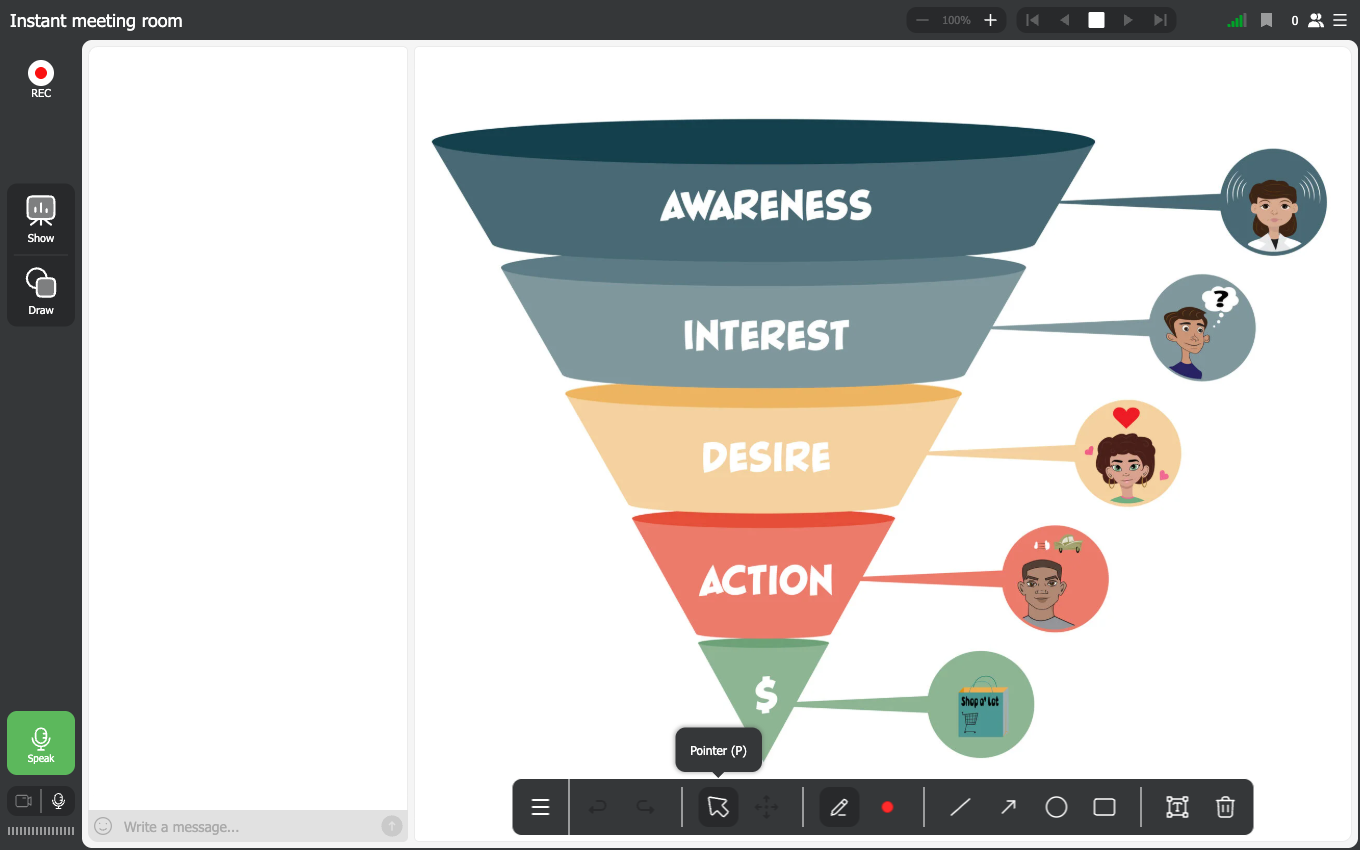
The toolbar sits along the bottom of the stage, and the pointer is the arrow at its left end, just after undo and redo.
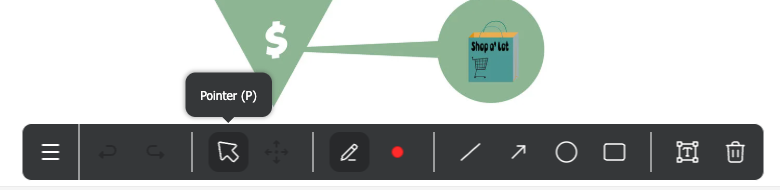
From there your mouse is the pointer. Move it over the slide and the room carries it to everyone watching, which is the whole point of the tool, since a room full of people cannot see your desk.
The rest of that toolbar
The pointer is the only tool there that leaves nothing behind. Everything else makes a mark:
- "Marker (B)" for freehand drawing, with the coloured circle beside it, which is "Color and thickness (C)"
- "Line (L)", "Arrow (A)", "Circle (O)" and "Rectangle (R)" for shapes
- "Text (T)" for typing directly onto the material
- "Delete element (Del)" for removing a single thing you drew, and "Move & Resize (M)" for repositioning one
- "Undo (Ctrl+Z)" and "Redo (Ctrl+Shift+Z)" just after the menu button at the start of the row
Three things worth knowing before you use it live
Drawing mode opens on the marker, not the pointer. Click "Draw" and the marker is already selected, so a click on the slide draws a line. If all you want is to point, switch to "Pointer" first.
The pointer is a switch rather than a mode. Turning it on does not deselect the marker underneath, and clicking it again turns it back off. That is what lets you point at a figure and then circle it without going back to the left rail.
The letter P does the same thing as the icon. Pressing it switches the pointer on, pressing it again switches it off, which is quicker than aiming at a small button while you are talking.
Frequently asked questions
Is there a feature called Cursor?
Not under that name. What people are looking for is the "Pointer" tool inside "Draw", and while you share your screen you do not need it, because your own cursor is already part of what the audience receives.
Do my attendees have to switch anything on to see it?
No. The pointer arrives as part of what is on the stage, the same way the slide itself does, so there is nothing for them to enable.
Does the pointer draw on my slide?
No. It shows where you are and nothing more. Marks come from the marker, the shapes and the text tool, and those are the ones worth clearing before you move to the next slide.
Can I use it without a presentation on the stage?
Yes. "Draw" turns the working area into a whiteboard whether or not something is being shown, so the pointer works over a blank board as well as over a slide.
My material is loaded but nothing appears when I click Draw
Check that the file really is on the stage rather than only in storage. Materials are put up from "Show", and uploading a presentation covers getting them into the room in the first place.
