
Broadcast latency (stream delay)
Everyone broadcasting in the room is part of one video conference, and the delay between them is not a fixed setting. It is measured and adjusted continuously, and it always pulls back towards the smallest value the connection allows.
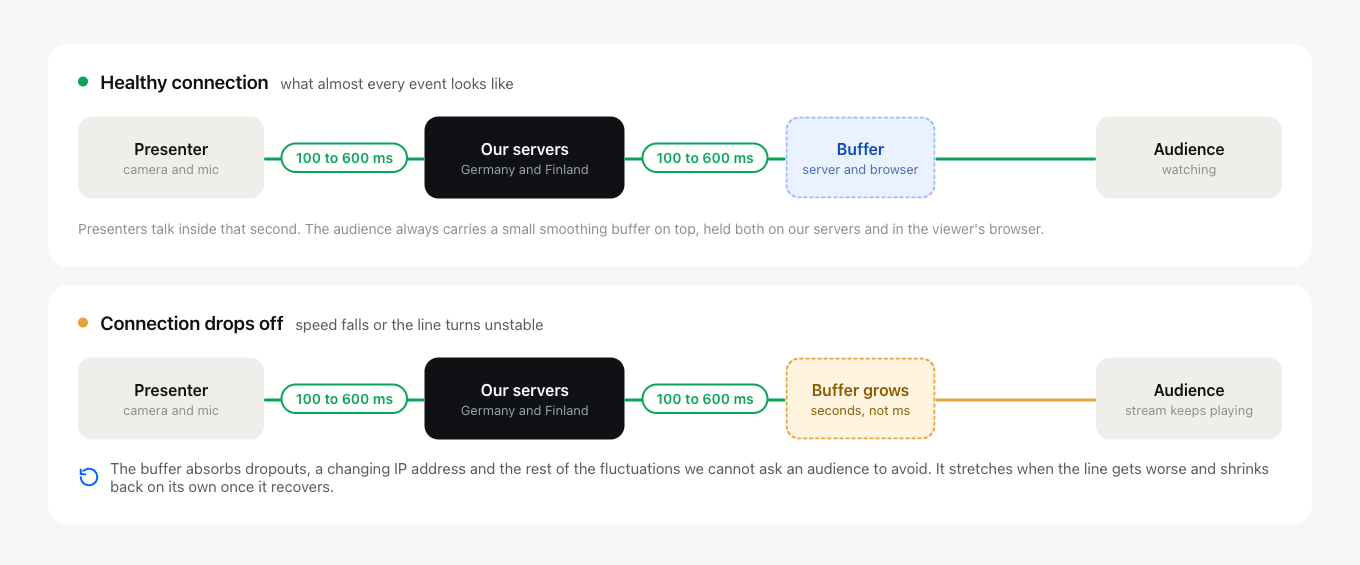
On a healthy connection that lands between 100 and 600 milliseconds, comfortably inside a second. At that range presenters do not notice it at all, and a conversation between two of them runs as it would in a room.
Why the audience is a little further behind
Your audience gets a small buffer on top of that, and it is there on purpose rather than as a symptom of anything.
The difference is what we can reasonably ask of people. A presenter can be told to sit on a wired connection, to close the heavy downloads and to run the connection tester beforehand. An audience cannot. They join from a train, from a phone that switches between Wi-Fi and mobile data, from an office network nobody warned us about. So instead of asking them for a good line, we absorb the difference for them.
That is what the buffer does. It holds a short run of stream ahead of what the viewer is currently watching, both on our servers and inside their browser, so a dropout, a change of IP address or an ordinary network wobble gets smoothed over instead of stopping the picture.
When the number goes up
On a weaker or less stable connection the buffer stretches, and that is what a viewer experiences as a longer delay. It can reach a few seconds, and on a poor line or an older device three to seven at worst, which technical requirements covers alongside the browser and hardware limits behind it.
The important part is that this is a reading, not a verdict. A delay measured right now describes the connection right now. As soon as speed and stability recover, the buffer shrinks again and the delay comes back down on its own. Nothing needs switching off and back on, and nothing needs reporting to us.
That is also why one bad measurement is worth repeating before you act on it. Check again from a different network, or at a quieter time of day, and compare.
How to reduce the delay
If your delay comes from a connection that keeps faltering, the room can broadcast through our alternative broadcasting technology instead of the browser, which means downloading and running the DTS app. It will not make the gap smaller on a healthy line, since both routes sit in the same range. What it does is hold the stream together where the browser route keeps having to recover, and a stream that is not recovering is a stream that is not falling behind. The account owner switches it on in the dashboard before the event.
Everyone who speaks in the room installs the app. Attendees install nothing.
The third broadcasting route moves the other way on purpose. Streaming from OBS Studio over RTMP puts your audience about ten seconds behind you, and as much as twenty, because that stream is cut into HLS chunks before it reaches them. Unlike the figures above, that gap is designed in rather than measured, so it does not shrink when the connection recovers. Broadcasting into the webinar room from OBS Studio sets out what the trade buys you.
What to expect when you test
During a test you may see the camera picture drop in quality or hear crackling in the audio while the latency itself stays where it was. Both of those problems come from the connection, so the only real fix is a better internet link, and what to do when video freezes or attendees drop out works through it step by step. Why there is a delay between presenters explains what the gap is made of.
If the delay stays high on a line you have already measured, open the online chat and tell us the event, where your presenters were sitting and what the tester reported for each of them.
Frequently asked questions
Is there a setting where I can change the delay?
No, the delay is not a fixed setting you can adjust. It is measured and adjusted continuously, and it always pulls back towards the smallest value your connection allows, so it follows the line rather than a preference. The only thing you choose is the broadcasting route, and broadcasting into the webinar room from OBS Studio is the one route that deliberately trades delay for something else.
Do my attendees have to install the DTS app as well?
No, attendees install nothing. The app goes on the machine of everyone who speaks in the room, and the account owner switches the room over in the dashboard before the event. Alternative broadcasting technology covers what downloading and running it involves.
My delay reached a few seconds. Should I report it to you?
No, and there is nothing to switch off and back on either. A few seconds means the buffer has stretched to cover a weaker or less stable connection, and it shrinks again on its own as soon as speed and stability recover. Repeat the measurement from a different network, or at a quieter time of day, before you act on a single reading.
Will streaming through OBS Studio give me a lower delay?
No, it moves the other way on purpose. An OBS stream over RTMP puts your audience about ten seconds behind you, and as much as twenty, because that stream is cut into HLS chunks before it reaches them. That gap is designed in rather than measured, so unlike the figures on this page it does not shrink when the connection recovers.
My picture went blurry during a test but the delay stayed the same. What is wrong?
That is the connection rather than the delay. A camera picture that drops in quality, or audio that crackles while the latency itself stays where it was, comes from the internet link, so the only real fix is a better one. What to do when video freezes or attendees drop out works through it step by step.
