
Webinar attendee guide
MyOwnConference runs entirely in the browser. There is nothing to install, so you can join a webinar from a laptop, a desktop, a phone or a tablet using the browser you already have.
You do not need an account
Registering with MyOwnConference is only for people who host events. As an attendee you get in with the link the organiser sent you, and nothing else.
That link looks like this:
https://www.mywebinar.com/xxxx-xxxx-xxxx-xxxx
where xxxx-xxxx-xxxx-xxxx is the unique alias of the event. If the organiser has turned on the Custom domain feature, the www.mywebinar.com part is replaced by the address they picked, something like acme.mywebinar.com, and the rest of the link keeps the same shape.
Registering on our website or in the control panel will not get you into someone else's event.
What you need
- A reasonably modern computer, phone or tablet.
- Enough bandwidth for every speaker who goes on air, since each one reaches you as a stream of its own. One speaker with a camera needs roughly 3 Mbit/s down, and internet speed for the webinar room works out the rest.
- A current browser with JavaScript enabled. Chrome, Firefox, Edge, Opera and Safari all work.
Two platform quirks are worth knowing. On iPhone and iPad use Safari, because Apple restricts what other browsers may do and the room can behave badly in them. On Android use Google Chrome, since it is the system browser and gets the fewest surprises.
Before the event starts, stop any downloads and close the browser tabs you do not need. Video streaming on the same connection is worth pausing too. Anything competing for bandwidth turns into stuttering video later.
Joining from a computer
Step 1: open the invitation
Check your inbox 10 to 20 minutes before the start and use the button in the message the organiser sent you.
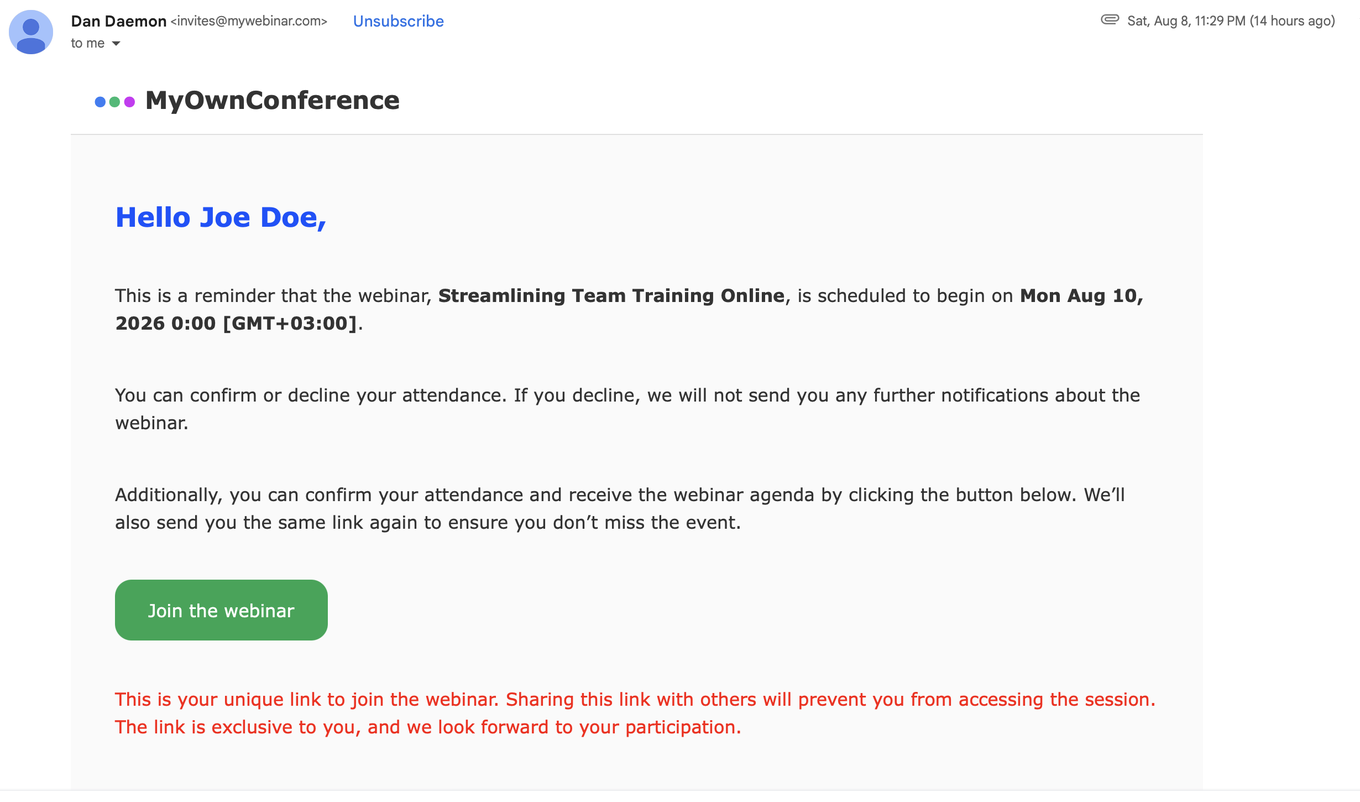
That link belongs to you alone. Passing it on does not add a second seat, it moves yours, so whoever opens it last is the one who gets into the room.
Step 2: fill in the form
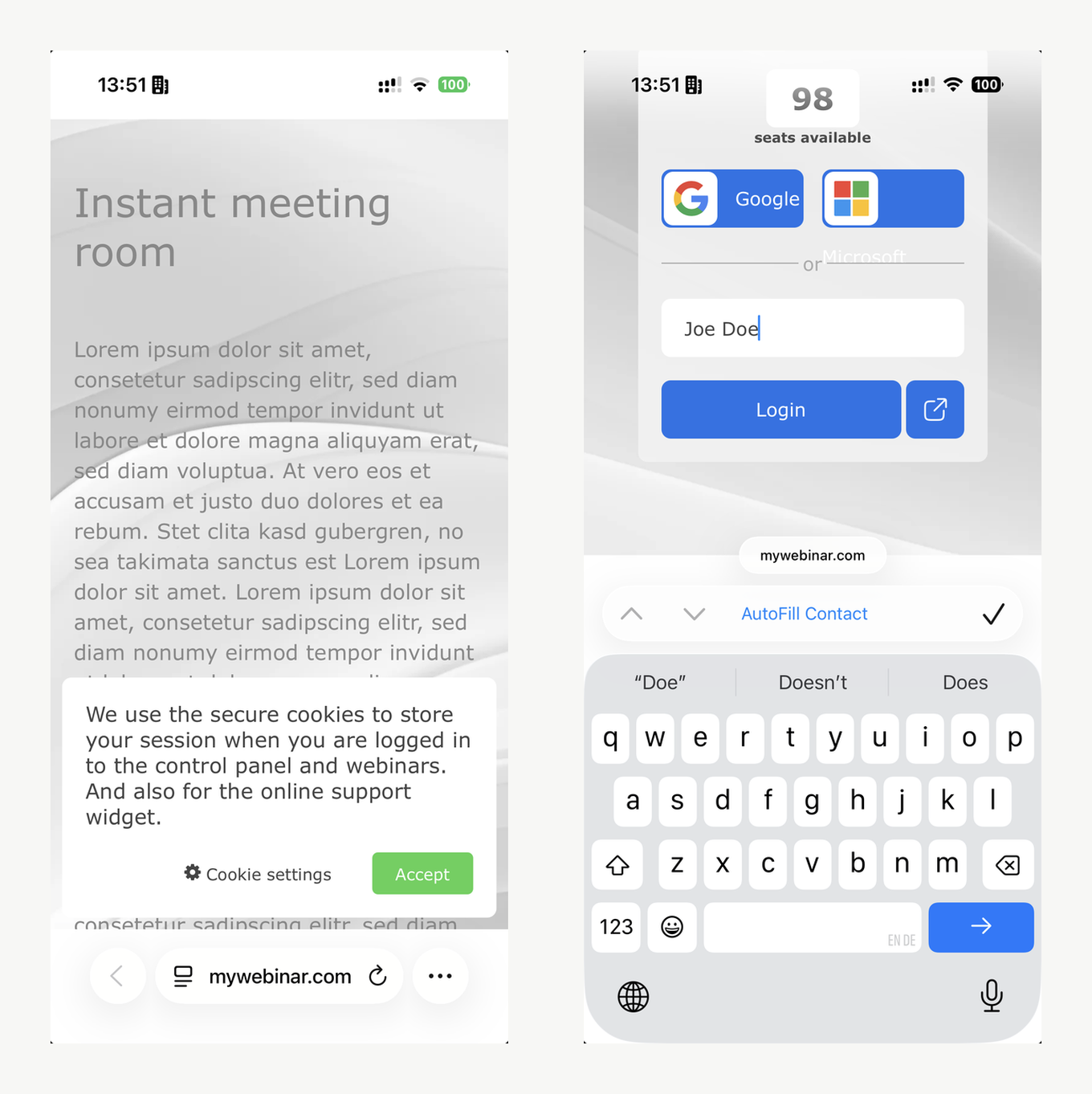
The link opens the entry page for the event. Most rooms ask for a name and nothing else, though the organiser can add fields such as an email address, a phone number or a company, and everything shown to you has to be filled in. You can also come in with a Google or Microsoft account in one click if the organiser left that on.
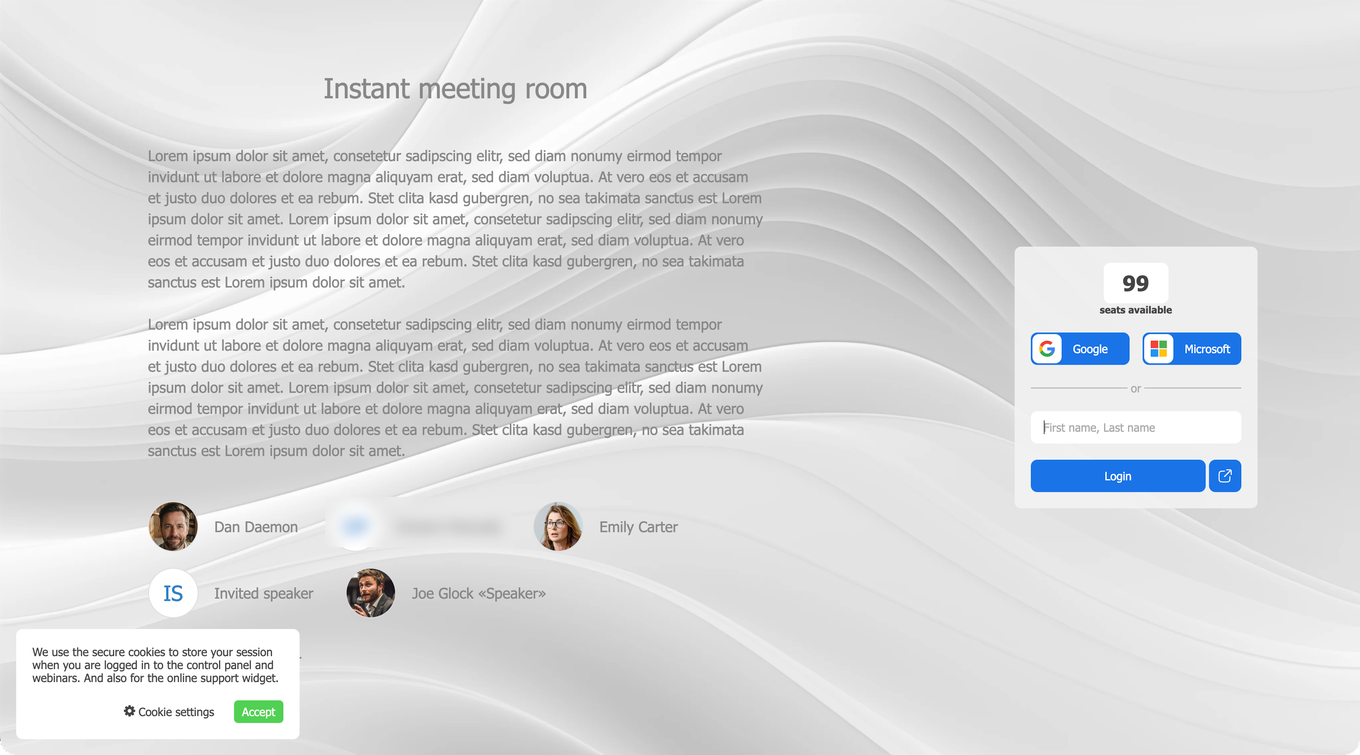
The counter above the form shows how many seats are still free. When it reaches zero the room is full and only the organiser can make more space.
Step 3: accept the data and cookie notice
The platform asks you to agree to data and cookie processing. This step cannot be skipped, because we need one cookie to hold your session. "Cookie settings" opens the detail if you want to read what each one does before agreeing.
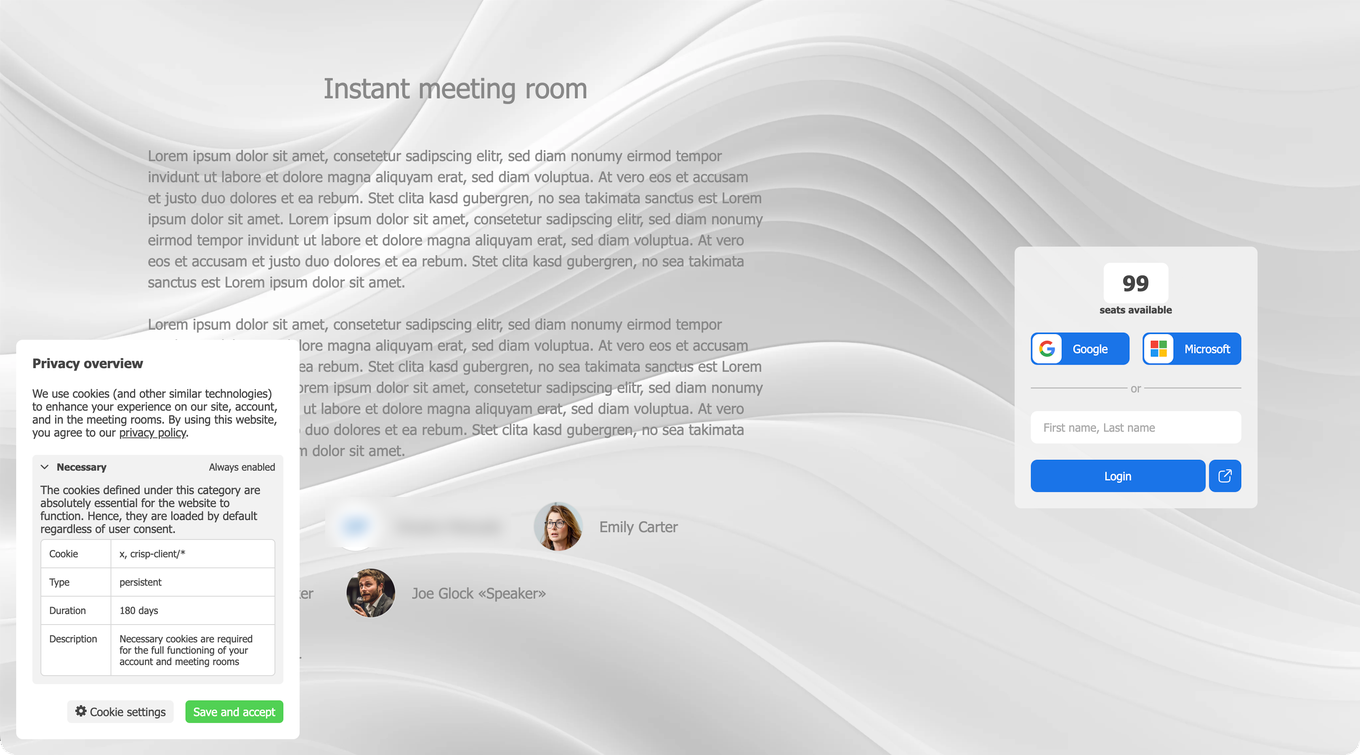
If you have attended an event on the platform before, your name may already be filled in. We keep that in an encrypted session tied to your browser alone.
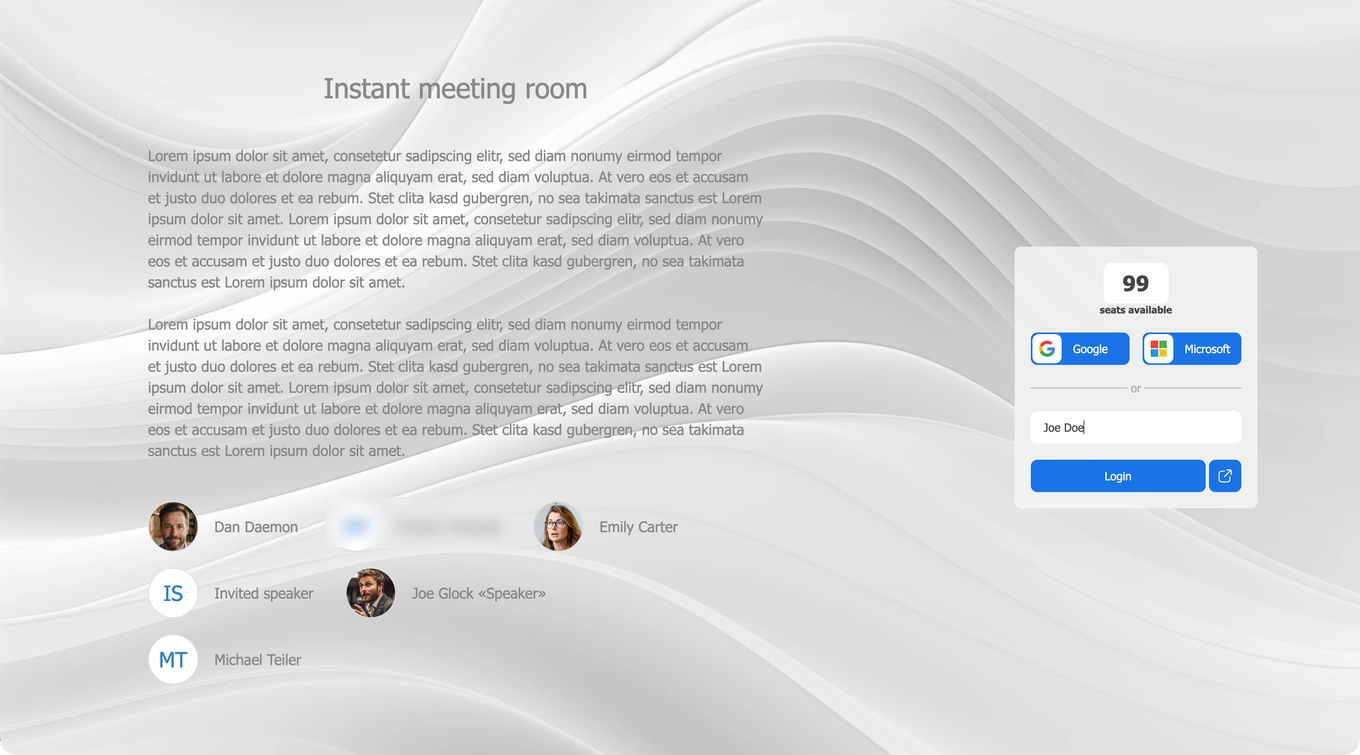
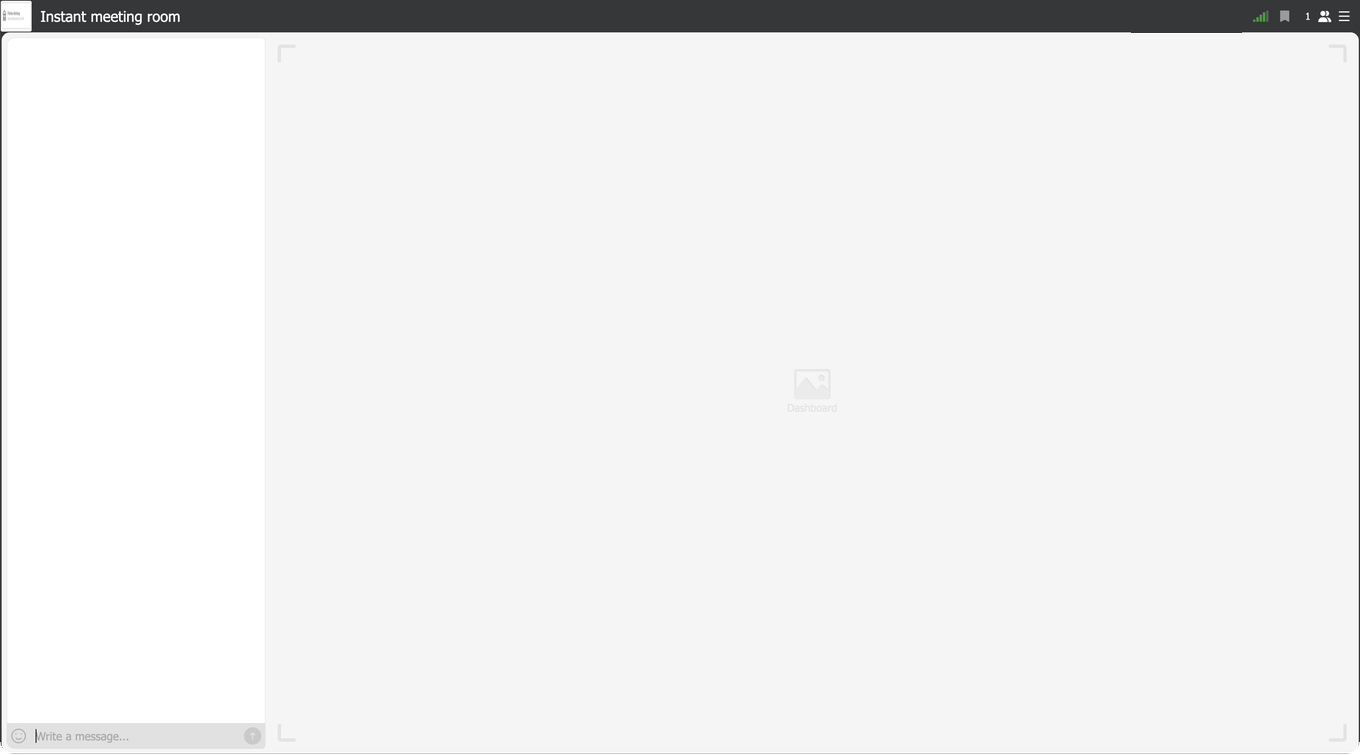
You are in the room now, either watching the speakers or waiting for them to begin.
Joining from a phone or tablet
Tap the same link, or paste it into the address bar of your mobile browser. The steps are identical, so you accept the cookie notice and then enter your name along with whatever else the organiser asked for.
iPhones add a trap of their own. If you hear nothing at all, check the ring and silent switch, because silent mode keeps live webinar sound quiet while a recorded video on the same phone still plays. Flip the phone back into ring mode, tap the screen once, and the sound returns. A phone in silent mode has no webinar sound explains it for both phone systems.
Inside the room
The centre of the room has three parts. They are the presenter's webcam, whatever they are showing, and the text chat.
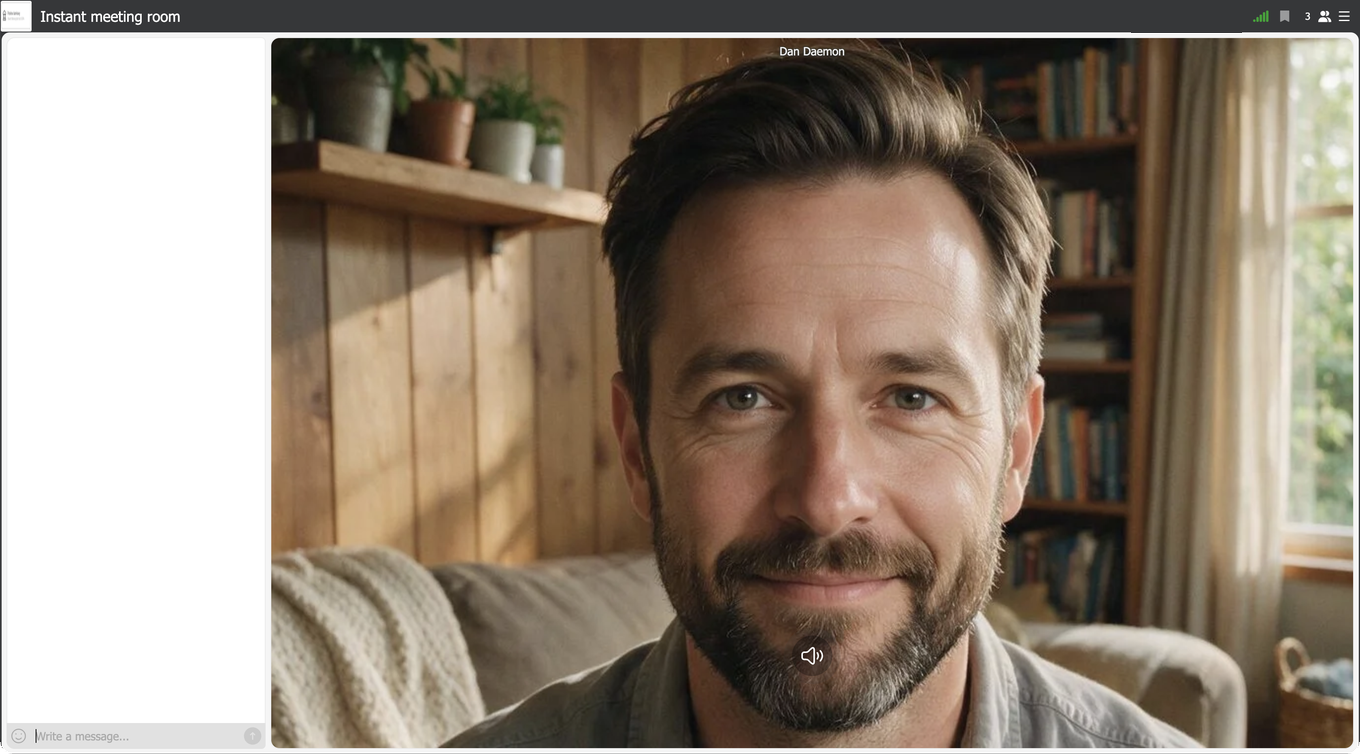
What they show can be a slide deck, a shared screen, a drawing board or a video, depending on the session. It takes the centre and the presenter's camera moves into the corner.
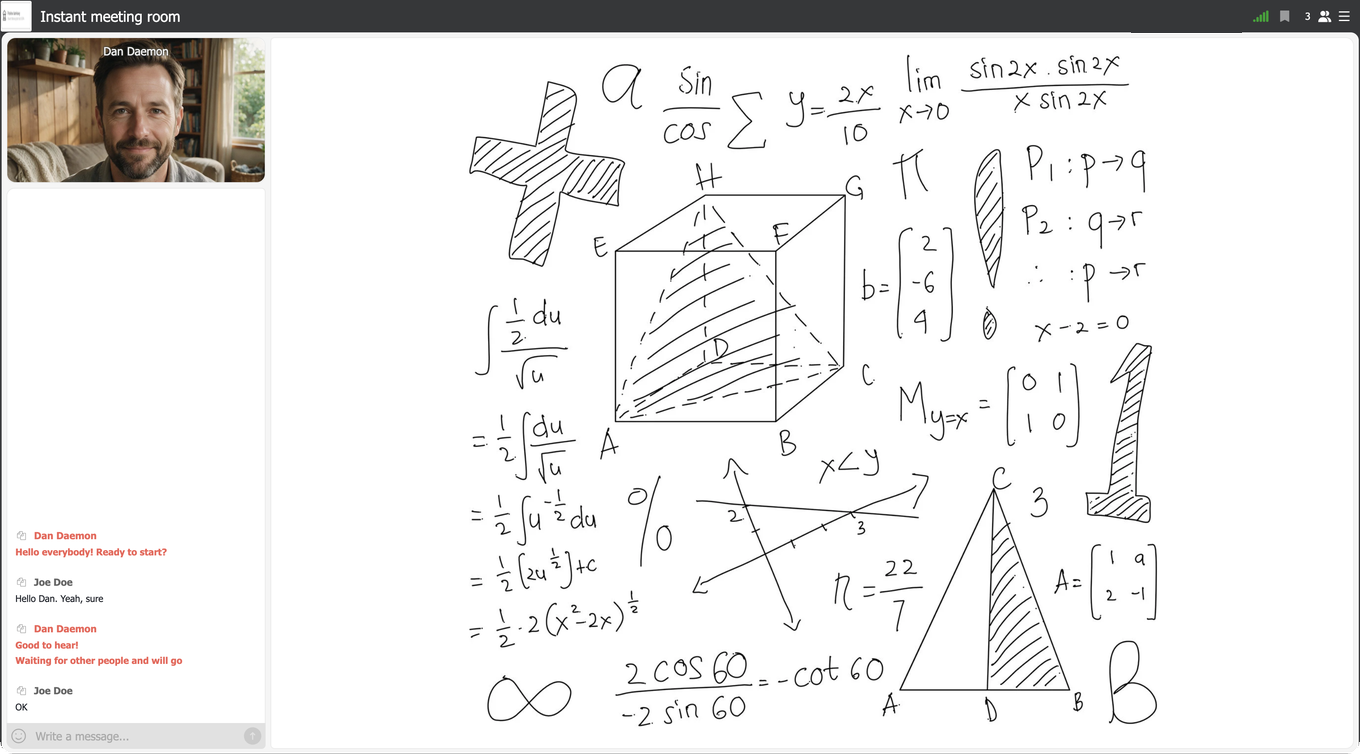
The chat runs down the left, and the box at its foot is where you write to the hosts and the other attendees.
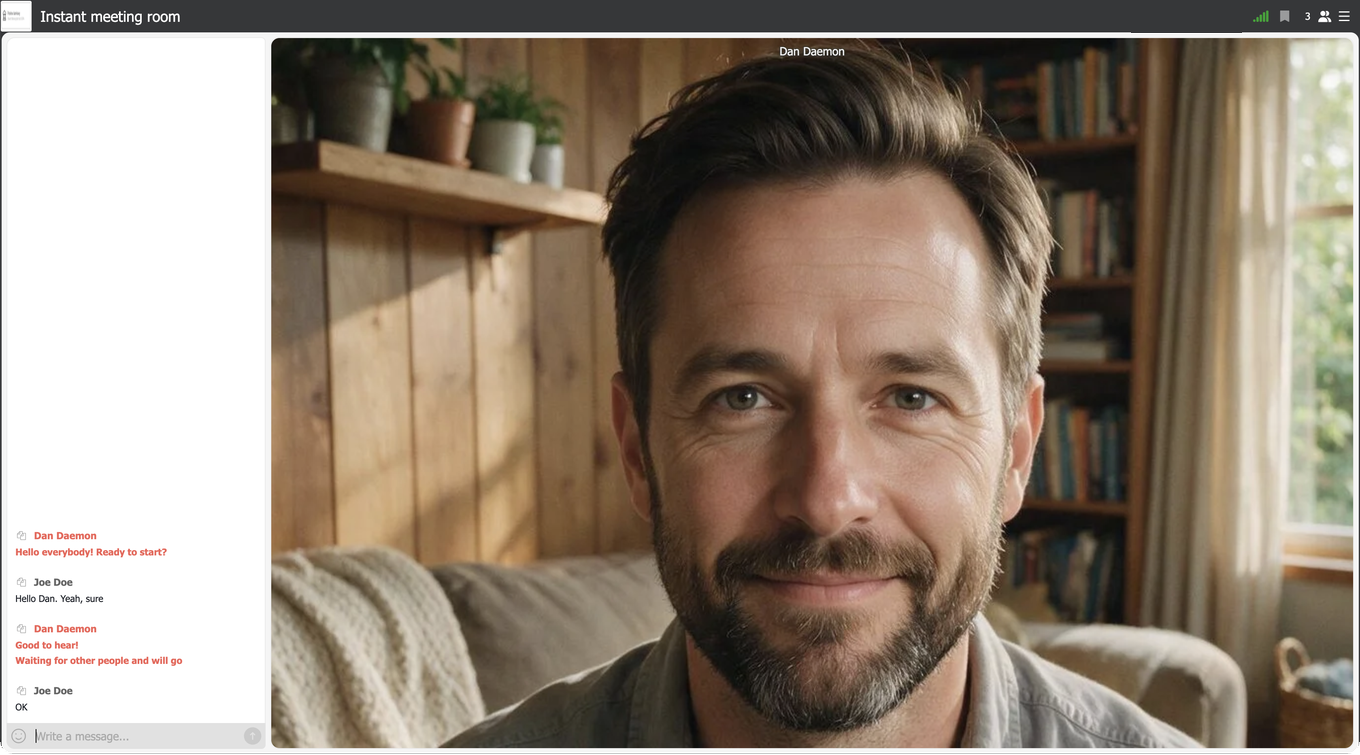
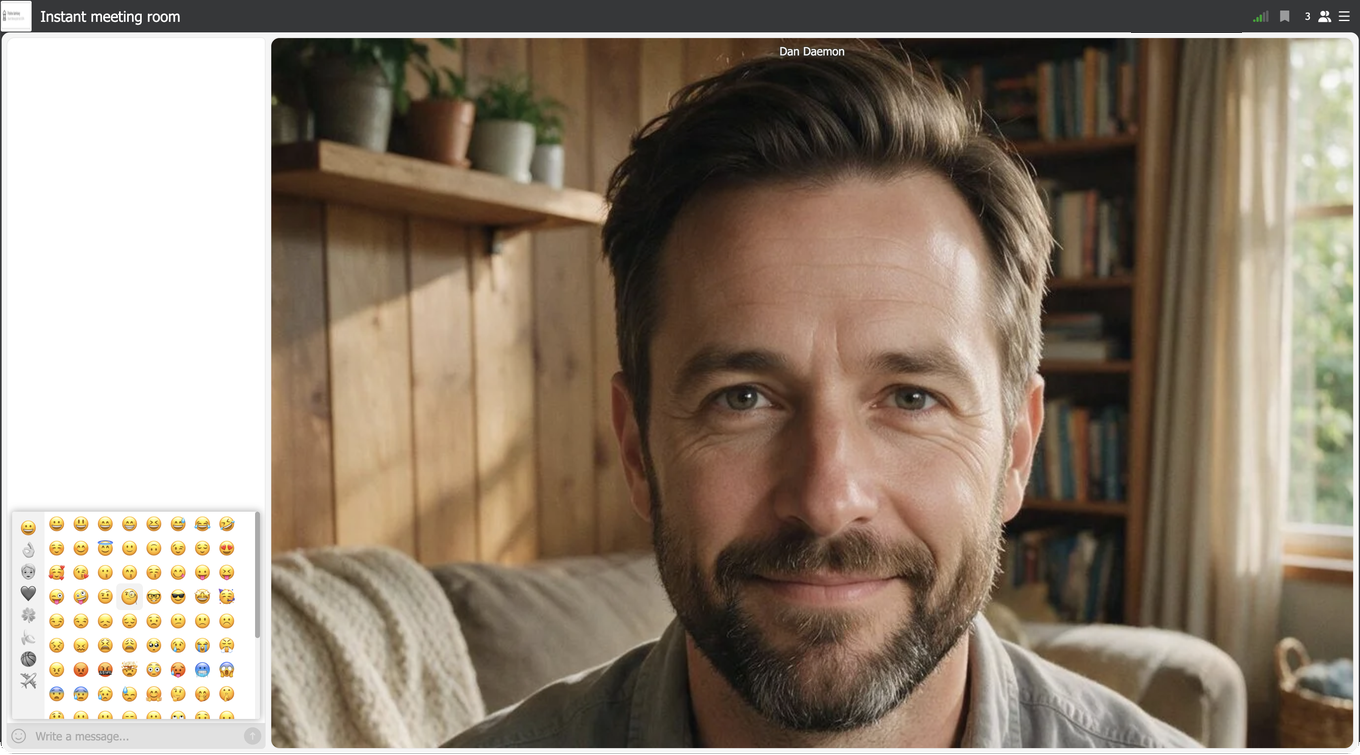
Use the emoji picker if you would rather react than write.
The menu on the right
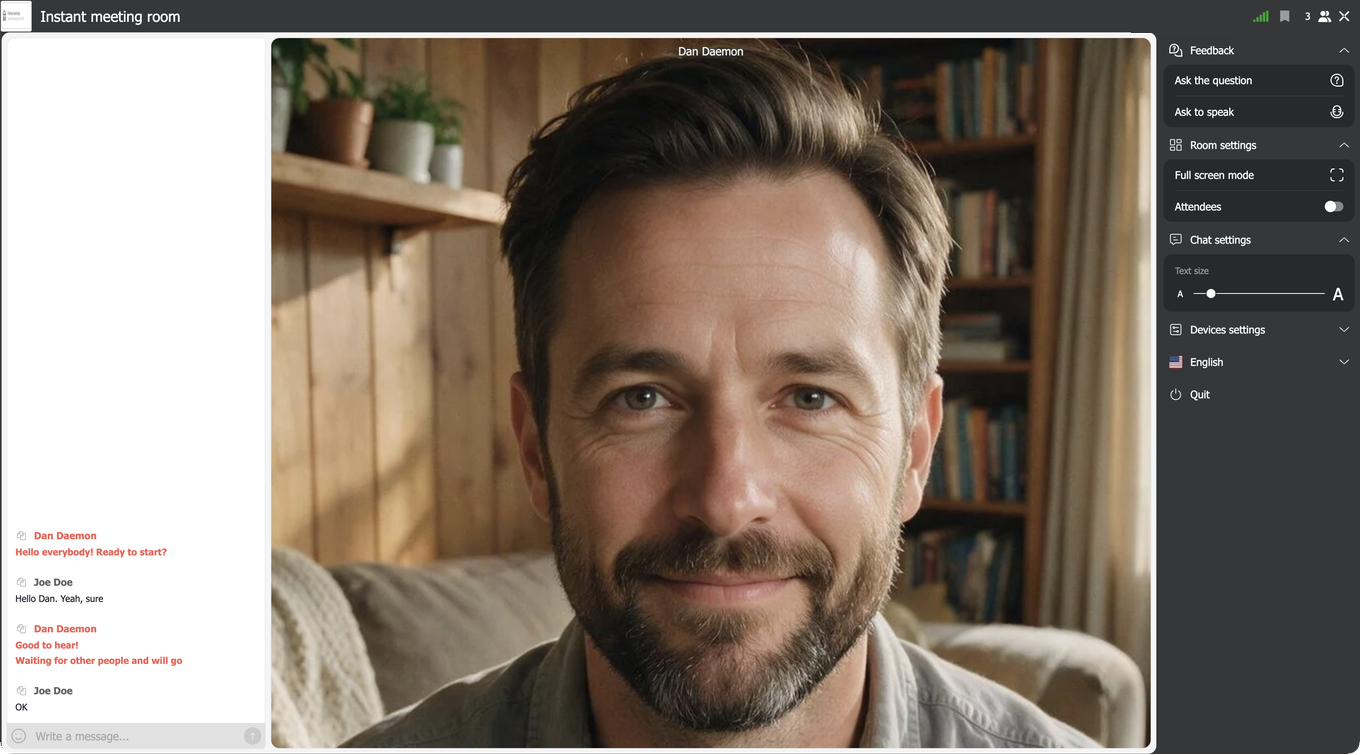
Everything else lives in the menu at the top right, and it is worth opening once before the event rather than hunting through it mid-sentence.
"Feedback" is how you reach the hosts directly. "Ask the question" opens a box for a written question, and "Ask to speak" puts your hand up. "Ask to speak" is there only when the organiser allowed requests to speak for this event, so its absence from your menu is their setting rather than a fault.
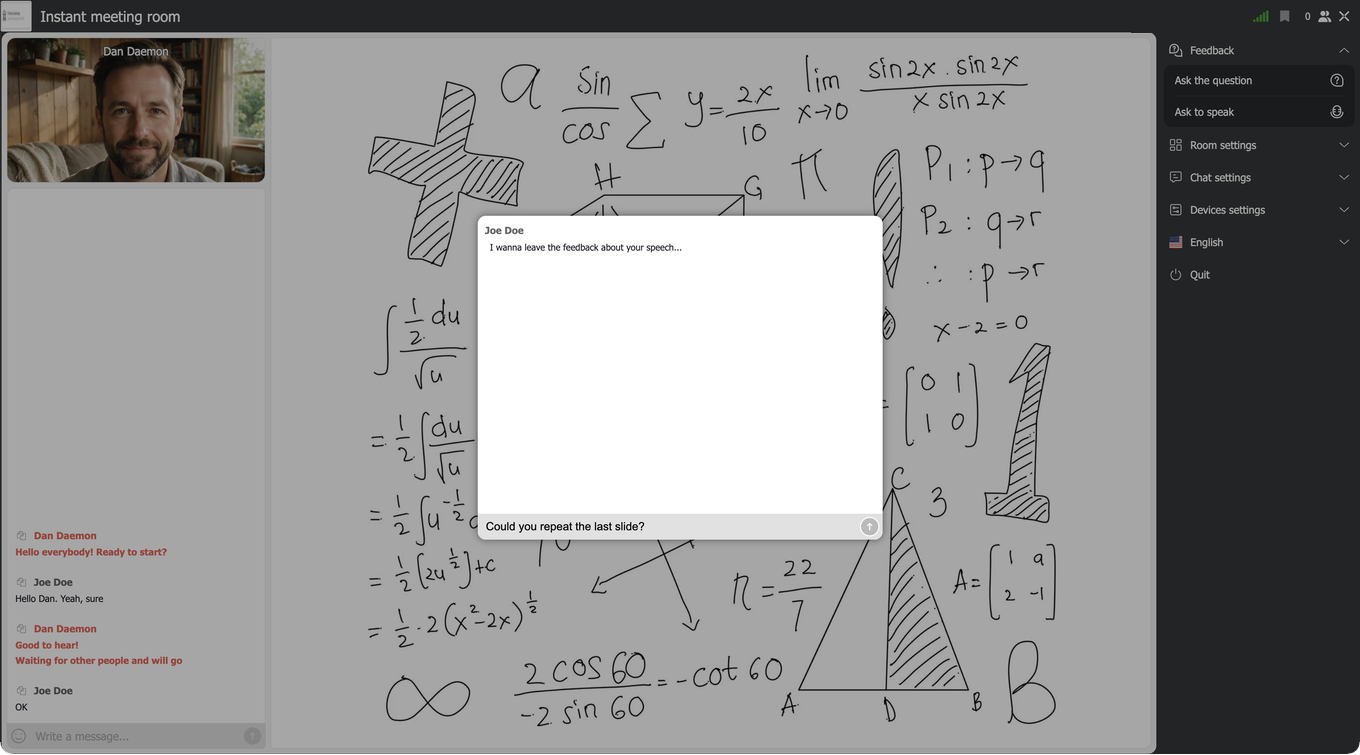
"Room settings" holds "Full screen mode" and a switch that hides or shows the list of attendees. "Chat settings" carries a text size slider, which is the one to reach for if the chat is too small to read comfortably.
"Devices settings" is where you check your camera and microphone, and it matters if you expect to be invited to speak. Test it before your turn rather than during it.
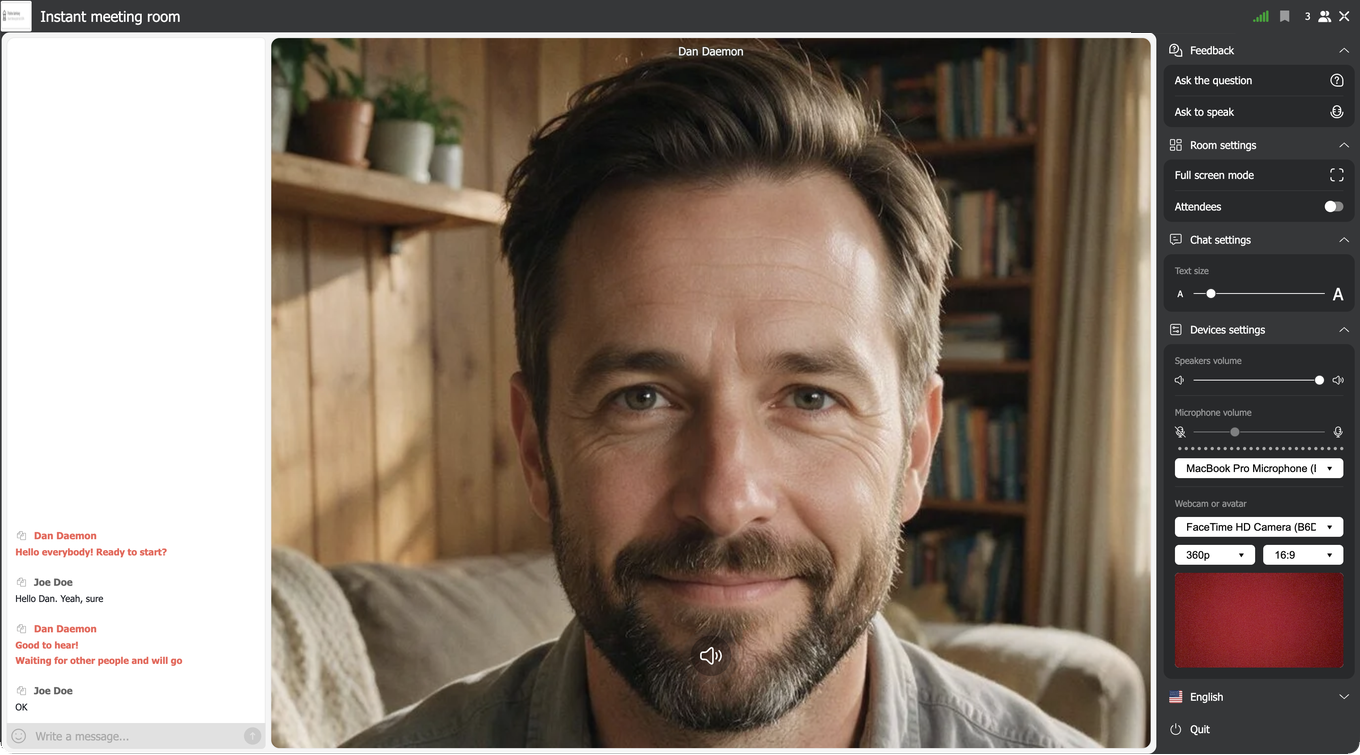
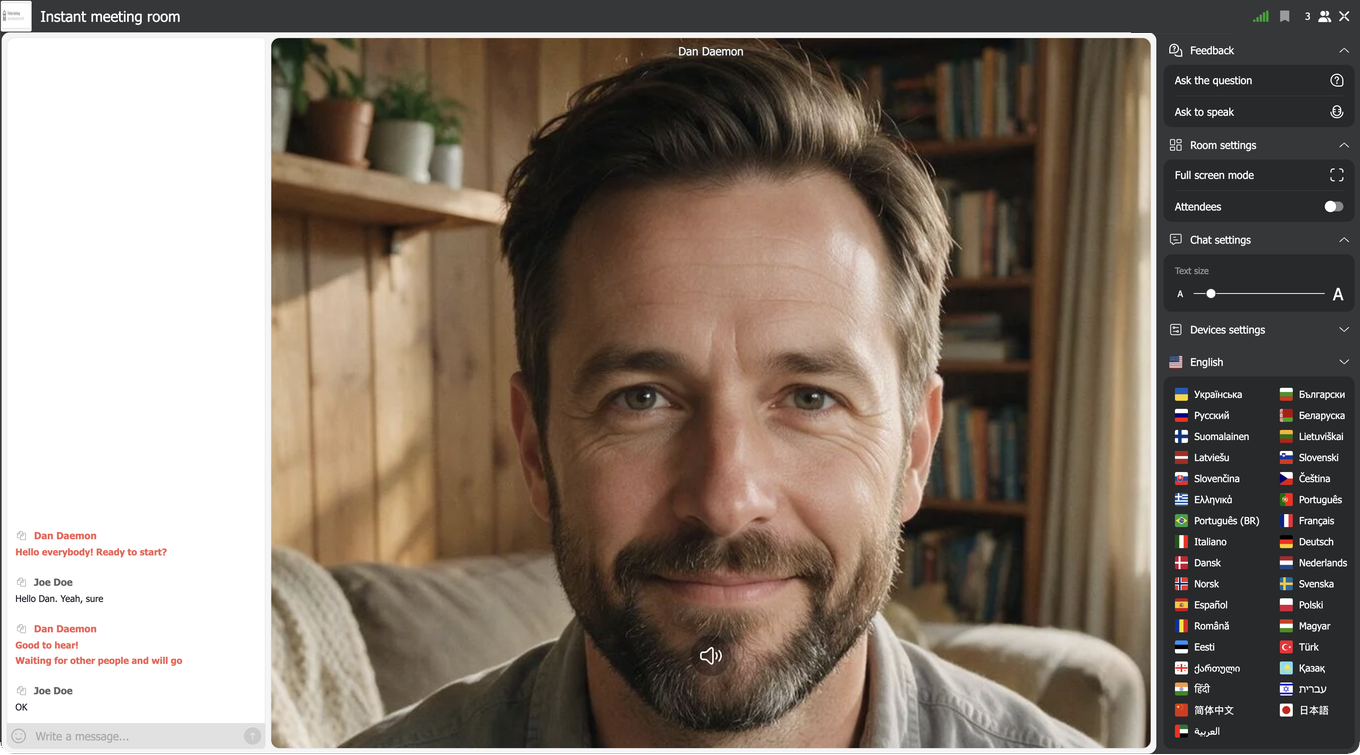
Below that, the flag switches the room into another language, and "Quit" leaves the event and sends you back to the entry page.
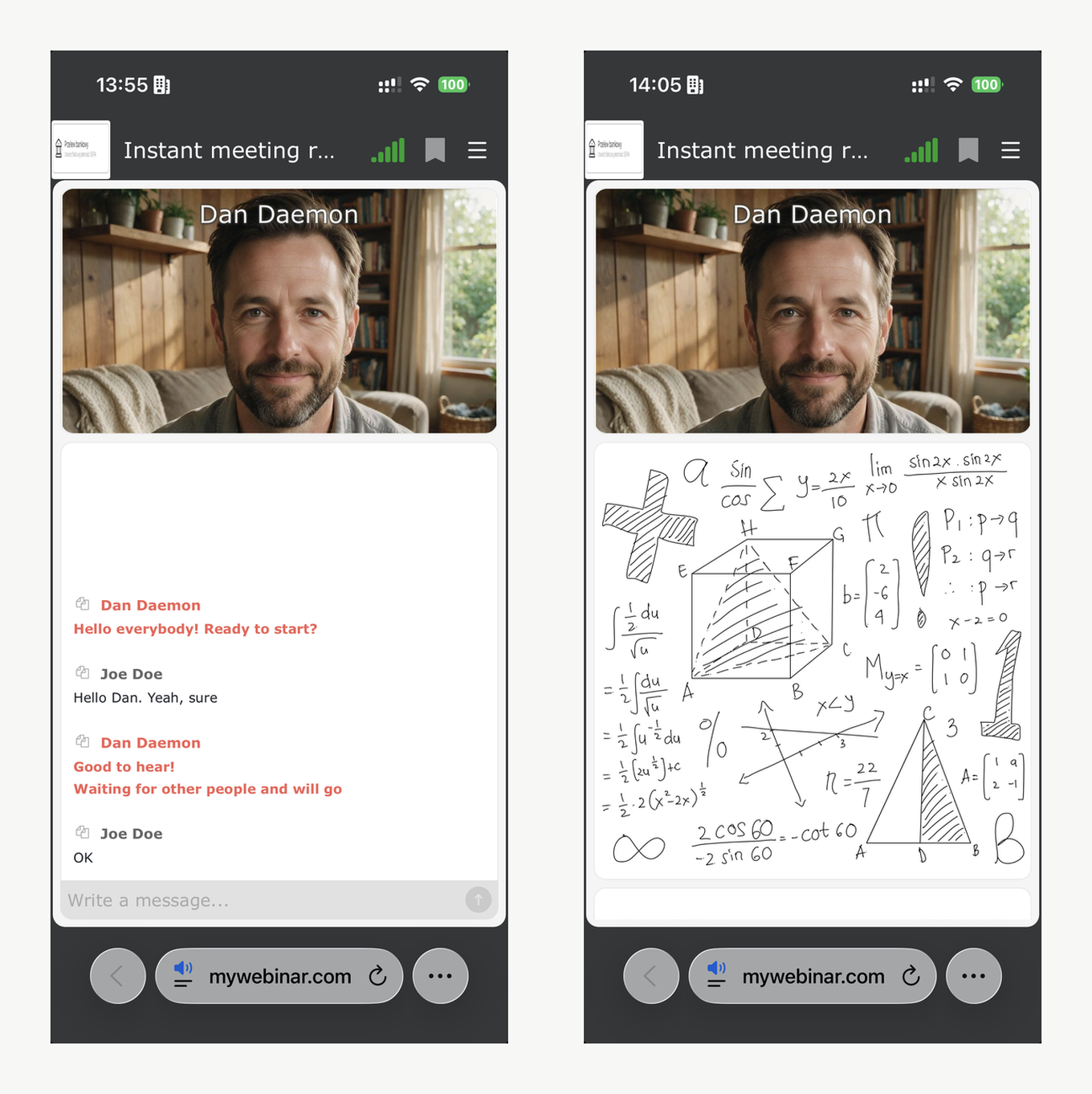
On a phone the same room folds into a single column, with the presenter above and the chat below.
Two states that are not faults
A room that looks empty usually means the hosts have not started yet. Wait rather than reloading.
If the event is over, the room says so and closes the session.
Please treat the hosts and the other attendees with respect. Organisers can remove a disruptive attendee from the room and ban them from future events.
What other people can and cannot see
Nearly everything people worry about before their first webinar comes down to this one question, so here is the plain answer.
Can anyone see me or hear me?
No. Watching needs nothing but a browser, and the room never switches your webcam or your microphone on by itself. It cannot, because your browser asks your permission first and that prompt appears only when you accept an invitation to speak. Until you do, your face is not shown and your voice is not carried, whatever your device happens to have plugged into it. You do not need a webcam or a microphone at all to attend, and you can join perfectly well from a machine that has neither.
Do I have to say anything?
No. Watching and reading without saying a word is the ordinary way to attend, and the hosts cannot make you talk. If you do want to be heard, the chat and "Ask the question" are open the whole time, and "Ask to speak" puts your hand up when the organiser has allowed requests for this event.
Who sees my name?
That is the organiser's setting rather than yours. By default the other attendees see the name you signed in with. The organiser can turn that down to initials, so Michael Brown appears as MB, or take the attendee list away from the audience entirely, in which case nobody watching learns who else is in the room or even how many. The hosts and presenters always keep the full list either way.
Will I know if the webinar is being recorded?
No, and this is worth knowing. The room shows the audience no recording indicator at all, so a session can be captured from beginning to end with nothing appearing on your side. Telling you is the organiser's responsibility rather than something the platform does on their behalf. If it matters to you, ask in the chat before the event starts.
Do I need to dress up?
There is nothing to dress for, because you are not on camera. That changes only if you accept an invitation to speak, and even then the invitation comes first and your camera second, so you always have the moment in between to decline.
Speaking during the event
If the organiser allowed it, the Feedback menu holds "Ask to speak". Press it and confirm in the box that asks whether you want to ask permission to speak. The host sees your request, and when they accept it a confirmation window opens on your side. Click Yes and allow your browser to use the microphone and camera. Your own window then opens in the webcam column alongside the hosts.
If "Ask to speak" is not in your menu at all, the organiser has switched it off for this event, so use the chat or "Ask the question" instead. Inviting an attendee to speak covers the whole exchange from the host's side, including the four buttons on your own window and which of them ends your turn.
The invitation can also arrive the other way round, with the host offering you the floor before you have asked for it. The confirmation window is the same one. Check your camera and microphone beforehand and there is usually nothing else to do.
Test your connection first
If you want certainty before the event, run our connection check for attendees. One click measures your speed, ping and jitter, then says in plain words whether your connection is good enough for a smooth webinar.
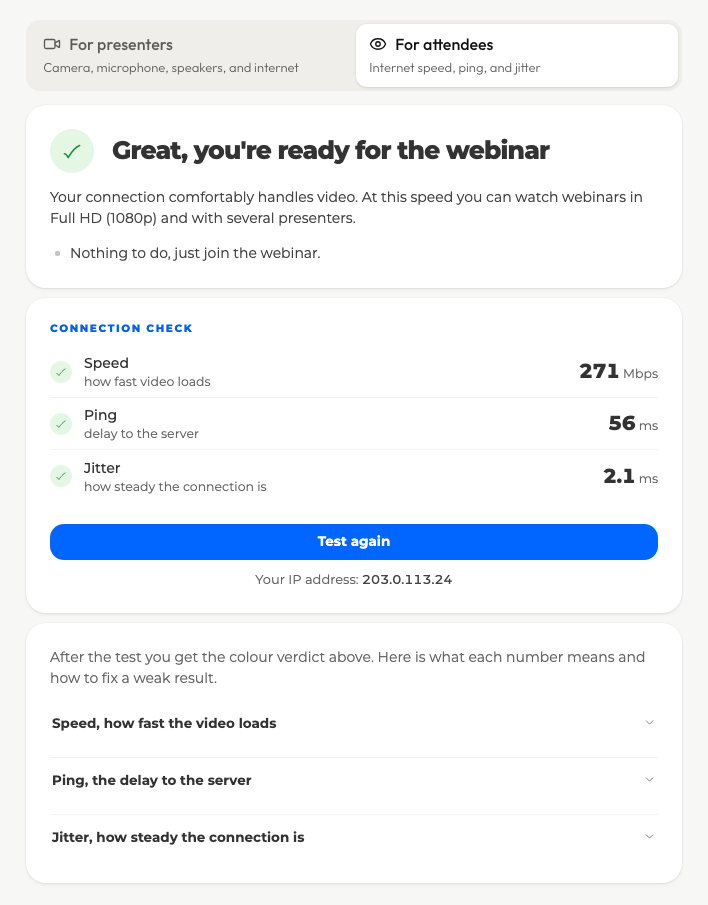
Each figure carries its own verdict, so a red result tells you which one to fix rather than leaving you to guess. The panels underneath explain what each number means and what to do about a weak one.
What a weak result actually feels like
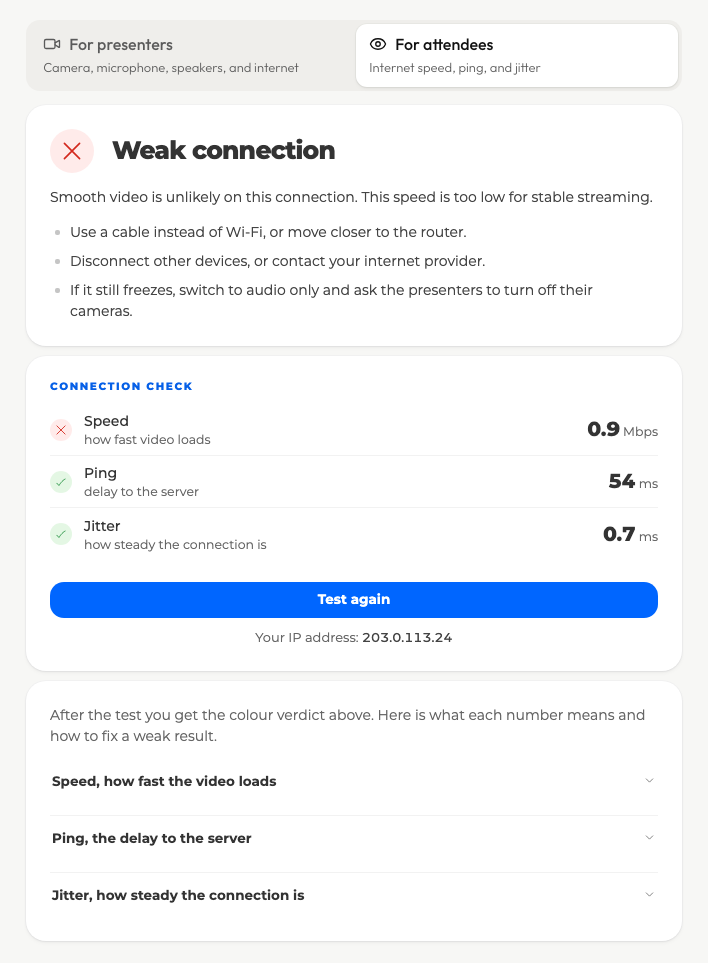
A red verdict on speed does not mean you have to stay away. We ran the platform on exactly this kind of connection, at 0.8 to 0.9 Mbit/s of speed while ping and jitter still came back good, and the event stayed watchable from start to finish. Sound dropped out for a moment now and again, and the presenter's camera froze from time to time, yet the room picked itself up on its own every time and needed no reload. Following the webinar was comfortable.
That is the room doing what it was built for. The roughly 3 Mbit/s per speaker mentioned above is the price of full quality, and below that figure the room starts trading picture for continuity and gives sound the priority. A weak connection therefore costs you sharpness and the odd frozen frame rather than the event itself.
It is still worth mending. A cable instead of Wi-Fi, a seat nearer the router and fewer devices sharing the line all buy back the quality the room had to give up.
When something does not work
You cannot get into the room
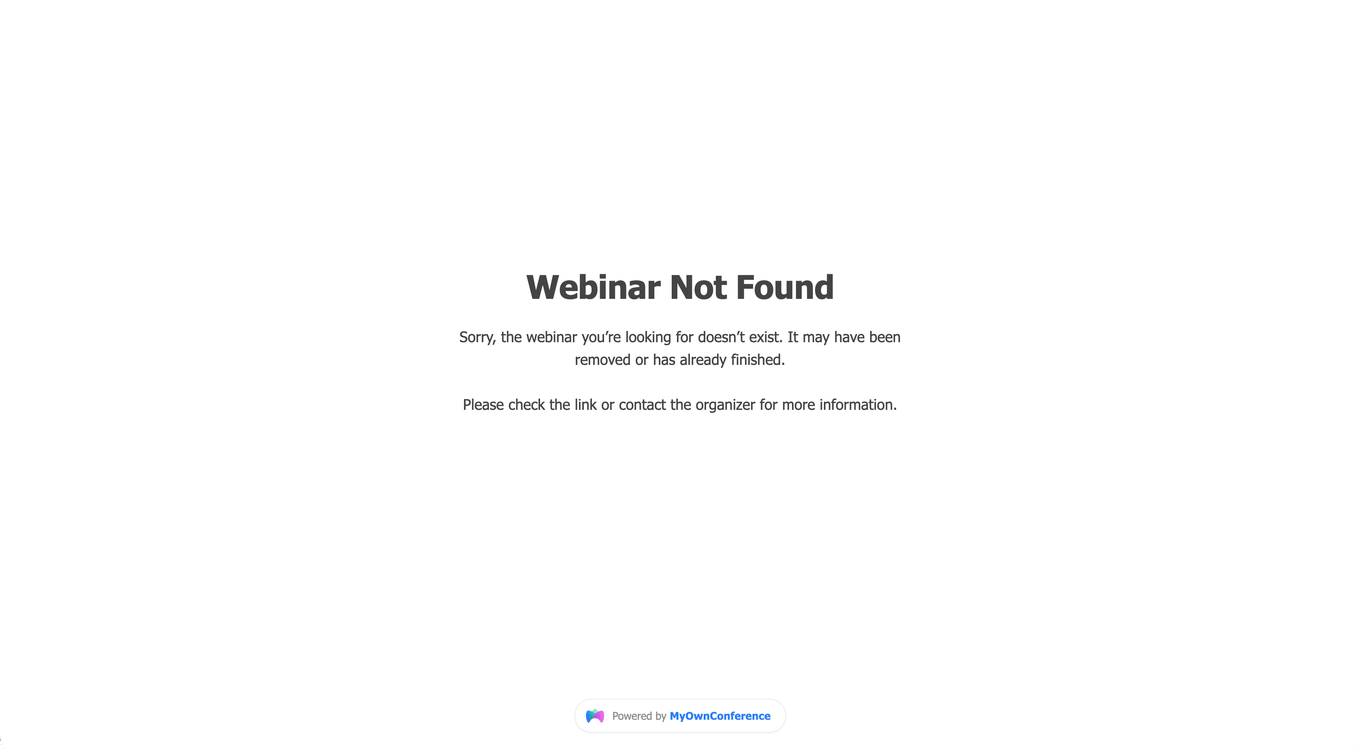
An event that does not exist, has already finished or has a broken link gives you this page rather than the room.
- The link may have been cut in half when it was copied. Copy it again and paste it straight into the address bar.
- You may have been blocked by the host, either at this event or an earlier one. Only the host can lift that.
- Your corporate network may be blocking us. Pass the list below to your IT department.
Domains to allow:
*.myownconference.com*.mywebinar.com*.mywebinar.io
Ports to allow:
- TCP 443, which is ordinary HTTPS
That is the whole list. Everything an attendee receives travels over the same port a website does, so there is no UDP range to open and no WebRTC to switch on. Ask only for 443 and the request stops being an argument.
It changes only if a host invites you up to speak, since sending your own camera and microphone works differently, and that is a separate setup.
You cannot hear the presenter
First look at the browser tab with the webinar. If the small speaker on it is crossed out, the sound of the tab is off, and one click on the speaker turns it back on. A muted browser tab has no webinar sound shows how this looks in each browser.
Find the speaker or headphone icon in your system tray and make sure it does not have a cross through it. If it does, click it and raise the slider. Refreshing the browser tab and entering your details again also clears this up surprisingly often.
On an iPhone, turn vibrate mode off and switch back to ring mode.
The video is frozen or badly delayed
Refresh the webinar page. If that does not help, restart your computer and your router, or move to a different connection.
You cannot see the chat
Set your browser zoom back to 100%. The chat also disappears while the host has the room in full-screen mode, so it may well come back on its own.
The slides are not showing
Check the date and time on your computer and correct them. A clock that is badly out of step stops the keynote from displaying.
Nothing at all from the presenter
First check that the hosts have actually started. If they have, a proxy server on your side may be stopping the audio and video streams from reaching you.
The room behaves strangely
Browser extensions such as AdBlock, uBlock and NoScript can interfere with the room, so switch them off for the duration of the webinar. Clearing your browser cache fixes a good share of the remaining oddities.
Getting rid of echo
First work out whose side the echo is on. Ask the host to turn their speaker volume down and switch off every other audio input they have. If the echo survives that, it is coming from you.
A headset solves it outright, because the sound never reaches the microphone. If you are using separate speakers and a microphone:
- Keep the speaker volume at 80% or below. The slider sits in the room menu under "Devices settings".
- The microphone level is set for you while the browser carries the sound, so that slider is deliberately greyed out, and you change the level in your computer's sound settings instead, which what to do if there is an echo during a webinar explains.
- Turn on echo cancellation in your sound card settings. Most modern cards have it, usually through the Windows Control Panel or through the utility installed with the card drivers. On some cards the setting is called "optimum for audio conferences/IP telephony", which is the same thing.
- If your audio inputs include a stereo mixer, disable it or take its volume down to the minimum.
One more thing helps when several people speak at once. Everyone on air should use the same browser and the same version of it, because two different echo cancellation mechanisms do not match and each side ends up hearing the other's microphone.
Still stuck
Our support team is reachable from the online chat button in the corner of the website. Tell us what you see and attach the result of the connection check.
Frequently asked questions
Can I forward my invitation link to a colleague?
It will not give them a seat of their own, it will take yours. That link belongs to you alone, so whoever opens it last is the one who gets into the room. A colleague needs an invitation of their own from the organiser.
The seats counter says zero. Can I still get in?
Not until the organiser makes more space, because the counter above the entry form shows how many seats are still free and zero means the room is full. Nothing on your side changes that. It is also worth checking that your link was not forwarded to you, since a forwarded link moves a seat rather than adding one.
I am joining from an iPhone. Is anything different?
Use Safari rather than another browser, because Apple restricts what other browsers may do and the room can behave badly in them. If you then hear nothing at all, check the ring and silent switch, since silent mode keeps live webinar sound quiet and flipping the phone back into ring mode brings it back. On Android the equivalent advice is Google Chrome, which is the system browser and gets the fewest surprises.
Our corporate network blocks the room. What do I give the IT department?
Three domains and one port. Ask them to allow *.myownconference.com, *.mywebinar.com and *.mywebinar.io, plus TCP 443, which is ordinary HTTPS. That is the whole list, since everything an attendee receives travels over the same port a website does, so there is no UDP range to open and no WebRTC to switch on. It changes only if a host invites you up to speak, because sending your own camera and microphone works differently.
Do I need a webcam and a microphone just to watch?
No, watching needs only a browser, and your own camera and microphone come into it only if a host invites you up to speak. If you do expect that, check them under "Devices settings" in the room menu before your turn rather than during it, because accepting an invitation means allowing your browser to use the microphone and camera on the spot.
