
Inviting an attendee to speak during a webinar
An attendee can join the conversation during a live webinar and speak to the presenters with their own camera and microphone. There are two ways to get there. You invite them, or they ask for the floor themselves, and the second one works only if you switched it on beforehand.
Inviting someone yourself
Open the attendee list with the people icon in the top right corner and click the person you want. A strip of six actions opens beside their name, and the green megaphone at the top is "Invite to conversation". Chat moderation goes through the whole strip, since the other five are moderation actions.
Nothing is sent yet. Both sides confirm first.
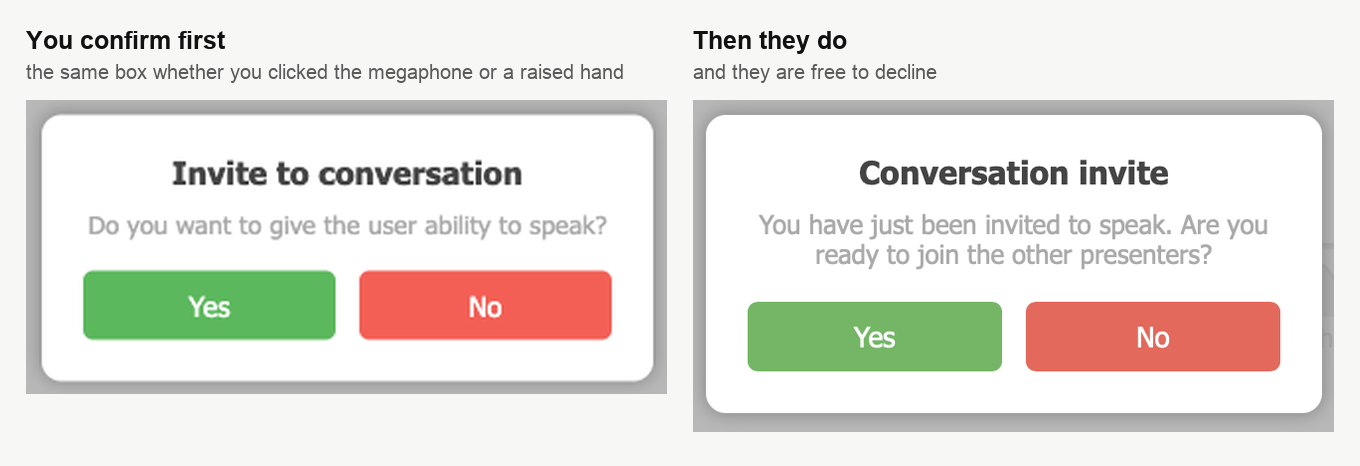
You answer "Do you want to give the user ability to speak?", and only then does the invitation reach them. They can decline, and it is worth saying so out loud in the chat first, because an invitation that arrives unannounced often gets refused by reflex.
Letting them ask instead
An attendee can raise a hand without waiting for you, but only while one switch is on. Open the webinar's or room's settings, stay on the "General" tab and find the group called "Feedback".
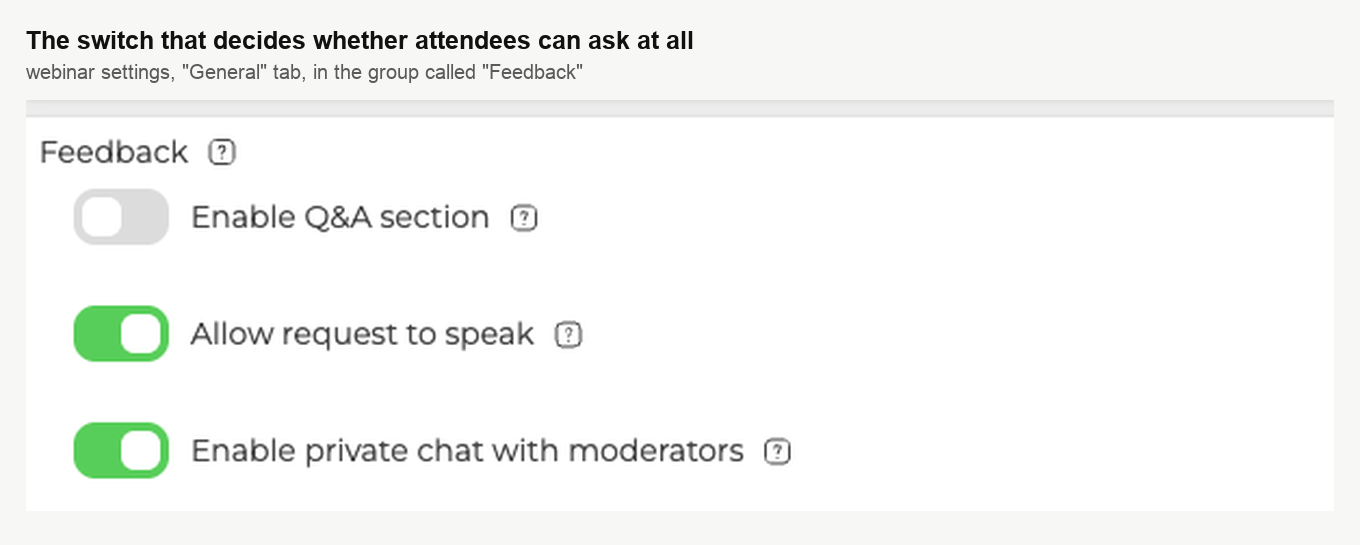
"Allow request to speak" is the one that matters here. Its own description says what it does, that a menu item appears in the room letting attendees send a request which moderators then approve or decline.
The word "appears" is exact. With the switch off, the item is not hidden or greyed out, it is simply not in their menu.
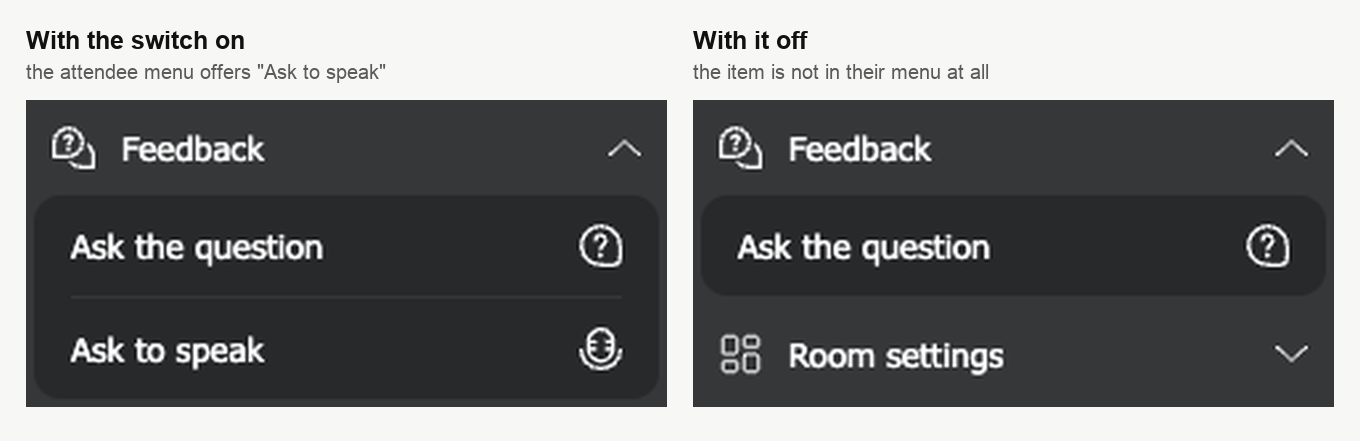
So an attendee opens the room menu, expands "Feedback" and picks "Ask to speak", then confirms in a box that asks whether they want to ask permission to speak. If somebody tells you the item is missing, it is this switch rather than a fault in their browser.
Spotting a raised hand
Requests are quiet. Nothing pops up and nothing makes a sound, so the attendee list is where you find them.
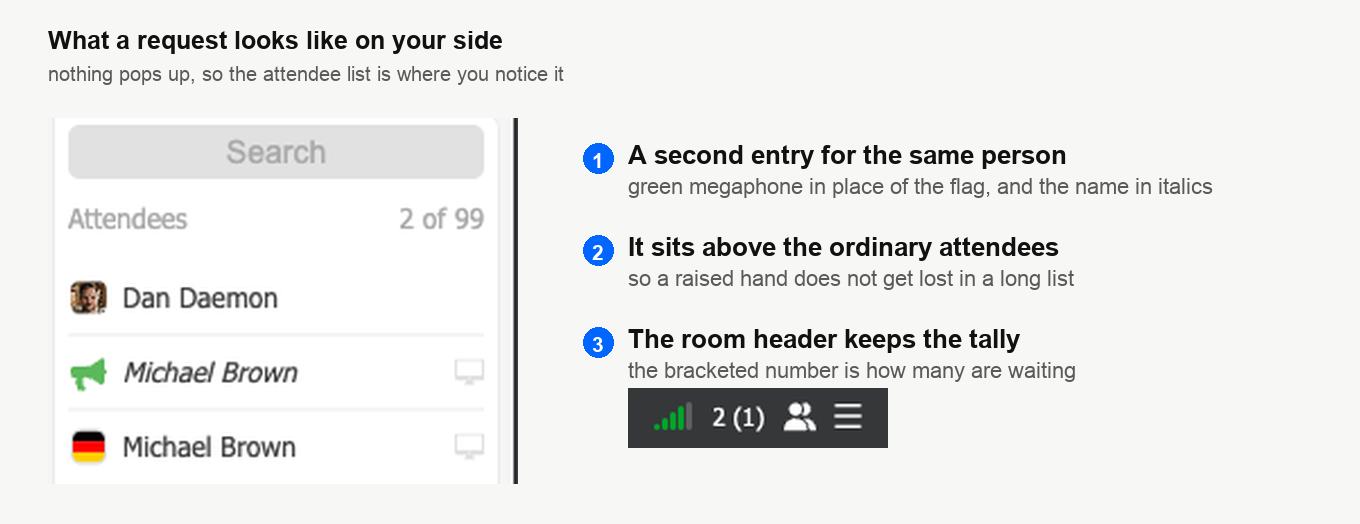
Click that italic entry and you go straight to the same confirmation box as before, with no strip of actions in between. Answering "No" clears the request from the list rather than leaving it pending, so the attendee gets no reply and you get a clean list. Tell them in the chat if you turn them down, because nothing on their side says you did.
What happens on their side
Once they accept, their browser asks for the camera and the microphone. Nothing of theirs reaches the room until they allow it, and the wording belongs to the browser rather than to us.
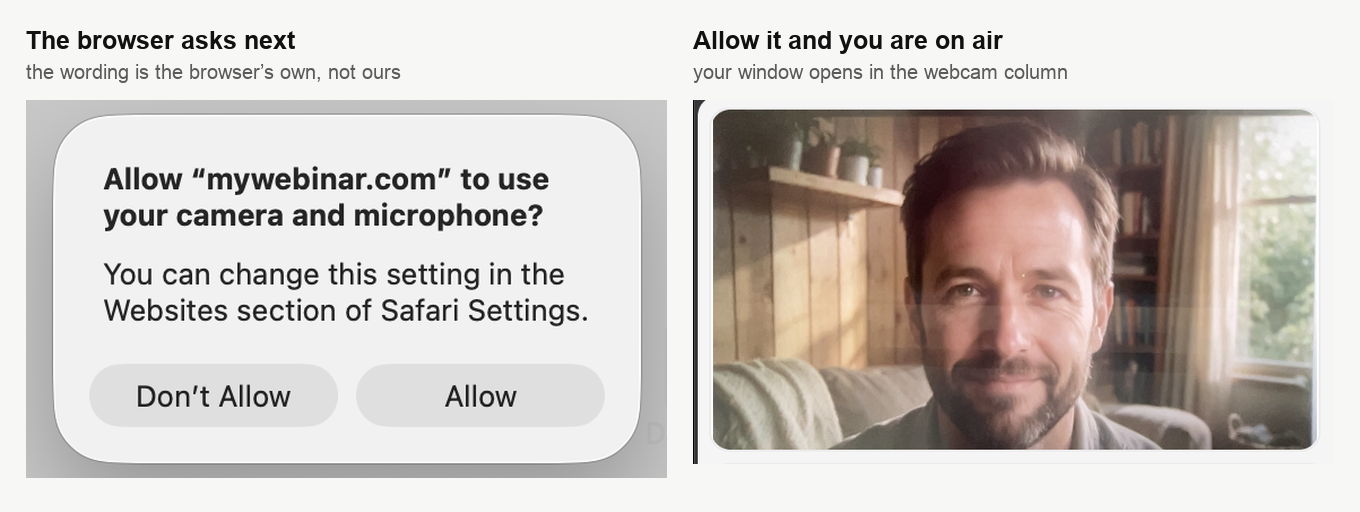
Their window then opens in the webcam column alongside the presenters, and they move out of the attendees group in your list and in among the speakers.
Ask them to run an equipment test before the event if you know in advance who is going to speak.
Their own window, and how the turn ends
This is the part attendees ask about most. The controls are not on the page anywhere, they are on the window itself and only while the pointer is over it.
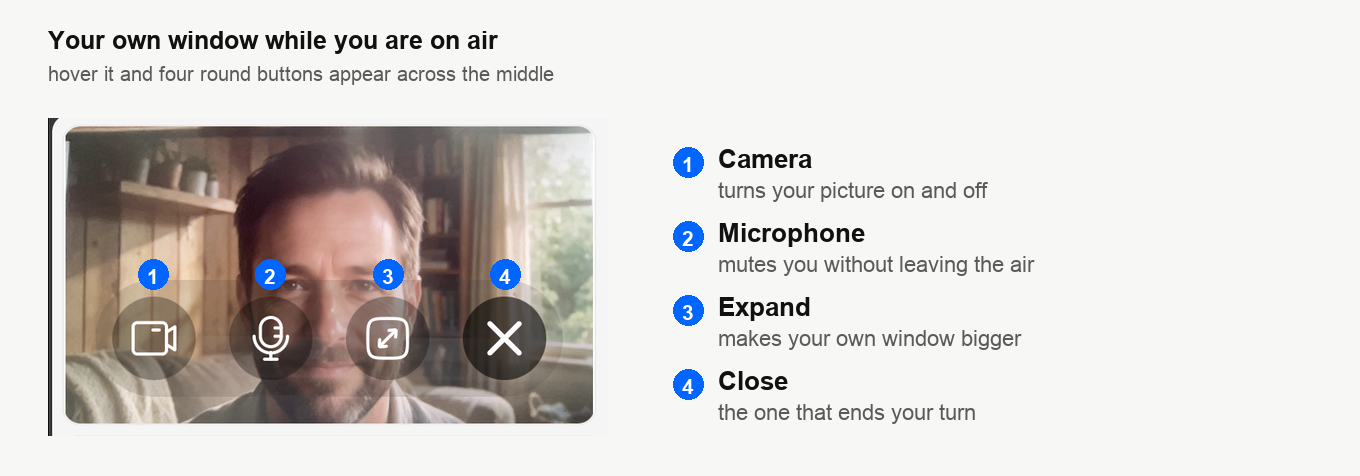
The camera and microphone buttons switch a device off without giving up the floor, which is what you want for a cough or an interruption. The fourth button, the ✕, is the one that ends the appearance and puts them back among the audience. A moderator can invite them again afterwards.
The distinction is worth passing on, because someone who mutes the microphone and thinks they have left is still on air.
Changing camera or microphone
An attendee gets the same device block a host does, in the same place.
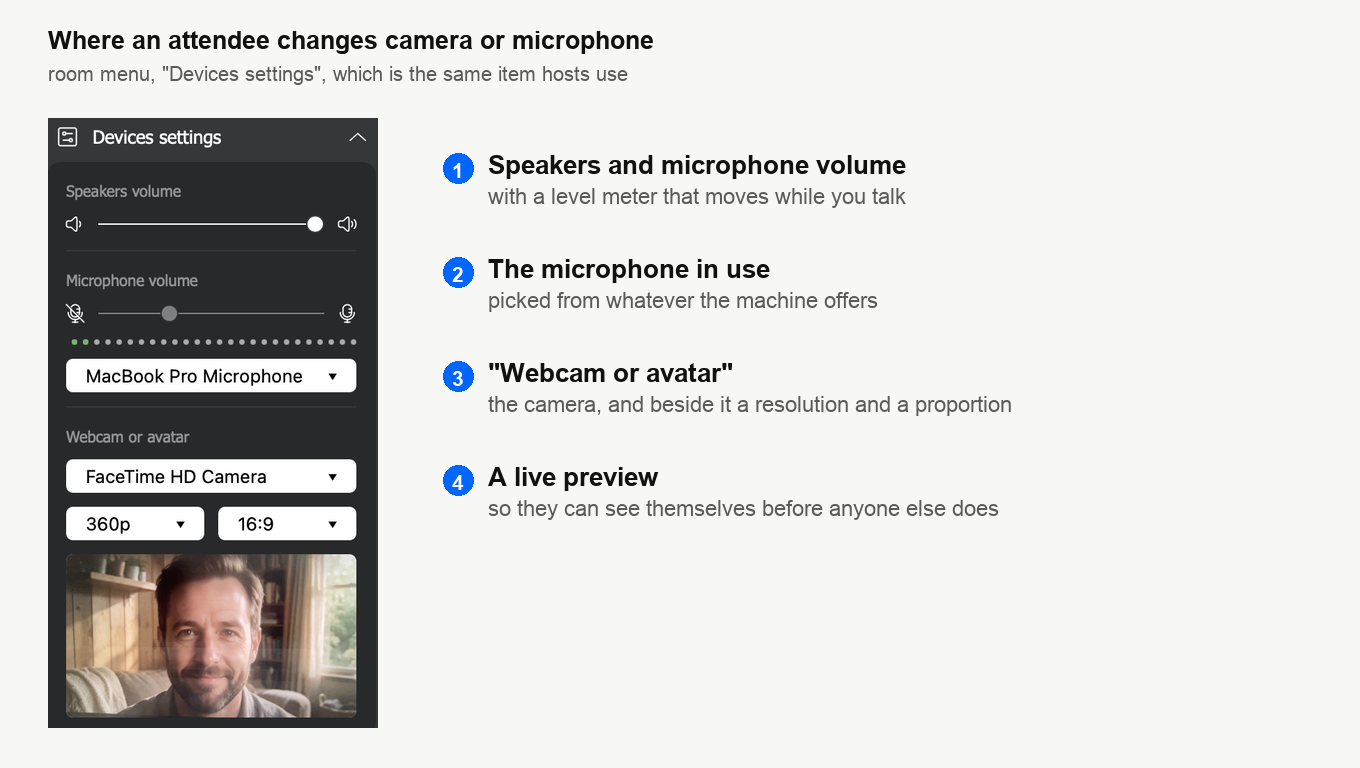
They open the room menu and expand "Devices settings". Alongside the pickers they get a resolution and a proportion for their camera, and a live preview that shows what the room will see.
A faster connection means better picture and sound. Closing other applications and browser tabs helps, since they compete for bandwidth and some of them hold on to the camera or the microphone. How much bandwidth is actually needed depends on the mode the webinar runs in and on how many people speak at once, and the figures are in technical requirements.
What an invited attendee cannot do
They speak on camera, always. There is no avatar to appear behind, and no choice about how the picture is sent, because the only route open to them is the one built into their browser, which is WebRTC. The downloadable broadcasting app and the other streaming sources belong to your side of the room, and none of them appear in an attendee's menu. Their whole menu is "Feedback", "Room settings" with full-screen mode in it, "Chat settings", "Devices settings" and the language.
That is enough for a question from the floor. It is not enough for somebody who is genuinely there to present, so if you know in advance that a guest needs a real speaking slot, do not bring them up from the audience at all. Add them in the control panel under "Moderators", give them the role "Guest speaker" and send them their own entry link. They then arrive as a speaker rather than as a viewer you promoted, with the settings and the controls that go with it. Moderators and presenters covers adding someone and where their personal link is.
If they cannot be seen or heard
- Check that the browser has been given access to the camera and the microphone. Going on air shows the prompt in seven browsers and covers clearing a refusal you made earlier. On a Mac, how to allow camera and microphone access on a Mac covers the system permission as well.
- Make sure no other program has taken the devices, a messenger or video editing software for instance. Close what is not in use.
- Restart the computer, then rejoin the webinar room and try again.
Everything else about taking part in an event is in the webinar attendee guide.
If an attendee still cannot be seen or heard after all of that, open the online chat and tell us the event, the browser they joined from and what their own window showed.
Frequently asked questions
An attendee says there is no option to ask to speak in their menu. Why?
The switch is off. "Allow request to speak" sits in the webinar's or room's settings, on the "General" tab in the group called "Feedback", and with it off the item is not hidden or greyed out, it is simply not in their menu. So if somebody tells you the item is missing, it is this switch rather than a fault in their browser, and once it is on they open the room menu, expand "Feedback" and pick "Ask to speak".
What happens if I turn a request down?
The request clears from the list rather than staying pending, so you get a clean list and the attendee gets no reply at all. Tell them in the chat if you turn them down, because nothing on their side says you did. Requests are quiet in the other direction too, since nothing pops up and nothing makes a sound when one arrives, which is why the attendee list is where you find them.
An attendee muted their microphone. Are they still on air?
Yes. The camera and microphone buttons on their own window switch a device off without giving up the floor, which is what you want for a cough or an interruption. Only the fourth button, the ✕, ends the appearance and puts them back among the audience, and a moderator can invite them again afterwards.
I already know my guest is going to present. Should I still bring them up from the audience?
No, add them in the control panel under "Moderators", give them the role "Guest speaker" and send them their own entry link. They then arrive as a speaker rather than as a viewer you promoted, with the settings and the controls that go with it. Moderators and presenters covers adding someone and where their personal link is.
Can an attendee I invite use an avatar or the broadcasting app instead of their camera?
No, they speak on camera always, and there is no avatar to appear behind, because the only route open to them is the one built into their browser, which is WebRTC. The downloadable broadcasting app and the other streaming sources belong to your side of the room and none of them appear in an attendee's menu, which holds only "Feedback", "Room settings", "Chat settings", "Devices settings" and the language. They do get a camera picker, a resolution, a proportion and a live preview under "Devices settings".
