
When webinar email notifications are sent
New hosts usually arrive here with one of two questions. Can I send the invitation to my attendees right now? Can I push out a quick announcement to everyone who has registered?
The answer to the second one is no. There is no way to compose a message and send it to your list, and that is deliberate. The answer to the first is better than you might expect, because you can send one person their invitation on the spot.
If you are here because one particular attendee never got theirs, skip to the last section.
We are not a mass mailing service
MyOwnConference is a webinar and conferencing platform, not a bulk email tool like Mailchimp or Brevo. Every message the system sends exists to keep registered attendees informed about the one webinar they signed up for. There is no way to write your own mailing and push it out, and that is a design decision rather than a gap we plan to fill.
The automated schedule
Open the webinar settings and go to the "Emails" tab. Eight messages sit there, each with its own "Send" switch and a "Preview" link, and all eight are on when you start.
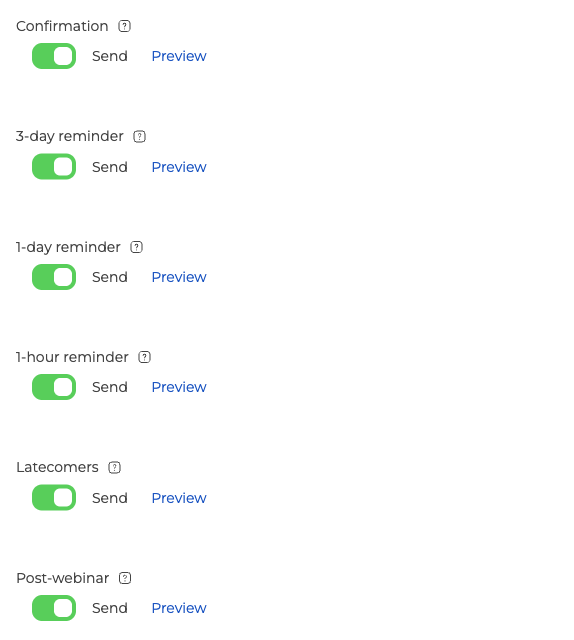
- "Confirmation" goes out the moment somebody registers.
- "3-day reminder", "1-day reminder" and "1-hour reminder" count down to the start.
- "Latecomers" catches anyone who has not joined once the webinar has begun.
- "Post-webinar" follows the event and can carry a link to the recording, which expires 30 days later unless you change the date.
- "Rescheduled" and "Cancelled" fire only if you move or call off the event.
So the schedule is a default rather than a rule of the platform. Any of the eight can be switched off for one webinar without touching the others, and "Recipients" at the top of the tab decides who is in scope at all, with "Nobody" silencing the lot. Planning a webinar goes through the tab in order.
Each message carries what the attendee needs at that point, which is the registration confirmation early on and the unique join link closer to the start.
Why it works this way
Three things shaped the design.
Spam prevention comes first. If hosts could fire off arbitrary email at any moment, some accounts would inevitably use the platform as a marketing channel. Gmail, Outlook and Yahoo would then start reading our servers as a source of unsolicited mail, and deliverability would fall for every host on the service. Tying the email flow to the life of a webinar keeps our sender reputation clean. If a message lands in a junk folder anyway, what to do if webinar invitations go to spam covers what to change on your side. That is what gets your reminders into the inbox.
Automation is the second. Once the webinar exists and people have registered, reminders, join links and follow ups stop being your problem. The system runs the sequence end to end.
The third is human error. No mail system anywhere can recall a message once it has been sent. Once an email has left our servers it has been delivered, and no button on any platform pulls it back out of a recipient's mailbox. With the whole flow automated, there is no bulk send to hit by mistake and no wrong list to pick. If you misconfigure a webinar, the worst outcome is that your attendees get a polite cancellation or rescheduling notice, which the system also sends for you.
Private webinars and unique links
Every attendee receives a join link tied to the exact address it was sent to, and it carries a single seat. If the attendee passes it on, only whoever opened it most recently is in the room and the other one is dropped.
Forward that link to a colleague and the platform also notices that someone other than the original recipient is trying to use it, then asks for verification. A one time code goes to the address the invitation was sent to, so only whoever can read that mailbox can retrieve the code and carry on. The forwarded link stays technically reachable, but it cannot put a second viewer in the room alongside the first.
The verification email is a system message like the ones above, so it goes out automatically and follows the same reliability standards as every other notification.
When an attendee says the email never arrived
It happens occasionally. Usually the message was filtered into spam, blocked by a corporate mail server or held up by the recipient's provider. The cause matters less than getting that one person into the room, so start with the fix.
Open the webinar settings, go to the "Attendees" tab and click the three dots at the end of that person's row. Four actions sit there.
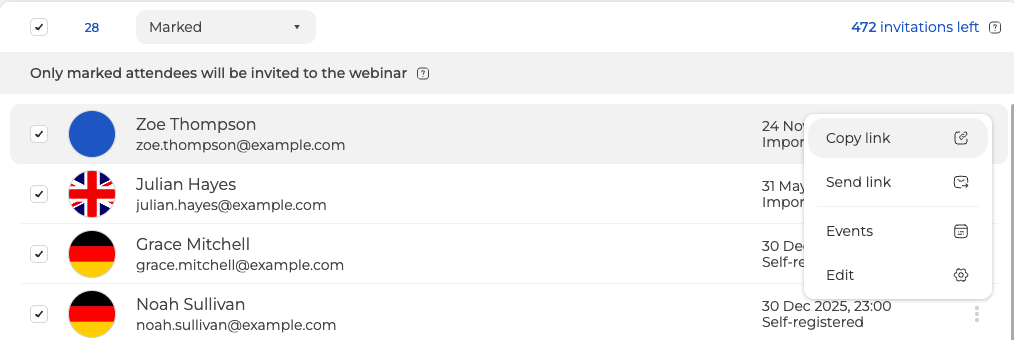
"Send link" mails them their invitation there and then, and it reaches that one person only, never the list, which is why the action exists at all.
"Copy link" is the faster route when even a resend is too slow. One click puts their unique join link on your clipboard, so you can paste it into a messenger, an SMS or any other channel you already use with that person, and they are in within seconds.
What this means for you as a host
You do not compose invitations, and the panel does not offer a way to. Create the webinar, share the registration page, and every communication step happens on the schedule above, with the per-person actions there for the exceptions.
For anything outside that flow, such as a promotional newsletter or a sales sequence that is not tied to a specific webinar, a dedicated email marketing service is the right tool. Export your registrant list and import it there.
If an invitation or a reminder did not arrive when this page says it should, open the online chat and tell us the event, the address it was sent to and the time you expected it.
Frequently asked questions
Can I resend an invitation to one person without mailing the whole list?
Yes. Open the webinar settings, go to the "Attendees" tab, click the three dots at the end of that person's row and choose "Send link", which mails them their invitation there and then and reaches that one person only, never the list. If even a resend is too slow, "Copy link" in the same menu puts their unique join link on your clipboard, so you can paste it into a messenger, an SMS or any other channel you already use with them.
Can I turn off some of the automatic emails?
Yes, any of the eight can be switched off for one webinar without touching the others, since each has its own "Send" switch on the "Emails" tab. "Recipients" at the top of the same tab decides who is in scope at all, and "Nobody" silences the lot. All eight are on when you start, and Planning a webinar goes through the tab in order.
How long does the recording link in the post-webinar email stay valid?
30 days, unless you change the date. "Post-webinar" is the message that can carry that link, and it follows the event rather than counting down to the start the way the three reminders do.
I set a webinar up wrongly and the emails have gone out, can they be recalled?
No, and no mail system anywhere can do it, because once a message has left our servers it has been delivered and no button on any platform pulls it back out of a recipient's mailbox. What you can do is move or call off the event, since "Rescheduled" and "Cancelled" fire only when you do, so your attendees get a polite notice from the system instead.
What happens if an attendee forwards their join link to a colleague?
The link carries a single seat, so only whoever opened it most recently is in the room and the other one is dropped. The platform also notices that someone other than the original recipient is trying to use it and asks for verification, with a one time code going to the address the invitation was sent to. The forwarded link stays technically reachable, but it cannot put a second viewer in the room alongside the first.
