
Attendee registration not required
Attendees do not register on our platform. You send them the link to your webinar room, they click it, and they are in.
There is no account to create, here or on any service connected to ours. The room opens directly in the browser, so joining takes one click and installs nothing. Attendees who worry their setup will let them down can check it on our connection tester before the event.
What attendees fill in at the door
You decide what to collect, on the "Entry" tab of the room settings. The "Login form" there is a list you build rather than a switch you flip, and what it starts with depends on where you are.
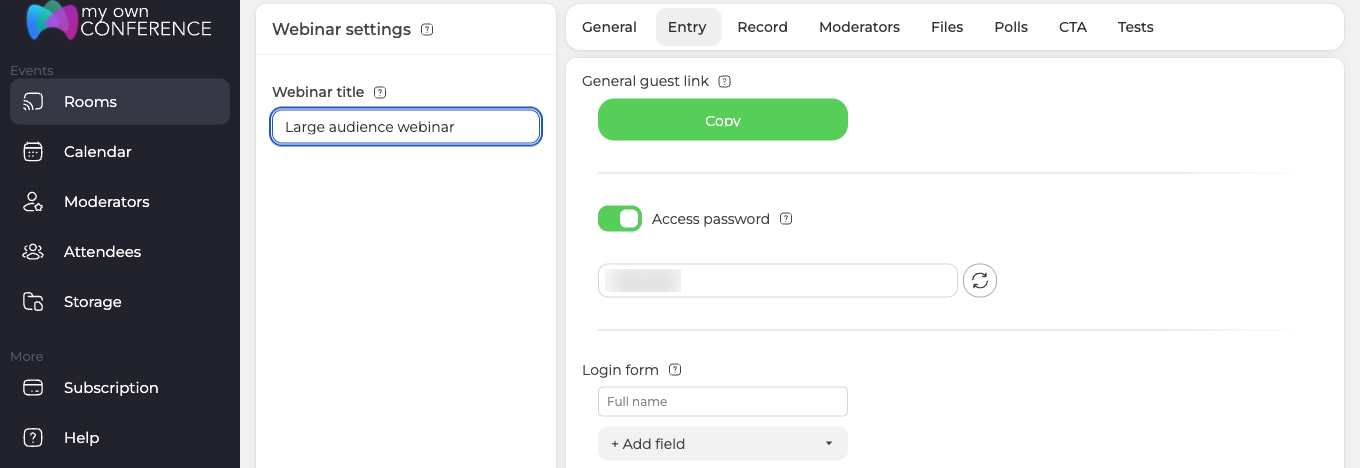
A permanent webinar room starts at a single field, "Full name". Nothing else is asked, so whoever opens your link types a name or a nickname and walks in. That is as light as entry gets, and it is the default rather than something you have to go and enable.
A scheduled webinar starts with "Full name" and "Email" instead, which suits an event people sign up for in advance, since the address is what reminders and the access link are sent to.
Either way, "+ Add field" extends the form with the details you actually need, from a phone number to a company name. Each field you add is one more thing between a visitor and your room, so add them sparingly.
Two things that can still stand in the way
The room link is not always the whole story, and both exceptions are yours to set.
An access password can be switched on for the room, and then anyone entering has to type it alongside their name. The panel generates one for you and you pass it to your audience however you like.
Personal invitation links work differently from the general guest link. Each one carries a single seat, so a link that gets forwarded does not admit two people. Whoever opens it last takes the seat and the earlier session is disconnected. Send the general guest link to a crowd, and keep the personal links for the individuals they were issued to.
Choosing what to ask for
Pick whichever fits the event. A closed training session usually wants real names and addresses. A public talk where you are chasing the widest possible audience does better with the lightest entry you can offer, because every extra field costs you a few people who were only half committed.
If you would rather not have people typing anything at all, leave social sign-in enabled under "Preferences" and they can enter with a Google or Microsoft account in one click.
If people are being asked for something you did not switch on, open the online chat and tell us the event and what the entry page asks them for.
Frequently asked questions
Why does one of my rooms ask for an email when another asks only for a name?
Because the two start from different defaults. A permanent webinar room starts at a single field, "Full name", while a scheduled webinar starts with "Full name" and "Email", since the address is what reminders and the access link are sent to. Either one is yours to change on the "Entry" tab of the room settings, where "Login form" is a list you build rather than a switch you flip.
Can people get in without typing anything at all?
Yes, if you leave social sign-in enabled under "Preferences", they enter with a Google or Microsoft account in one click. That is worth choosing for a public talk where you are chasing the widest possible audience, because every extra field costs you a few people who were only half committed.
What happens if someone forwards a personal invitation link?
The seat moves rather than doubling. Each personal link carries a single seat, so a forwarded link does not admit two people, and whoever opens it last takes the seat while the earlier session is disconnected. Send the general guest link to a crowd and keep the personal links for the individuals they were issued to.
Can I keep out people the link was never meant for?
Switch on the access password for the room and everyone entering has to type it alongside their name. The panel generates one for you and you pass it to your audience however you like. The switch sits on the same "Entry" tab as the login form.
Do attendees need an account or any software to join?
No. There is no account to create, here or on any service connected to ours, and the room opens directly in the browser, so joining takes one click and installs nothing. Attendees who worry their setup will let them down can check it on our connection tester before the event.
