
Close access
Close access shuts the door of your webinar room without asking anyone to leave. Everyone who is already inside carries on, and new attendees who turn up afterwards find a notice where the sign-in form used to be.
It suits the moment when the session has properly started and people drifting in would spoil it. Think of an exam, a closed discussion or a talk that only makes sense from the beginning. In the room, the switch is in "Room settings", which only the account owner and people with the "Administrator" or "Moderator & speaker" role see. A "Guest speaker" does not have it.
Who counts as already inside
Being inside means having joined from that particular browser. Someone who has joined can reload the page, or close the tab and come back in the same browser, and they get straight back in.
The same person on another device or in another browser counts as new and is stopped at the door. So is anyone who registered in advance but never actually entered the room, unless they have already paid for a paid webinar, as explained below. If your audience tends to switch to a phone halfway through, warn them before you close access that a new device will not get in.
Closing a permanent room
A permanent room has one switch that appears in two places, the room and the control panel.
In the room, open the menu with the icon in the top right corner, expand "Room settings" and turn on "Close access". It sits between "Pause" and "Full screen mode".
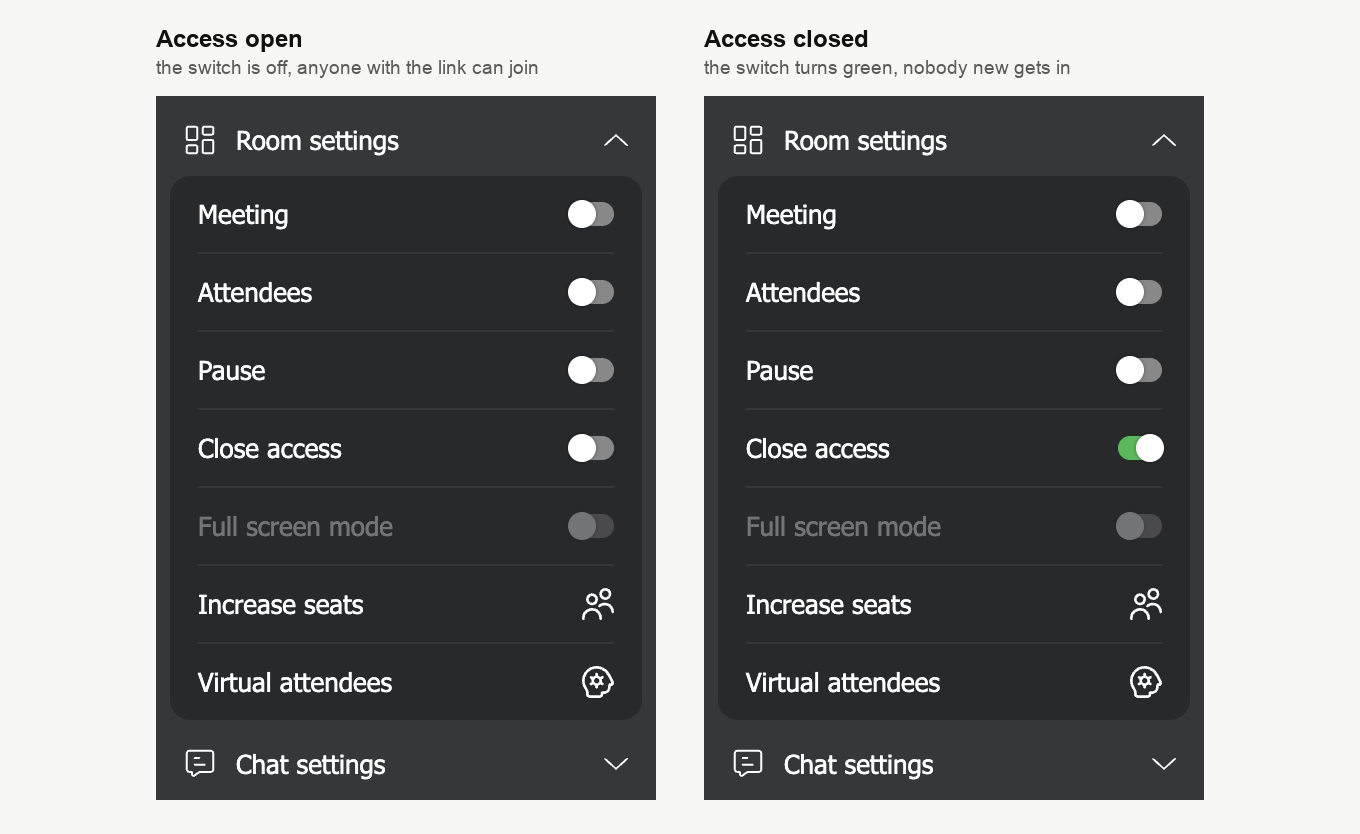
In the control panel, open "Rooms", choose "Settings" in the room's menu and look at the bottom of the left column. The switch is right above "Landing page mode", and it takes effect the moment you flip it, so there is no need to press "Done". A room that is open at that moment picks up the change by itself, without a reload.
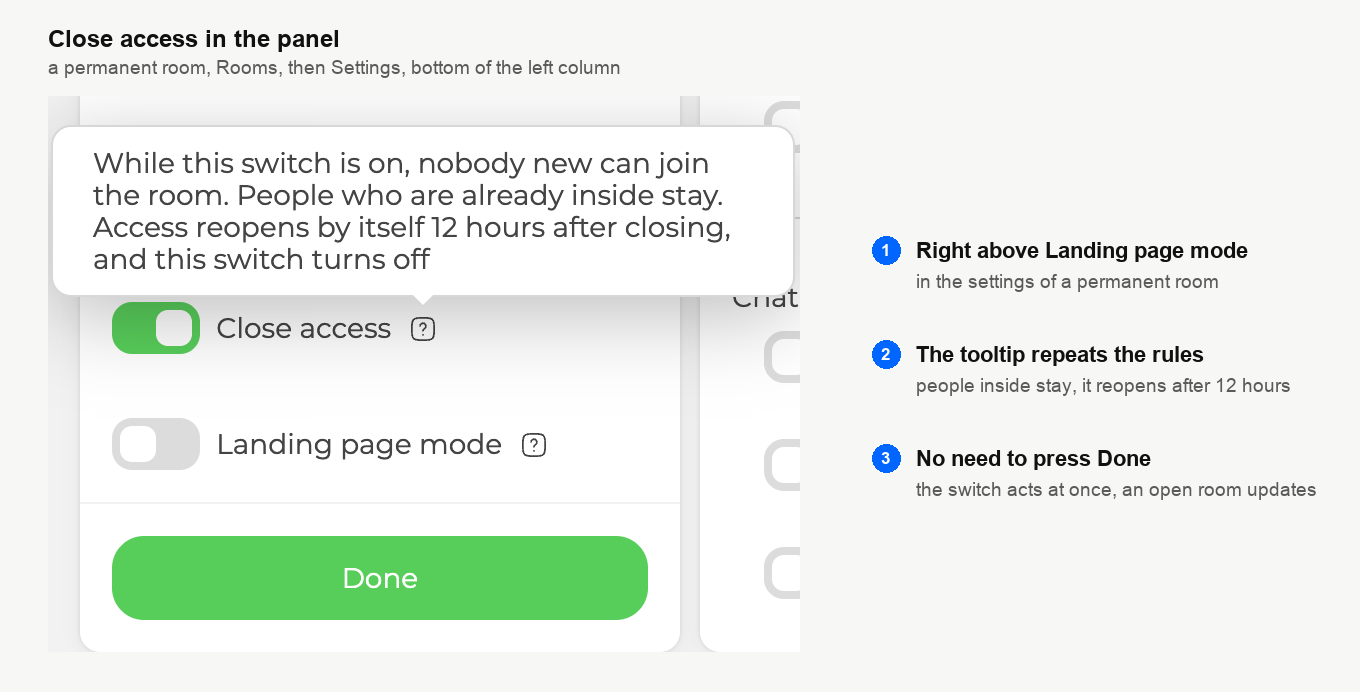
A closed permanent room does not stay closed for good. Access reopens by itself 12 hours after you closed it and the switch turns off, which is exactly what its tooltip promises.
Closing a scheduled webinar
A scheduled webinar is closed from its room only, and only during its entry window. The window starts when attendees are first allowed in, which is 30 minutes before the start unless you change "Allow entry before" on the "Entry" tab. It lasts until the webinar is finished.
Before that, the row is simply missing from "Room settings", even if you signed in early to set up. It appears by itself as soon as the window starts, and you do not need to reload the room.
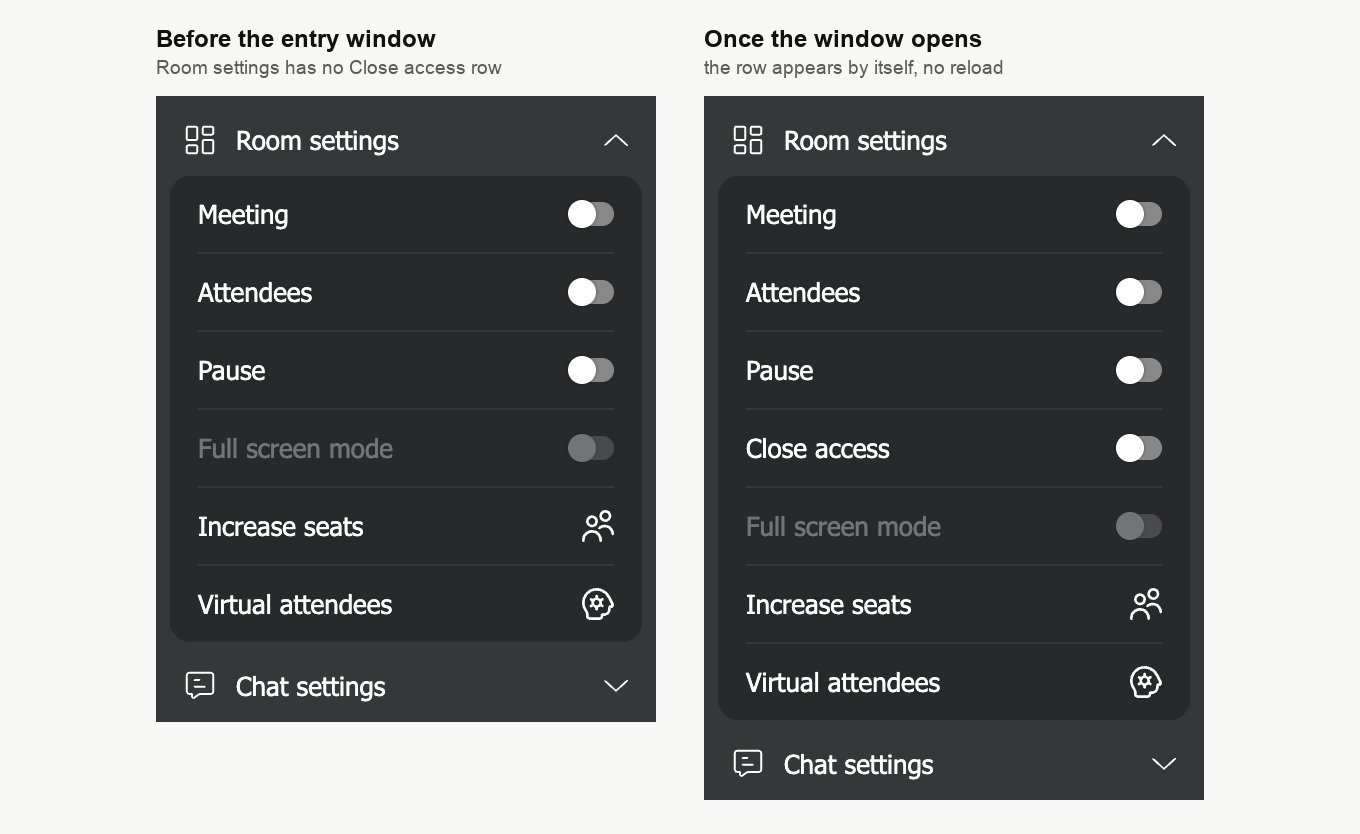
The control panel has no switch for scheduled webinars at all. That is deliberate, because a webinar is planned there, often days ahead, and nobody should be able to lock an event by accident at that stage. Registration before the window works as usual.
How you can tell access is closed
While access is closed, you and the other hosts see an amber lock in the top bar of the room, just left of the connection signal. Hover over it to see "Access is closed. New attendees cannot join."
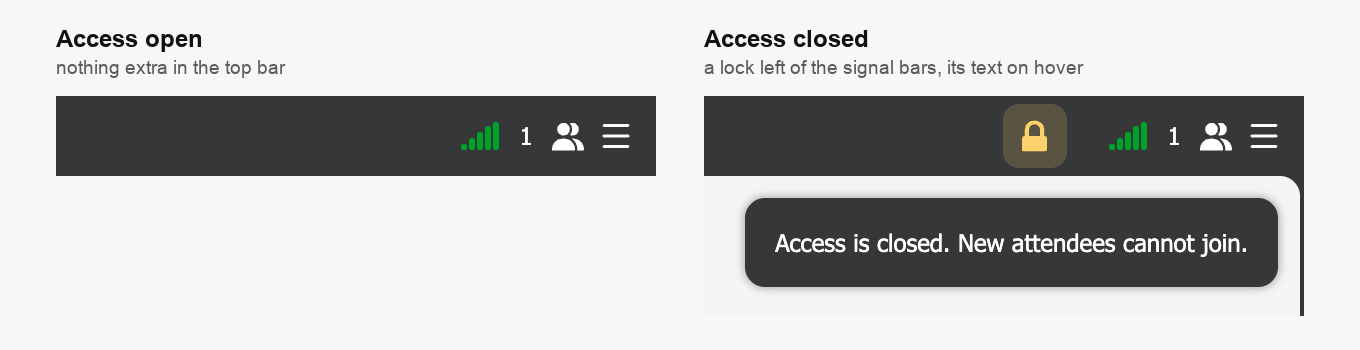
The lock also reflects changes made in the panel. Reopen a permanent room from the panel and the lock disappears from the open room within seconds.
What a latecomer sees
Anyone who opens the attendee link while access is closed still lands on your room's sign-in page, with its title, description and branding. The only change is that a notice headed "Access is closed" takes the place of the form. It asks them to contact the organiser if they think this is a mistake, and it tells them the page updates by itself if access reopens.
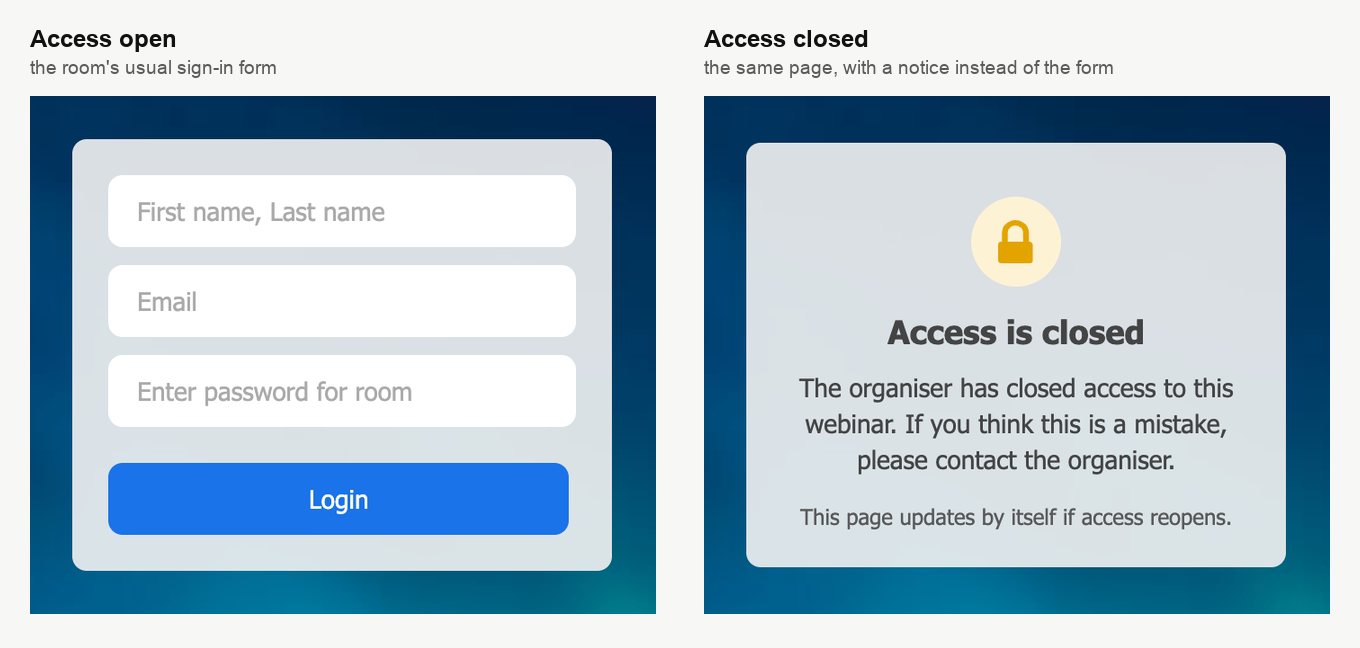
They do not have to keep refreshing. The page checks again on its own about every half a minute, so after you reopen access the sign-in form comes back by itself at the next check. Apart from the people listed below, everyone who was not inside sees this notice, registered attendees included, so tell anyone who may arrive late how to reach you.
Who still gets in
- Hosts on their own links. A host who signs in through their own host link from "Links for moderators" always gets in. A host who opens the attendee link instead is treated as an attendee and sees the notice.
- The recorder. The recorder is always let in, so recording works as usual while access is closed.
- People who have paid. On a paid webinar nobody can pay while access is closed, and attendees who have already paid get in with their personal link.
Opening the room again
Switch "Close access" off in "Room settings", or, for a permanent room, in the panel. Anyone waiting on the notice gets the sign-in form back at the page's next check. A permanent room also reopens by itself 12 hours after it was closed.
How it works with "Close access after"
A scheduled webinar also has "Close access after" on its "Entry" tab, which turns new attendees away a set number of minutes into the webinar. The two share one state, so whatever happened most recently decides, your switch or the cutoff.
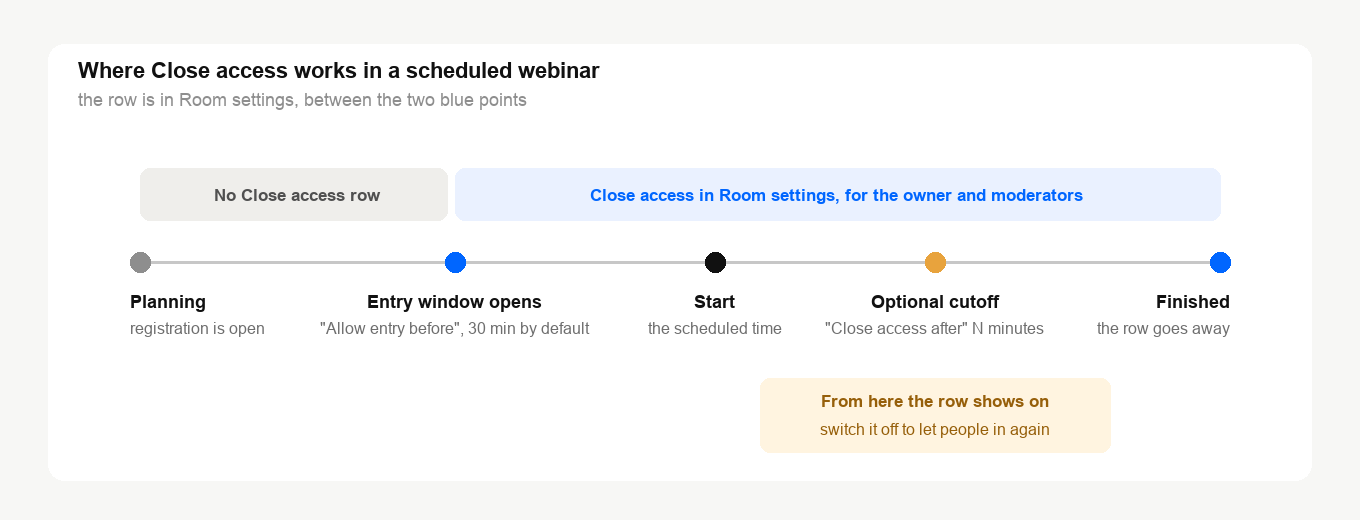
- After the cutoff. The "Close access" row in the room shows as on, and latecomers see the same notice. Switch it off and people can join again.
- Reopening early does not cancel the cutoff. If you switch "Close access" off before the cutoff, the cutoff still closes access when its time comes.
- Closing early just comes first. Turn the switch on before the cutoff and access is closed from that moment.
If you move a scheduled webinar
Moving the start does not always clear a closure. If the new entry window starts after the moment you closed access, the room is open again. If the new window still includes that moment, as it can after a short move, access stays closed. Raising "Allow entry before" can also bring an earlier closure back into the window, so that it counts again.
So after moving a webinar you had closed, open its room and look in "Room settings". If the "Close access" row is there, check whether it is on. If the row is missing, the new window has not started yet, and the earlier closure no longer counts.
Where Close access is not available
Automated webinars do not have the switch, although their "Close access after" setting still works. A room in "Landing page mode" has none either, because nobody enters that room anyway. Landing page mode explains what the mode does instead.
Copies always start open. Neither "Duplicate" nor "Set as default" carries a closed state over to the new event.
Close access, a password or landing page mode
Each of them solves a different problem.
- "Close access" stops newcomers for a while and keeps the session going for everyone inside.
- "Access password" on the "Entry" tab keeps out anyone who does not know the password, before and during the session. Permanent-link room shows where to set it.
- "Landing page mode" takes a permanent room out of service and turns its link into a sign-up page, logging out everyone who was inside.
If access will not close, or someone you expected cannot get in, open the online chat and tell us the event and roughly when you closed it.
Frequently asked questions
Does closing access remove anyone from the room?
No. Everyone who has joined from their browser stays, and they can reload the page or come back in the same browser. Only newcomers are stopped, and that includes the same person arriving on another device or in another browser.
Why is there no "Close access" switch for my scheduled webinar in the panel?
That is deliberate. A scheduled webinar is closed from its room only, through "Room settings", and only during its entry window. Before the window the row is missing from the menu, and it appears by itself once attendees are allowed in.
Will the room reopen on its own?
A permanent room will, 12 hours after it was closed, and the switch turns off at the same time. A scheduled webinar stays closed until a host switches "Close access" off or the webinar is finished, and moving its start can reopen it too.
Can a guest speaker close access?
No. The switch is in "Room settings", which only the account owner and people with the "Administrator" or "Moderator & speaker" role see. Give them the "Moderator & speaker" role in the panel if they need it, and moderator and presenter management explains the difference.
What happens to the people waiting on the notice when I reopen?
Their page checks again on its own about every half a minute, so the sign-in form comes back without them doing anything. From there they sign in as usual.
