
Audio degradation of uploaded video in recordings
You uploaded a pre-recorded video, ran your webinar, and everyone heard the audio at normal quality during the broadcast. Then you listen back to the recording and the same video sounds worse. This matters most for content where the sound is the product, such as guided meditations.
Why the audio is adapted at all
The platform is built to deliver a live broadcast to everyone in the room, including the people on a slow or unstable connection. Adaptive streaming is how that is done, and it applies to any video you upload. Hosting video the way YouTube does is a different job with different priorities.
What happens to a file you upload
An uploaded video is not stored as one file. It is cut into seven versions, so that every attendee receives the best one their connection can actually carry. This is adaptive HLS, and the ladder we build looks like this.
| Version | Video | Audio |
|---|---|---|
| 2160p, 4K | 12000 kbit/s | 128 kbit/s |
| 1440p | 7000 kbit/s | 128 kbit/s |
| 1080p, Full HD | 5000 kbit/s | 128 kbit/s |
| 720p, HD | 2800 kbit/s | 128 kbit/s |
| 480p | 1400 kbit/s | 96 kbit/s |
| 360p | 800 kbit/s | 64 kbit/s |
| 240p | 400 kbit/s | 32 kbit/s |
The audio column answers the question in the title of this article. 128 kbit/s is the ceiling, and it is the same ceiling at 4K as it is at 720p. A source file carrying 256 kbit/s is re-encoded down to 128 no matter how good its picture is, because nothing in the ladder goes above that. This is where the cap sits today.
Two things follow from the table. The version an attendee receives is chosen for them, second by second, by their own connection rather than by you. And the whole ladder is built out of the file you send us, so it is worth uploading the best copy you have rather than one you have already compressed.
None of this is a fault to report. Everyone is handed a version their line can actually hold, and the price of that is a little audio quality.
Why the recording sounds worse than the broadcast
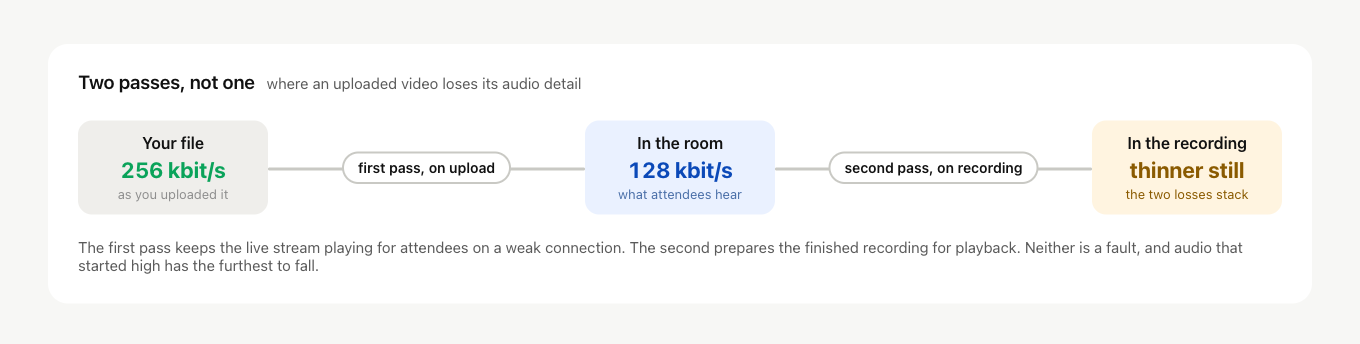
During the webinar, the audio from your uploaded video plays in its adapted form at 128 kbit/s. When the webinar ends we build the recording from that already-adapted video, and the recording is then processed a second time so it plays back well on the platform. Audio that was already down at 128 kbit/s goes through another pass, so the loss adds up.
The effect is clearest when the original had a high audio bitrate such as 256 kbit/s. After two rounds of adaptation the detail is noticeably thinner.
When attendees say the picture is blurry
This is worth preparing for, because it derails more webinars than the audio question does.
Someone whose line cannot carry 5 Mbit/s is moved down the ladder to 720p, then 480p, and further if it has to be. That is the ladder doing its job, since the alternative is buffering or a stall. The attendee sees only that the picture went soft, and writes in the chat asking why. A handful of those at once and you are answering network questions instead of presenting.
What helps:
- Say it once at the start, in a sentence. Video quality adjusts to each person's connection, so if the picture softens it will sharpen again on its own.
- Give a moderator a prepared answer for the chat, so you never have to break your own train of thought for it.
- Point the person at the connection check for attendees. It measures their speed, ping and jitter and gives a verdict in plain words, which settles the question faster than any explanation from you.
- Build slides for the bottom of the ladder rather than the top. Large type and few fine details survive 360p. A dense table or an 11 pt footnote does not, and that is a genuine complaint rather than a misunderstanding.
One case is worth separating from the rest. If a single attendee reports a soft picture, it is their connection. If everybody reports it at once, something else is going on, so open the online chat and we will look at it with you.
How to restore the original sound
- Download the webinar recording in MP4 format from your dashboard.
- Open it in whatever video editor you have and lay the original audio track over the recorded video. That brings back the source bitrate and quality.
- Save the edited file. This is the copy to send people, publish or archive, because it is the only one carrying your original sound.
- You can upload it back for future webinars, though be aware it goes through the same upload pass again. That is fine for playing in the room, where 128 kbit/s is what keeps the stream steady for everyone. The point of the edit is the master you keep, not what the platform stores.
Test before you move to a paid plan
The free Starter plan gives you 20 minutes of recording, which is enough to upload your video, run a short event and listen back to the result. Run that test first if audio fidelity is critical to your content. What you hear is how adaptive streaming works rather than a fault on your account, so it is not grounds for a refund. Twenty minutes of testing tells you exactly what you are getting.
Uploading to us or linking YouTube
YouTube videos in recordings covers this from the other side, and the two pages together come down to one question, namely whether the recording matters to you.
If you want the video to appear in the recording, upload it to us rather than linking it from YouTube. A linked video is deliberately left out of the recording, so uploading is the only route that puts it there. The trade is the audio pass described above, and a video present at 128 kbit/s is still better than a video missing altogether.
If you do not record your webinars, that reason falls away and YouTube gives you more freedom. Your copy stays where it is, you can change or replace it without touching anything on our side, and nothing is re-encoded at all. Both routes work in the room, so pick the one that fits how you work.
What the platform is for
We build tools for live events, so webinars, live streams and interactive sessions. We measure ourselves on whether your attendees are satisfied with the event itself, even when their internet is poor. We are not a video host, and the original file stays with you.
Frequently asked questions
Can I upload a file whose audio stays above 128 kbit/s?
Not today, because 128 kbit/s is the ceiling and it is the same ceiling at 4K as it is at 720p. A source carrying 256 kbit/s is re-encoded down no matter how good its picture is, since nothing in the ladder goes above that. It is still worth uploading the best copy you have rather than one you have already compressed, because the whole ladder is built out of the file you send us.
Can I make everyone watch in 1080p?
That is not yours to set. The version an attendee receives is chosen for them second by second by their own connection, so a line that cannot carry 5 Mbit/s is moved down to 720p, then 480p, and further if it has to be. Build your slides for the bottom of the ladder instead, because large type and few fine details survive 360p while a dense table or an 11 pt footnote does not.
Is the thinner audio a fault I can report or claim a refund for?
It is neither. What you hear is how adaptive streaming works rather than a fault on your account, so it is not grounds for a refund. If audio fidelity is critical to your content, test it first on the free Starter plan, which gives you 20 minutes of recording, enough to upload your video, run a short event and listen back to the result.
If I repair the audio in an editor and upload that file back, does the good sound survive?
It does not, because the file goes through the same upload pass again and plays in the room at 128 kbit/s just as before. That is fine for the room, where 128 kbit/s is what keeps the stream steady for everyone. The point of the edit is the master you keep, publish or archive, not what the platform stores.
Does a video linked from YouTube appear in the recording?
It does not, since a linked video is deliberately left out of the recording and uploading it to us is the only route that puts it there. If you do not record your webinars that reason falls away, and YouTube gives you more freedom, because your copy stays where it is and nothing is re-encoded at all. YouTube videos in recordings covers the same choice from the other side.
