
Why YouTube videos are missing from your recording
Your webinar showed a YouTube video, and that stretch is missing from the recording. Nothing failed. YouTube content is left out on purpose, and there is a second, unrelated problem with playback that Google introduced in 2024.
YouTube content is not captured in recordings
Since the beginning of 2022 our platform has not recorded YouTube videos, so that the rights of the people who made that content are not infringed. If your webinar includes a YouTube video, those stretches will not reach the final recording. Everything else in the room is captured as usual.
The panel says so itself, at the moment you add the link. Open "Storage" and click "Add YouTube or Vimeo", and the note sits directly under the field you paste into.

Adding the video is not the problem, and nothing about it is discouraged. It plays in the room exactly as it should. Only the recording leaves it out.
Google now asks viewers to sign in
In mid 2024 Google changed the way YouTube handles embedded playback. A video embedded on a third-party site now expects the viewer to be signed in to a Google account, and when they are not, YouTube shows the error "Sign in to confirm you're not a bot" instead of playing.
That change hit every platform that uses YouTube to show video during an event, not only ours. Playing a YouTube video or a live stream inside the webinar room still works the way it always did, and our guide to YouTube live stream playback walks through it. What changed is that whether an individual attendee sees the video is now Google's decision rather than ours.
The reliable way to show video
Upload MP4 files directly to the platform instead. Their audio is adapted on the way in, which audio degradation of uploaded video in recordings explains along with how to restore the original track afterwards. "Storage" offers both routes side by side, so the file goes in through "Upload a file" and a link goes in through "Add YouTube or Vimeo". Inside the room the same two routes sit on the "Media" tab of the "Show" window, as "Select file" beside a field for the link.
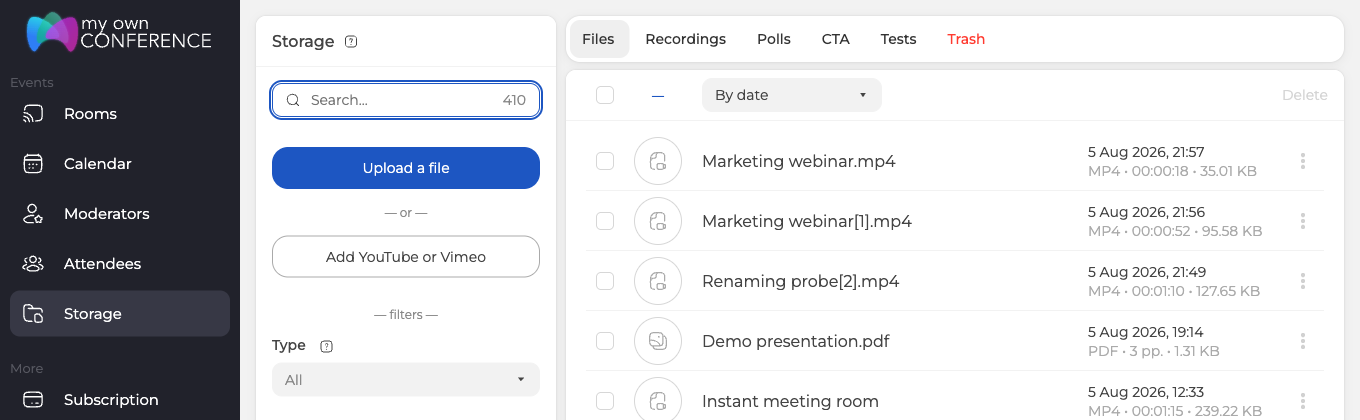
A file you have uploaded plays for everyone in the room, whether or not they use Google, and nothing outside the platform can cut it off partway through. It also stays in the recording, which is the whole point if you plan to send that recording out afterwards.
If you do not record your webinars at all, that last reason does not apply to you, and a YouTube link is the more flexible of the two. Your copy stays on YouTube, you can swap it out without touching the webinar, and there is nothing to re-encode. Both routes are supported, so this is a choice rather than a rule.
What not to do
Some people try to work around YouTube's restrictions with proxy servers, a VPN or browser extensions. None of that is stable, it can conflict with Google's own policy, and an attempt to bypass the restrictions sometimes ends with the account being blocked.
One more thing worth saying plainly. Uploading feature films or documentaries whose rights do not belong to you is also not allowed, and it can get your account on our platform blocked.
Still stuck
If you are not sure how to get a particular video into the room, open the online chat and tell us where the video lives now and how long it runs.
Frequently asked questions
Does the rest of my webinar still make it into the recording?
Yes. Only the stretches where a YouTube video played are missing, and everything else in the room is captured as usual. Our platform has not recorded YouTube videos since the beginning of 2022, so that the rights of the people who made that content are not infringed.
Attendees are seeing "Sign in to confirm you're not a bot" instead of my video. What can I do?
That is Google's check on embedded playback, introduced in mid 2024, and whether an individual attendee sees the video is now Google's decision rather than ours. Upload the video as an MP4 file through "Upload a file" in "Storage" instead, because a file you have uploaded plays for everyone in the room whether or not they use Google. It also stays in the recording.
Does an uploaded MP4 keep its original sound?
Its audio is adapted on the way in, which audio degradation of uploaded video in recordings explains along with how to restore the original track afterwards. Inside the room the file goes in from "Select file" on the "Media" tab of the "Show" window, and the same two routes sit side by side in "Storage".
Is a YouTube link ever the better choice?
Yes, if you do not record your webinars at all. Your copy stays on YouTube, you can swap it out without touching the webinar, and there is nothing to re-encode. Both routes are supported, so this is a choice rather than a rule.
Can I use a VPN or a browser extension to get around YouTube's restrictions?
No. Proxy servers, a VPN and browser extensions are none of them stable, they can conflict with Google's own policy, and an attempt to bypass the restrictions sometimes ends with the account being blocked. Uploading feature films or documentaries whose rights do not belong to you is also not allowed, and it can get your account on our platform blocked.
