
YouTube live stream playback
A YouTube live stream plays in the webinar room the same way an ordinary YouTube video does, because both go in through the same field. Vimeo links go in there too.
Adding a stream
Click "Show" in the left rail, open the "Media" tab and click the "+" button above the list. A row appears with "Select file" on the left, for video you upload yourself, and a field on the right for a link. The rest of that window is in our webinar room presenter guide.
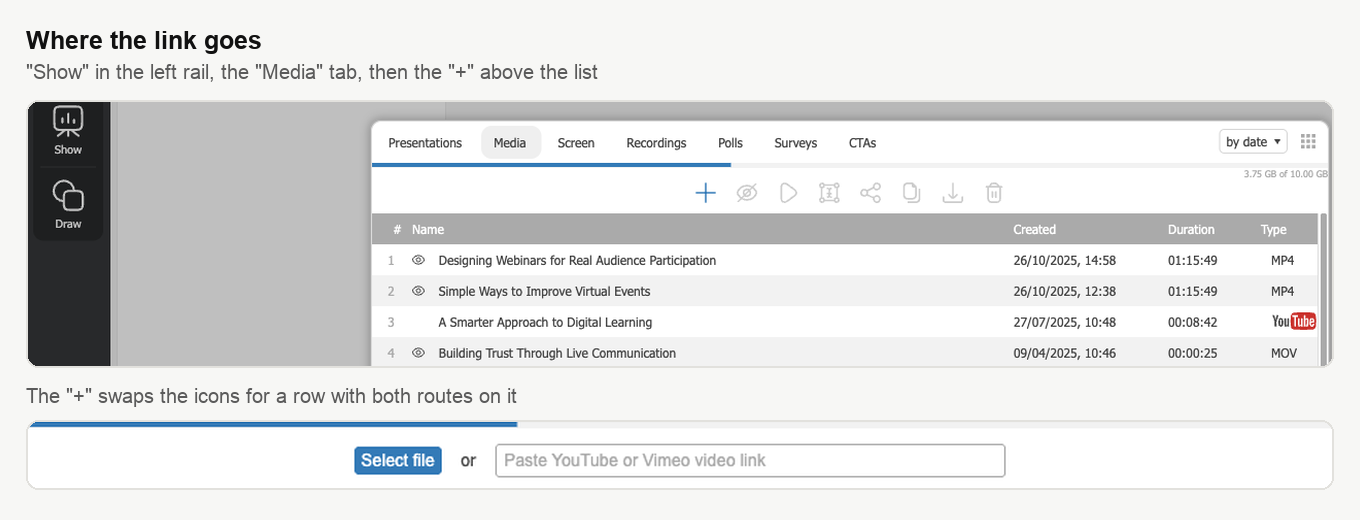
Copy the address of your stream from the YouTube app or website, paste it into the field and press Enter. There is no confirmation step. The room fetches the stream and adds it to the list below, where the "Type" column marks it with the YouTube badge instead of a file format. A double-click on the row starts it.
Do this before the event rather than during it. Adding a link takes seconds, but hunting for the right one while an audience waits does not.
What your audience sees
The stream plays inside the webinar room, in the same working area as your slides. Nobody has to open YouTube in another tab or install anything. Whether YouTube itself lets a given attendee watch is a separate question, and the section below covers it.
When a stream will not play
The room checks the link the moment you add it, so a broken or unreachable address is caught there rather than in the middle of your webinar.
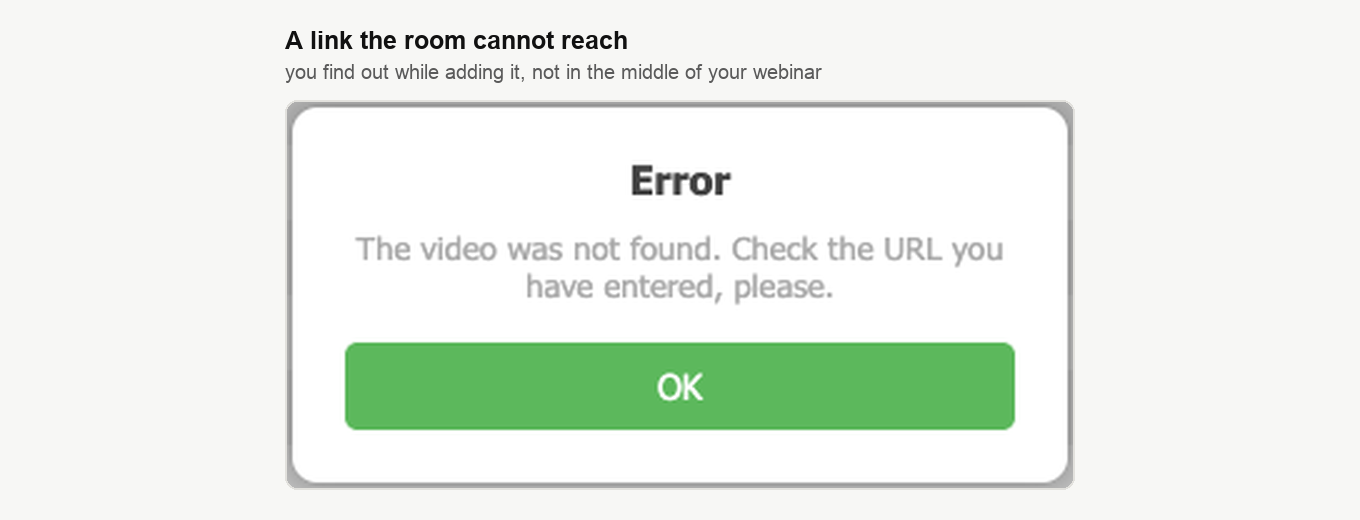
If you see that, the stream is either private, restricted, or the address itself is wrong. Open the stream's privacy and availability settings on YouTube, make sure it is reachable by anyone with the link, and copy the address again from the browser rather than retyping it.
In mid 2024 Google changed how YouTube handles embedded playback, and a video embedded on a third-party site now expects the viewer to be signed in to a Google account. An attendee who is not signed in gets "Sign in to confirm you're not a bot" from YouTube instead of your stream. That change reached every platform that shows YouTube content during an event, so whether an individual attendee sees the stream is Google's decision rather than ours.
One more thing is worth knowing before you plan a webinar around a stream. YouTube content is deliberately left out of webinar recordings, so that stretch of your event will be missing from the file afterwards. Why YouTube videos are missing from your recording covers that and the sign-in change together, and makes the case for uploading an MP4 instead when the recording matters.
If you run into anything else, open the online chat and we will take a look.
Frequently asked questions
Will the stream be in my webinar recording?
No. YouTube content is deliberately left out of webinar recordings, so that stretch of your event will be missing from the file afterwards. If the recording matters, why YouTube videos are missing from your recording covers that and makes the case for uploading an MP4 instead.
Do my attendees need a Google account to watch the stream?
In practice yes, because a video embedded on a third-party site now expects the viewer to be signed in to a Google account, a change Google made in mid 2024. An attendee who is not signed in gets "Sign in to confirm you're not a bot" from YouTube instead of your stream. That change reached every platform that shows YouTube content during an event, so whether an individual attendee sees the stream is Google's decision rather than ours.
Can I paste the link while the webinar is already running?
Add it before the event rather than during it. Adding a link takes seconds, but hunting for the right one while an audience waits does not. The room checks the link the moment you add it, so a broken or unreachable address is caught there rather than in the middle of your webinar.
How do I know the YouTube link was added?
The row appears in the list below, where the "Type" column marks it with the YouTube badge instead of a file format. There is no confirmation step, and if the address is broken or unreachable the room says so at that moment, with "The video was not found. Check the URL you have entered, please." Once the row is there, a double-click on it starts the stream.
Can I use a Vimeo link instead of YouTube?
Yes. Vimeo links go into the same field as YouTube ones, on the "Media" tab of the "Show" window, beside "Select file", which is for video you upload yourself. The rest of that window is in our webinar room presenter guide.
