
Automatic webinar recording
Automatic recording saves your webinar without anyone having to remember the record button. It covers the moment every host knows, when the session is already running well and you suddenly realise nobody switched recording on.
What automatic recording does
Once the option is on, recording starts the moment any moderator enters the webinar and stops after the last moderator leaves the room. Nobody has to press anything at either end. The description in the panel puts it the same way, that the video begins as soon as the first moderator logs in and the session ends when the last moderator exits.
Which plans it works on
Automatic recording belongs to the larger plans. It becomes available from 300 attendees upwards, and below that the two switches described here are still visible but greyed out, so you can see what they do without being able to switch them on.
Recording by hand is a different matter and works on every plan, including the free Starter plan. What your plan changes there is the recording itself rather than the automation, because Starter stops a recording at 20 minutes. Length has a ceiling even on a paid plan, since a single recording tops out at ten hours and then stops on its own. Everything about webinar recording covers the quality and storage side of that.
Turning it on
Open the webinar settings while you are scheduling the event and go to the "Record" tab. The switch you want is called "Auto-start upon any moderator's login" and it sits below the recording options rather than among them.
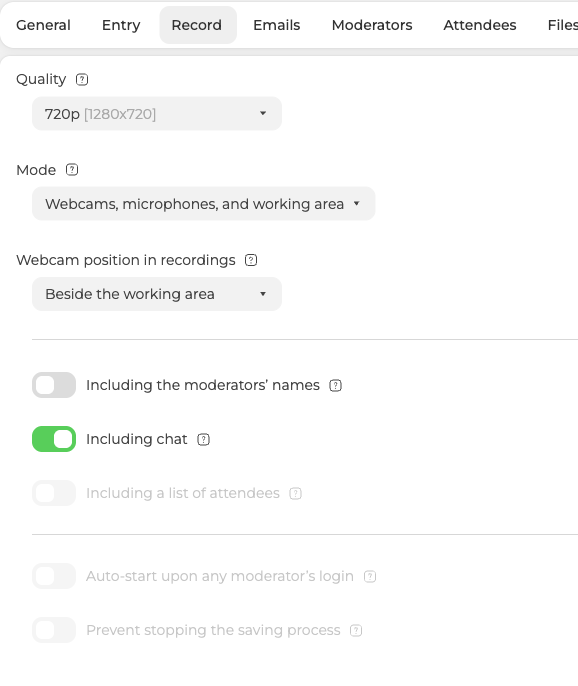
Everything above it describes what ends up in the file, meaning the resolution, how much of the room the recording captures, and whether moderator names, the chat and the attendee list are saved with it.
Stopping moderators from interrupting it
A second switch sits directly under the first, called "Prevent stopping the saving process". Turn it on and moderators inside the room can no longer stop the recording while the event is live. That is worth having when the recording is the whole point of the event and one stray click would cost you the second half of it.
It only wakes up once "Auto-start upon any moderator's login" is on, and switching the first one back off disables the second along with it.
Stopping and starting it by hand
Leave that lock off and you keep the controls. "REC" at the top of the room's left toolbar stops the recording at any point, so a break or an off-topic discussion never reaches the file at all.
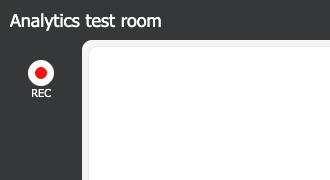
While a recording runs, the label gives way to a timer counting what has been captured so far, and pressing the button again asks you to confirm before anything stops.
Stopping is not the same as pausing. The take you have so far is closed and sent off for processing, and it turns up on the "Recordings" tab once that finishes. Pressing "REC" again starts a second file rather than continuing the first. That is the normal way to handle a long event in any case, because a single recording stops itself at ten hours. The pieces arrive as separate files, the second and later ones numbered after the first, and the recording editor works on one file at a time.
If a recording did not start by itself, open the online chat and tell us the event, the date it ran and how long it lasted.
Frequently asked questions
Why are the automatic recording switches greyed out for me?
Automatic recording becomes available from 300 attendees upwards, and on a smaller plan both switches stay visible but greyed out, so you can see what they do without being able to switch them on. Recording by hand is a different matter and works on every plan.
Can I record on the free Starter plan?
Yes, by hand, because manual recording works on every plan including the free Starter plan. What your plan changes is the recording itself rather than the automation, since Starter stops a recording at 20 minutes. Even on a paid plan a single recording tops out at ten hours and then stops on its own, and Everything about webinar recording covers the quality and storage side of that.
Why can I not switch on "Prevent stopping the saving process"?
It only wakes up once "Auto-start upon any moderator's login" is on, and switching that first one back off disables the second along with it. Both sit at the bottom of the "Record" tab, below the options that describe what ends up in the file.
Can I pause a recording and carry on with the same file?
No, stopping is not the same as pausing. Pressing "REC" closes the take you have so far and sends it off for processing, and it turns up on the "Recordings" tab once that finishes, so pressing the button again starts a second file rather than continuing the first. The button asks you to confirm before anything stops.
Does the recording stop when I leave the room?
Only if you are the last moderator out. Automatic recording starts the moment any moderator enters and stops after the last moderator leaves, so another moderator who stays behind keeps it running. Nobody has to press anything at either end.
