
Anonymous webinar and participant data protection under GDPR
Companies and organisations run into more and more requirements around the personal data of the people who attend their online events. Sometimes a webinar has to run so that attendee names are never shown to the rest of the audience, in the broadcast, in the recording or in the chat. The event still has to feel live. The settings below cover that, and they all sit in the settings of one webinar or room.
What an anonymous webinar is and who runs one
An anonymous webinar is an event where the names and surnames of attendees are not shown to the rest of the audience, for example by displaying initials in place of the full name. Medicine, law, HR, psychology and the public sector ask for this format most often, anywhere the confidentiality of the audience has to hold.
The requirement can come from internal company policy, from industry standards or from regulations such as GDPR. The goal behind all of them is the same, which is running a full training session or presentation without disclosing personal data. That is the audience side of it, and platform security covers the rest, from how your stream is encrypted to who can reach the room at all.
Where our servers stand and which companies handle the data, each point with its source, is set out on our GDPR page.
Anonymising attendee names in chat
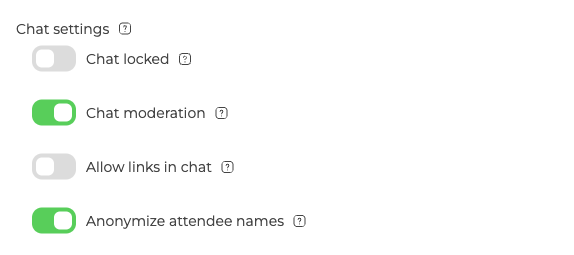
Open your webinar or room settings and stay on the "General" tab. The controls you need are grouped under "Chat settings".
"Anonymize attendee names" is the first one to switch on and the one people notice. With it on, attendees see each other by their initials, so Michael Brown appears as "MB". They still write in the chat, ask questions and react to what is happening, and the rest of the audience no longer sees who they are.
Be precise about how far that goes. Initials are drawn from the real name, so in a small group or a room where people already know each other they can still point at a person. Your moderators and presenters go on seeing full names throughout, which is what lets them run the room, and the host's own name is not anonymised at all. Chat moderation shows both sides of the same room.
Compliance is not the only reason to use it. Anonymity lowers the psychological barrier, and audiences often get more active as a result, because people write in the chat more willingly when they know their name stays hidden.
Moderating the chat
"Chat moderation" sits in the same group and backs up name anonymisation. Its hint states the effect plainly, that "attendees' messages will appear in the chat only after being approved by a moderator". Nothing reaches the public chat until you let it through.
The two settings protect different things. Names are hidden on one side, and the moderator controls what is actually said on the other. That matters for events with regulatory requirements around publicly displayed information.
Taking the attendee list away entirely
Anonymised names still tell everyone how many people are in the room. If even that is more than you want to reveal, the "Attendees" setting on the same "General" tab decides what your audience sees of each other, and "Hide attendees list" is the option that shows them nothing.
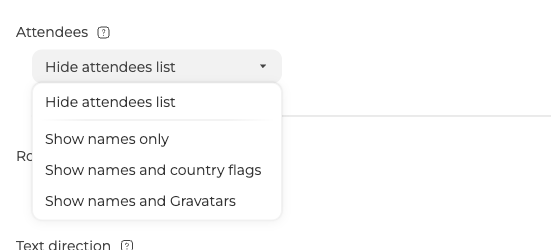
With it chosen, the list is simply not available in the webinar room for attendees. They cannot open it, and they never learn how many other people are there. Your moderators and presenters go on seeing the full list as usual, so running the event is no harder than before.
The other three options differ only in how much they show, which is names on their own, names with country flags, or names with Gravatars.
Managing the host name
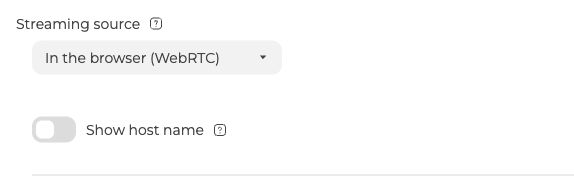
A separate setting near the top of the same tab controls whether the name of the host or presenter appears. By default it sits directly on the video during the broadcast so attendees know who is speaking. Switch "Show host name" off if your event needs anonymity on the organiser side too, and the host name stops showing on screen.
This one reaches further than the broadcast, as the next section explains.
Recordings without personal data
The "Record" tab decides what ends up in the finished file. Two options there carry personal data.
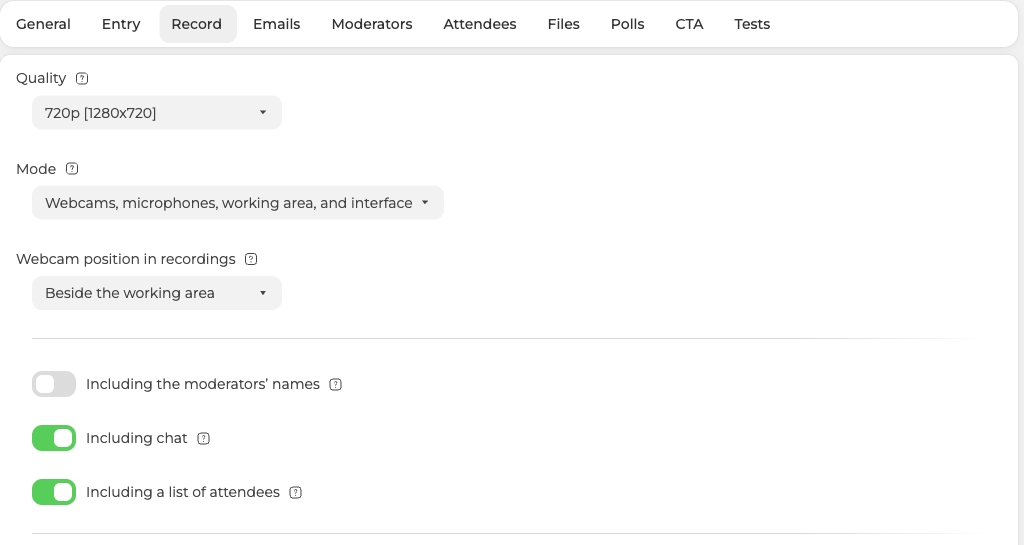
Including the moderators' names, when it is on, prints presenter names onto their video or avatars in the recording. Off, the video is saved with no labels at all.
"Including a list of attendees", when it is on, adds a screen at the end of the recording with the names and photos of everyone who attended. Off, that screen never reaches the file.
These two are not independent switches
Each of them is tied to a setting elsewhere, and that catches people out.
- Including the moderators' names is only available while "Show host name" is on. Turn the host name off and this option greys out.
- "Including a list of attendees" needs two things at once. The recording "Mode" has to include the interface, meaning "Webcams, microphones, working area, and interface", and the "Attendees" setting has to be showing the list in the first place. Miss either one and the option greys out, because there is no attendee list to save.
The practical effect is helpful rather than annoying. Once you have switched the host name off, hidden the attendee list and set a mode without the interface, both options drop out on their own and cannot be switched back on by accident.
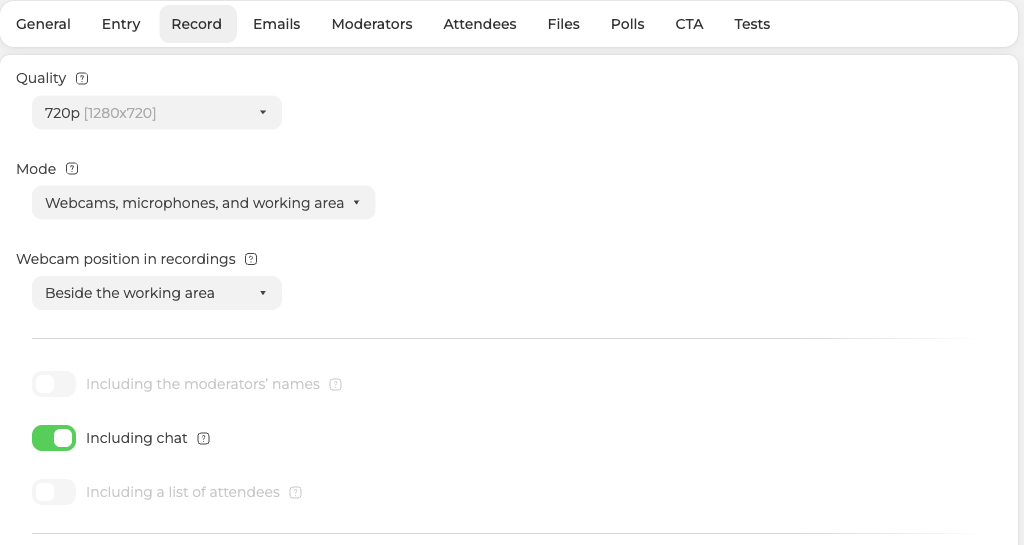
With both off, the finished recording holds only the content, meaning slides, screen sharing, speech and audience interaction.
Chat message security
The platform also protects the messages themselves. Attendees can read the conversation only while the webinar is running. Once it ends, the history is kept in the organiser's control panel, and attendees have no route back to it.
The full set-up
A webinar with everything switched on works like this:
- Attendees see each other by their initials instead of their full names, while your moderators and presenters keep seeing everyone in full.
- Every message waits for a moderator before it appears.
- Nobody in the audience can open the attendee list or count the room, while your moderators still can.
- The host goes on air with no name displayed.
- The recording saves without moderator names and without an attendee list, which both settle there on their own once the settings above are in place.
- The chat history stays in the organiser's panel.
Questions, answers and reactions all still work, and the event is as live as any other. What it removes is the personal data other participants and the recording would otherwise see.
If a name or an address still turns up somewhere after all of this is set, open the online chat and tell us where you saw it and which of these switches you had on.
Frequently asked questions
Can my moderators still see who is who?
Yes, throughout. Attendees see each other by their initials, while your moderators and presenters go on seeing full names, and they keep the full attendee list even when "Hide attendees list" is chosen, so running the event is no harder than before. The host's own name is not anonymised at all either.
Can attendees still work out who somebody is from their initials?
Sometimes, yes. Initials are drawn from the real name, so Michael Brown appears as "MB", and in a small group or a room where people already know each other they can still point at a person. Anonymised names also tell everyone how many people are in the room, so if that is more than you want to reveal, set the "Attendees" option on the "General" tab to "Hide attendees list".
Why is "Including a list of attendees" greyed out?
Because there is no attendee list for it to save. The option needs two things at once, the recording "Mode" including the interface, meaning "Webcams, microphones, working area, and interface", and the "Attendees" setting showing the list in the first place. Its neighbour "Including the moderators' names" greys out the same way once "Show host name" is off.
Can attendees read the chat once the webinar has ended?
No. Attendees can read the conversation only while the webinar is running, and once it ends they have no route back to it. The history is kept in the organiser's control panel, so it stays available to you.
Does all this anonymity cost me audience interaction?
No. Attendees still write in the chat, ask questions and react to what is happening while the rest of the audience sees only their initials, so the event is as live as any other. What it removes is personal data rather than the interaction.
