
Can I use a custom background on the presenter's webcam?
No. The room blurs the background behind you, and it does not replace it with a picture. That is a deliberate choice rather than a missing feature, and there are two ways to get a replacement anyway if you need one.
What you get instead
Open the room menu and expand "Devices settings". "Blur background" is the last switch in it, below the webcam controls.
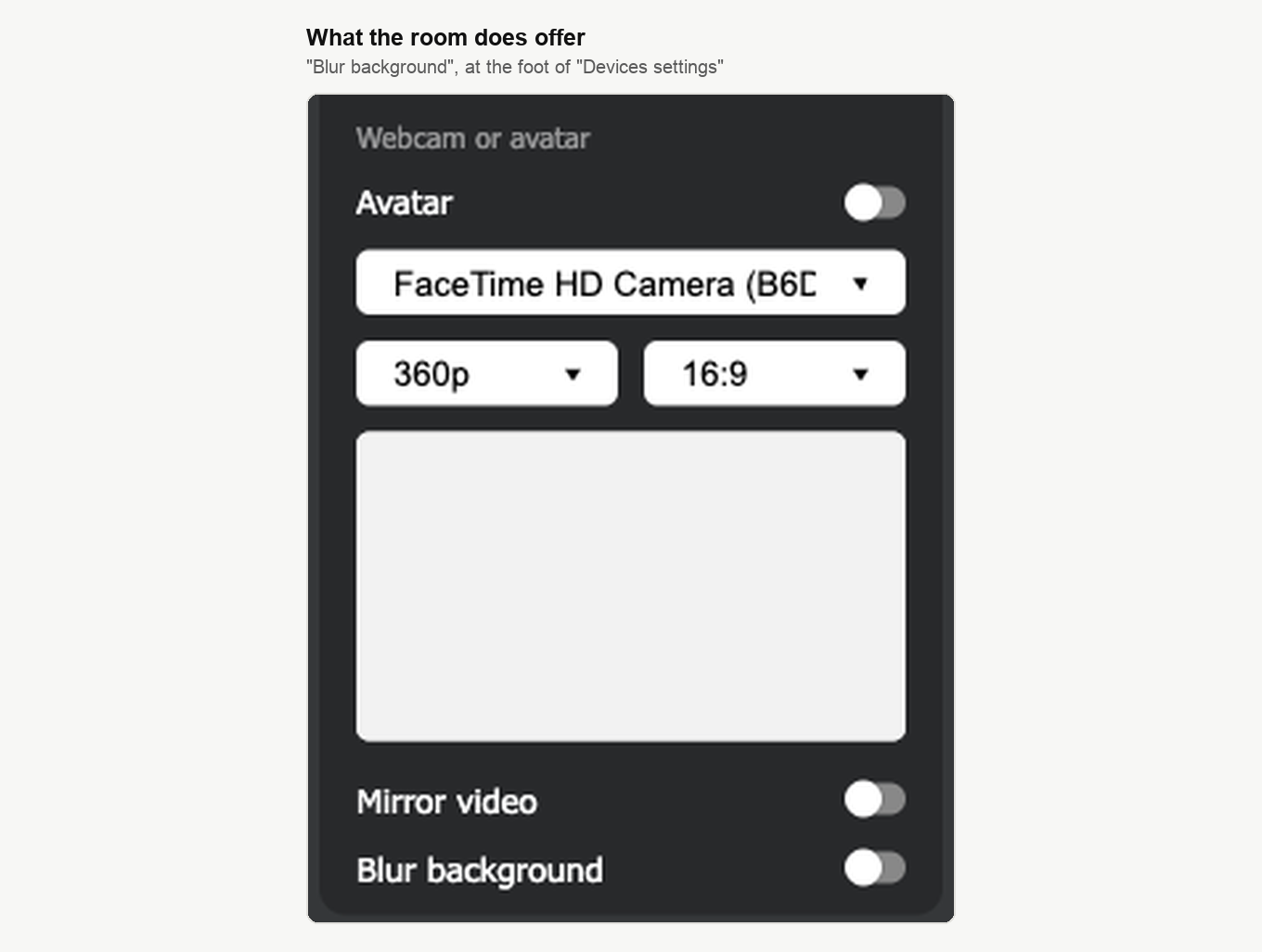
It softens whatever is behind you, which is enough to tidy up a room without hiding it. It appears once your camera is actually running, so you will not find it while you are presenting behind an avatar. And it lives among your own device settings rather than the room's, so it is yours to set and does not touch how anybody else appears.
One route does not have it yet. If the account owner has switched the room to broadcast through our own app rather than the browser, which alternative broadcasting technology covers, there is no blur switch on that route. We are working on bringing it there. On a Mac none of this applies, because macOS blurs with "Portrait" and replaces the backdrop with "Background" before the picture reaches any application, so both survive this route. The Mac section below sets it out.
Why we do not replace the background
Replacing a background is expensive to compute, and the machine that pays for it is the one holding the camera. Every frame has to be processed to separate you from what is behind you, which loads the processor and drains the battery. On a desktop that is affordable. On a phone or an ageing laptop, which is what plenty of presenters have, it competes with the broadcast itself.
Blur is the compromise we settled on. It is the lighter of the two, so the broadcast keeps first call on your processor.
Replacing it on a Mac anyway
If you present from a Mac, macOS can replace the background itself, before the picture reaches the browser. A webinar then sees it exactly as any other app would, and nothing inside the room has to know about it.
You can settle this with one look, without hunting for a version number. Go on air so the camera is running, click the green camera icon in the menu bar and see whether the menu lists "Background". If it does, you have it, and using virtual backgrounds on macOS walks through choosing an image and getting a clean edge around you. If the menu offers Portrait and Studio Light but no "Background" at all, this Mac cannot, and the section below is your route.
If your system cannot do it
Windows and Linux have no general built-in way to swap the background for a picture of your own, and neither does a Mac without that "Background" item. The replacement then has to happen before the browser sees your camera. A virtual camera offers itself to the browser like any other device, so the room's camera list is where you would select it, and whatever it sends is what your audience gets. OBS Studio is the usual example, and its virtual camera is covered in our guide to broadcasting into the webinar room from OBS Studio, alongside the separate RTMP route that needs a paid plan.
That is your own workaround, not a feature of ours, so test it well before an event. The processing cost has not gone anywhere. It has moved to your own machine.
Whether this will change
If background replacement becomes cheap enough to run on a modest phone, we will look at it again. Suggestions reach us through the online chat, and we read them.
Frequently asked questions
Why can I not see the "Blur background" switch?
Two things hide it. It appears only once your camera is actually running, so you will not find it while you are presenting behind an avatar. And it is absent altogether when the account owner has switched the room to broadcast through our own app rather than the browser, which alternative broadcasting technology covers. Otherwise it is the last switch in "Devices settings", below the webcam controls. On a Mac you do not need it there, because macOS blurs with "Portrait" of its own accord.
Does turning blur on change how the other presenters look?
No. It lives among your own device settings rather than the room's, so it is yours to set and does not touch how anybody else appears. What it does is soften whatever is behind you, which is enough to tidy up a room without hiding it.
Which version of macOS do I need for background replacement?
You do not need to hunt for a version number. Go on air so the camera is running, click the green camera icon in the menu bar and see whether the menu lists "Background", because that one look settles it. If it does, using virtual backgrounds on macOS walks through choosing an image, and if the menu offers Portrait and Studio Light but no "Background" at all, this Mac cannot do it and a virtual camera is your route instead.
Does the virtual camera route need a paid plan?
No. The paid plan attaches to the separate RTMP route, and a virtual camera is not that route, since it simply offers itself to the browser like any other device and turns up in the room's camera list. Both are covered in broadcasting into the webinar room from OBS Studio, so follow the virtual camera part of it.
Will a replaced background slow my computer down?
Yes, and the machine that pays for it is your own. Every frame has to be processed to separate you from what is behind you, which loads the processor and drains the battery, and on a phone or an ageing laptop it competes with the broadcast itself. Blur is the lighter of the two. A virtual camera is your own workaround rather than a feature of ours, so it is worth testing well before an event.
