
Setting up and using an external USB camera
The step people miss with a USB camera is the last one. Neither Windows nor macOS decides which camera an application uses, so the room will not switch to your new camera by itself. You choose it inside the room.
Connect it
Plug the cable into a free USB port and, if the camera has a power switch, turn it on. A USB camera usually needs no software of its own. If yours came with a driver, install it the way the manufacturer says.
Connect it before you open the webinar room. A camera plugged in while the room is already running is not always picked up until you reload the page.
Let the browser reach it
Your operating system decides which applications may use the camera, and your browser is one of those applications. The system grants that permission per application, so switching to a browser you have not presented from before means granting it again.
On Windows, open "Settings", go to "Privacy & security" and then "Camera", and check that camera access is on for your browser.
On macOS, open "System Settings", go to "Privacy & Security" and then "Camera", and check that your browser is listed and switched on. How to allow camera and microphone access on a Mac walks through it step by step, Safari included.
That is the system letting the browser in. The browser then asks you separately, the first time a room wants your camera, and going on air covers that prompt in each browser and how to undo a refusal you gave earlier.
One place not to look is the sound settings. Sound settings in Windows and macOS choose audio devices only, so changing them switches your microphone and leaves the camera exactly where it was.
Pick it in the room
This is where a wrong picture gets settled. A computer with a built-in camera and a plugged-in one keeps whatever the room was already using, so the new camera has to be chosen.
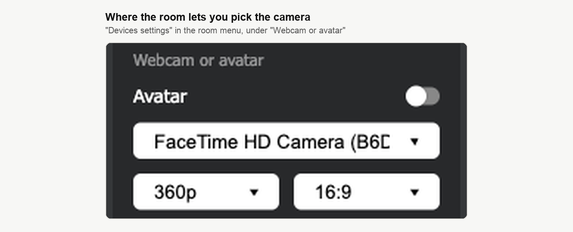
Open the room menu with the button in the top right corner, expand "Devices settings" and find the "Webcam or avatar" block. The camera list is there, and your USB camera appears in it by the name the manufacturer gave it. Choose it, and a live preview at the foot of the block shows what the room will send, so you can confirm your pick before anybody sees you.
Between the camera and that preview sit two more lists. The first is the resolution, offering 180p, 360p and 720p, and the second is the proportions, either 4:3 or 16:9. Why the camera in a webinar runs at 360p or 480p explains why the middle setting is usually the right one. Below the block sits "Mirror video", which flips your own preview and changes nothing your attendees see, so lettering that reads backwards to you is not a fault in the camera.
The list holds virtual cameras beside real hardware, so software such as OBS Studio turns up in it too, which broadcasting into the webinar room from OBS Studio covers. If the room is sending something other than a camera picture, check which entry is selected.
If the camera is in the list but the picture is black
Something else on your computer is probably holding it. A camera can only be used by one application at a time, and messengers are the usual culprits, since Viber, WhatsApp and Messenger keep the device occupied while they run. Close them and reload the webinar room.
If that is not it, try another USB port, and a port on the computer itself rather than on a hub or a monitor.
If no camera works at all
When even the one built into your laptop will not go live, the USB device is not your problem. Two things block a camera before the room ever sees it, and how to enable WebRTC in your browser covers both, a privacy extension and an administrator policy.
You can check the whole chain outside a live event with our connection tester, which runs through the connection, the camera, the microphone and the speakers in a couple of minutes. That is the calmer way to find out, rather than in front of an audience.
If your camera still does not appear in the room's list, open the online chat and tell us which browser you use and whether the camera works anywhere else on the computer.
Frequently asked questions
Why is my camera missing from the list when I plugged it in after opening the room?
Reload the page. A camera plugged in while the room is already running is not always picked up before you do that, and connecting it before you open the webinar room avoids the problem entirely. Then choose it in the camera list under "Devices settings", because a computer with a built-in camera and a plugged-in one keeps whatever the room was already using.
Do I have to set this up again if I present from a different browser?
Yes, and in two places. Your operating system grants camera permission per application, so a browser you have not presented from before has to be granted it again. The browser then asks you separately the first time a room wants your camera, and going on air covers that prompt in each browser and how to undo a refusal you gave earlier.
Which resolution should I choose for the camera?
The middle one, 360p. The list offers 180p, 360p and 720p, and why the camera in a webinar runs at 360p or 480p explains why the middle setting is usually the right one. Beside it sits the proportions list, either 4:3 or 16:9.
My text reads backwards in the preview. Do attendees see it that way?
No. "Mirror video" sits below the "Webcam or avatar" block and it flips your own preview only, changing nothing your attendees see. Lettering that reads backwards to you is not a fault in the camera.
How can I check the camera before there is an audience watching?
Run our connection tester, which goes through the connection, the camera, the microphone and the speakers in a couple of minutes. That is the calmer way to find a problem, rather than in front of an audience. If no camera works there either, not even the one built into a laptop, how to enable WebRTC in your browser covers the two things that block a camera before the room ever sees it, a privacy extension and an administrator policy.
