
What to do if there is an echo during a webinar
Echo appears when a microphone starts picking up the sound coming out of the speakers and sends it back into the webinar. It is usually quick to fix.
Start with the physical setup. Move the microphone away from the speakers and turn the speaker volume down from its maximum. Then open the menu in the top right corner of the webinar room and expand "Devices settings", where the sound controls live.
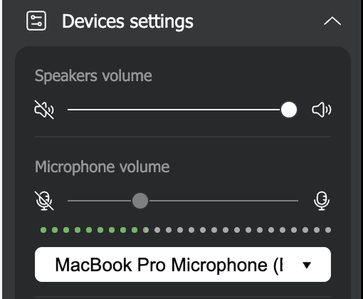
"Speakers volume" is the one to bring down first, because quieter speakers give the microphone less to pick up. Every host in the room needs to do this, not only the one people can hear the echo from.
The microphone slider is greyed out on purpose
Underneath it sits "Microphone volume", and you will find that slider dimmed and unresponsive whatever computer you are working from. That is deliberate rather than a fault. While the browser carries your sound, the room sets your microphone level automatically, precisely so that the noise suppression and the echo cancellation built into the browsers can do their work, including when your hosts are on different browsers. A level moved by hand would pull against that, and the echo everyone was trying to remove tends to come back.
The dotted meter underneath the slider still moves while you talk, so you can see that the microphone is live and roughly how loud you are coming through.
If you genuinely are too quiet, the level is still yours to change. It lives with your operating system rather than with the room. On a Mac that is the Input tab of the Sound pane in System Settings, and Windows keeps its own levels in the volume mixer.
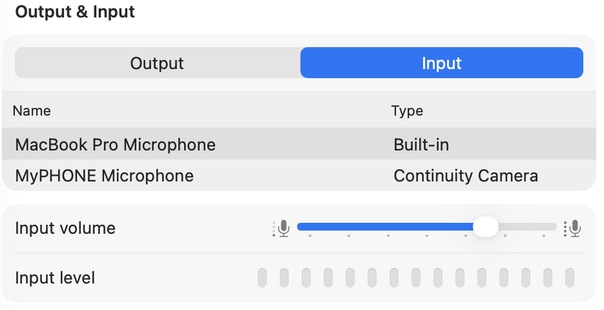
Both paths, along with the older macOS layout and a note on the noise-reduction toggle, are written out step by step in sound settings in your operating system. Aim to keep the input level meter moving around the middle of its range when you speak normally, rather than pinned at the top, since a level pushed too high is itself a common source of echo.
With the app the slider is yours again
That lock belongs to the browser route. If the account owner has switched the room to our alternative broadcasting technology, the app carries your sound instead of the browser, and "Microphone volume" becomes an ordinary slider you can move.
The reason is the same one turned around. The app does not run the echo cancellation and noise suppression that the browsers apply, so there is no automatic level left for a hand-moved one to fight. That is also the warning that comes with it, because echo starts more easily once the suppression is out of the picture. On that route a headset stops being a recommendation and becomes the thing that keeps your audience listening.
Two things that help beyond the sliders
Ask all your hosts to use the same browser, Google Chrome for example, because echo between hosts becomes much less likely that way. That one applies while the room broadcasts through the browser, since it is the browsers doing the cancelling and two different implementations do not line up. Headphones or a headset solve it outright on either route, because the sound from the speakers never reaches the microphone at all.
Echo is only one of the things that make a webinar hard to listen to. Audio quality for webinars covers the rest, from the microphone itself to what changes when the room broadcasts through our app.
If the echo survives all of this, open the online chat and tell us which of you hears it, what each of you is listening on and whether the app is running.
Frequently asked questions
The echo is coming from another host. Do I still have to change my own settings?
Yes. Every host in the room needs to bring "Speakers volume" down, not only the one people can hear the echo from, because echo starts wherever a microphone picks up the sound coming out of speakers and sends it back into the webinar. Headphones or a headset solve it outright, since the sound from the speakers never reaches the microphone at all.
Could my microphone being too loud be what is causing the echo?
Yes, a level pushed too high is itself a common source of echo. Aim to keep the input level meter moving around the middle of its range when you speak normally, rather than pinned at the top. That level lives with your operating system rather than with the room, and sound settings in your operating system writes the full path out step by step.
Does it matter which browser my co-hosts use?
Yes, ask all your hosts to use the same one, Google Chrome for example, because echo between hosts becomes much less likely that way. The browsers are the ones doing the cancelling, and two different implementations do not line up. That applies while the room broadcasts through the browser rather than through our app.
Is echo more likely when the room broadcasts through the app?
Yes. The app does not run the echo cancellation and noise suppression that the browsers apply, so echo starts more easily once that suppression is out of the picture. On that route a headset stops being a recommendation and becomes the thing that keeps your audience listening, and alternative broadcasting technology explains the route itself.
The microphone slider will not move. Is something broken?
No, "Microphone volume" is dimmed deliberately rather than by fault, on every computer. While the browser carries your sound, the room sets your microphone level automatically, so that the noise suppression and the echo cancellation built into the browsers can do their work, including when your hosts are on different browsers. The dotted meter underneath the slider still moves while you talk, so you can see that the microphone is live.
