
How to enable WebRTC in your browser
WebRTC is the technology your browser uses to send your camera and microphone to everyone else in the room. Without it you can still watch a webinar, but you cannot speak or appear on camera through the browser.
It is on by default in every browser we support, so this is not a setting you were supposed to switch on. If it is off, something switched it off, and there are only two candidates. A privacy extension that blocks it deliberately, or an administrator who disabled it across a company network.
Start with your extensions
Before you go hunting, open the webinar room in a private window, where extensions are off by default. If the room lets you speak there, an extension is your answer, and clearing your browser cache covers that route in full.
These add-ons block or restrict WebRTC, and any of them is worth switching off before you look further:
- Disable WebRTC
- WebRTC Leak Prevent
- WebRTC Control
- Easy WebRTC Block
- WebRTC Network Limiter
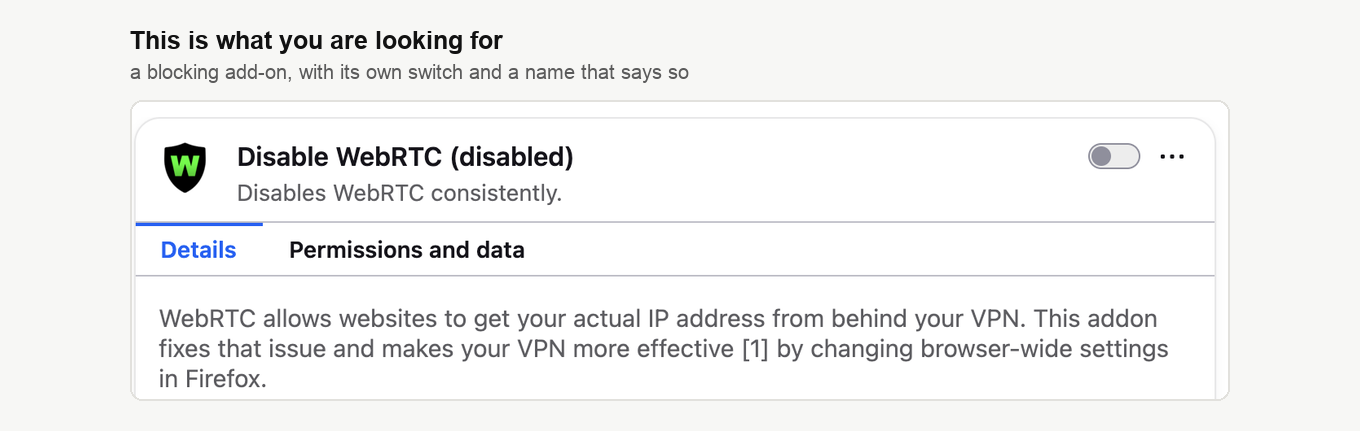
Anything else with "WebRTC" in its name is worth checking too, and so is any VPN or privacy suite that installed a browser add-on of its own. Switch the add-on off with the toggle beside it, or remove it. Several of them can also be turned off for one session from their own toolbar icon, which is worth doing if you keep the extension for a reason.
Chrome, Edge, Opera and Brave
They share an engine, so the route is the same. Open the browser menu, choose "Extensions" and then "Manage Extensions". Opera also reaches it from the extensions icon in the toolbar.
Find anything from the list above and switch it off with its toggle, or click "Remove" if you no longer need it. Then reload the webinar room and press "Speak" again.
Opera keeps a switch of its own
Opera has a second suspect, and your extensions can be perfectly clean while it is set wrong. Open "Settings", choose "System" in the left column and scroll to the "WebRTC" block at the foot of the page. Four options sit there, and only the first one lets a webinar work.
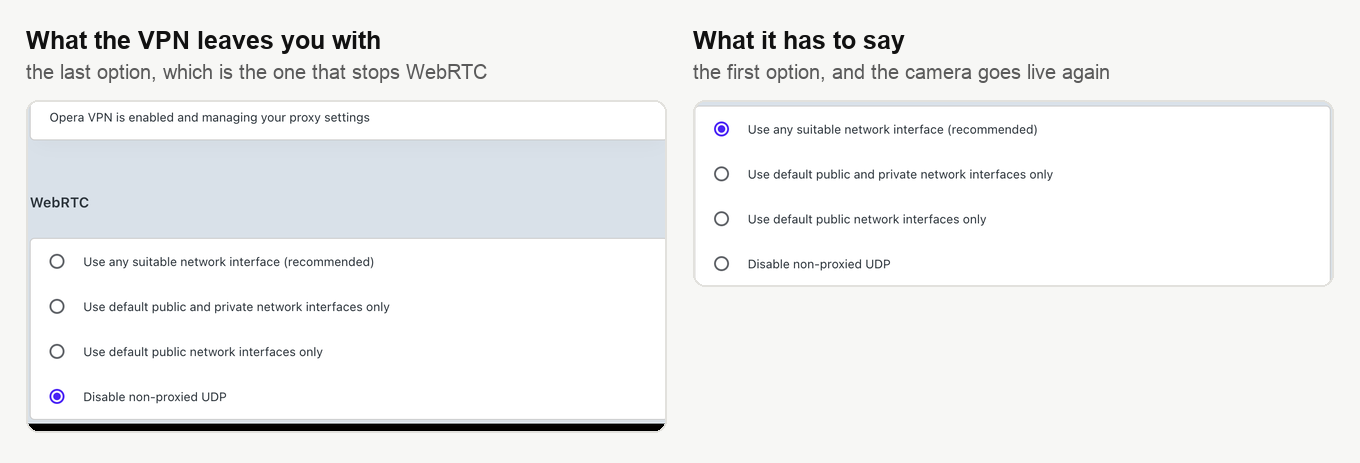
Select "Use any suitable network interface (recommended)" and your camera goes live again. If it was on "Disable non-proxied UDP", the usual reason is Opera's built-in VPN, which moves the setting there and says so a few lines above it. Broadcasting from Opera with the built-in VPN covers what else the VPN does to a broadcast.
Firefox
Firefox takes the same blocking add-ons, so check them first. Type about:addons in the address bar and open "Extensions".
Firefox also exposes WebRTC as a preference, and it is worth knowing what the preference should say before you touch it. Type about:config in the address bar, press Enter, confirm the warning with "Accept the Risk and Continue" and search for media.peerconnection.enabled.

true is the correct value and the one Firefox ships with. If you see true, leave it alone, because clicking the toggle here is how you switch WebRTC off. Only if it reads false does the toggle belong to you, and then one click puts it back.
Safari
There is nothing to switch on. Current Safari treats WebRTC as a standard feature, so if Safari will not send your camera or microphone, your extensions are the place to look, and after that the camera permission itself, which going on air covers.
If it still will not turn on
Nothing announces which add-on or which policy is doing the blocking, and a network-wide block put in place by an IT department is not something you can undo from your own machine. Our connection tester settles the question in a couple of minutes, since it checks the ports, the protocols and WebRTC itself and ticks each one off. A few checks are worth running alongside it.
- Confirm the browser has permission to use your camera and microphone, then restart it once you have granted that. Going on air works through the permission dialogs browser by browser. On a Mac, how to allow camera and microphone access on a Mac covers the system side of it.
- Look at your antivirus. Several suites hold camera and microphone access back until you allow it for the browser by hand.
- Try a different browser. If one of them works, the block was local to the other. Agree the change with your co-presenters first, because everyone who speaks at the same time has to run the same browser.
- Ask your IT department or your internet provider whether they block UDP or WebRTC. Technical requirements lists the ports and addresses to give them. A block on their side is not one you can lift from the browser, though the last section on this page gets you on air anyway.
When a WebRTC connection cannot be established
Sometimes the room does not stay quiet. It reports that the WebRTC connection could not be established and suggests turning off your firewall and antivirus or joining a different network. That is a different case from everything above. There WebRTC is switched off in advance and "Speak" gives you no air at all. Here it is on and working, and the connection breaks somewhere along the way, which is why the advice points outwards rather than at the browser.
The cause is almost always the network. A browser carries live audio and video over UDP, and corporate security does not like UDP. A firewall that passes only TCP on ports 80 and 443, a VPN that tunnels TCP and drops the rest, an antivirus with a network module of its own, any of them will stop the stream without a word of warning.
Work through it in order, and do not switch your protection off wholesale.
- Run the connection tester from the machine and the network you will present from, ideally at the same time of day. It checks ports, protocols and WebRTC itself and shows where the break is.
- In your antivirus, look past the master switch and into the section about the camera and the microphone, then allow both for your browser.
- The advice about another network tests a hunch rather than curing anything. Share your phone's connection for a minute. Go on air through it and the network is the culprit, and the rest is a question for your IT team.
- Technical requirements lists the ports and addresses your IT team needs to open.
You will not have to take the firewall down for a webinar, and here is why. Alongside the browser route runs our own adaptive broadcasting protocol. It is not built on WebRTC, it usually makes do with a single TCP port 443, the very port every website uses for HTTPS, and it switches on by itself for every permanent room and every scheduled event. Broadcasting from a corporate network covers that route in full, and the next section shows how to move your own outgoing stream onto it.
You can present without WebRTC at all
This is the part worth knowing before you spend an evening on the problem. The room can broadcast through our own app, called DTS, instead of the browser, and that route does not use WebRTC, so a block on WebRTC or on the UDP protocol has no effect on it.
The switch is made in the dashboard rather than in the room, under "Streaming source" on the "General" tab of the webinar settings, and only the account owner can make it. Everyone who speaks in that room then needs the app, and it runs on Windows and macOS, so a presenter on Linux has no route through it. Alternative broadcasting technology has the whole procedure.
If you are still stuck, open the online chat and tell us which browser you use and what happens when you press "Speak".
Frequently asked questions
Can I still attend a webinar if WebRTC is blocked?
Yes, watching is unaffected, since WebRTC is what your browser uses to send your camera and microphone to everyone else in the room. What a block costs you is the ability to speak or appear on camera through the browser. So if you never go on air, there is nothing here you need to fix.
Could my antivirus be the thing holding the camera back?
Quite possibly, since several security suites hold camera and microphone access back until you allow it for the browser by hand. Check the browser's own permission too, and restart the browser once you have granted it, which going on air works through browser by browser. If both look right, our connection tester checks the ports, the protocols and WebRTC itself and ticks each one off.
Should I click the toggle beside media.peerconnection.enabled in Firefox?
Only if it reads false. true is the correct value and the one Firefox ships with, so clicking the toggle while it says true is how you switch WebRTC off rather than on. Leave it alone in that case and check your add-ons instead, because Firefox takes the same blocking extensions as the other browsers.
My camera stopped working in Opera after I switched the VPN on. Why?
Opera's built-in VPN moves a setting of its own, and if the "WebRTC" block under "Settings" and then "System" now reads "Disable non-proxied UDP", no webinar will work. Select "Use any suitable network interface (recommended)" and your camera goes live again. Broadcasting from Opera with the built-in VPN covers what else the VPN does to a broadcast.
If we move the room to the app, what changes for everyone else?
Everyone who speaks in that room needs the app, and only the account owner can make the switch, under "Streaming source" on the "General" tab of the webinar settings in the dashboard rather than in the room. The app runs on Windows and macOS, so a presenter on Linux has no route through it. Alternative broadcasting technology has the whole procedure.
