
How to clear your browser cache
If something on MyOwnConference is not displaying correctly, clear your browser cache first. The platform runs entirely in the browser, so outdated temporary files can stop parts of the interface from loading. That usually happens right after a platform update, or when a browser extension is interfering.
What the browser cache is
The cache is a folder on your computer, phone or tablet where the browser keeps copies of pages, images and other files from the sites you visit. On your next visit the browser downloads only what has changed and takes the rest from that folder. Loading is faster this way. The trade-off is that an old file sometimes conflicts with an updated version of a site.
When clearing the cache helps
- Interface elements are missing or displayed incorrectly.
- The page does not refresh after changes on the platform.
- Loading errors appear when you enter the webinar room.
- The browser behaves unpredictably while extensions are installed.
- The webinar room opens but some of its features never load.
Before you start
Close any spare tabs with your webinar open, so the room does not put the old files straight back while you are clearing them. Then read the tick boxes before you confirm, because most browsers remember what you cleared last time and several of them arrive with everything already ticked. In the tick-box browsers the cache and the cookies are separate options and only the cookies sign you out. DuckDuckGo and Safari on iPhone and iPad are the exceptions, and both are covered below.
Chrome, Firefox, Opera and Brave all open the same window with Ctrl + Shift + Del on Windows and Linux, or Command + Shift + Delete on macOS. The menu route is given as well, since the shortcut is easy to forget. DuckDuckGo and Safari work differently and have their own sections below.
Chrome
Click the three dots in the top right corner and choose "Delete browsing data", which sits in the menu itself rather than behind "Settings".
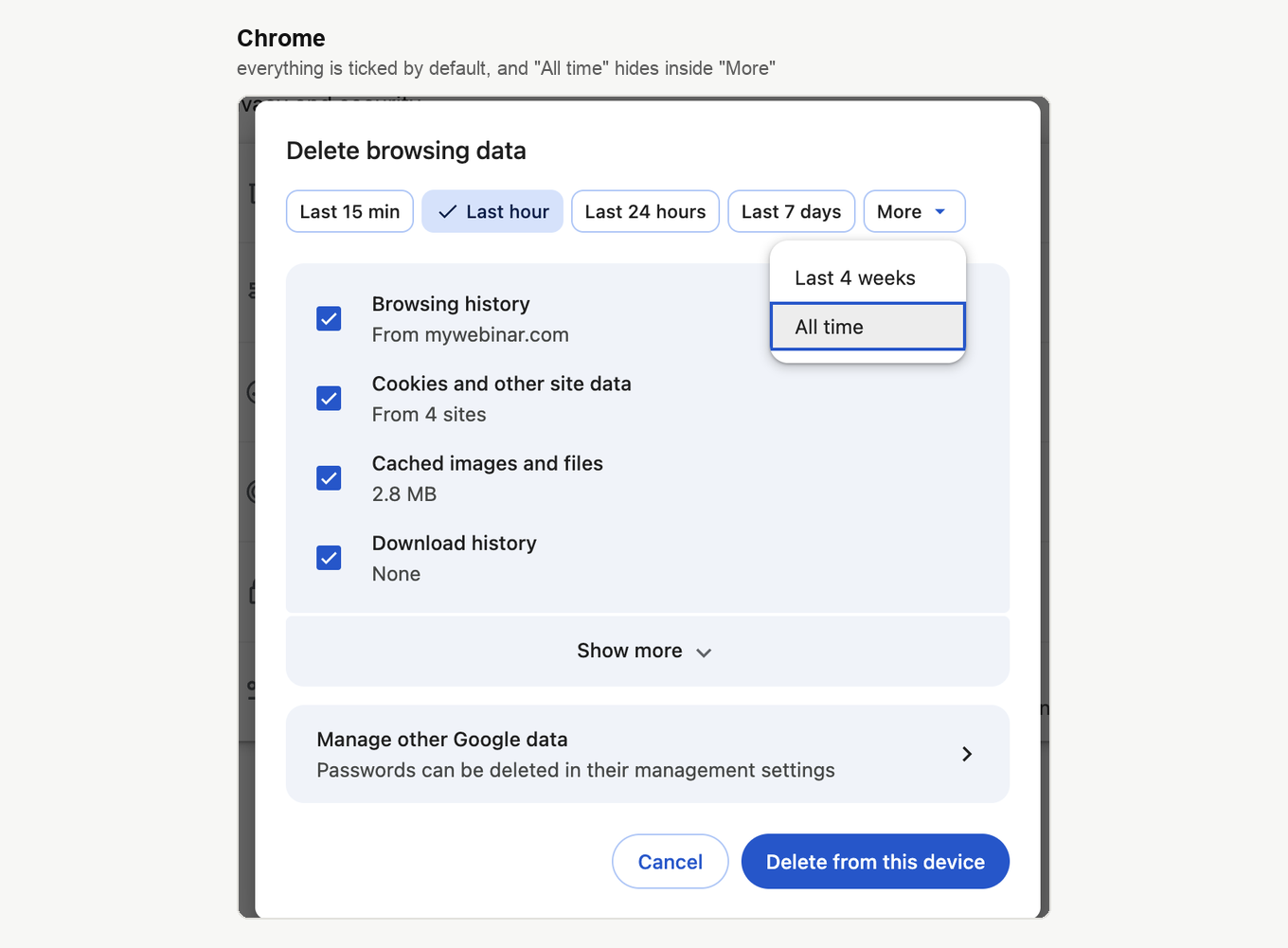
The period runs along the top as a row of buttons, and "All time" is not one of them. It hides inside "More" at the end of the row, which is easy to miss. Open "More" and choose "All time", otherwise you clear only the last hour and the stale file survives.
Underneath, Chrome usually arrives with "Browsing history", "Cookies and other site data", "Cached images and files" and "Download history" all ticked. Leave "Cached images and files" on and untick the rest if you would rather keep your history and stay signed in. "Show more" reveals the remaining types. Finish with the blue button, which reads "Delete from this device".
Firefox
Click the three horizontal bars in the top right corner, choose "Settings", open "Privacy and security" and find the "Browsing data" block, where "Clear browsing data" opens the window.
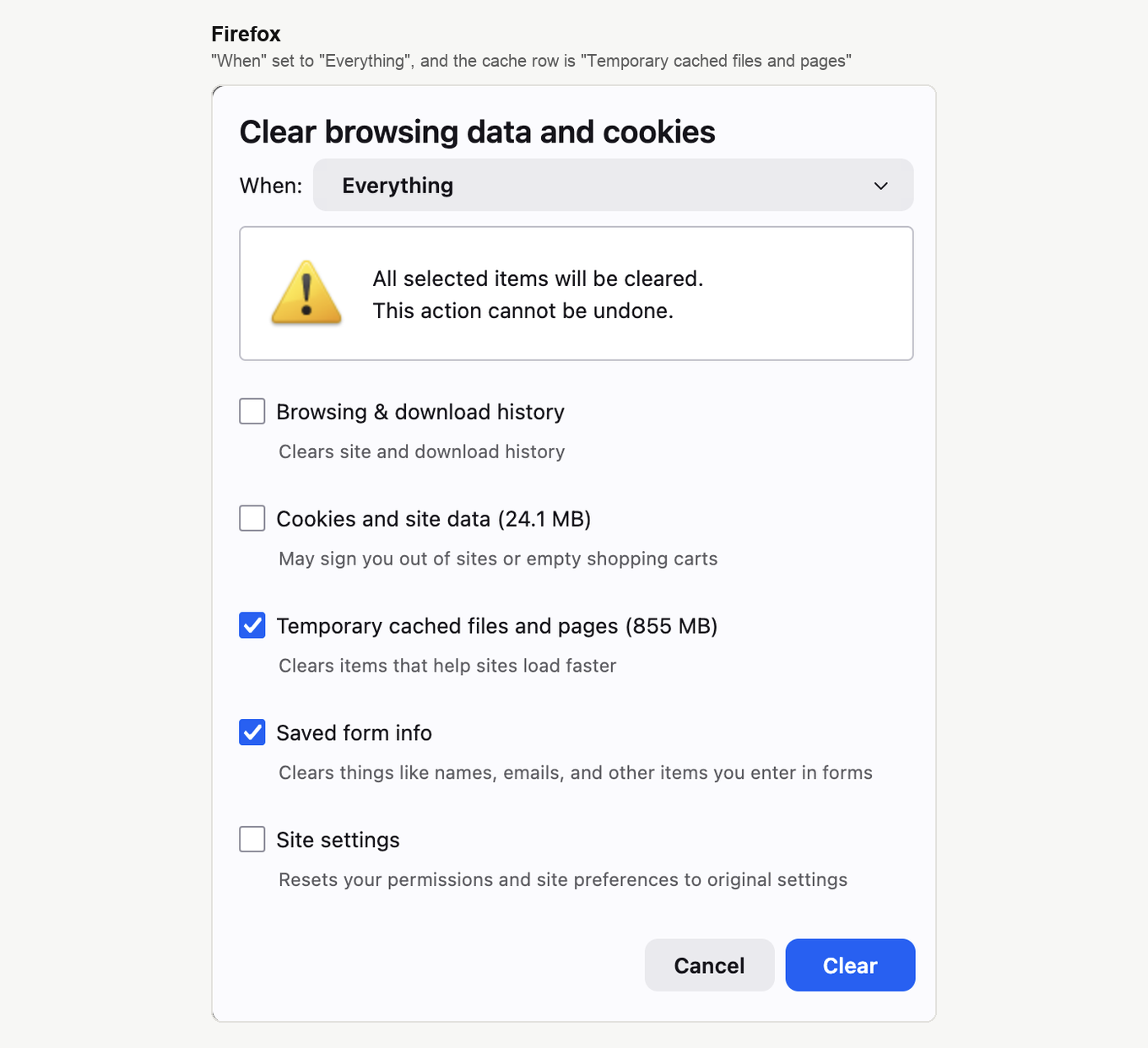
Set "When" to "Everything". The cache row is called "Temporary cached files and pages", and Firefox tells you how much it holds. Leave "Cookies and site data" unticked to stay signed in, then click "Clear".
Opera
Click the Opera icon in the top left corner, open "History" and click "Clear browsing data".
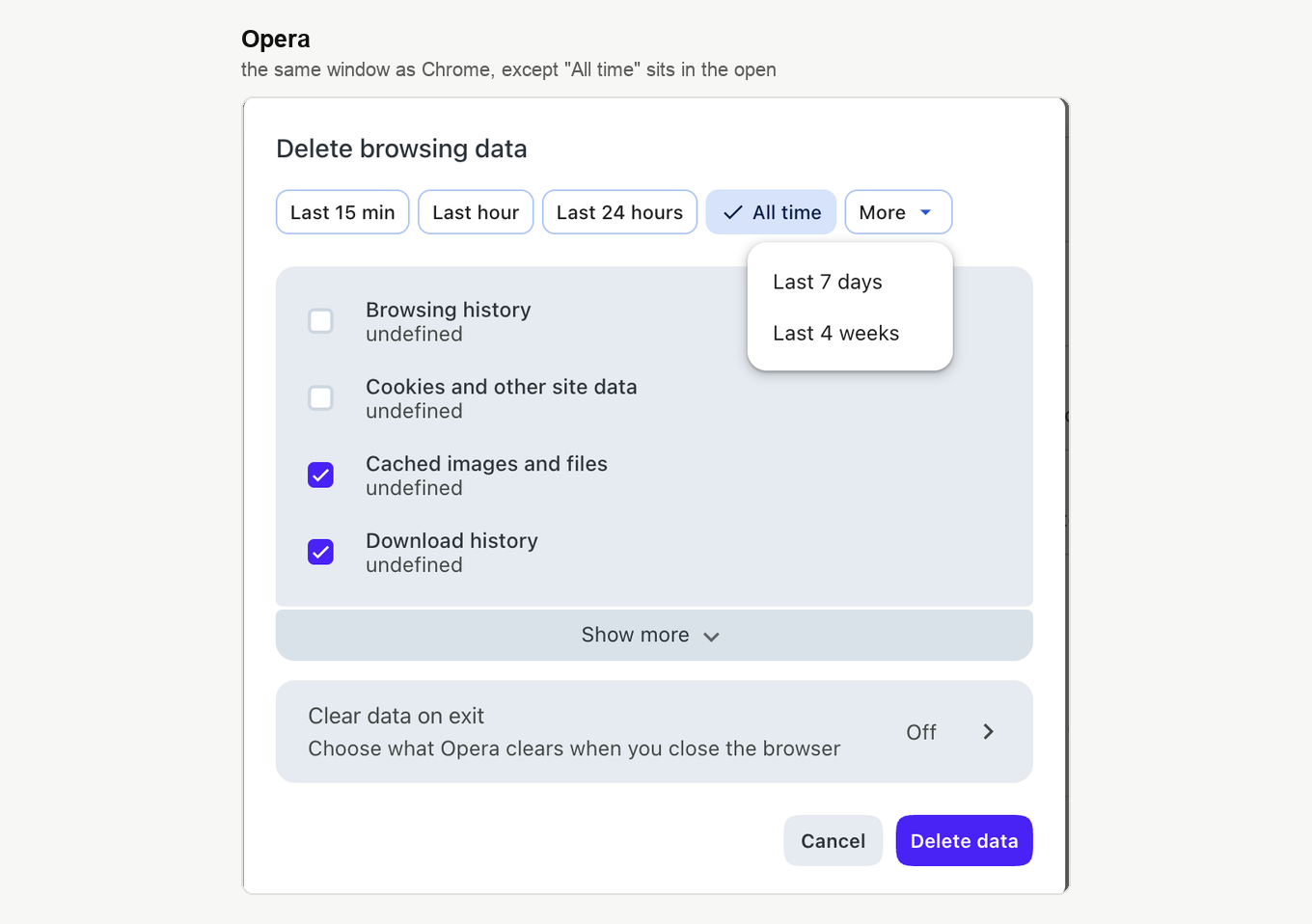
It is the Chrome window in Opera's colours, with two differences. "All time" sits among the buttons along the top rather than inside "More". Tick "Cached images and files", check what else is ticked, and click "Delete data".
Brave
Brave is built on the same engine as Chrome, so the route is the same three dots and "Delete browsing data".
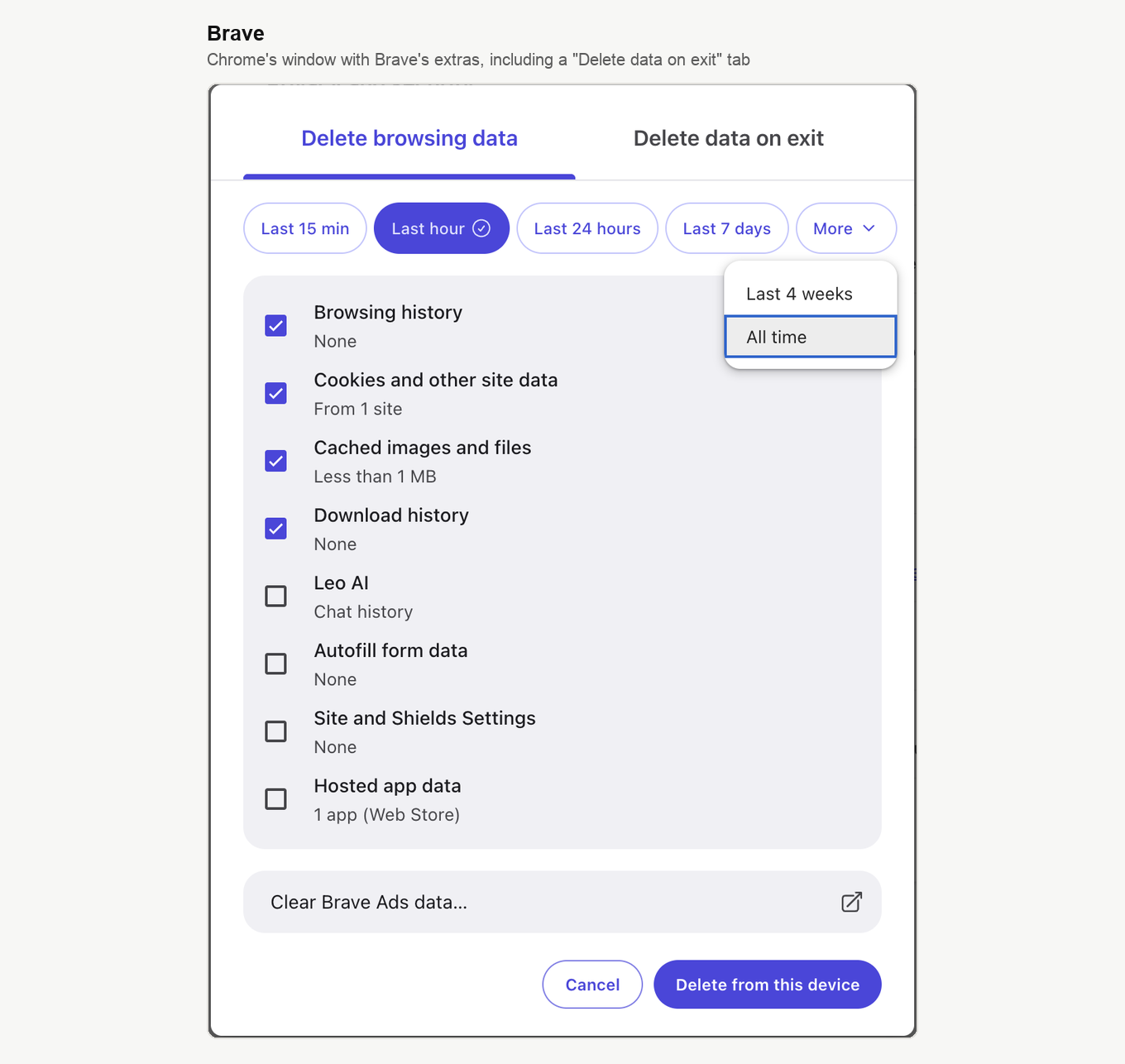
The window carries two Brave additions. A "Delete data on exit" tab, which sets up a clear that runs every time you close the browser, and its own data types such as "Leo AI" and "Site and Shields Settings". For our purposes the choice is the same, which is "All time" under "More", "Cached images and files" ticked, then "Delete from this device".
DuckDuckGo
DuckDuckGo works differently from the rest, and it is worth knowing before you go looking for a cache option that is not there. Clearing runs through the Fire button, and it takes tabs, history and cookies rather than the cache on its own.
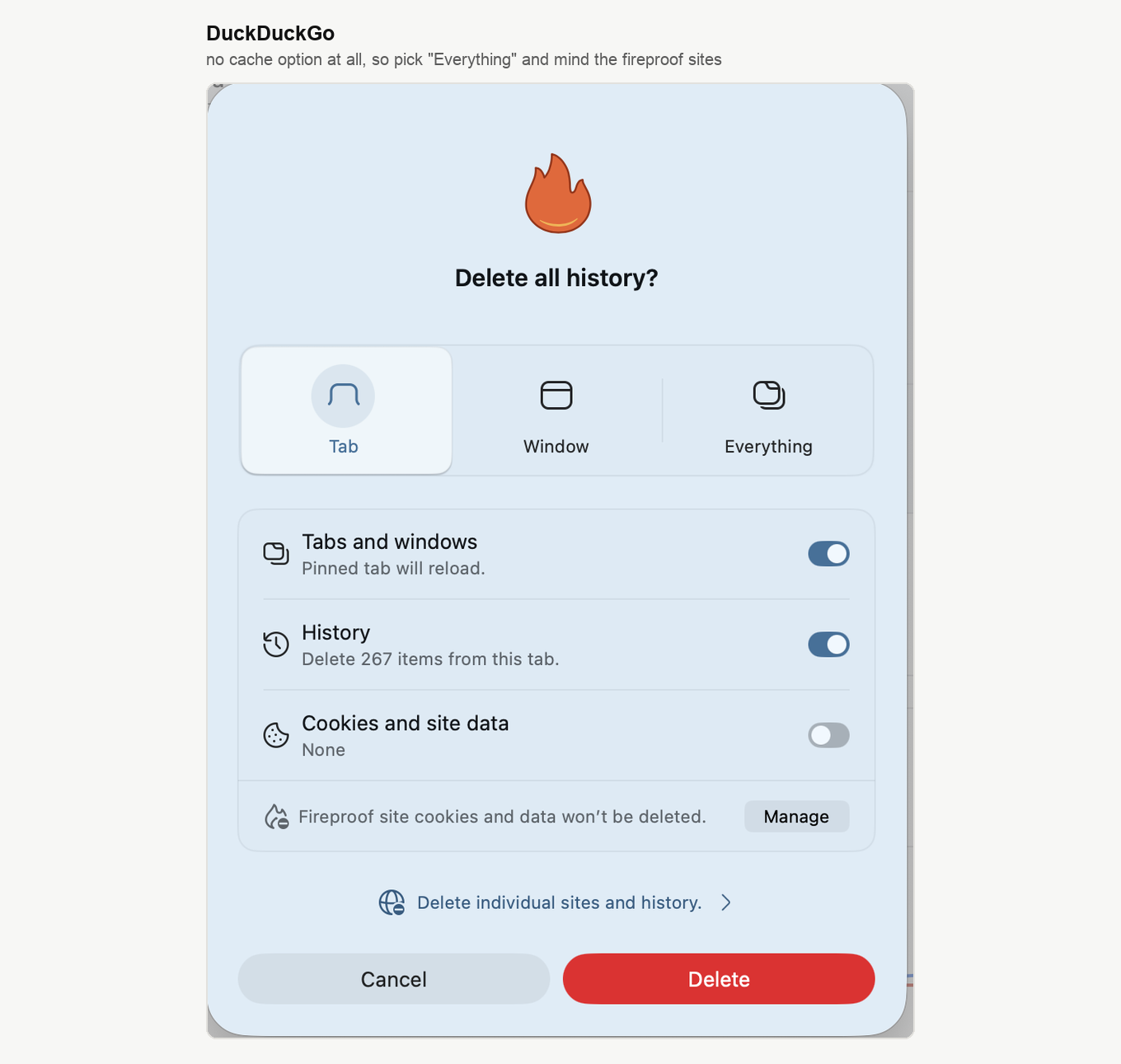
Choose "Everything" at the top rather than "Tab" or "Window", then decide what the toggles clear. One line at the bottom matters more than it looks. "Fireproof site cookies and data won't be deleted", so any site you have made fireproof keeps its data, and "Manage" is where you check which ones those are.
Safari on macOS
Safari can empty the cache on its own without touching anything else, which none of the others can do. The shortcut is Option + Command + E.
Through the menu, click "Safari" in the macOS menu bar, choose "Settings" or "Preferences", open the "Advanced" tab and turn on "Show features for web developers", which older versions call "Show Develop menu in menu bar". Close the settings window.
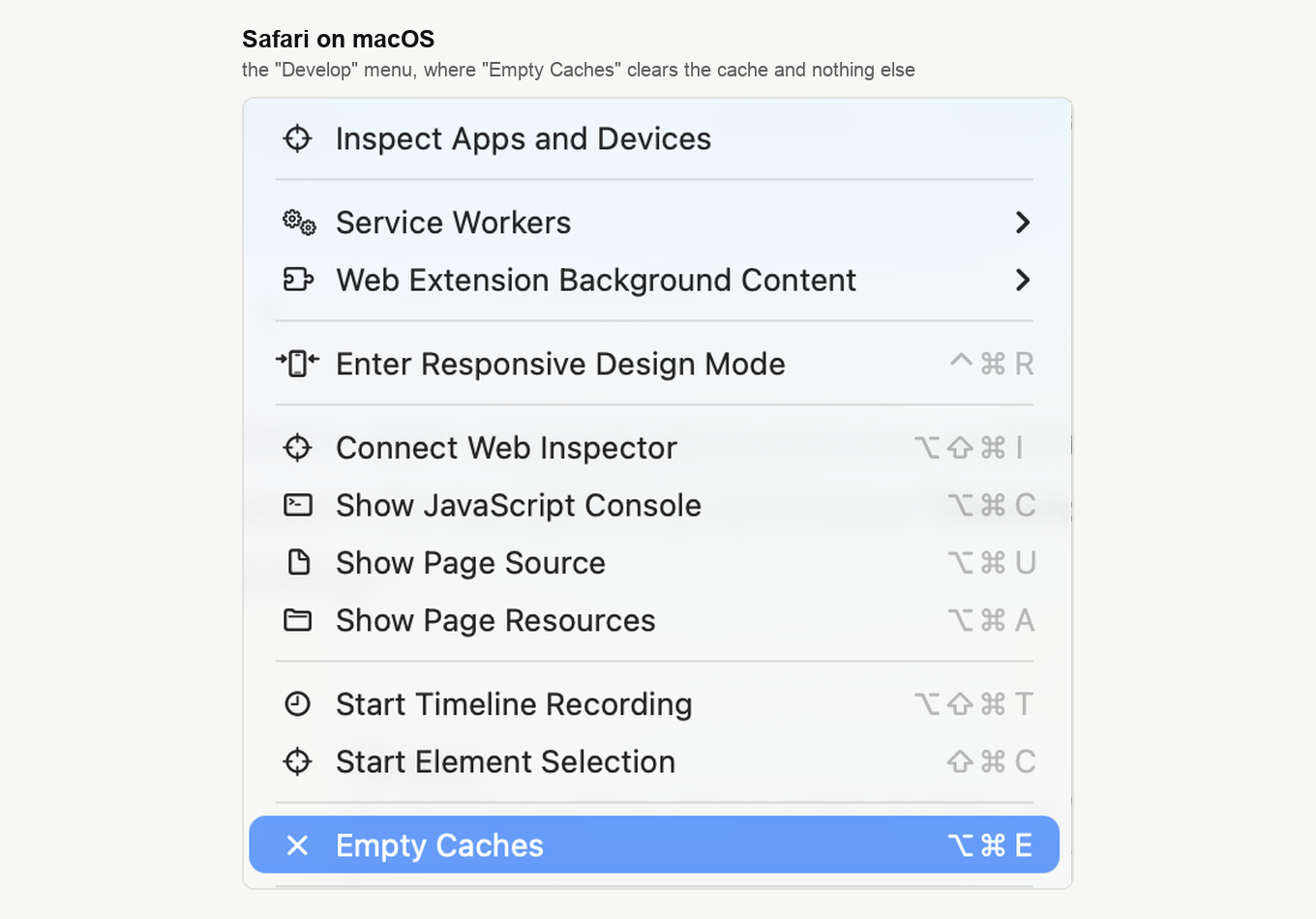
A "Develop" menu has appeared in the menu bar. Open it and click "Empty Caches". Nothing else is touched, so you stay signed in everywhere.
If you would rather clear everything, click "History" in the menu bar, choose "Clear History", pick a period and confirm. That takes your history, cookies and website data with it.
iPhone and iPad
Browsers on iOS and iPadOS work differently from their desktop versions, and several of them cannot remove the cache separately from history or website data. Where a separate cache setting exists, use it. Where it does not, clear history and website data instead.
Safari is the one that surprises people, because it is cleared from the device settings rather than from the browser, and recent iOS versions moved it a level deeper.
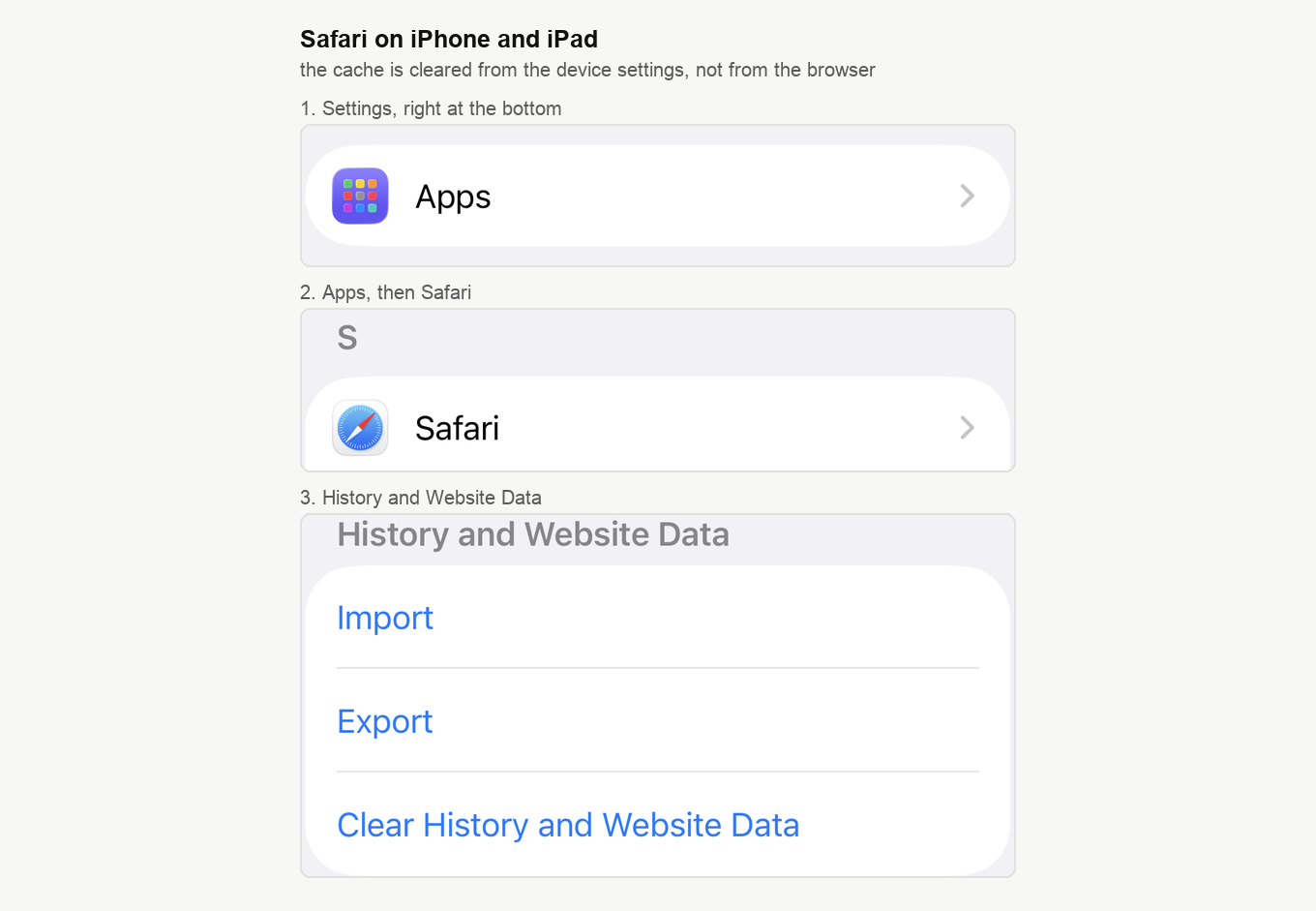
Open the "Settings" app, scroll to the bottom and tap "Apps", then "Safari". Scroll to the "History and Website Data" group and tap "Clear History and Website Data". It takes history, cookies and other website data together, so expect to sign in again on some sites.
The other browsers keep their own controls. In Chrome, tap the three dots, choose "Delete browsing data", tick "Cached images and files" and pick "All time". In Firefox, open the menu, then "Settings", then "Data Management", which some versions call "Manage Website Data", turn "Cache" on and tap "Clear Private Data". In Opera, the controls sit either in the history section or in the privacy settings, depending on the version.
After clearing the cache
Reload the webinar page. If it still looks wrong, restart the browser completely, which on a computer means closing it and opening it again. On an iPhone or an iPad, close the browser app through the app switcher first, then reopen it.
Sites load a little slower on the first visit afterwards. That is normal, because the browser is saving fresh files from scratch. Your saved passwords, bookmarks and browser settings are untouched, as long as you did not tick the matching option while clearing.
If the problem persists
- Open the webinar in incognito or private mode, which rules out extensions and old temporary data in one go.
- Turn off browser extensions that could block scripts or modify pages. How to enable WebRTC in your browser names the usual culprits and works through them browser by browser.
- Try a different browser. Technical requirements lists the versions we support and the one browser we recommend for presenters.
- Restart your device.
- If the room loads but the picture and sound are the problem, the cache is the wrong suspect. What to do when video freezes or attendees drop out covers that instead.
If none of it helps, open the online chat and tell us what you see.
Frequently asked questions
How often should I clear the cache?
As needed, which means when you hit display errors, problems loading the webinar room, or after a major platform update. A routine clear every few months does no harm either.
Does incognito mode clear the cache automatically?
A private session keeps its temporary data separate and drops it when you close the last private window. That makes private mode a quick way to test whether the cache is your problem, without clearing anything by hand.
Does clearing the cache affect security?
A little. The cache can hold fragments of pages with personal data on them. On a shared computer the cookies matter more than the cache, so there tick the cookies row as well and accept being signed out.
Why was I signed out after clearing the cache?
Cookies were removed along with it, which is easy to do in Chrome and Brave because they arrive with that box already ticked. Sign in again, and next time untick the cookies row.
Can I clear the cache only for MyOwnConference?
Some browsers let you remove the data for a single site. Firefox has "Clear data for specific sites" beside the button you used above, and DuckDuckGo has "Delete individual sites and history" at the foot of its window. If your browser has no such option, the general clear described here is the way.
