
Sound settings in your operating system
When the sound drops out or nobody can hear you in a MyOwnConference webinar, the settings that decide it are split between the webinar room and your operating system, and the room only uses the devices the system hands it. Start in the room, because two of the causes are ruled out there in seconds, then work down this page.
Work out which half you have first, because the two run through the same components in opposite directions, and the room only ever controls one point on each path.
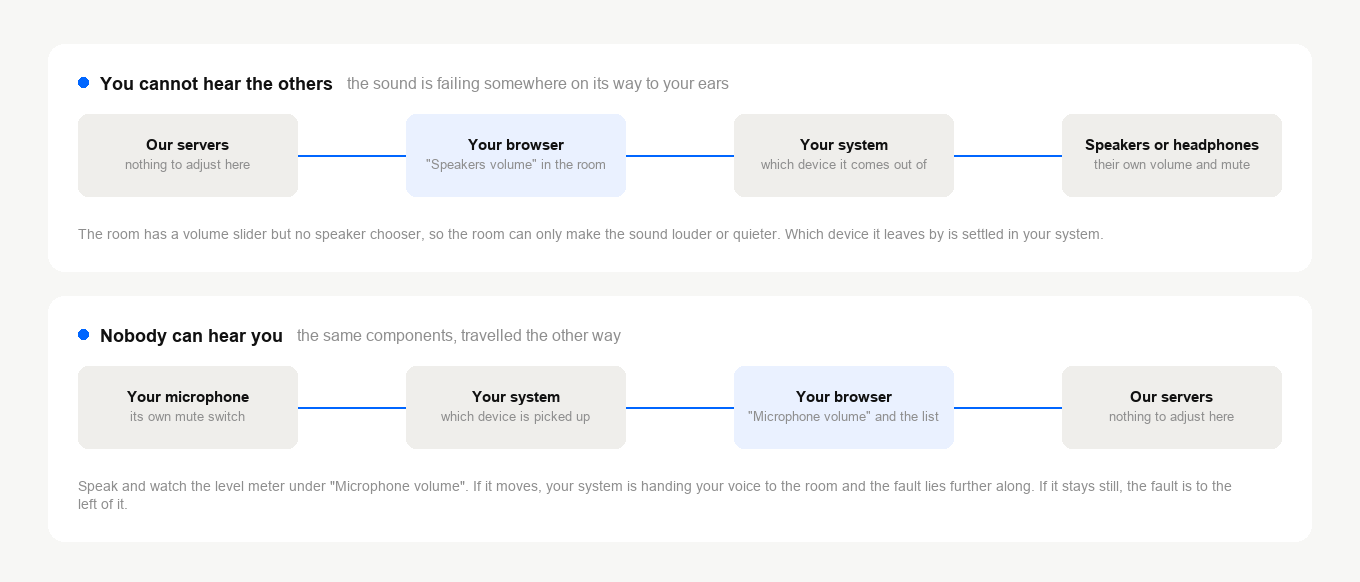
If neither direction works, start with the one you listen on, since a system that has the wrong output selected usually has the wrong input as well.
Check the room first
Open the room menu with the button in the top right corner and expand "Devices settings". The "Speakers volume" slider is at the top, and under it "Microphone volume" carries a level meter and the list of microphones the system is offering.
If you cannot hear the others, check that "Speakers volume" is not at or near the bottom. The room has no speaker chooser, so which device that volume comes out of is settled in your system, further down this page.
If nobody can hear you, speak and watch the meter under "Microphone volume". If it moves, your system is handing your voice to the room and the fault lies elsewhere. If it stays still, or the microphone you mean to use is missing from the list, the system is not handing it over. If it is in the list but the wrong one is selected, you have just found the problem.
The microphone slider itself behaves differently depending on how the room broadcasts, which audio quality for webinars explains.
Windows
Your output and input devices are listed under "Settings", then "System", then "Sound", which is where you see which one is selected. The three fixes below all live in the older sound panel, which keeps them in one place, so each one starts with the shortcut that opens it directly. The first of the three is about playback only, so skip it if the trouble is that nobody can hear you.
The volume mixer holds a level per application
The mixer keeps a separate level for each program that is using sound, which is why step 1 has you open the browser first, and it means your browser can sit muted while the system volume looks normal. If the browser has no row at all, it is not producing or requesting sound yet, so join the webinar room and look again.
- Open the browser you present from, so that it appears in the mixer.
- Press Windows + R, type
sndvol.exeand press Enter. - Find the slider for that browser and check it is neither muted nor near the bottom.
- Check the master slider on the left in the same way.
If a slider looks right but the program stays silent, drag it down and back up. That is worth a try before anything heavier, because it sometimes shakes a device loose that reads as correct and is not.
Windows keeps two defaults, not one
There is a default for general playback and a separate default for communication. Programs that treat themselves as voice applications follow the communication one, so setting only the general default can send your sound to a device you are not listening to.
- Press Windows + R, type
mmsys.cpland press Enter. - On the "Playback" tab, confirm your speakers or headphones are the default device. If not, right-click them and choose "Set as Default Device".
- Right-click the same device and choose "Set as Default Communication Device".
- Switch to the "Recording" tab and do the same for your microphone or headset.
Exclusive mode lets one program lock everyone else out
A program can seize a sound device for itself, and while it holds it the webinar gets nothing from that device.
- Press Windows + R, type
mmsys.cpland press Enter. - Right-click your speakers or headphones, choose "Properties" and open the "Advanced" tab.
- Clear "Allow applications to take exclusive control of this device", then click "Apply" and "OK".
- Repeat on the "Recording" tab for your microphone or headset.
macOS
Open the Apple menu, choose "System Settings" and select "Sound" in the sidebar. On macOS 12 and earlier the same controls sit in "System Preferences" under "Sound".
On the "Output" tab, confirm the right device is selected, that the volume slider is not near zero and that the output is not muted.
If the trouble is that nobody can hear you, switch to the "Input" tab in the same place. Confirm the microphone you mean to use is the one selected, then speak and watch the input level meter move. If the level barely moves, raise the input volume.
If your Mac offers a noise-reduction option for that input, try switching it off. It can suppress a quiet voice along with the background noise it is meant to remove.
Things the settings will not tell you
- A muted browser tab. In most browsers one click on the small speaker of a tab turns off its sound, and neither the system nor the room shows anything wrong. A muted browser tab has no webinar sound shows how to spot it and turn the sound back on.
- Permission that was never granted. Your system decides which applications may use the microphone, in the same privacy settings that hold the camera permission. Your browser then asks you separately, and going on air covers that prompt and how to clear a refusal you gave earlier. On a Mac, how to allow camera and microphone access on a Mac shows where the system permission is switched on.
- A headset with its own mute button. The system shows a healthy input level and no sound reaches anyone, because the hardware cut it before the computer saw it.
- A Bluetooth headset that has changed mode. Using the microphone puts many of them into a call profile, where the sound quality drops noticeably. If the audio suddenly turns muffled the moment you go on air, that is the cause rather than the room.
- Another program holding the device. Viber, WhatsApp and Messenger keep the microphone occupied while they run, and going on air covers that case.
Confirm the result
Check the outcome with our connection tester, which runs the microphone and the speakers and shows you both working before an event rather than during one.
If the sound is right but you hear yourself back, that is a different problem with a different fix, and what to do if there is an echo during a webinar covers it.
If none of this gets your sound back, open the online chat and tell us which system you are on, which device you are trying to use and whether it works in other programs.
Frequently asked questions
Why is there no way to pick my speakers inside the room?
The room has no speaker chooser, only a "Speakers volume" slider under "Devices settings", so which device that volume comes out of is settled in your system. On Windows that is "Settings", then "System", then "Sound", and on a Mac it is the "Output" tab of "Sound". The room only uses the devices the system hands it, which is why a wrong output has to be fixed there rather than in the room.
My browser has no slider in the Windows volume mixer?
That means it is not producing or requesting sound yet, so join the webinar room and open the mixer again with Windows + R and sndvol.exe. The mixer keeps a separate level for each program that is using sound, which is why your browser can sit muted while the system volume looks normal. Once the row is there, check it is neither muted nor near the bottom, and check the master slider on the left in the same way.
The meter moves when I speak, but nobody can hear me?
If the meter under "Microphone volume" moves, your system is handing your voice to the room and the fault lies elsewhere. Check the hardware first, because a headset with its own mute button shows a healthy input level while the sound was cut before the computer ever saw it. Then check what else is running, since Viber, WhatsApp and Messenger keep the microphone occupied while they run, a case going on air covers.
My voice turned muffled the moment I went on air?
That is usually a Bluetooth headset rather than anything in the room, because using the microphone puts many of them into a call profile where the sound quality drops noticeably. Nothing in the sound settings will show you it has happened. Our connection tester runs the microphone and the speakers, so you can hear how you come across before an event rather than during one.
I can hear my own voice coming back. Is that the same fault?
No, an echo is a different problem with a different fix, and what to do if there is an echo during a webinar covers it. Work through the sound settings when you cannot hear the others or when nobody can hear you, which are the two directions this page is built around.
