
How to configure Google DNS on Windows 11 for faster internet
DNS is the part of your connection that turns a name like myownconference.com into an address a computer can reach. Your provider hands you a resolver automatically, and Google runs a public one that anyone can use instead.
Most people who arrive here have a specific reason rather than a general one. Our broadcasting app keeps asking to be installed when it is already running, because the room reaches it at add-on.mywebinar.io, which is supposed to resolve to your own machine, and some providers answer that lookup with an address of their own. Changing resolver is the gentle fix for that, ahead of editing system files. Alternative broadcasting technology covers the rest of that problem.
These are the four addresses, and you will use the same ones whichever route you take:
- IPv4:
8.8.8.8and8.8.4.4 - IPv6:
2001:4860:4860::8888and2001:4860:4860::8844
Setting them in Windows 11
Press Windows + I to open "Settings", go to "Network & internet" and select your connection, which is "Wi-Fi" or "Ethernet" depending on how you are connected. On Wi-Fi, open "Hardware properties" first. Both then land on the same properties page.
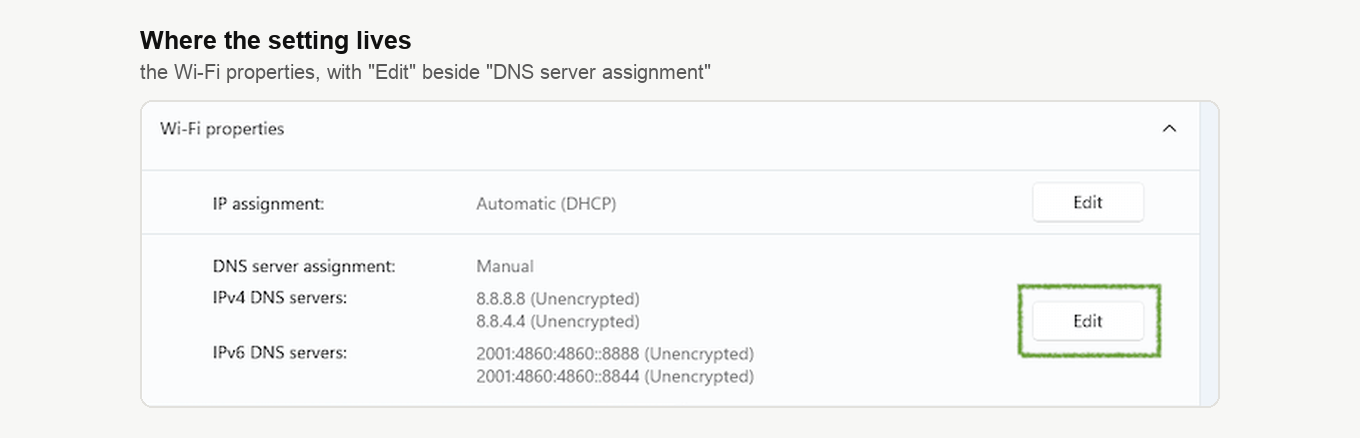
Find "DNS server assignment" and click "Edit" beside it.
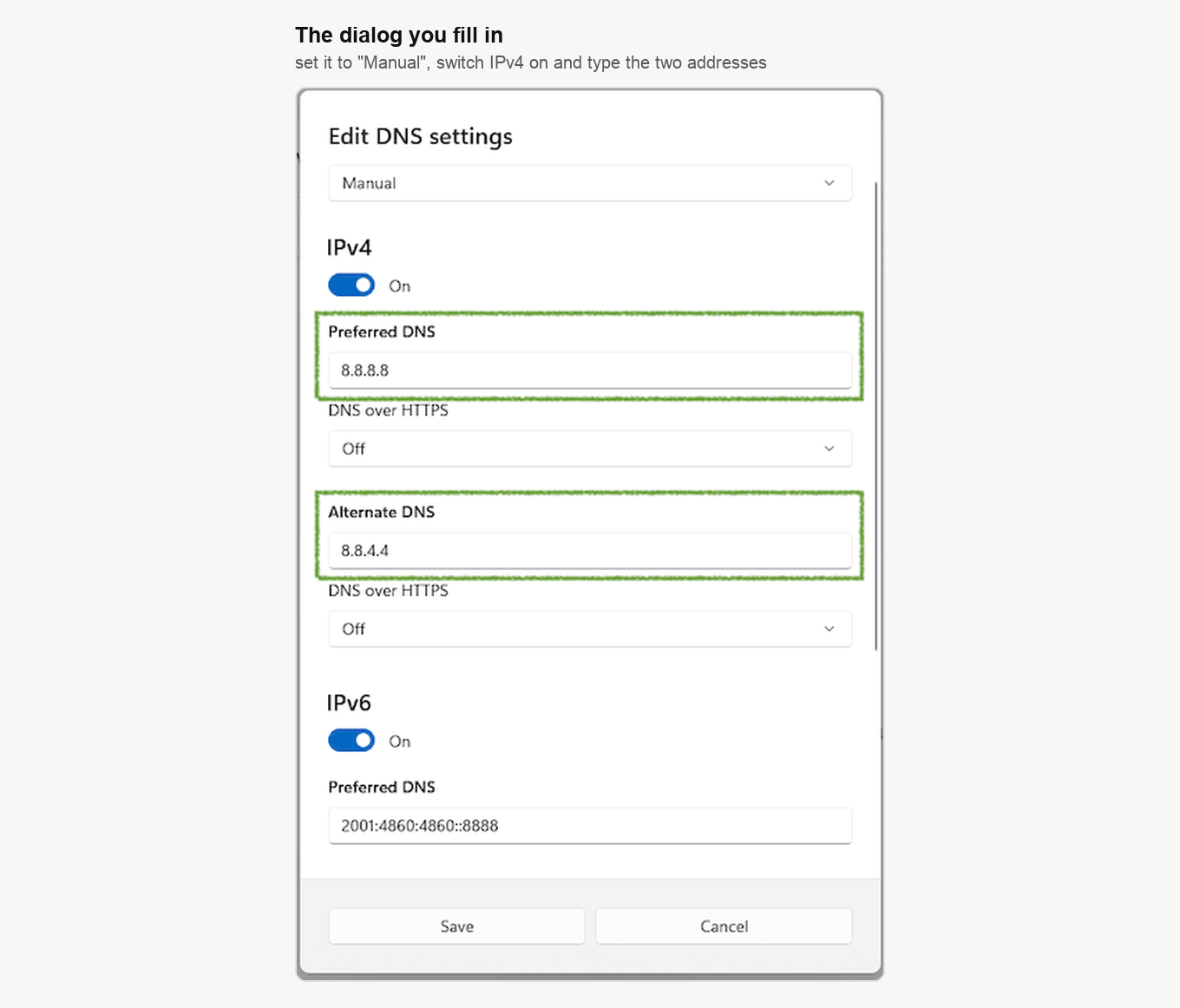
Change the dropdown from "Automatic (DHCP)" to "Manual", switch "IPv4" on and type 8.8.8.8 into "Preferred DNS" and 8.8.4.4 into "Alternate DNS". A "DNS over HTTPS" dropdown sits between those two fields, so check you are in the second address box and not in that one. Switch "IPv6" on and fill its pair the same way with 2001:4860:4860::8888 and 2001:4860:4860::8844. Click "Save".
The addresses apply to the connection you just edited, so if you present over Wi-Fi in one place and a cable in another, set them on each. To undo the change, come back to the same dialog and set the dropdown to "Automatic (DHCP)", which hands the job back to your provider.
Then go back to the webinar room, reload the page and press "Speak". If the room puts you on air instead of asking for the app again, this was your problem.
If the Settings app is unavailable
Make the same change from the older dialogs. Open "Control Panel" from the Start menu, go to "Network and Internet", then "Network and Sharing Center", then "Change adapter settings" in the left sidebar. Right-click your active adapter and choose "Properties".
Select "Internet Protocol Version 4 (TCP/IPv4)", click "Properties" and enter the two IPv4 addresses. Then do the same with "Internet Protocol Version 6 (TCP/IPv6)" and the two IPv6 addresses. Click "OK" on each.
What this does and does not do
It changes who answers your name lookups. Those answers often come back a little quicker from Google than from a provider's resolver, and more to the point they come back honestly, which is what fixes the app case above.
It does not encrypt anything by itself. Windows says so plainly, listing each server as "(Unencrypted)" on the properties page, and the dialog carries a "DNS over HTTPS" setting of its own that starts "Off". Turning that on is a separate decision. Either way the change is worth weighing before you leave it in place, because every name your computer looks up now goes to Google rather than to your provider, and unencrypted at that. If that is not a trade you want past the point where the app works, the paragraph above puts it back.
If it does not help
The app case has a second fix, which is pointing the name at your own machine by hand in the hosts file. That is heavier than this one and it is written out step by step in alternative broadcasting technology.
If you came here because a webinar kept breaking up, DNS is rarely the cause. What to do when video freezes or attendees drop out works through the causes that are, and internet speed for the webinar room lists the upload and download a broadcast actually needs.
If neither gets you there, open the online chat and tell us what you changed and what the room does now.
Frequently asked questions
Will this make my webinar run faster?
Almost certainly not. DNS decides how a name is turned into an address, and that lookup happens before the connection rather than during your broadcast. If a webinar breaks up while it is running, the cause is bandwidth or line stability, and what to do when video freezes or attendees drop out works through it.
Do I have to change this on every computer?
Yes, and on every connection each computer uses. The addresses attach to the adapter you edit, so a laptop that presents over Wi-Fi in one place and a cable in another needs them set twice. Attendees change nothing, because none of this touches the people watching.
Is it safe to send my lookups to Google?
It is a trade rather than a risk. Every name your computer looks up goes to Google instead of your provider, and it travels unencrypted either way, which Windows states by marking each server "(Unencrypted)" on the properties page. If that is not a trade you want permanently, put the dropdown back once the app works.
How do I undo it?
Go back to the same dialog, set "DNS server assignment" to "Automatic (DHCP)" and save. Your provider's resolver takes over again straight away.
I am on a Mac. Does any of this apply?
The resolver problem is the same, but this page covers the Windows 11 dialogs. On macOS the fix that does not depend on your provider is pointing the name at your own machine by hand, which alternative broadcasting technology writes out for both systems.
