
Broadcasting from Opera with the built-in VPN
With Opera's VPN on, most of the platform behaves normally. The dashboard loads and the webinar room opens. Then you click "Speak" and nothing happens.
Two fixes get you on air, and both work with the VPN still running. The one worth reading first is the one that also survives everything else a free VPN does to a live broadcast.
Why it stops
Opera's VPN does not block the room. It changes how the browser handles WebRTC, which is the technology a webcam broadcast runs on.
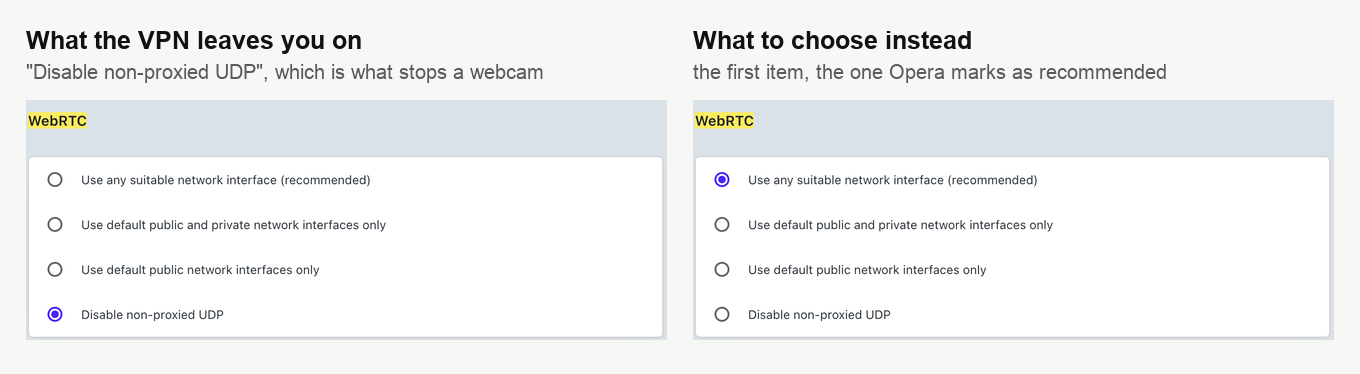
With the VPN switched on, Opera sits on "Disable non-proxied UDP". That is a privacy measure, since it stops a site learning your real address through WebRTC, and it is also precisely the traffic your camera needs. Nothing is broken. The browser is doing what you asked it to.
The fix that survives a free VPN
Broadcasting through our own downloadable app works over Opera's VPN, because alternative broadcasting technology runs over TCP rather than the UDP the VPN is refusing. It carries your camera and your screen sharing together, and it is the route to choose if the VPN has to stay on.
The app needs one thing from Opera, which is permission to reach it. Click the VPN badge in the address bar.
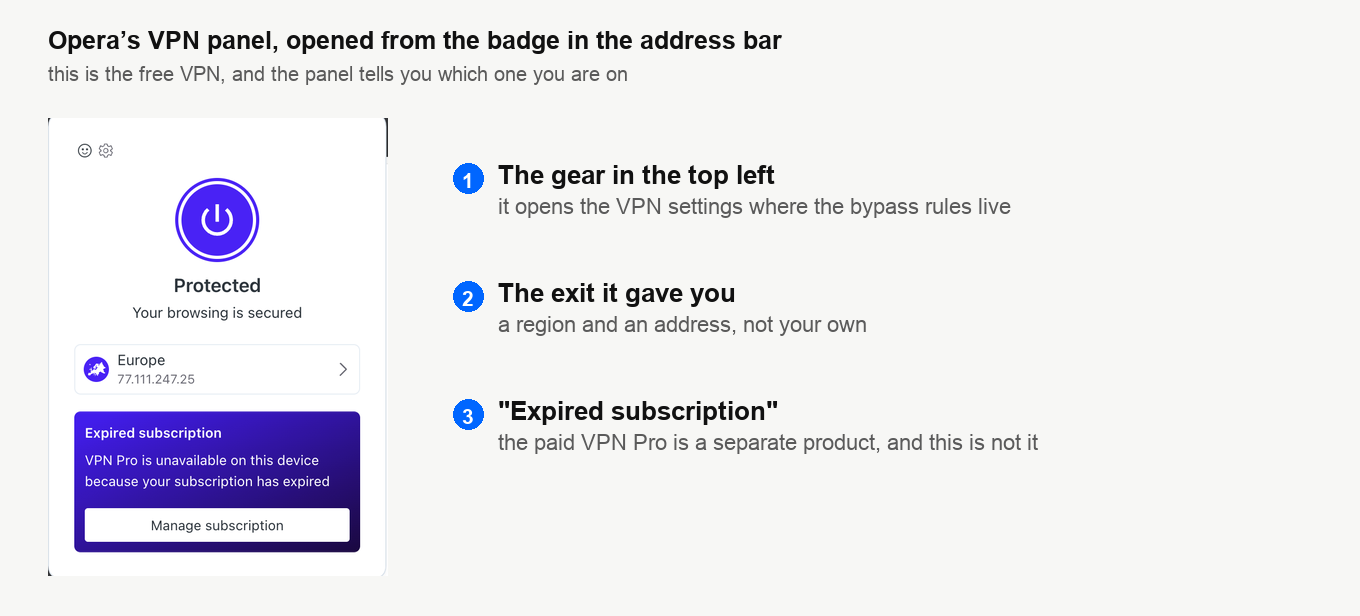
Open the settings from the gear, scroll to the bottom of the VPN block and choose "Manage additional VPN bypass rules". Click "Add" and enter the rule.
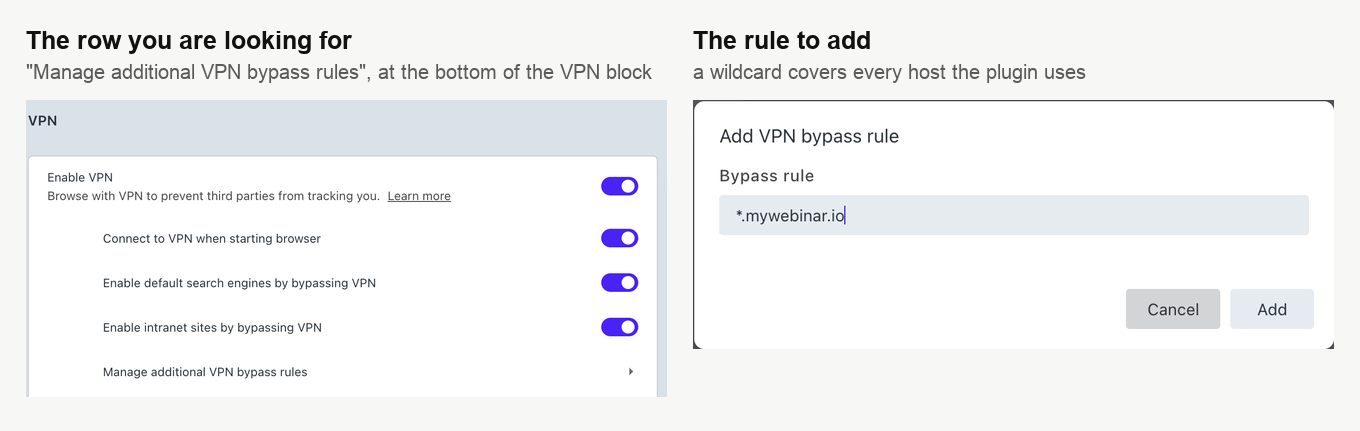
Use *.mywebinar.io rather than a single host. The app's main address is add-on.mywebinar.io, and it falls back to www.mywebinar.io when that one is unreachable, so a wildcard covers both. It also matches the entry already in our technical requirements, which is the list your IT department gets.
Click "Add" again to save, then reload the webinar room and press "Speak".
The fix that keeps you in the browser
If you would rather broadcast from the browser itself, change the setting Opera moved.
The block sits under "System" in Opera's settings, at the foot of the page, and typing webrtc into the search box at the top gets you there faster than scrolling. Then choose the first option, "Use any suitable network interface (recommended)".
That undoes the privacy measure the VPN put in place, so your real address becomes visible to WebRTC again. It is a fair trade for a webinar you are hosting, and a poor one if hiding your address is the reason the VPN is on at all. Screen sharing still goes through the app, so it needs the bypass rule above regardless.
What a free VPN costs you anyway
Opera says it plainly in its own settings, and the sentence is easy to scroll past.
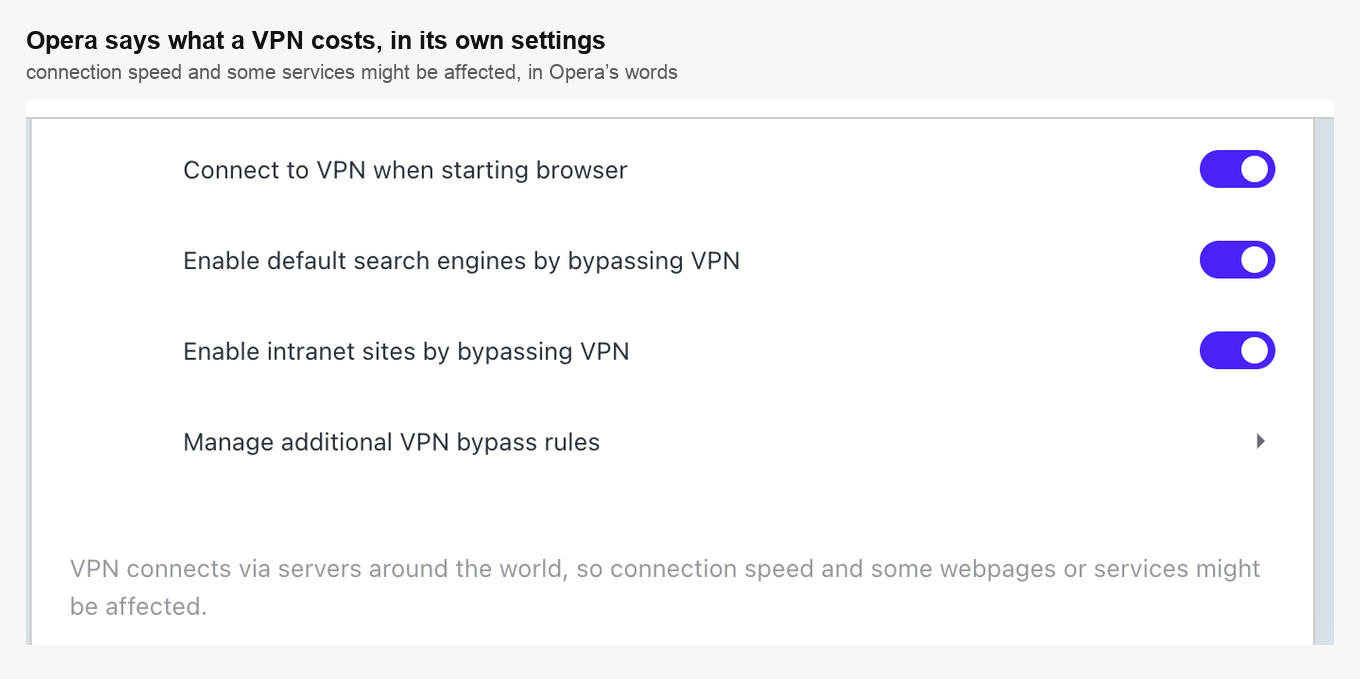
Free VPN servers are shared by a great many people at once. Pages crawl, sites do not always open, and video arrives in fits and starts. For watching a webinar that is an annoyance. For hosting one it is a risk you are taking with somebody else's time, because the picture your audience receives is built from the connection you gave it.
None of the fixes on this page change that. They get the traffic through. They cannot make a shared free server fast.
So if the event matters, the honest answer is to run it with the VPN off. If you cannot, use the app rather than the browser, since a TCP stream degrades more gracefully than a UDP one, and check the line with our connection tester before you go live rather than during.
A paid VPN is not automatically fine either
Paid VPNs are usually the better bet, and they are not a guarantee. BitDefender VPN, a commercial product, blocks the secure WebSockets our rooms depend on and drops people out of the session, which WebSocket connection issues with BitDefender VPN covers in full.
The pattern is the same whichever VPN you use. Test it on a room before the day, and know which fix applies if it fails.
What we can and cannot promise
A VPN sits inside your own network setup, so what it gives you is on your side of the line. Our refund policy puts the stability of your connection and your equipment in your hands, in clauses 4.2 and 4.3, and poor quality caused by a VPN falls there rather than with us.
That is not a brush-off. Tell us in the online chat which VPN you use and what you saw, and we will work through it with you.
Frequently asked questions
Does Opera's VPN cause the same trouble for people who only watch?
Not in the same way. Opera's VPN does not block the room, it changes how the browser handles WebRTC, which is the technology a webcam broadcast runs on, so somebody who never goes on air still gets in. What a free VPN costs them is speed, since those servers are shared by a great many people at once and video can arrive in fits and starts.
Will the browser fix expose my real IP address?
Yes. "Disable non-proxied UDP" is a privacy measure that stops a site learning your real address through WebRTC, and choosing "Use any suitable network interface (recommended)" undoes it. That is a fair trade for a webinar you are hosting, and a poor one if hiding your address is the reason the VPN is on at all. In that case use our downloadable app instead, which works over the VPN because alternative broadcasting technology runs over TCP rather than the UDP the VPN is refusing.
If I change the WebRTC setting, do I still need the bypass rule?
Yes, for screen sharing. That goes through the app whichever way your camera travels, so the app still needs Opera to let it through. Add the rule under "Manage additional VPN bypass rules" either way.
Why a wildcard rather than the one app address?
Because the app uses two addresses. Its main one is add-on.mywebinar.io and it falls back to www.mywebinar.io when that is unreachable, so *.mywebinar.io covers both. It also matches the entry already in our technical requirements, which is the list your IT department gets.
How do I know the VPN will hold on the day?
Test it on a room before the day rather than finding out during the event, and check the line with our connection tester before you go live. The pattern is the same whichever VPN you use, since a paid one is usually the better bet and still no guarantee. BitDefender VPN, for one, blocks the secure WebSockets our rooms depend on and drops people out of the session, which WebSocket connection issues with BitDefender VPN covers in full.
