
WebSocket connection issues with BitDefender VPN
Our software runs on secure WebSockets over SSL, which is what protects your webinar rooms from insecure or hijacked connections. With BitDefender VPN active they break, and people drop out of the session.
What goes wrong
WebSockets carry the real-time part of a live session, so the room cannot work without them. We run them over SSL to keep the connection encrypted and your data private.
With BitDefender VPN active these connections either never open or break partway. When the socket dies the room dims and puts a message in the middle of the screen.
"Your internet connection is unstable"
Try restarting your router and computer, or switch to a different network. That should fix the issue. If it doesn't, feel free to reach out to our support team
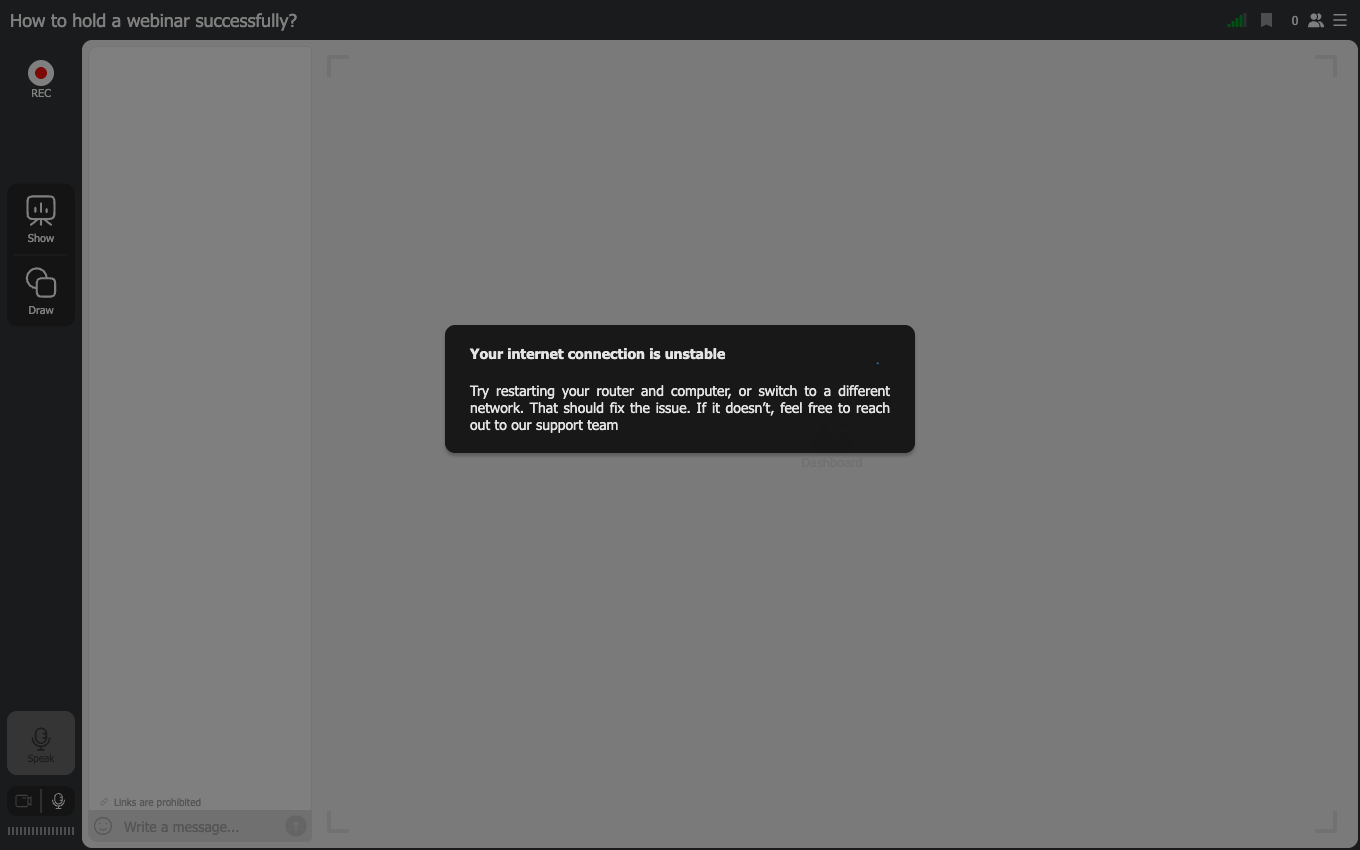
The wording points at your router, which is why this is easy to misread. A VPN sitting between you and us produces exactly the same message as a genuinely bad line, so the advice in it will not help when BitDefender is the cause.
The timing is the giveaway. If the message turns up a few seconds after you enter the room and keeps coming back on a connection that is otherwise fine, BitDefender VPN is the likely cause.
Steps to fix it
Work through these in order.
- Turn BitDefender VPN off for a moment and rejoin the room. If the error stops, you have confirmed what is breaking the connection.
- If you need a VPN for everyday work, move to a service that leaves WebSocket connections alone.
- If you cannot turn the VPN off, allowlist our WebSocket hosts instead. They are listed in the next section, and BitDefender support can add them for you.
- Look for an option in BitDefender's own settings that allows WebSocket connections. Their support documentation or their support team can point you at the exact control, since it sits in their product rather than ours.
- Rule out the ordinary causes as well. An unstable link or a flaky Wi-Fi network produces the same error with no VPN involved at all. Our connection tester checks the path from your machine to us.
The hosts to allowlist
If you would rather not switch the built-in BitDefender VPN off, or your company policy does not let you, add these hosts to the BitDefender allowlist:
wss://ws.myownconference.comwss://ws.mywebinar.com
Add both rather than one, because which of them a given room uses depends on the address you joined through. Both answer on port 443, so use that if BitDefender asks for a port.
That should get you into our rooms even while BitDefender inspects your SSL traffic. Both sit inside the wider list in technical requirements, which is the one to hand to an IT department setting up a corporate firewall.
If the problem persists
If WebSocket connections keep failing after all of the above, contact us through the online chat widget and we will take it from there.
Frequently asked questions
How do I tell whether BitDefender is the cause and not just a bad line?
Turn BitDefender VPN off for a moment and rejoin the room, because if the error stops you have confirmed what is breaking the connection. The timing is the other clue, since the message turning up a few seconds after you enter the room and coming back on a connection that is otherwise fine points at the VPN. An unstable link or a flaky Wi-Fi network produces the same error with no VPN involved at all, and our connection tester checks the path from your machine to us.
Do I need to allowlist both hosts, or only the one I use?
Add both. Which of them a given room uses depends on the address you joined through, which is why one entry is not enough. Both answer on port 443, so give BitDefender that port if it asks for one.
My company sets the VPN policy and I cannot switch it off. What do I give IT?
Give them the two WebSocket hosts to allowlist, wss://ws.myownconference.com and wss://ws.mywebinar.com, both on port 443. Our technical requirements hold the wider list, and that is the page to hand to an IT department setting up a corporate firewall. BitDefender support can add the hosts for you as well.
Where in BitDefender is the setting that allows WebSocket connections?
It sits in BitDefender's own settings rather than anywhere in our room, so their support documentation or their support team can point you at the exact control. The same goes for adding our hosts to the allowlist, which BitDefender support can do for you. If you would rather not go through them, turning the VPN off for the duration of the webinar is the quicker route.
If I switch the VPN off, is my webinar connection still protected?
Yes. Our software runs on secure WebSockets over SSL, which is what protects your webinar rooms from insecure or hijacked connections, and that encryption belongs to the connection itself rather than to BitDefender. Running them over SSL is what keeps your data private. BitDefender VPN is what breaks that connection here, because with it active the connection either never opens or breaks partway.
