
Technical requirements
Everything on our platform runs in the browser, so the requirements come down to a supported operating system, a current browser, enough bandwidth and a network that lets our traffic through. Screen sharing is the one exception, because it asks the presenter for a downloadable app. If all four look fine and something is still broken, the troubleshooting checklist is at the end.
Supported operating systems
Presenters and attendees can use every well-known operating system, including macOS, iOS, iPadOS, Microsoft Windows, Linux, Chrome OS and Android. We have tested the platform on all of them.
There is one limitation. On Linux you cannot share your screen, and you cannot use our secure TCP-based alternative broadcasting technology. Everything else behaves the same way it does on the other systems.
Browsers
Your attendees can join your events in every major browser, including Safari, Microsoft Edge, Mozilla Firefox, Google Chrome and Opera.
For presenters we recommend Google Chrome, or any Chromium-based browser such as Brave. Chrome holds the quality of your outgoing stream steady through a technology called simulcast. It also gives the most reliable connection over the UDP-based WebRTC protocol and through our downloadable TCP-based app. Safari, Firefox, Opera and Edge are tested too and work correctly.
Keep whichever browser you choose up to date. The minimums are Chrome 60, Firefox 71, Safari 12, Edge 79 and Opera 60, and anything older will not open the webinar room at all. Update the day before the event rather than five minutes before you go live.
Everyone who speaks at the same time must run the same browser, and the same version of it. Chrome and Firefox use different echo cancellation mechanisms, so if one presenter is on each, both hear an echo of their own microphone while they talk together. Agree on one browser with your co-presenters in advance.
Phones and tablets
The platform is optimised for phones and tablets, including iPhone, iPad and Android devices. To join an event as a presenter or an attendee, use Safari on an iPhone or iPad, or Google Chrome on an Android device.
There is nothing to install. We do not publish mobile or tablet apps because everything already works in the browser, and we put the effort into making the platform behave properly on small screens instead.
For broadcasting your webcam, microphone or screen, a desktop or a laptop is still the better choice, and that goes for anyone you invite up to share a presentation. Whatever the device, on a healthy connection an attendee stays in the same range as the presenters, 100 to 600 ms, and the limits of an older browser or machine stretch that to a few seconds, three to seven at worst.
Adaptive broadcasting
We run our own implementation of an adaptive broadcasting protocol with a full compatibility mode, which is what carries audio and video to people on restrictive networks, older devices and less common browsers. It turns on automatically for all permanent webinar rooms and scheduled events. What it cannot do is manufacture bandwidth, so a line that is too slow or too unstable still costs the attendee the picture and eventually the stream, and what to do when video freezes or attendees drop out works through what to try.
The protocol is not based on WebRTC, and in most cases it works through TCP port 443 alone. That is what lets us deliver presenter audio and video inside corporate networks where UDP is blocked, and through the best-known VPN services. It is the same transport that the DTS app uses when a room is switched over by hand, so the latency sits in the same range as the browser route. The stream itself stays stable and continuous as usual.
Check your setup before the event
If you are going to host an event and speak at it, check your setup in advance. Our connection tester runs through your internet connection, browser, ports and devices in a couple of minutes.
It works in seven steps, and most of them ask you a plain question rather than deciding for you. A good result means every item on the final screen carries a green tick. Anything less points at network instability or at a device that will let you down on the day, usually a webcam or a microphone. Try a different network, a different browser, or a wired connection instead of Wi-Fi, and read the firewall section below.
A clean pass looks like this.
Step 1: Starting the hardware check
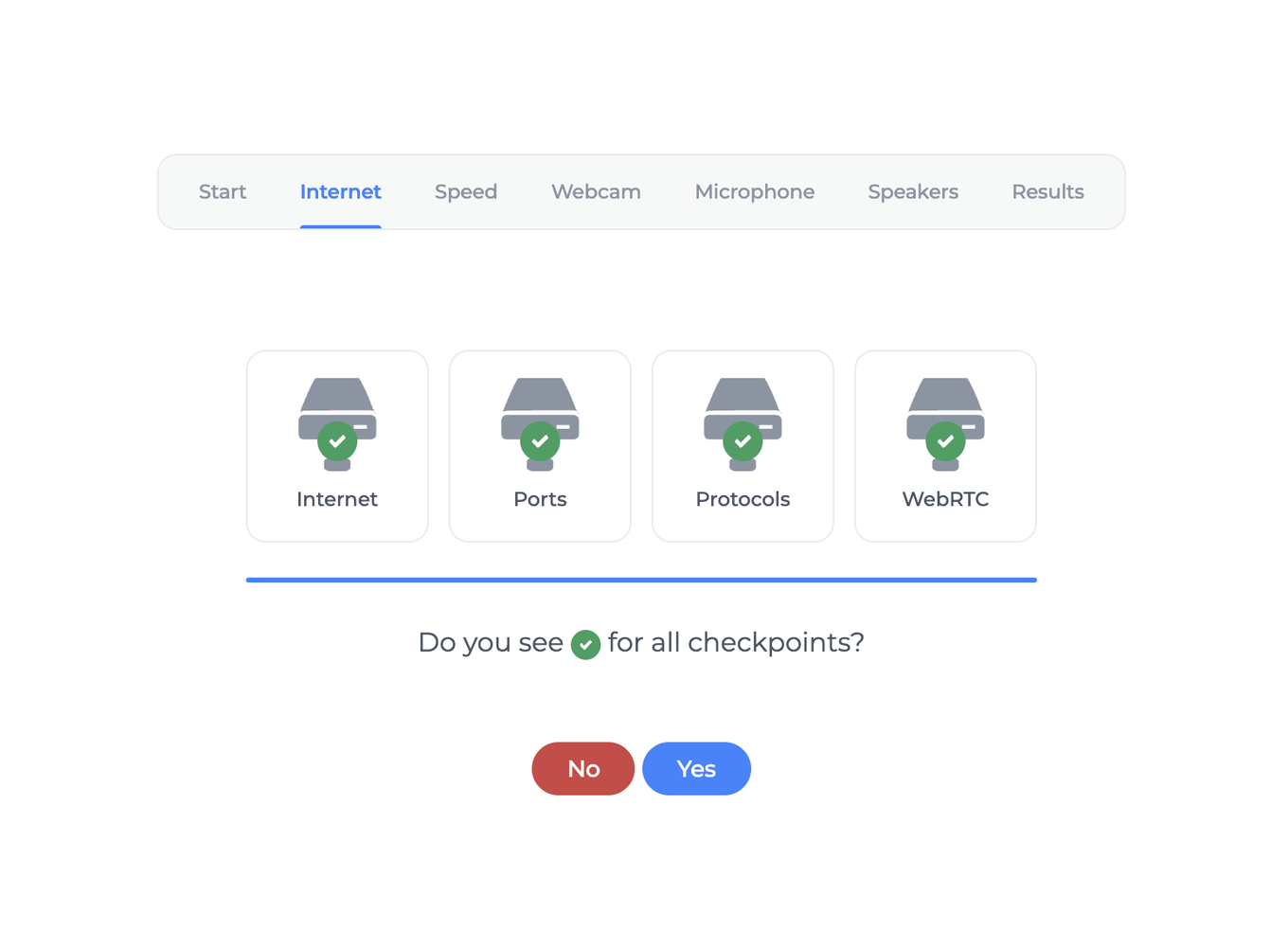
Step 2: Checking the required open ports and available protocols
Four checkpoints run at once, so internet, ports, protocols and WebRTC, and the tester asks whether you see a green tick beside each.
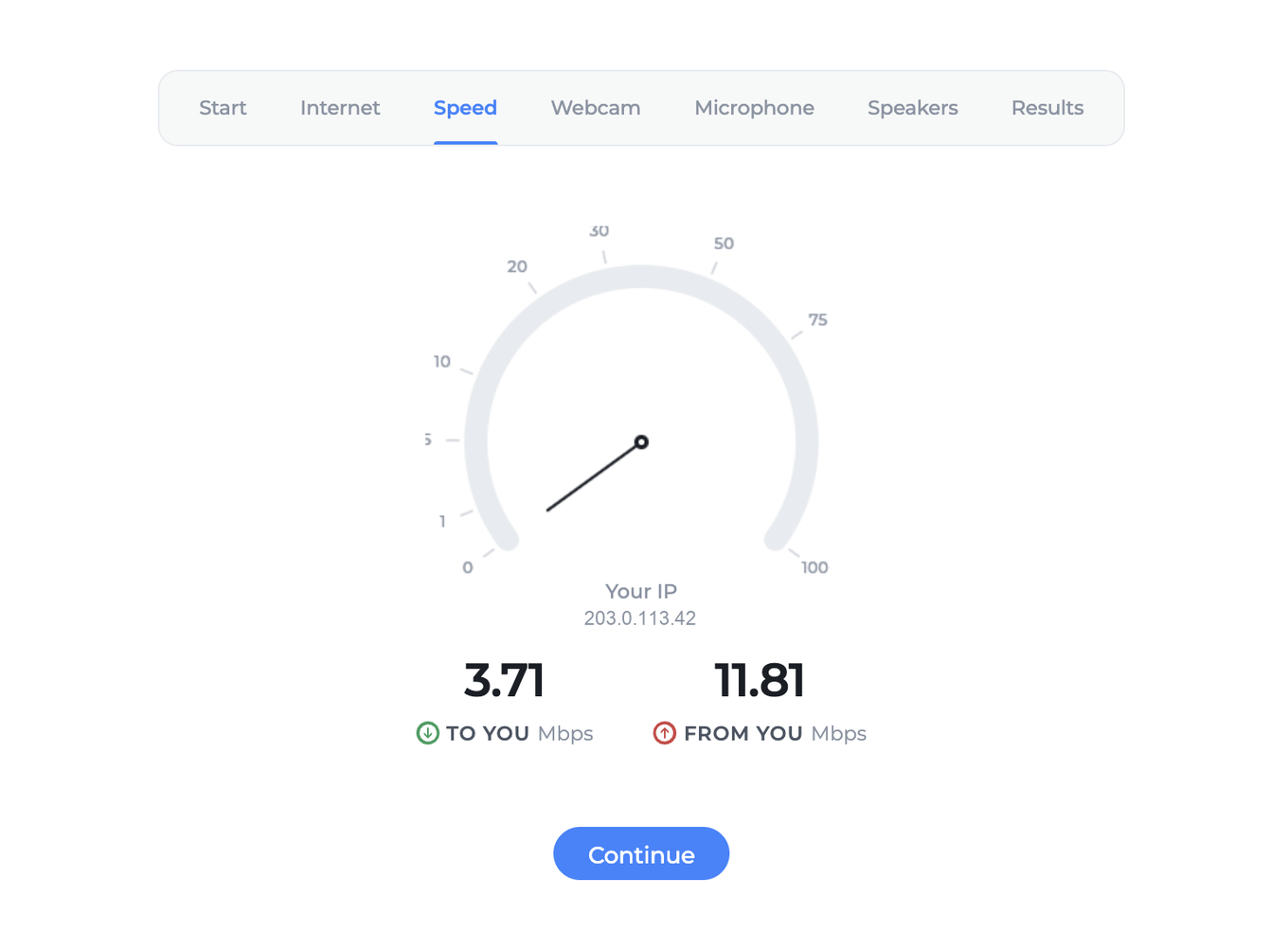
Step 3: Checking connectivity and internet speed
The needle settles after a few seconds and the two figures underneath are what matter, so download on the left and upload on the right.
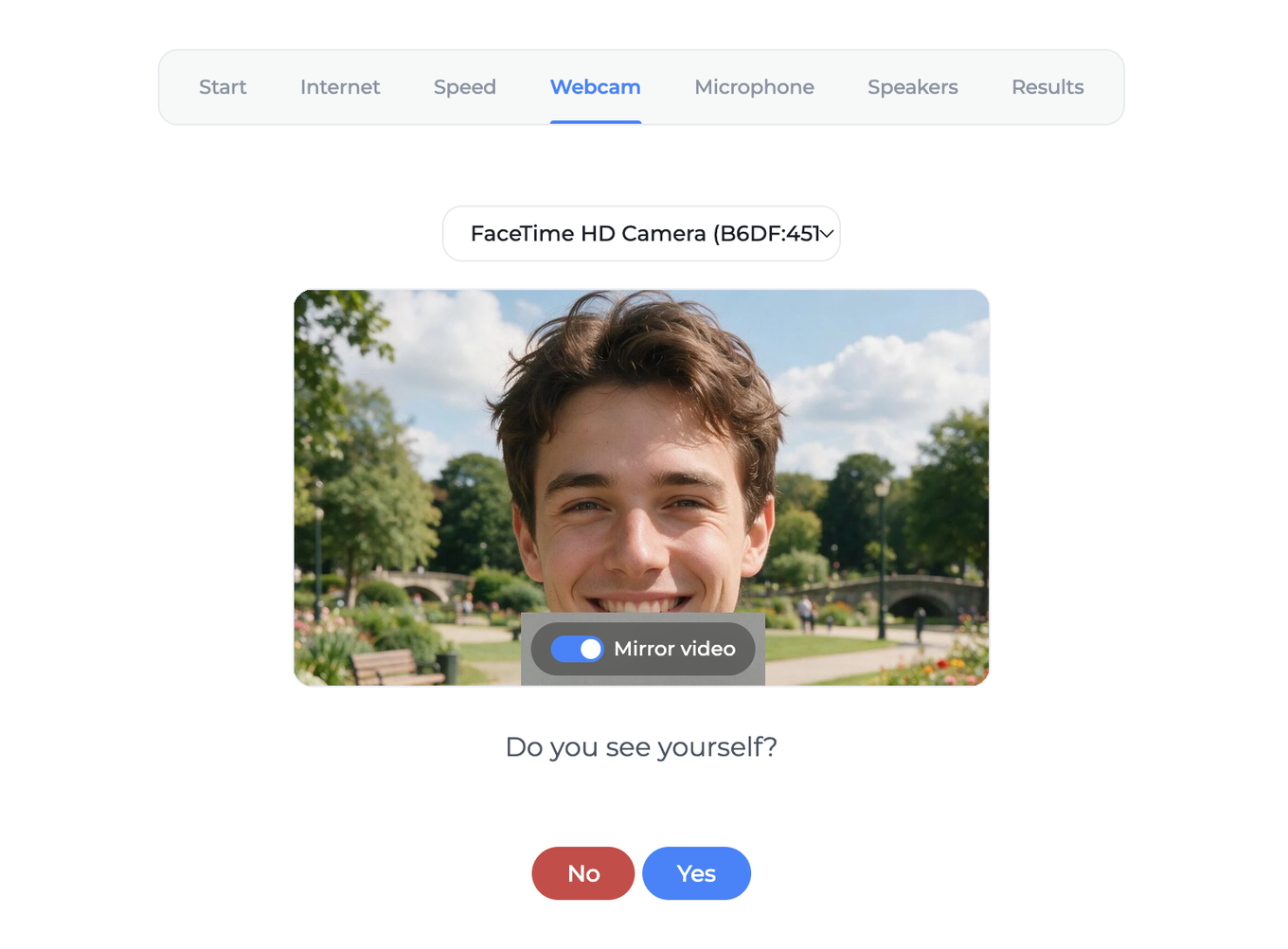
Step 4: Checking the webcam
Pick your camera from the list if the right one is not already selected. "Mirror video" only flips the preview for you and changes nothing your attendees see.
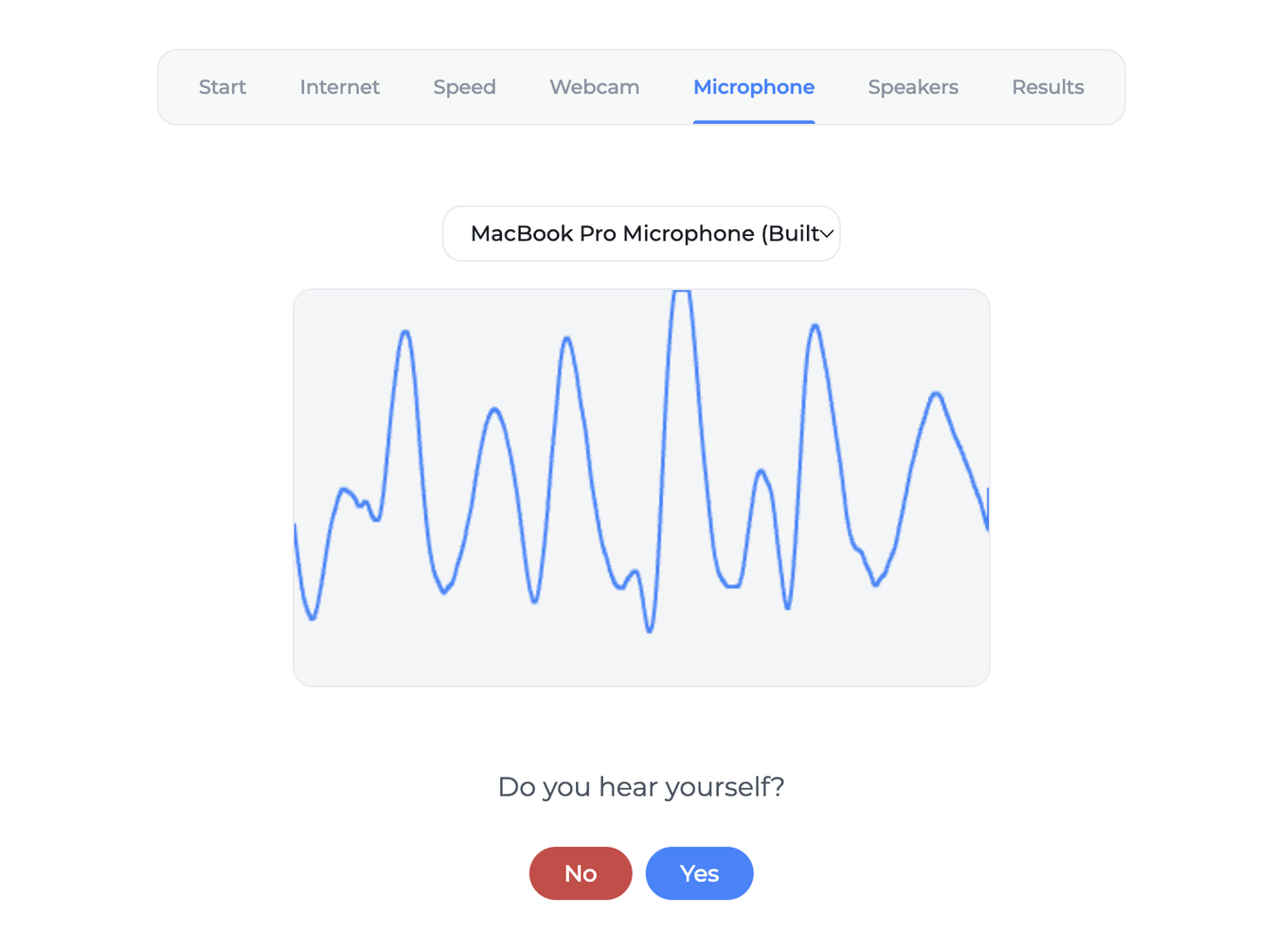
Step 5: Checking the microphone
Say something. The line should move with your voice.
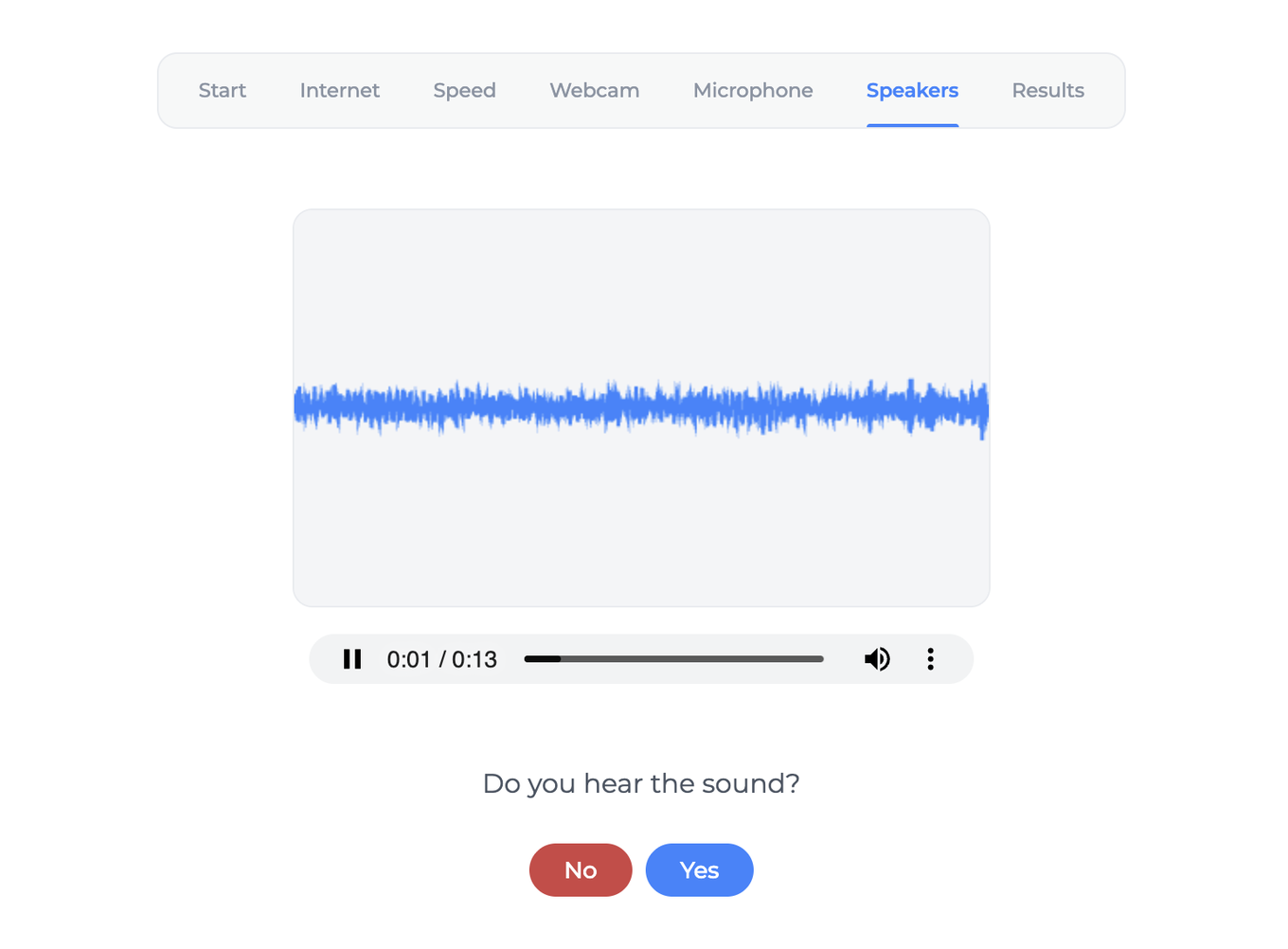
Step 6: Checking the speaker volume level
Step 7: Every step marked with a green tick
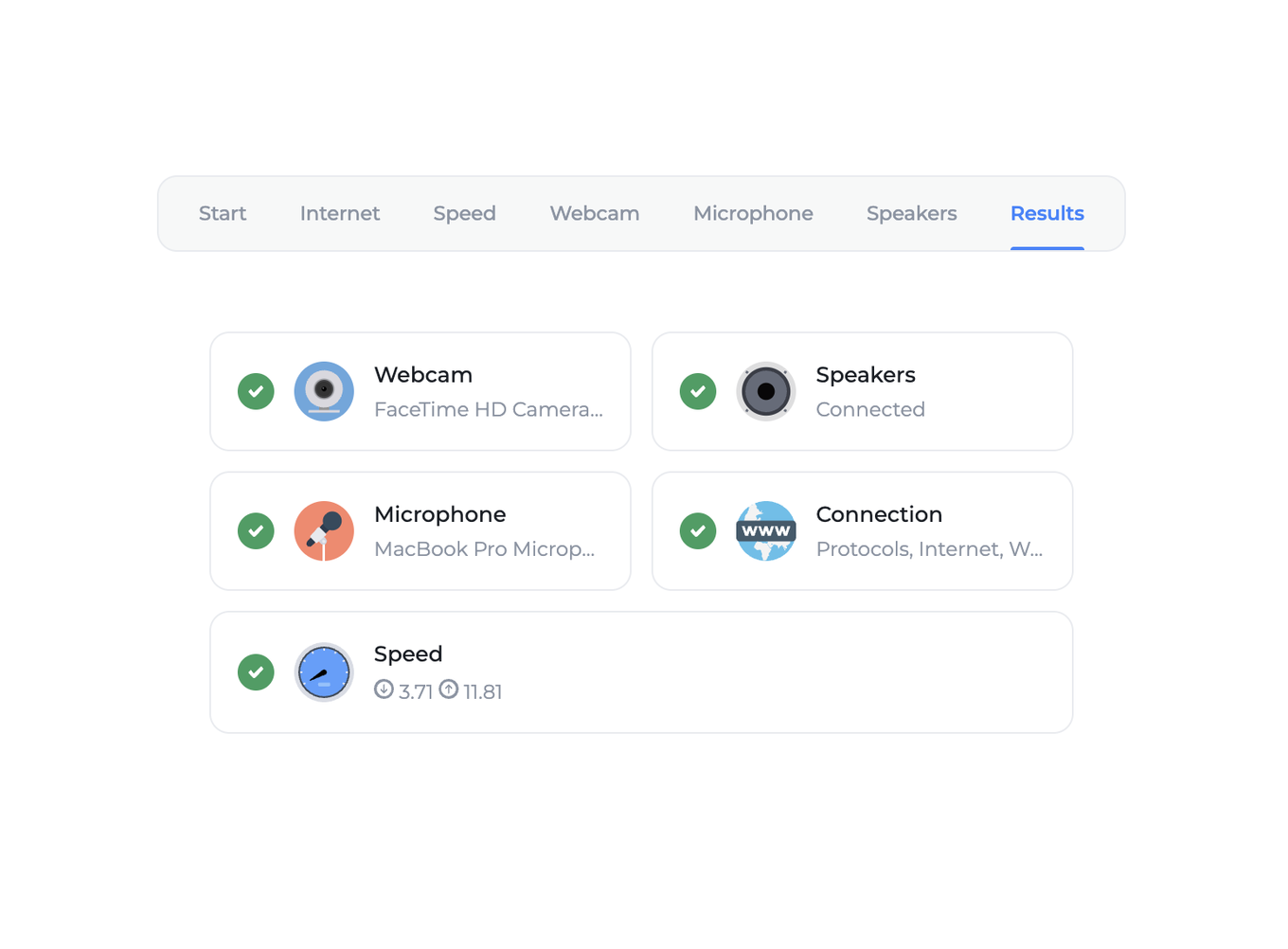
The final screen also repeats which camera and microphone were used, which is worth a glance if your machine has more than one of either.
Connection speed
To join a permanent webinar room or a scheduled event you need at least 256 Kbit/s in each direction.
A presenter sending a camera and a microphone needs about 1.6 Mbit/s upstream, and about 3.2 once they share a screen or play a video. An attendee needs bandwidth for every speaker on air, because each one arrives as a stream of its own, so the figure grows with the size of your panel rather than staying fixed. Internet speed for the webinar room works it out presenter by presenter. When bandwidth falls short, the platform lowers the quality of your video stream first and gives the audio priority.
Speed is only half of it. Connection stability matters just as much, and it depends on how many people share the line with you. An unstable link loses packets during a session, which you hear as jitter and dropouts in the audio. Use Ethernet instead of Wi-Fi where you can, and ask your family or your team to stay off the heavy downloads while your event is running.
Older machines add limits of their own. A slow processor or a slow drive can drag an event down even on a fast connection.
Firewall settings
Anyone who goes on air broadcasts through the WebRTC protocol, which is built on UDP and works in almost any network. Corporate networks with strict firewalls sometimes need extra configuration, and this is the part to hand to your IT department. Attendees who only watch are a simpler case, covered at the end of this section.
Allowlist these domains:
*.myownconference.com*.mywebinar.com*.mywebinar.io
Allowlist these ports:
- UDP ports 1025 to 65535
- TCP ports 80 and 443
We prefer UDP to TCP for audio and video quality, and it is what we use by default. The protocol favours timeliness over reliability, which matches the way people hear. Our brains patch over small gaps without noticing, but a timing delay registers immediately. Open UDP ports 1025 to 65535 for the best result.
The UDP range is only needed by the people who broadcast. An attendee who is watching and listening receives everything over ordinary HTTPS on TCP 443, so if your IT department is opening a path for the audience alone, port 443 is the whole request.
If you sit behind a secure corporate network, work under strict security requirements, or your company uses a corporate VPN, install our downloadable TCP-based app for alternative broadcasting instead. It avoids the jitter and the lost audio fragments described above, and it adds two sound controls the browser route does not have, which audio quality for webinars shows and explains. Most of the time, though, there is nothing to switch on, because the adaptive protocol switches on by itself for permanent rooms and scheduled events, and broadcasting from a corporate network walks through that whole route.
Email delivery
Ask your email provider or your email management system to authorise the domain names below, so the messages our platform sends actually reach your attendees:
*.myownconference.email*.myownconference.com*.mywebinar.com
Troubleshooting
If something still goes wrong after all of the above, work through the checklist for your role.
As a presenter or a speaker:
- Run the connection tester first and send us the results through the online support widget.
- If the video stream from your webcam does not start after a while, your router settings may be blocking it. Restart your home router and your computer.
- If that changes nothing, ask your IT department to unblock the
wss://websocket protocol, the WebRTC protocol and port 443 for video and audio streaming. The firewall section above has the full list.
As an attendee:
- If you cannot see or hear the event, turn off the presenter's webcam.
- If the problem stays, run the connection tester and send us the results through the online support widget.
- If it still stays, ask your IT department to unblock websockets and TCP port 443. That is the whole list for someone who is watching, because everything an attendee receives travels over the same port a website does.
- In the meantime, try joining from a different network, such as a 3G or LTE mobile connection.
If none of that gets you through, open the online chat and tell us your operating system, your browser with its version, and which step of the tester failed.
Frequently asked questions
Our IT department will only open ports for the audience. What do they need?
TCP port 443, and that is the whole request. An attendee who is watching and listening receives everything over ordinary HTTPS on that port, the same one a website travels over, so the UDP range is only needed by the people who broadcast. Ask them to unblock websockets as well, along with the domains *.myownconference.com, *.mywebinar.com and *.mywebinar.io.
Can I present from Linux?
Yes, with two exceptions, because on Linux you cannot share your screen and you cannot use our secure TCP-based alternative broadcasting technology. Everything else behaves the same way it does on the other systems, so your camera and your microphone work as usual. If a presentation has to go on screen, leave that part to a co-presenter on one of the other systems we support.
Do my co-presenters have to use the same browser as I do?
Yes, and the same version of it, for everyone who speaks at the same time. Chrome and Firefox use different echo cancellation mechanisms, so if one presenter is on each, both hear an echo of their own microphone while they talk together. Agree on one browser in advance, and for presenters we recommend Google Chrome, or any Chromium-based browser such as Brave.
Is there an app to install on a phone or a tablet?
No, there is nothing to install, because everything already works in the browser and we do not publish mobile or tablet apps. Use Safari on an iPhone or an iPad, and Google Chrome on an Android device, whether you join as a presenter or as an attendee. For broadcasting your webcam, microphone or screen, a desktop or a laptop is still the better choice.
How much bandwidth does an attendee need when several people are on air?
It grows with the size of your panel rather than staying fixed, because every speaker on air arrives as a stream of its own. The floor for joining a permanent webinar room or a scheduled event is 256 Kbit/s in each direction, and internet speed for the webinar room works the figure out presenter by presenter. When bandwidth falls short, the platform lowers the quality of your video stream first and gives the audio priority.
