
Finding a recording
Recordings of finished webinars are available in your account and in the webinar room itself. There are two ways to reach one, either from the event it belongs to or from the archive that holds everything.
Starting from the event
Where you look depends on where the webinar ran. A scheduled event lives in "Calendar", on the day it took place. A permanent room lives in "Rooms".
Either way the route is the same. Find the event or the room in the list and click the recordings icon, the small one that looks like a play button, which sits just left of the three dots.

The three dots get you to the same place through a menu, where the item is called "Recordings".
Either route opens a panel headed "Recordings and videos", with every recording of that event listed down the left. Pick one and it plays on the right.
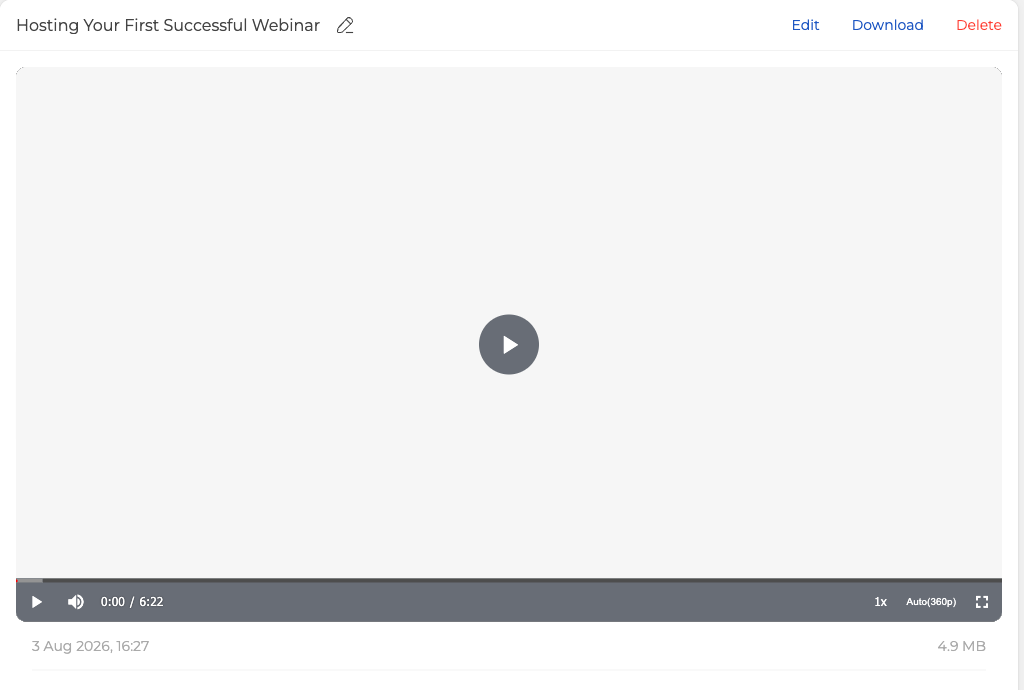
The pencil beside the name renames the file. "Download" saves it as MP4, "Delete" moves it to "Trash", and "Edit" opens the recording editor. Those three buttons serve one recording at a time. Tick the checkboxes of two or more rows instead and "Merge" takes their place, which joins the pieces into a single video and is covered in everything about webinar recording. Nothing is removed from a working account on our side, so if a file has gone somebody deleted it, and why did my webinar recordings disappear covers how to get it back. Under the player you get the date it was made and the size of the file. The tabs across the top separate your recordings from any video you uploaded yourself, with "Trash" holding what you deleted recently.
The whole archive in one place
Every recording also lands in "Storage", on the "Recordings" tab, alongside your files, polls, CTAs and tests. This is the complete list rather than one event's worth, so it is where to look when you cannot remember which webinar a recording belongs to. The "Webinar" filter on the left narrows it back down when you do.
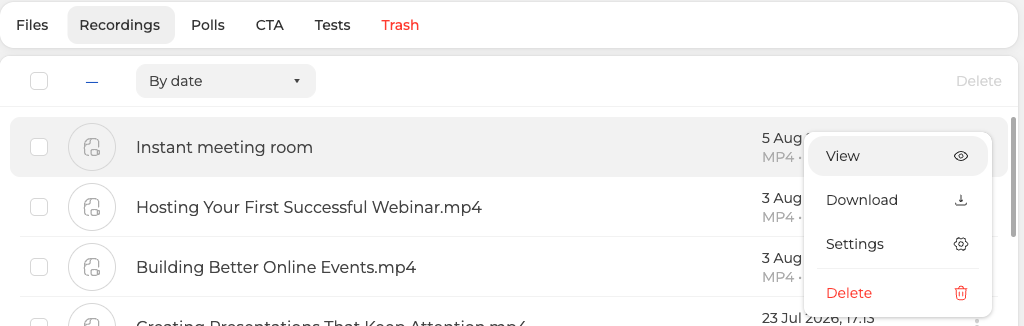
Each row carries the name, the format, the length and the size, and the three dots at the end of a row offer four actions.
- "View" opens the same player as above.
- "Download" saves the MP4.
- "Settings" opens "Edit file", which attaches the recording to a webinar and to a moderator.
- "Delete" moves it to "Trash".
Sharing a recording by link
You can let people watch a recording in their browser without downloading anything, by generating a link with an expiry date you control. That needs a plan of a month or longer, so it is not available on the free Starter plan or on a day plan, and Sharing a recording by link walks through it.
If the recording is missing or shorter than expected
Check the plan first. The free Starter plan records up to 20 minutes, so a session that ran longer will not be there end to end. Starter also gives you 500 MB of storage in total and records up to 1080p, while plans from 500 attendees reach 2160p. A single recording stops itself at ten hours on any plan.
If you deleted it, look in "Trash" before assuming it is gone, because deleted material waits there for seven days.
If a recording is still not where you expect it, use the online chat on our website and we will track it down with you.
Frequently asked questions
Can I get a recording back after I have deleted it?
Yes, for seven days. "Delete" moves the file to "Trash" rather than removing it, and deleted material waits there for seven days before it is gone. The "Trash" tab sits across the top of the "Recordings and videos" panel, so look there before assuming a recording has been lost.
Does a recording stop on its own if the webinar runs long?
Yes. A single recording stops itself at ten hours on any plan, so a longer session will not be there end to end. On the free Starter plan the cut comes far earlier, because Starter records up to 20 minutes.
What resolution are recordings saved at?
Up to 1080p, while plans from 500 attendees reach 2160p. The free Starter plan also gives you 500 MB of storage in total. Under the player you get the date each recording was made and the size of the file, and the "Recordings" tab of "Storage" lists the name, the format, the length and the size for every one.
Why is there no option to share a recording by link?
Link sharing needs a plan of a month or longer, so it is not available on the free Starter plan or on a day plan. "Download" still saves the file as MP4 on any plan. Sharing a recording by link walks through the option once your plan covers it.
How do I tell the account which webinar a recording belongs to?
Open the "Recordings" tab of "Storage", click the three dots at the end of the row and choose "Settings", which opens "Edit file" and attaches the recording to a webinar and to a moderator. Once it is attached, the "Webinar" filter on the left of the same tab narrows the complete list back down to that one event.
