
Why the camera in a webinar runs at 360p or 480p
Attendees sometimes ask why the platform does not stream the camera in Full HD or 4K. The short answer is that 360p is already enough for the size the camera is drawn at, and everything above it is bandwidth spent on pixels nobody sees.
That holds at every setting the room offers, which is worth showing rather than asserting, because the size of the camera is something you control.
The camera is not one size
Two controls on the "General" tab of your webinar settings decide how large the camera is drawn, and a third one changes the picture completely.
"Webcam position" gives you six places to put it.
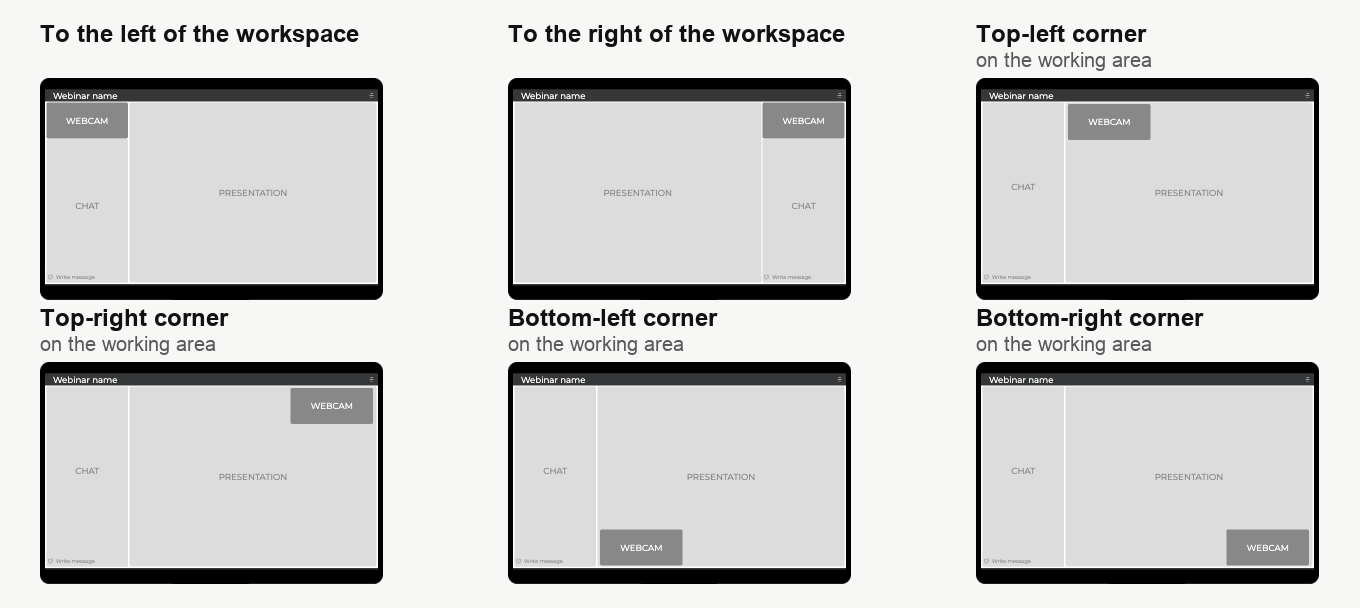
The first two give the camera a column of its own, on the left or on the right, with the chat underneath it. The other four lay the camera over the working area, so your material keeps its full width and the camera covers one corner of it.
"Webcam width" then sets how large that camera is, with three steps.
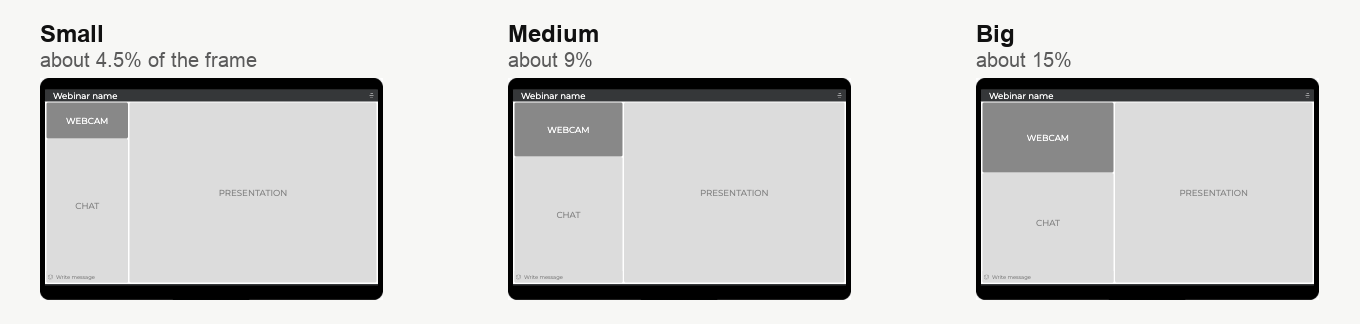
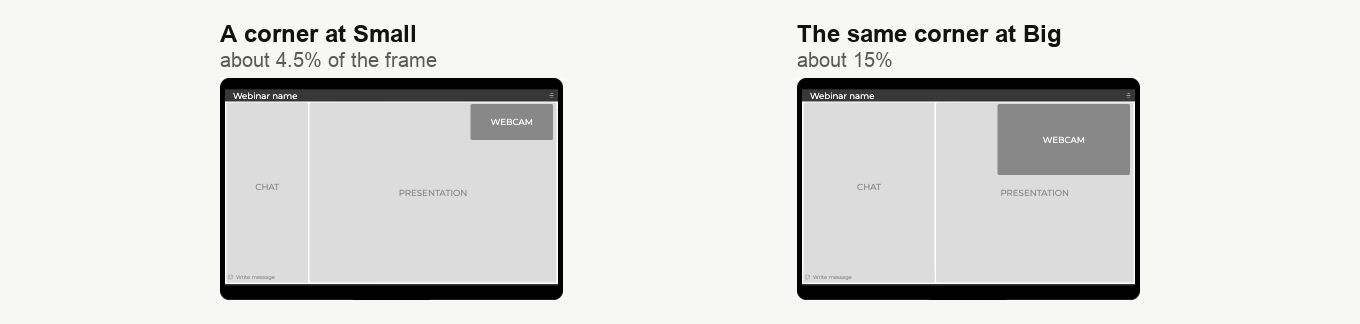
The setting reaches the corner positions too, so an overlaid camera grows with it just as the side column does.
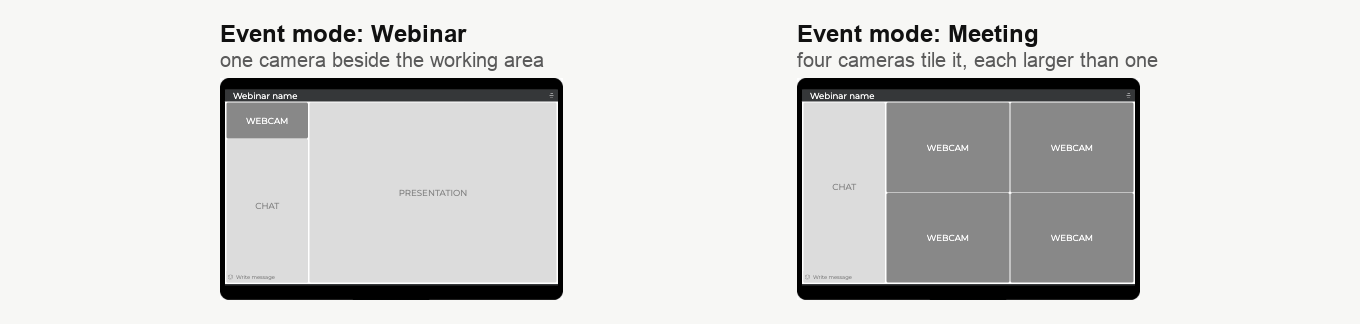
And "Event mode" changes the arrangement outright. A webinar has one presenter beside the working area. A meeting puts everyone on air on equal footing, so the cameras tile the working area between them, and each tile is larger than a single presenter camera ever is.
Webcam position in the webinar room walks through choosing between the six positions.
What that means in pixels
Take a laptop or a monitor running at 1920 by 1080, which is the most common screen among webinar attendees, and measure what each setting leaves for the camera.
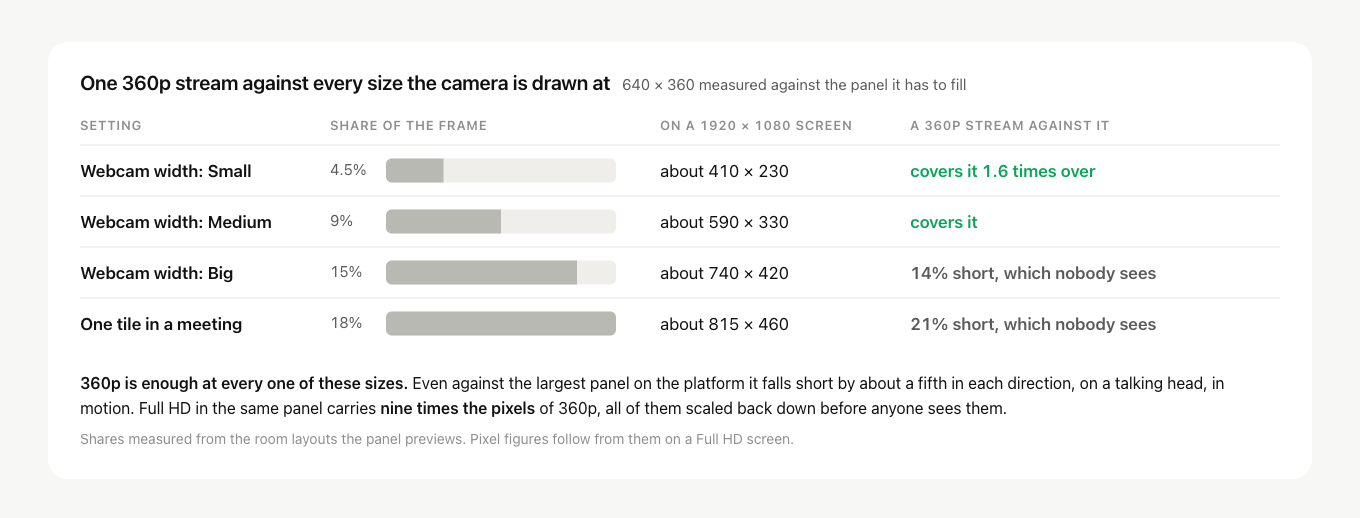
The camera runs from roughly a twentieth of the frame at its smallest to roughly a sixth at its largest. On a Full HD screen that is about 410 by 230 pixels at one end and about 815 by 460 at the other.
Now hold a single 360p stream, 640 by 360 pixels, against those figures. It covers the small width more than one and a half times over. It covers the medium width outright. And against the largest panel on the whole platform, a tile in a meeting room, it falls short by about a fifth in each direction.
A fifth, on a face that is talking and moving, is not something anyone notices. So this is the honest answer to the question in the title. 360p is not a compromise the platform asks you to accept, it is genuinely enough, and 480p sits above it as headroom rather than as the quality you should be chasing.
Why not send Full HD anyway
Because the browser would immediately shrink it back. A 1920 by 1080 stream arriving in a panel 590 pixels wide is scaled down to 590 pixels wide before anyone sees it. Full HD carries nine times the pixels of 360p, and in a panel this size almost all of them are discarded on arrival.
That is the whole of it. The extra pixels do not reach anybody's eyes, so the only thing they change is how much traffic your event costs.
The room settles the question for you in any case. It caps a video track at 1.2 Mbit/s, which internet speed for the webinar room works into the figures for every panel size, and that ceiling is already enough for a sharp picture at the sizes above. Feeding it more does not produce a better one.
What it is paid for in is other people's connections. Each speaker on air reaches an attendee as a separate stream, so the cost multiplies with the size of your panel rather than staying fixed, and internet speed for the webinar room works out the figures presenter by presenter. Someone joining on mobile data with three speakers on air feels that arithmetic directly.
The saving works in your direction too. You are the one uploading, and the less there is to send, the steadier your stream stays on an ordinary home or hotel connection.
If your camera looks bad, these are the levers
The resolution is rarely what a host is actually unhappy about. These are the things that change the picture, roughly in order of how much they help.
- Set "Webcam width" to Big. It is the most direct control you have, and it is the one most hosts never find.
- Keep the device plugged in. Power saving throttles the processor, and the encoder is the first thing to suffer, which webinars and power saving modes on macOS and iOS covers in full. This is the single most effective step on a laptop.
- Broadcast from Chrome or another Chromium browser. It holds the quality of your outgoing stream steady through simulcast, which technical requirements explains.
- Check your upload speed rather than your download speed, since your camera travels upstream. Our connection tester reports it.
- Switch the room to the DTS app if your line keeps faltering, because alternative broadcasting technology holds a steadier stream than the browser manages on a poor connection.
- Light your face. A window in front of you beats any setting on this page, and a window behind you defeats every one of them.
Recordings are a separate question
If what you want is a high-resolution file rather than a sharper live picture, that is a different setting. Recordings are assembled on our side at 480p, 720p or 1080p depending on your plan, and camera placement in the webinar recording covers the layout while recording a webinar covers the quality.
Phones and tablets
A large share of attendees watch on a phone. A phone screen is typically 360 to 414 pixels wide in CSS terms, whatever the physical resolution of the panel, and the camera takes only part of that. A 360p stream already exceeds what the panel can show, so a larger one is scaled down on arrival while still costing the mobile data and the battery it took to receive.
In short
360p is enough. It is enough at the small width, at the medium width, and near enough at the largest panel the platform draws, so the resolution is not the thing standing between you and a picture your audience likes. Anything above it is traffic spent on pixels that are thrown away before they are seen.
Choose the width that suits your event, put the camera where it does not cover your slides, and spend the effort on lighting, sound and your material. Those are what an audience actually notices.
If your picture still looks wrong after all of this, open the online chat and tell us which width and position you are using.
Frequently asked questions
Does the 360p limit apply to my recordings too?
No, a recording is a separate question from the live picture. Recordings are assembled on our side at 480p, 720p or 1080p depending on your plan, so the file can be sharper than what your attendees watched. Recording a webinar covers the quality setting and camera placement in the webinar recording covers the layout.
Why does my camera look worse when the laptop is not plugged in?
Because power saving throttles the processor, and the encoder is the first thing to suffer. On a laptop, keeping the device plugged in is the single most effective step you can take, so do it before the event rather than during it. Webinars and power saving modes on macOS and iOS covers it in full.
Does having more speakers on air cost my attendees more data?
Yes. Each speaker on air reaches an attendee as a separate stream, so the cost multiplies with the size of your panel rather than staying fixed. Someone joining on mobile data with three speakers on air feels that arithmetic directly, and internet speed for the webinar room works out the figures presenter by presenter.
Is the camera drawn larger in a meeting room than in a webinar?
Yes. A meeting puts everyone on air on equal footing, so the cameras tile the working area between them and each tile is larger than a single presenter camera ever is. That tile is the largest panel on the whole platform, and it is the one place a 360p stream falls short, by about a fifth in each direction, which on a face that is talking and moving is not something anyone notices.
Will switching to the DTS app give me a sharper picture?
Only if your line keeps faltering. The app holds a steadier stream than the browser manages on a poor connection, so what it addresses is instability rather than resolution. Alternative broadcasting technology covers it.
