
Internet speed for the webinar room
How much speed you need depends on what you broadcast and on how many presenters are on air at the same time. Upload and download are separate figures, so the single number a speed test hands you does not settle the question. A test against a nearby server does not settle it either, and why your speed to EU servers is slower than Speedtest explains the gap. One presenter with a microphone and a camera sends 1.6 Mbit/s and receives 3.2 Mbit/s at the same moment. The figures stay modest because the room caps a video track at 1.2 Mbit/s, which is already enough for a sharp picture, so there is nothing to gain from feeding it more.
Microphone and camera
| Presenters | Presenter upload | Presenter download | Attendee download |
|---|---|---|---|
| 1 | 1.6 Mbit/s | 3.2 Mbit/s | 3.2 Mbit/s |
| 2 | 1.6 Mbit/s | 6.4 Mbit/s | 6.4 Mbit/s |
| 3 | 1.6 Mbit/s | 9.6 Mbit/s | 9.6 Mbit/s |
| 4 | 1.6 Mbit/s | 12.8 Mbit/s | 12.8 Mbit/s |
| 5 | 1.6 Mbit/s | 16 Mbit/s | 16 Mbit/s |
| 6 | 1.6 Mbit/s | 19.2 Mbit/s | 19.2 Mbit/s |
| 7 | 1.6 Mbit/s | 22.4 Mbit/s | 22.4 Mbit/s |
| 8 | 1.6 Mbit/s | 25.6 Mbit/s | 25.6 Mbit/s |
| 9 | 1.6 Mbit/s | 28.8 Mbit/s | 28.8 Mbit/s |
Microphone, camera and screen sharing, video or YouTube
Sharing your desktop, playing a video file and playing a YouTube clip all raise the requirement by the same amount.
| Presenters | Presenter upload | Presenter download | Attendee download |
|---|---|---|---|
| 1 | 3.2 Mbit/s | 4.8 Mbit/s | 4.8 Mbit/s |
| 2 | 3.2 Mbit/s | 8 Mbit/s | 8 Mbit/s |
| 3 | 3.2 Mbit/s | 11.2 Mbit/s | 11.2 Mbit/s |
| 4 | 3.2 Mbit/s | 14.4 Mbit/s | 14.4 Mbit/s |
| 5 | 3.2 Mbit/s | 17.6 Mbit/s | 17.6 Mbit/s |
| 6 | 3.2 Mbit/s | 20.8 Mbit/s | 20.8 Mbit/s |
| 7 | 3.2 Mbit/s | 24 Mbit/s | 24 Mbit/s |
| 8 | 3.2 Mbit/s | 27.2 Mbit/s | 27.2 Mbit/s |
| 9 | 3.2 Mbit/s | 30.4 Mbit/s | 30.4 Mbit/s |
Your upload stays flat as presenters are added, because you only ever send one stream of your own. The download is what climbs. Every extra person on air is one more stream arriving at your computer, and every attendee watching the event pays the same download cost you do.
Measuring your connection
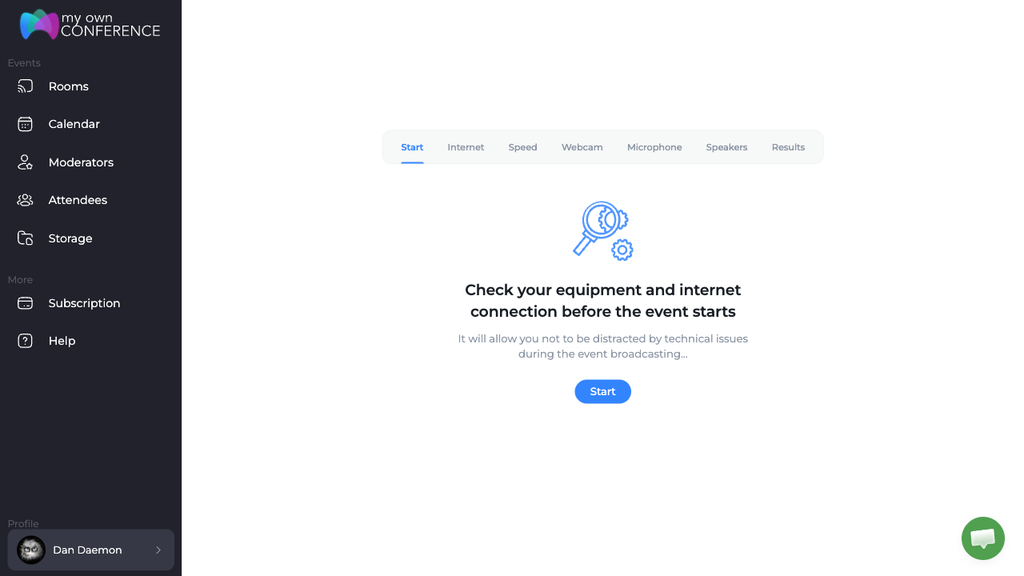
The system test tells you where you actually stand. Run it from your dashboard.
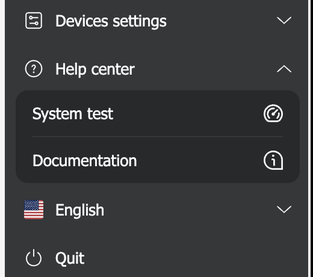
Inside the webinar room the same check sits in the menu, under "Help center".
Our public connection tester checks the same things from any browser without signing in, and needs no account, so you can send the link to a co-presenter the day before the event and have them run it themselves.
If your speed falls short
Some of these take a minute, others need a call to your provider.
- Upgrade your internet plan. Ask your provider which faster tiers reach your address.
- Check your equipment. An older modem or router may not carry the speed you are already paying for.
- Use Ethernet instead of Wi-Fi. A cable is faster and far steadier than a wireless link.
- If Wi-Fi is your only option, put the router somewhere central, away from walls and other electronics, and change its channel to dodge interference from neighbouring networks.
- Clear your browser cache, which frees up space and gets rid of stale temporary files.
- Run a reputable antivirus. A malware-infected computer bleeds bandwidth.
- Limit the number of devices on the network, since everything connected shares the same line.
- Close the applications and tabs you are not using. They free both memory and bandwidth.
If none of that gets you far enough, switch the room to our alternative broadcasting technology. It is a downloadable DTS app that holds a steadier connection on a slow line than the browser manages on its own. Only the account owner can switch it on. Open the room or the scheduled event from your dashboard, go to the "General" tab of its settings and change "Streaming source".
If the numbers on this page look fine and the room still freezes, the line is probably not the problem. What to do when video freezes or attendees drop out works through the rest of the causes.
If activating it gives you trouble, open the support chat and we will walk you through it.
Frequently asked questions
Do I need more upload speed when a second presenter joins?
No. Your upload stays flat as presenters are added, because you only ever send one stream of your own, so it is 1.6 Mbit/s with a microphone and camera and 3.2 Mbit/s once you share your screen, play a video file or play a YouTube clip. The download is what climbs, by one more stream for every extra person on air.
Do my attendees need the same speed as I do?
They need the same download figure. Each table gives an attendee download beside the presenter one and the two match, because every attendee watching the event pays the same download cost you do. So one presenter with a microphone and camera asks 3.2 Mbit/s of each attendee, while nine presenters with screen sharing ask 30.4 Mbit/s.
Will a faster connection give me a sharper picture?
Not past a point. The room caps a video track at 1.2 Mbit/s, which is already enough for a sharp picture, so there is nothing to gain from feeding it more. That cap is why the figures on this page stay modest even with nine presenters on air.
My speed test looks fine and the room still freezes?
Then the line is probably not the problem, and what to do when video freezes or attendees drop out works through the rest of the causes. Before you move on, check that you compared the right figure, since upload and download are separate and the single number a speed test hands you does not settle the question.
Can I switch the room to the alternative broadcasting technology myself?
Only the account owner can. Open the room or the scheduled event from your dashboard, go to the "General" tab of its settings and change "Streaming source". It is a downloadable DTS app that holds a steadier connection on a slow line than the browser manages on its own, and alternative broadcasting technology covers it in full.
