
Webinars and power saving modes on macOS and iOS
Macs, iPhones and iPads stretch their battery life by slowing themselves down, and Low Power Mode is the setting that does it. For ordinary use that is a good trade. During a webinar it works against you, and the picture is the first thing to go.
Why it hurts a live webinar
Broadcasting is the expensive half. A presenter's browser encodes every frame of camera and screen it sends, continuously and in real time, with nothing to gain from working ahead. That load lands on the processor.
Low Power Mode cuts exactly that capacity, and Apple says so in the setting's own description. It promises to reduce background activity, processing speed, the display refresh rate and the brightness. Processing speed is the phrase that matters here, because that is what the encoder runs on.
What your audience sees is blocky or pixelated frames first, then jerky motion, then audio that stutters or drifts out of step with the video.
Watching is the cheaper half, but it is not free. Each speaker on air reaches an attendee as a separate stream to decode, and a device that has decided to slow itself down decodes them more slowly than they arrive.
Where the setting lives
On a Mac there are two routes to it. The battery icon in the menu bar is the quick one, and it works without leaving the room, which matters if you notice the problem while you are already live. System Settings is where the setting itself lives, under Battery.
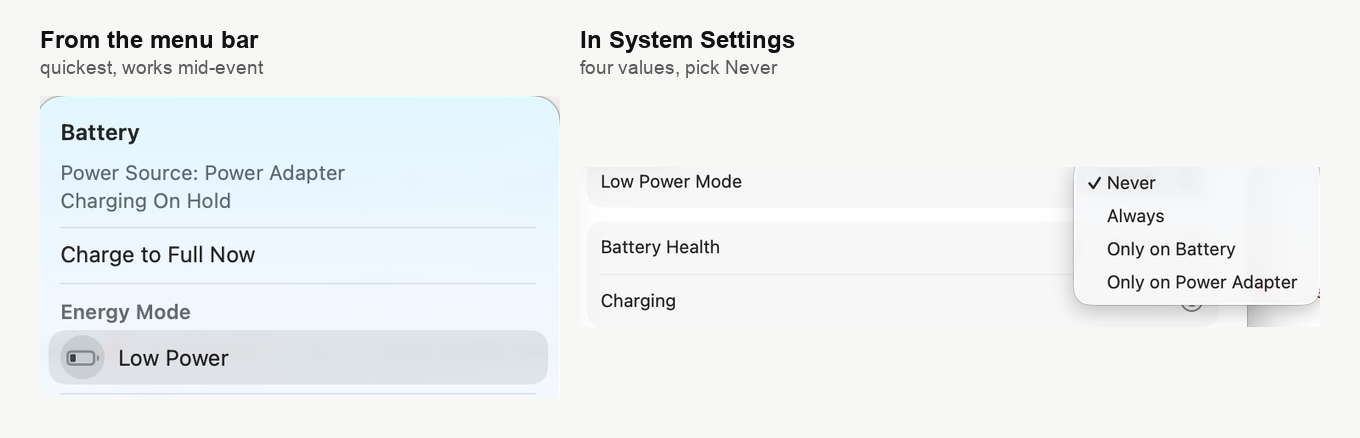
On macOS this is not a simple switch. It offers four values, and the one you want before an event is Never. "Only on Battery" is the value that catches people out, because a laptop that behaves perfectly on the desk starts degrading the moment someone unplugs it.
On an iPhone or iPad it is simpler. Open Settings, choose Battery, and it is a plain switch near the bottom of that screen.
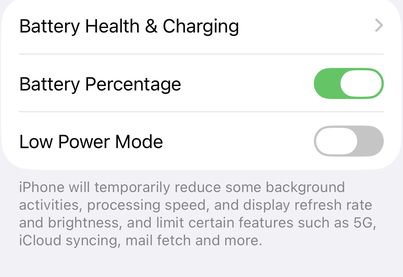
The description underneath is Apple's own, and it is the clearest statement anywhere of why this matters during a webinar.
The setting that is not the problem
Further down the same Battery pane, behind the "Options" button, sits Optimize video streaming while on battery. It is often named alongside Low Power Mode as something to turn off before a webinar. Apple's own description of it says otherwise.
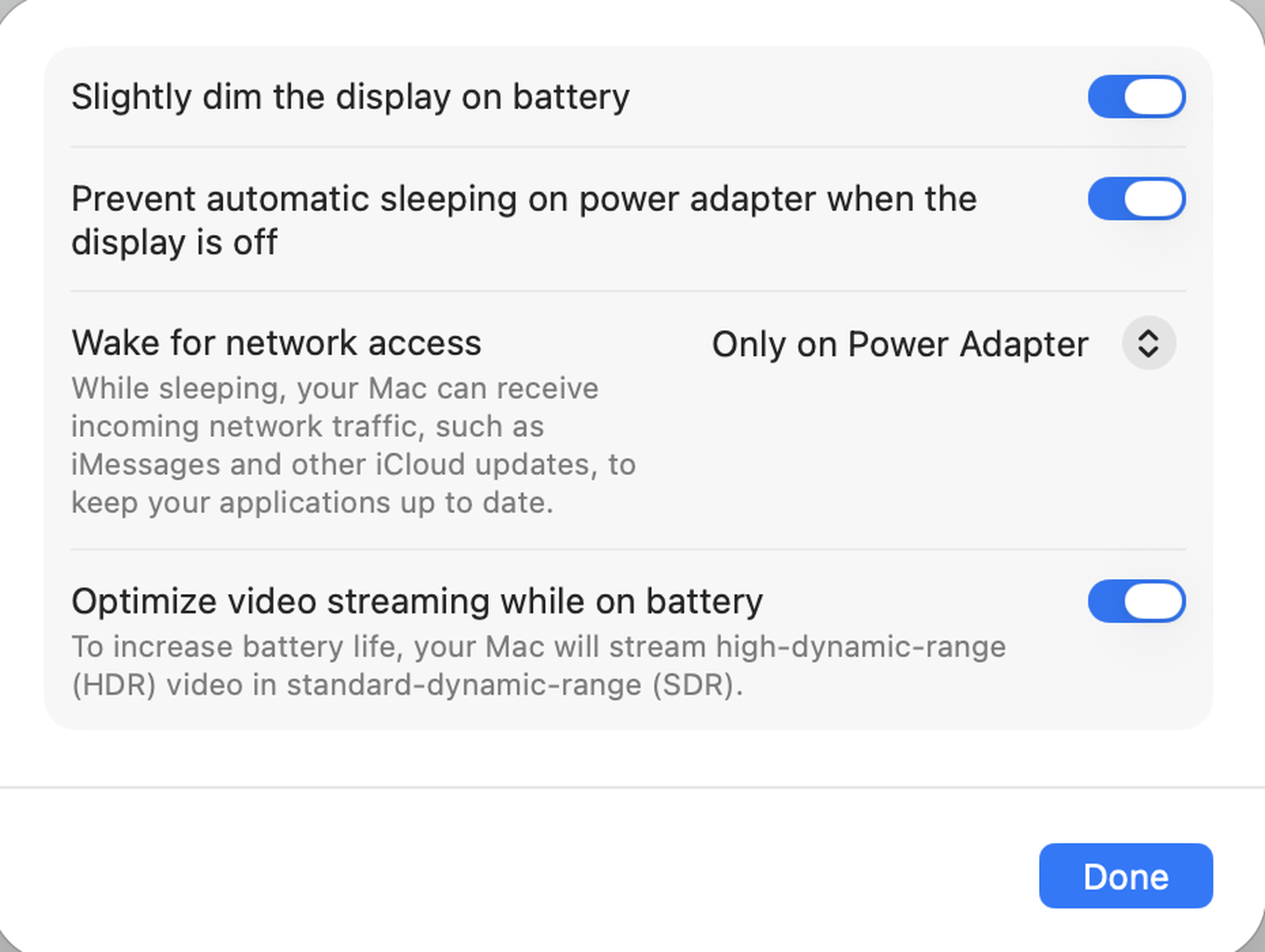
It streams high dynamic range video in standard dynamic range to save power. That is about watching HDR video, not about the encoding a webinar does, so leaving it on costs your broadcast nothing. If you are working through a list of things to change, this one can stay as it is.
What to do before you host
- Plug the machine in and set Low Power Mode to "Never". Between them these two remove the whole problem, and neither takes a minute.
- Quit what you are not using. The browser is competing with everything else for the same processor, and a webinar is the wrong moment to find that out.
- Give the machine air. Any processor drops its clock speed when it gets hot, so a laptop on a hard surface holds its pace better than one buried in a sofa.
- Rehearse in the conditions you will broadcast in. Testing on mains power tells you nothing about how the same laptop behaves on battery. Our connection tester covers the line, and the room's own equipment check covers the devices.
What to tell an attendee who is struggling
Attendees have an easier job than you do, but a throttled phone still stutters. If someone says the picture keeps freezing:
- Ask them to plug in, or to turn Low Power Mode off in Settings under Battery.
- Ask them to close other tabs and apps, since decoding several speakers at once is real work.
- Suggest headphones, which usually beat a laptop's own speakers and microphone, and cost the device nothing.
If none of that helps, the cause is probably not the device. Internet speed for the webinar room works out what a connection actually needs, and disabling browser tab sleep mode covers a different failure that looks much the same from the outside.
Worth remembering
Broadcasting is demanding work for any device, and more so on battery. A machine that is plugged in, cool and not busy with anything else has none of the problems on this page.
If the picture still degrades on a machine that is plugged in, open the online chat and tell us the model, the system version and whether it happens on battery as well.
Frequently asked questions
My Mac is fine on the desk and the picture falls apart when I unplug it?
That is "Only on Battery", the Low Power Mode value that catches people out, because the machine behaves perfectly on mains power and starts degrading the moment someone unplugs it. macOS offers four values rather than a simple switch, and the one you want before an event is "Never". Plug the machine in as well, since between them the two remove the whole problem.
I am already live and the picture has gone blocky. Can I change this without leaving the room?
Yes. On a Mac the battery icon in the menu bar is the quick route to Low Power Mode and it works without leaving the room. System Settings is where the setting itself lives, under Battery, and plugging the machine in helps as much as the setting does.
Should I turn off "Optimize video streaming while on battery" as well?
No, that one can stay as it is. It sits behind the "Options" button in the same Battery pane and is often named alongside Low Power Mode, but Apple's own description says it streams high dynamic range video in standard dynamic range to save power. That is about watching HDR video rather than the encoding a webinar does, so leaving it on costs your broadcast nothing.
Does Low Power Mode matter for people who are only watching?
Yes, though less than it does for you. Each speaker on air reaches an attendee as a separate stream to decode, and a device that has decided to slow itself down decodes them more slowly than they arrive, so a throttled phone still stutters. Ask an attendee who is struggling to plug in or to turn Low Power Mode off in Settings under Battery, and to close other tabs and apps.
The machine is plugged in with Low Power Mode off and it still stutters?
Heat is the next thing to look at, because any processor drops its clock speed when it gets hot, so a laptop on a hard surface holds its pace better than one buried in a sofa. A machine that is plugged in, cool and not busy with anything else has none of the problems on this page, so beyond that the cause is probably not the device. Internet speed for the webinar room works out what a connection actually needs, and disabling browser tab sleep mode covers a different failure that looks much the same from the outside.
