
Personalized access links
Personalized links give every attendee their own link to your webinar, tied to them alone. The system sends these links automatically. You can also email invitations yourself, or copy a link and pass it on through any messenger.
How it works
Everyone invited to the webinar receives a personalized link at their email address. Clicking it takes the attendee straight into the webinar, with no login screen and no form to fill in. If the webinar is already running, they land in the room. If they arrive early, they land on a waiting page with a countdown to the start time.
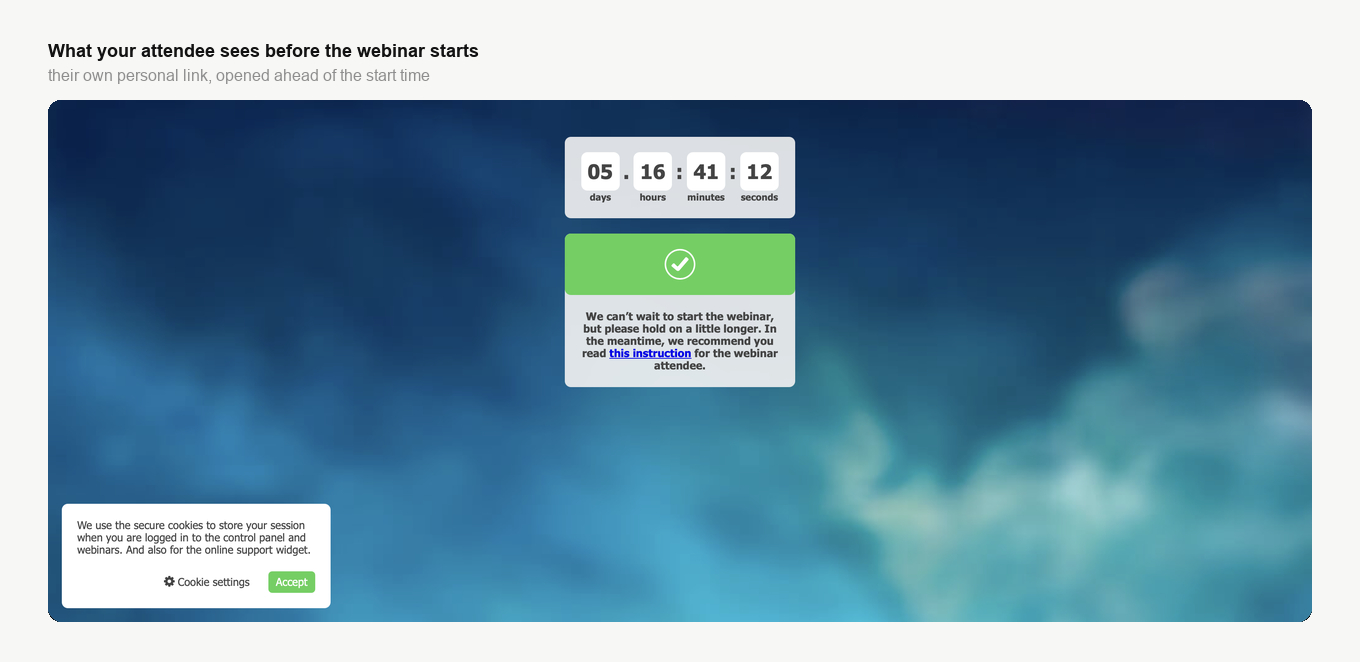
That waiting page also carries a link to our guide for attendees, so somebody arriving days early has something useful to read rather than a blank screen.
Each link is tied to the email address it was sent to, so it belongs to one person rather than to whoever happens to be holding it. A link posted publicly or forwarded down a chain does not open the door to everyone who receives it.
What happens if someone forwards their link
A link carries one seat and one seat only. If two people try to use the same link, the one who opened it most recently is the one sitting in the room, because a second entry disconnects the session already running on it. A forwarded link therefore never adds a viewer. All it can do is move the seat from the attendee it was issued to across to somebody else, and the two of them are left taking turns.
The platform also checks who is using the link. When it sees that the person is not the one the invitation went to, it asks for verification, and a one-time code goes to the original address. Only someone who can open that mailbox can retrieve the code and continue.
The two stack rather than replace each other. The seat rule caps your audience at one viewer per link whatever happens, and the code check normally stops a forwarded link before it even gets that far. Taking turns is the leftover case, which is where the stranger can also read the original mailbox, where your attendee forwards the code along with the link, or where the attendee has no address on file and so has no code check at all. Either way a leaked link never adds a viewer, and the person who shared it can end up outside. That is worth mentioning to anyone inclined to be helpful with their invitation.
Turning it on
You switch this on in the settings of a webinar, either while creating it or when editing it later in your dashboard. The switch is called "Invitation link login only" and it sits on the "Entry" tab.
Enabling it does more than add links to your invitations. The public entry page and the standard login form are switched off completely, so there is no longer a general way in. The system then generates a unique link for everyone invited to that specific webinar, and mails it to everyone who has an email address on file. The "Recipients" setting on the "Emails" tab can switch that mailing off, and people without an address never receive anything, which the last section covers.
The "Entry" tab shrinks accordingly. Along with the guest link and the login form, the settings that only a registration page needs disappear, which covers form embedding, the group, the background, the description and the info page. What stays is the tracking, so your GTM and Facebook Pixel identifiers are untouched.
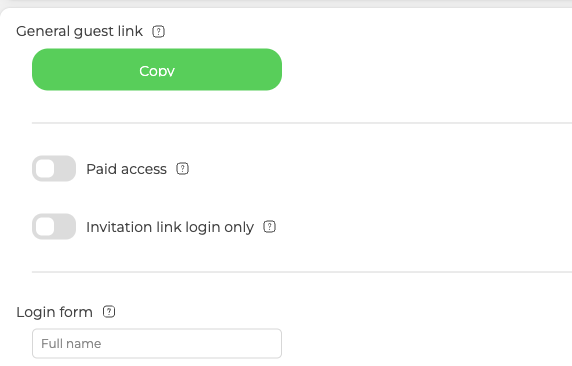
After that, only the people on your invitation list can get into the room.
Attendees who have no email address
An attendee can exist without an address, and the panel marks them "No email provided". Nothing is sent to those people, because there is nowhere to send it, but they still have a link of their own. Open the "Attendees" tab of the webinar, click the three dots at the end of their row and choose "Copy link", then pass it on through a messenger yourself. Inviting and managing attendees without platform emails covers that route in full.
For a whole list at once, use "Export" on that same "Attendees" tab of the webinar and switch on the "Autologin link" field. A personal link belongs to one event, so the field appears only once a webinar is selected, and the export from the account-wide "Attendees" section cannot offer it.
If a personal link will not let somebody in, open the online chat and tell us the event, the attendee and what the page says when they open it.
Frequently asked questions
What happens to my registration page when I switch this on?
It goes. The public entry page and the standard login form are switched off completely, so there is no longer a general way in. The settings that only a registration page needs disappear from the "Entry" tab along with them, which covers form embedding, the group, the background, the description and the info page. Your tracking stays, so the GTM and Facebook Pixel identifiers are untouched.
Can I get everyone's link in one go instead of copying them one at a time?
Yes, use "Export" on the webinar's "Attendees" tab and switch on the "Autologin link" field. That field appears only once a webinar is selected, because a personal link belongs to one event, which is also why the export from the account-wide "Attendees" section cannot offer it.
Does the verification code protect attendees who have no email address on file?
No, an attendee with no address has no code check at all, because there is nowhere to send a code. The seat rule still applies to their link, so if it is passed on, the person who opened it most recently is the one sitting in the room and the earlier session is disconnected. You hand those links over yourself, which attendee invitations and management without platform email invitations covers in full.
Can I hand the links out myself instead of letting the platform mail them?
Yes. The system sends them automatically, but the "Recipients" setting on the "Emails" tab switches that mailing off, and you are then free to email the invitations yourself or copy a link and pass it on through any messenger. People without an address on file never receive anything in any case.
What does an attendee see if they open their link before the webinar starts?
A waiting page with a countdown to the start time. Either way there is no login screen and no form to fill in, so once the webinar is running the same link takes them straight into the room.
