
How much recording time do I have left?
There is no separate recording-time counter, because what limits you is storage rather than minutes. The system works from the disk space included in your plan, and the "Storage" section of your control panel shows how much of it you have used, on a bar at the foot of the left column.
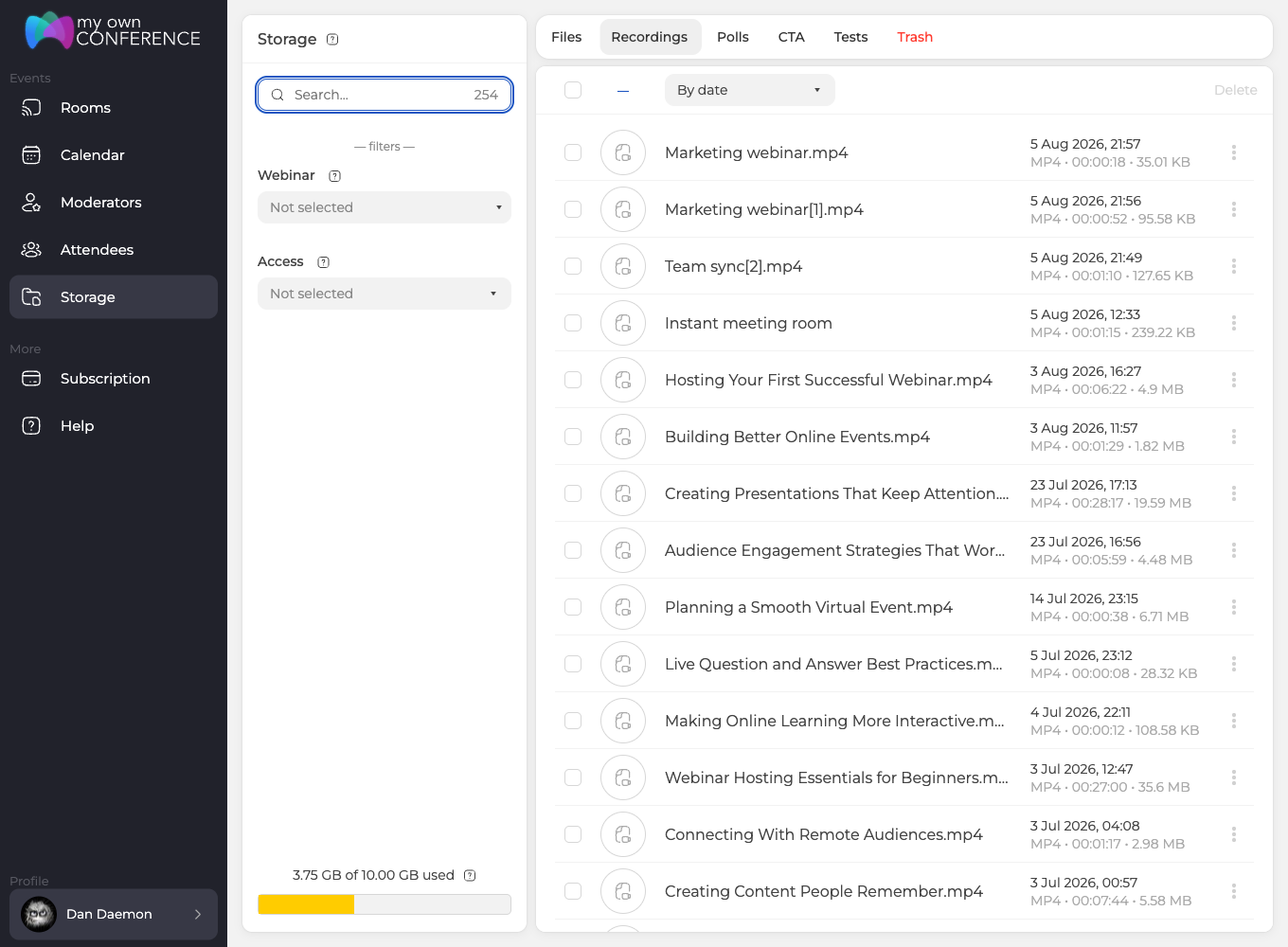
Every recording carries its length and its size in the list, so those two figures beside each other are the raw material for any estimate you want to make.
What determines the size of a recording
Part of it comes down to how the event actually goes:
- how long the recording runs,
- the materials you use during the webinar,
- how active you are on camera,
- whether you shared your screen.
The rest comes down to settings you choose in advance:
- the recording quality level,
- the number of cameras used, along with other parameters.
You will find all of these on the "Record" tab of the room settings, the third of the eight tabs a room carries.
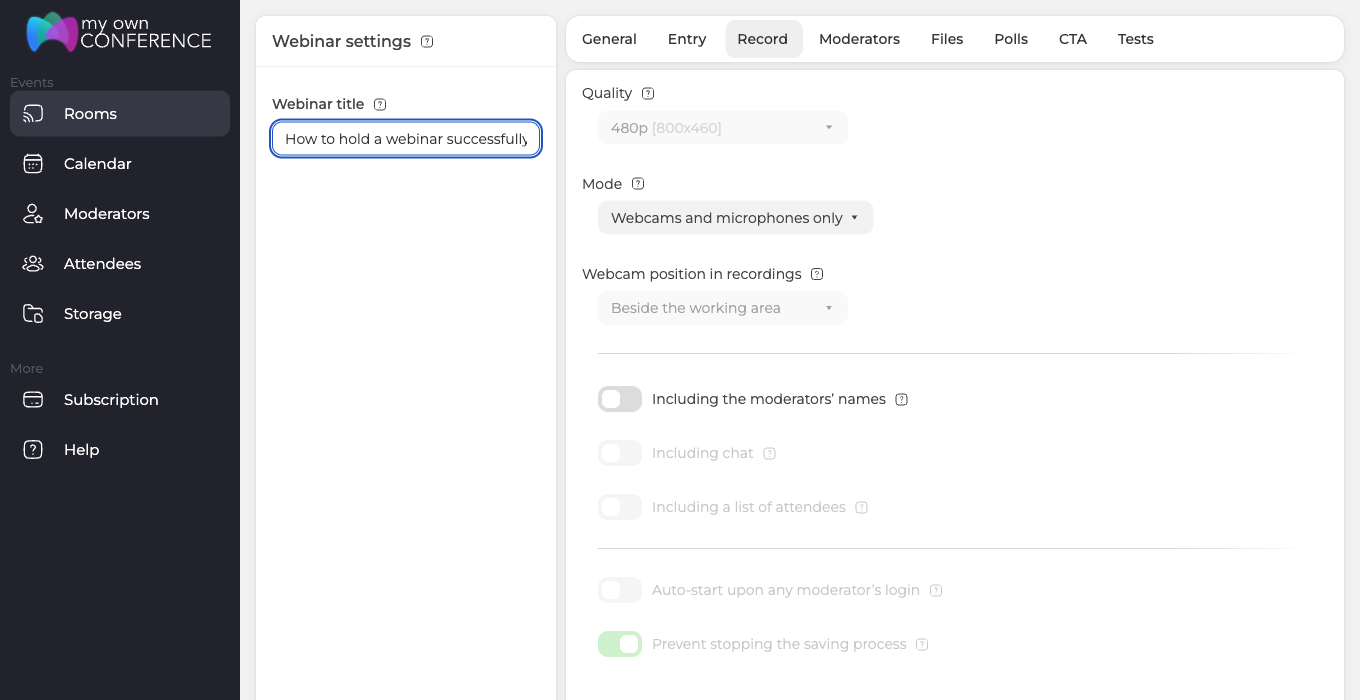
Quality is the setting to look at first. Recording starts at 480p and the ceiling follows the size of your plan, so Starter and paid plans below 500 attendees reach 1080p, while plans from 500 attendees reach 2160p. The camera-only format is capped at 480p, which makes it the lightest recording you can produce.
Because so much depends on how you run the event, the practical way to estimate is to look at your own past recordings. Compare their size against the space you have free and you get a fair idea of how long the next webinar can run.
If a recording overruns your free space
As long as you have any free space in your cloud storage, you can start at least one more recording. A recording that grows past the space you had left is still written in full, so nothing is cut off mid-event.
What you cannot do is start the next recording after that. To record again, free up space by deleting old files, or move to a plan with more storage.
Every recording you have made sits on the "Recordings" tab of "Storage", whichever room or event it came from. The three dots at the end of a row open "View", "Download", "Settings" and "Delete", and it is "View" that leads to the player and to the sharing link, which sharing a recording by link covers. You can also reach the recordings of one particular event from its own menu in the calendar.
On the Starter plan
The free Starter plan includes 500 MB of storage and caps each recording at 20 minutes, so you usually hit the time limit before the storage limit. Recordings are saved as MP4 at up to 1080p.
If the storage figure does not match what you have actually recorded, open the online chat and tell us your plan and roughly how much room you expected to have left.
Frequently asked questions
How do I free up space so I can record again?
Delete recordings you no longer need from the "Recordings" tab of "Storage", where the three dots at the end of a row open "Download" as well as "Delete", so you can keep a copy on your own computer first. The alternative is to move to a plan with more storage. The bar at the foot of the left column shows how much of your space is in use.
How do I work out how long my next recording can run?
Compare your own past recordings against the space you have free, because every recording carries its length and its size in the list and those two figures beside each other are the raw material for the estimate. So much depends on how you run the event that this is more reliable than any general figure. Nothing in the panel counts recording minutes for you, since what limits you is storage rather than minutes.
Can I record in 2160p?
Only if your plan is for 500 attendees or more, because the ceiling follows the size of your plan. Recording starts at 480p, Starter and paid plans below 500 attendees reach 1080p, and plans from 500 attendees reach 2160p. You choose the level on the "Record" tab of the room settings, the third of the eight tabs a room carries, and the camera-only format is capped at 480p, which makes it the lightest recording you can produce.
On the free Starter plan, does the 20-minute limit apply to each recording or to all of them together?
To each recording. Starter also includes 500 MB of storage, so in practice you usually hit the time limit before the storage limit. Recordings are saved as MP4 at up to 1080p.
I run several rooms. Does each one get its own storage?
No, they all draw on the same space, which is the disk space included in your plan. Every recording you have made sits on the "Recordings" tab of "Storage", whichever room or event it came from. If you want only the recordings of one event, you can reach those from its own menu in the calendar.
