
Recording link
You can share a recording of your webinar as a link, so people watch it in the browser without downloading anything.
Why share a recording by link
The link carries the recording without you having to download the file and upload it somewhere else. You set an expiry date, and once that date passes the link stops working. It is the easier route when you cannot or would rather not put the recording on a file-sharing service or a video host.
Recording links need a plan of a month or longer. They are not available on the free Starter plan, or on a daily plan.
How to get the link
Open "Storage" in your control panel and go to the "Recordings" tab.
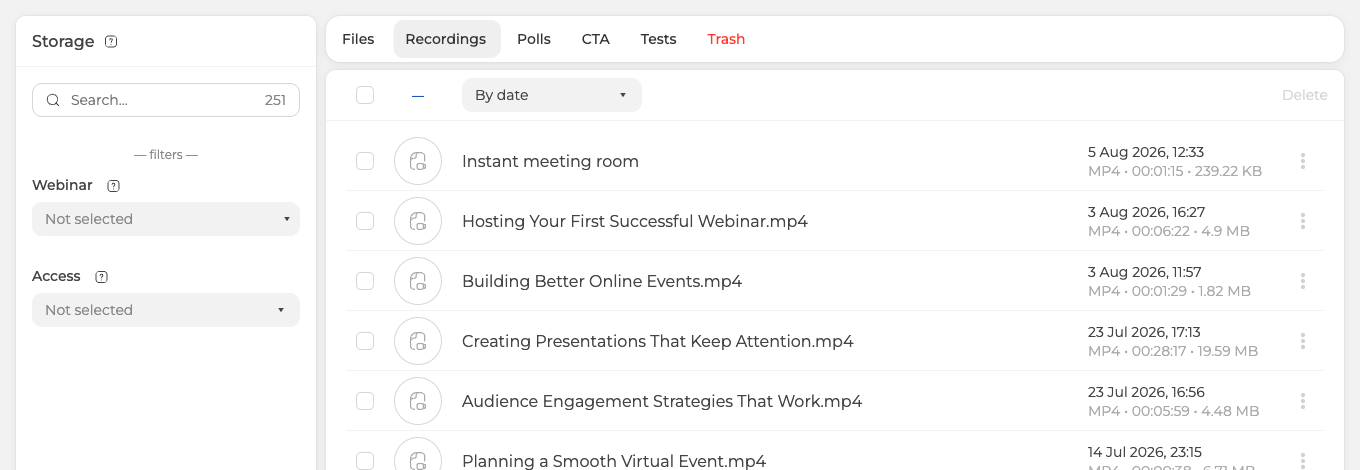
Find the recording you want, open the three dots at the end of its row and choose "View". That opens the "Recordings and videos" panel with the recording playing on the right, and everything to do with the link sits under the player.
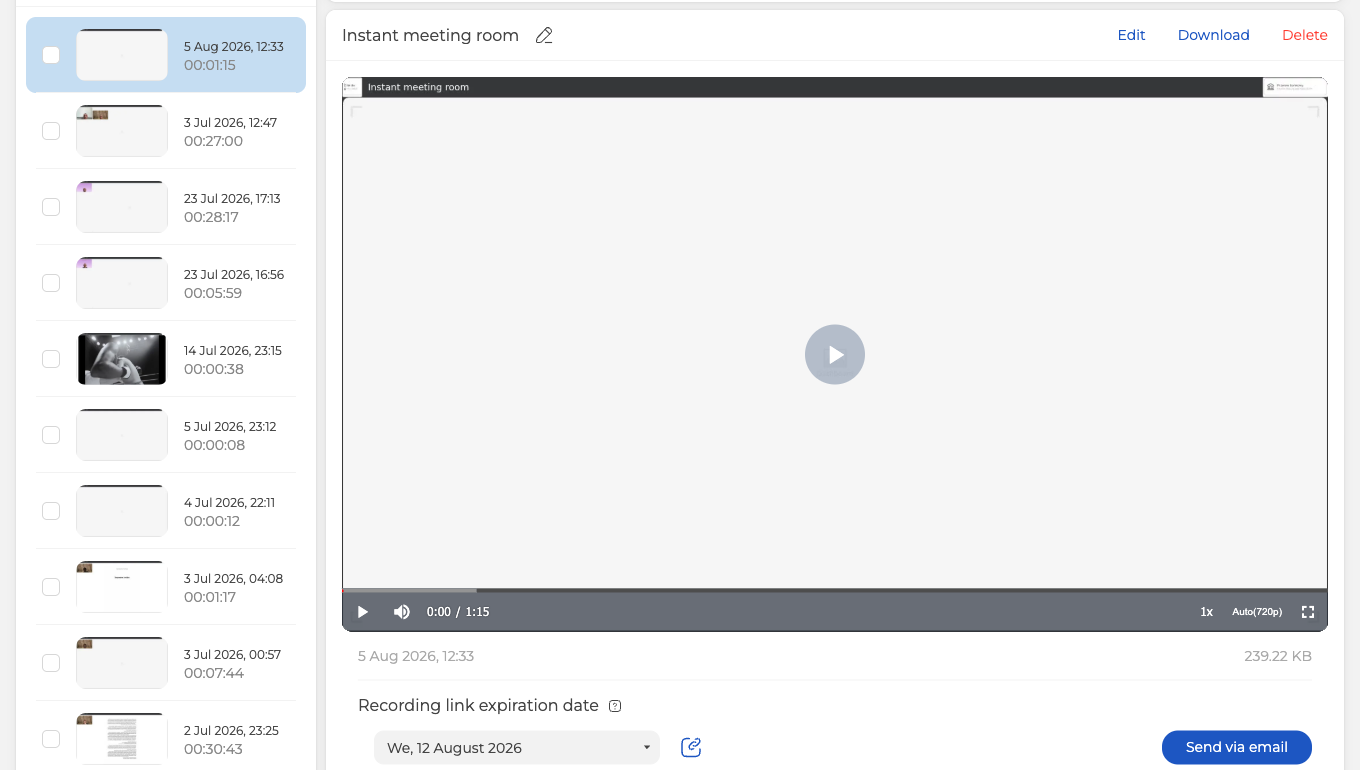
"Recording link expiration date" is the whole of it. Pick the date the link should stop working, then use the icon beside it to copy the link, or "Send via email" to mail it instead.
One condition is easy to miss. If the date you choose falls after your paid plan ends, the link stops on the day the subscription does rather than on the date you set. The panel says as much in the hint beside the field.
"Send via email" opens your attendee list rather than a short pop-up, so you can narrow it with the usual filters, by status, by group, by webinar, by attendance or by replay views. Tick the people you want and use the "Send via email" button at the bottom of the column.
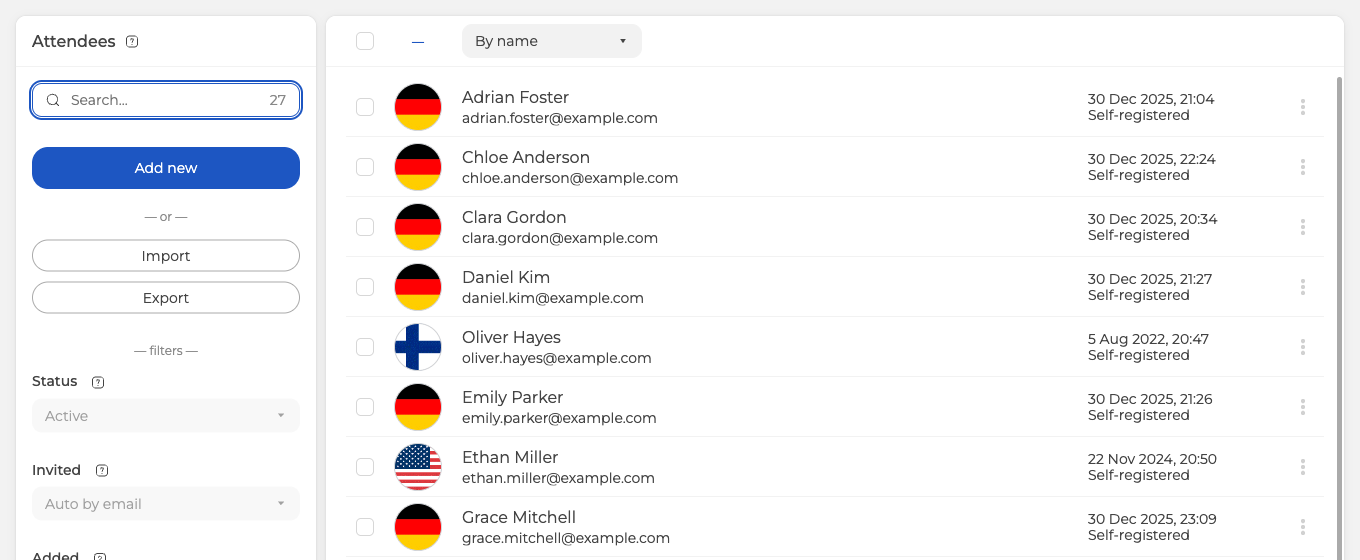
Everyone you picked then gets a message with the link to your recording.
Send the recording automatically after the webinar
Everything above is for a recording you already have. When you know in advance that people should get it, the platform can send it by itself the moment the event ends, and you set that up while you are scheduling the webinar.
Open the webinar settings, go to the "Emails" tab and find the "Post-webinar" block, then turn "Send" on.
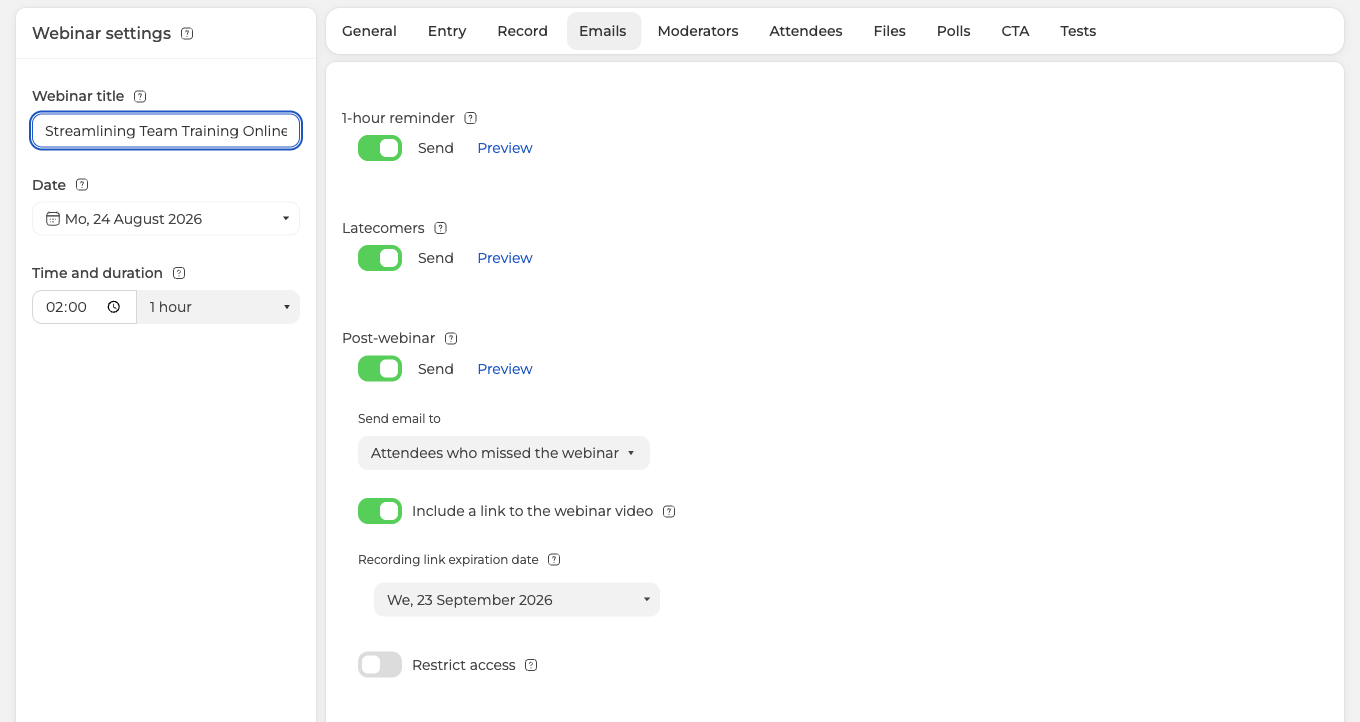
"Send email to" decides who receives it. The three choices are "All registered for the webinar", "Attendees who attended the webinar" and "Attendees who missed the webinar". The last one is why most hosts switch this on, because the people who could not make it live are exactly the ones who need the replay.

Turn on "Include a link to the webinar video" and the message carries the recording. "Recording link expiration date" sits below it and behaves the way it does on the recording page, so the link stops on the date you pick, or on the day your subscription ends when that comes first. Left alone it gives the recording 30 days.
"Restrict access" below the date decides how the replay opens. A recording plays inside the webinar room rather than as a separate file, so the room's entry rules cover it exactly as they cover registration and the live event. Left off, the link opens the room under those rules alone. Switched on, the guest gives an email address, we send an access code to it, and the room opens only once that code goes in. An address that is mistyped, abandoned or invented never receives the code, so the setting is there to raise the quality of the addresses you collect as leads rather than to lock the recording away.
The two routes do not replace each other. The automatic message goes out once, to the audience you chose, right after the event. "Send via email" on the recording page stays there for everything that comes later, whether that is someone who asked for the replay a week on or a group you decided to include only after seeing who watched.
When webinar email notifications are sent covers the rest of the schedule these messages follow.
What changing the date does
Changing the date creates a new link. The old one is not switched off. It stays active until the expiry date you gave it earlier, and the new link runs alongside it until its own date.
How to remove an old link
A link deletes itself once its expiry date passes. If you need one gone sooner than that, open the online chat in your control panel and we will remove it for you.
There is one thing you can do yourself, which is to delete the recording the link points at. That takes the file to the "Trash" tab for seven days before it goes for good, so it is reversible for a week if you change your mind.
Finding a recording covers the two places a recording lives, and How to choose and pay for a plan covers the plans that include link sharing.
Frequently asked questions
Why can I not share a recording by link on my account?
Recording links need a plan of a month or longer, so they are not available on the free Starter plan or on a daily plan. The recording itself is untouched, and it can still be downloaded as an MP4 from "Storage" and passed on that way. How to choose and pay for a plan covers the plans that include link sharing.
What happens to the link when my paid plan ends?
The link stops on the day the subscription does, even when the expiry date you picked falls later. The panel says as much in the hint beside "Recording link expiration date", so the two dates are worth checking against each other before you send the link out.
Does Send via email go to my whole attendee list?
No, you pick the recipients. "Send via email" opens your attendee list rather than a short pop-up, so you can narrow it by status, by group, by webinar, by attendance or by replay views and then tick the people you want. The "Send via email" button at the bottom of the column does the sending, and everyone you picked gets a message with the link to your recording.
If I delete the recording to kill its link, can I get the recording back?
Yes, for seven days. Deleting the recording the link points at is the one way to cut access yourself, and the file waits on the "Trash" tab for a week before it goes for good. If you want the link gone but the recording kept, open the online chat in your control panel and we will remove the link for you.
Where do I set the expiry date on a recording link?
Under the player on the recording page, at "Recording link expiration date". Open "Storage", go to the "Recordings" tab, open the three dots at the end of the recording's row and choose "View", and the date field with the copy icon beside it sits below the player. Finding a recording covers the shorter route straight from the event itself.
Can the recording go out by itself after the webinar?
Yes. In the webinar settings, on the "Emails" tab, the "Post-webinar" block sends a message once the event ends, and "Include a link to the webinar video" puts the recording into it. "Send email to" decides who gets it, and "Attendees who missed the webinar" is the choice that reaches the people who were not there live.
What does "Restrict access" do to the recording?
It puts an email check in front of the room. A recording plays inside the webinar room, so this is the same gate that guards registration and the live event. The guest gives an address, we send an access code to it, and the room opens only after that code is entered. An address that is mistyped, abandoned or invented never receives the code, which is the whole reason the setting exists, because it raises the quality of the email addresses you collect as leads.
