
CTA buttons
A CTA is a call-to-action element you show during a webinar to move attendees towards a specific step, such as registering, buying or leaving a request. It can be a text announcement with a button, or an image banner. For when to fire one and what to put on it, the blog covers the tactics in CTA buttons and banners to increase your webinar sales.
Where CTAs live
Open "Storage" in your control panel and go to the "CTA" tab. Everything you have ever built sits there, next to your files, recordings, polls and tests, and "Add CTA" starts a new one.
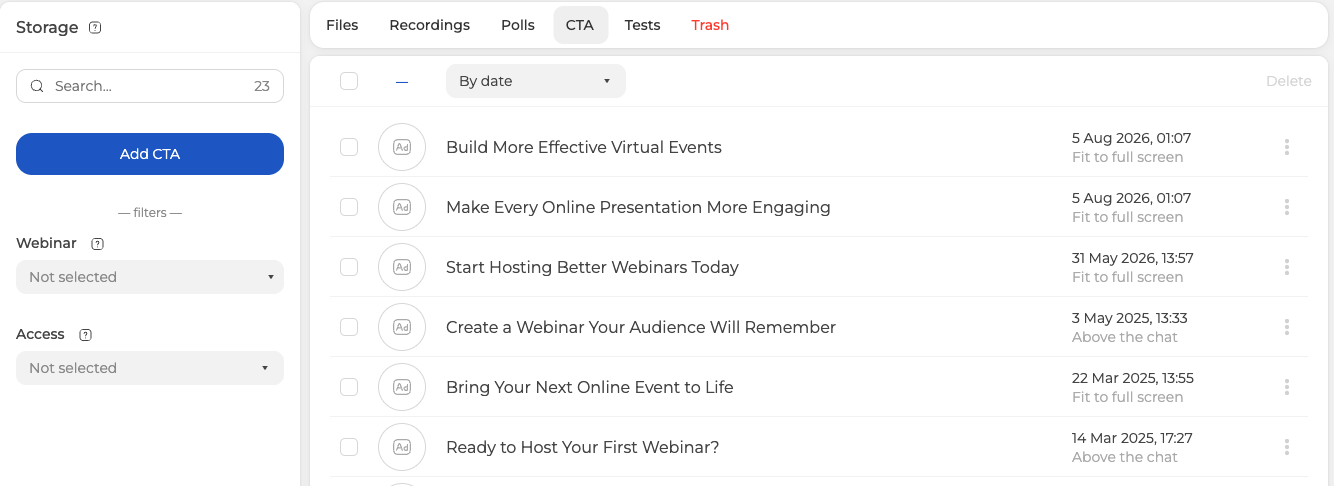
Each row tells you where that element appears on screen, which is the second line under its title.
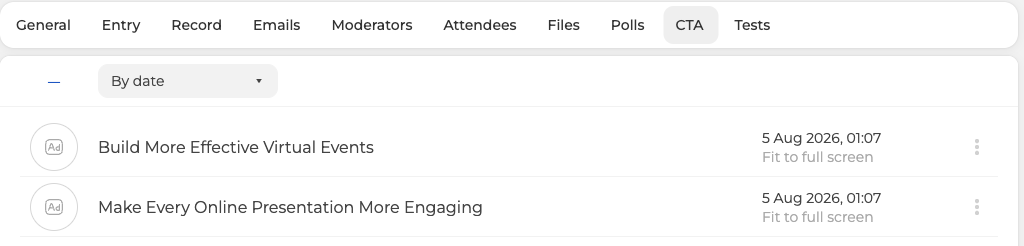
A webinar has a "CTA" tab of its own, and opening it shows the same screen narrowed to that one event. The count in the search box drops accordingly, so you are looking at a filtered view of one library rather than a second one.
You can also build a CTA inside the webinar room itself, on the "CTAs" tab of the materials panel, which is what you want when the event is already running and you need something live right now.
Building the element
"Add CTA" opens a form with a preview of the result beside it, so you can see what attendees will get before you save.
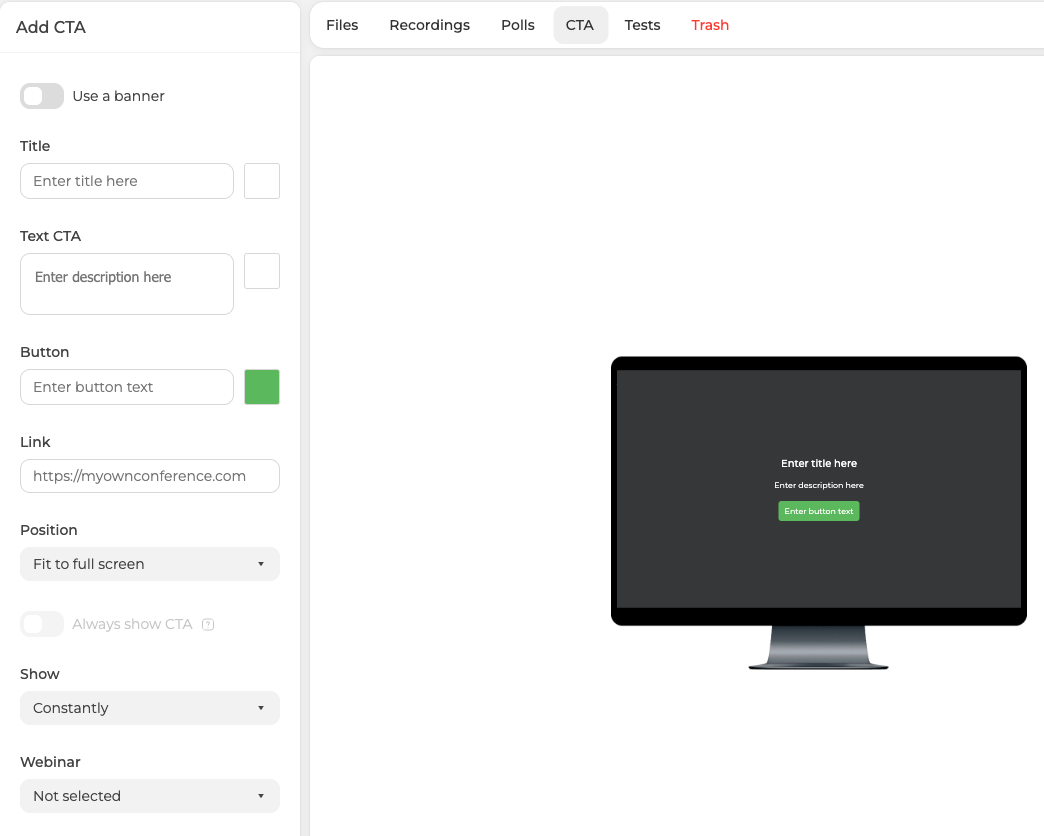
A text announcement takes a "Title", the announcement itself under "Text CTA", the wording that goes on the button, and the "Link" the button opens. The small squares next to the first three fields set their colours.
Two settings decide how it behaves rather than how it reads. "Position" puts the element in one of three places, either fitted to the full screen, overlapping the working area or above the chat. "Show" decides how long it stays, either constantly or for a set number of minutes between one and twenty.
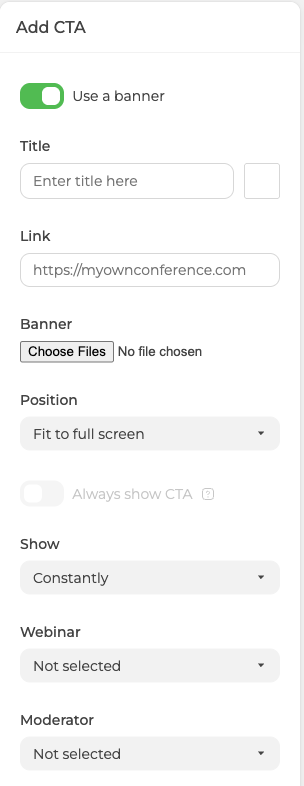
For an image instead, switch on "Use a banner" at the top. The text fields give way to a "Banner" upload, and what remains is the title, the link and the same behaviour settings.
Banner images are accepted in JPG, PNG and GIF.
Two more fields sit at the foot of the form, and only one of them decides where the element turns up. "Webinar" attaches it to an event. "Moderator" lists "Not selected" and your moderators by name, but the element does not keep that choice, so it belongs to the whole webinar rather than to one presenter.
Tracking clicks with UTM tags
CTA links pick up UTM tags automatically. A link you leave without tags takes the ones the attendee arrived with, and a link that already carries its own keeps them, with the entry tags ignored rather than merged in. The rule is the same for a button and for a banner.
Give each element its own tags when you want to compare versions. That keeps the numbers apart, so you can see which wording, design or placement earned the clicks. UTM tags covers the entry link and the exit page as well.
Clicks come back to you inside the platform too. Open a webinar's own menu, choose "Statistics", and the panel headed "Webinar insights" carries a "CTA" tab beside the chat and attendance figures, with an export button under the calendar.
Automated webinars
An automated webinar has a "CTA" tab of its own in its settings, where "New CTA" builds one the same way.
If a button does not reach your audience the way you set it up, open the online chat and tell us the event and which of the two places you built it in.
Frequently asked questions
Can I add a CTA once the webinar has already started?
Yes. Build it in the webinar room itself, on the "CTAs" tab of the materials panel, which is what you want when the event is already running and you need something live right now. The "CTA" tab of "Storage" is where everything you have ever built sits, and "Add CTA" there starts a new one.
How long does a CTA stay on screen?
Either constantly or for a set number of minutes between one and twenty, which is what "Show" decides. "Position" beside it puts the element in one of three places, either fitted to the full screen, overlapping the working area or above the chat. Each row in the list repeats that placement on the second line under the title.
Which image formats work for a banner?
JPG, PNG and GIF. Switch on "Use a banner" at the top of the form and the text fields give way to a "Banner" upload, leaving the title, the link and the same behaviour settings. The preview beside the form shows what attendees will get before you save.
My link already carries UTM tags, will the attendee's tags be added on top?
No, a link that already carries its own tags keeps them, and the entry tags are ignored rather than merged in. A link you leave without tags takes the ones the attendee arrived with instead, and the rule is the same for a button and for a banner. UTM tags covers the entry link and the exit page as well.
Why does a CTA I built not appear in my webinar?
Because "Webinar" at the foot of the form is the field that attaches an element to an event. "Moderator" beside it plays no part here, since the element does not keep that choice and belongs to the whole webinar. The "CTA" tab inside a webinar shows the same library narrowed to that one event rather than a second one, which is why the count in the search box drops.
