
Audio quality for webinars
Attendees complaining about your sound are reporting one of two quite different problems that arrive wearing the same words. Either the sound you are producing is poor, or the line carrying it is. Work through them in that order, because the first is usually a five minute fix and the second is not always in your hands.
Start with the room, not the settings
A decent microphone in a quiet room beats every setting on this page. Three things carry most of the weight.
- A headset rather than separate speakers and a microphone. The sound never reaches the microphone, so echo cannot start in the first place, which is why what to do if there is an echo during a webinar opens with the same advice.
- A quiet room, with the door shut and anything that hums kept away from the microphone.
- A steady distance from the microphone. Drifting in and out of range while you talk reaches your audience as a level that will not settle.
Where the sound controls live
Open the menu in the top right corner of the webinar room and expand "Devices settings". Everything to do with your sound sits there, so how loudly you hear the others, how loudly you go out, a level meter and the microphone you are using.
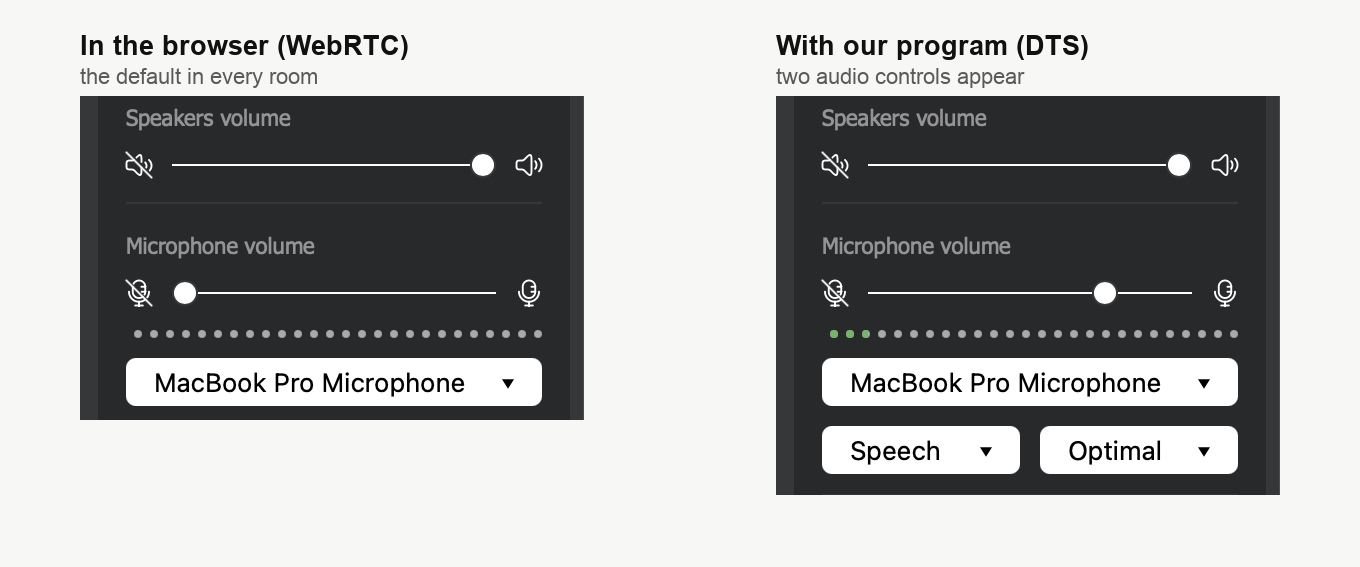
Two habits are worth building.
Watch the dotted meter while you talk. It should move steadily rather than sit still or run to the end of its range. And keep "Speakers volume" below its maximum, because quieter speakers give your microphone less to pick up, which is where the echo guide starts too.
The microphone level is not yours to set while the browser carries your sound, and the echo guide covers why along with where to set the level in your system settings.
Check it before you are on air
The room offers an equipment check when you enter, and it is worth taking the first few times. It walks through your internet, your speed, your webcam, your microphone and your speakers in turn, and the microphone step plays your own voice back to you, so you hear what your audience is about to hear rather than guessing.
You can also run our connection tester days ahead, while there is still time to buy a cable or a headset.
When it is the line, not the microphone
If a recording made on your own machine sounds fine and your audience still hears you break up, the problem has moved to the network.
The browser sends your audio and video with WebRTC, which runs over UDP. That is a deliberate choice rather than a compromise. UDP hands over each packet as it arrives and never stops to resend a lost one, which matches the way hearing works, since a small gap goes unnoticed while a delay registers immediately. Technical requirements lists the ports and domains your IT department may need to open for it.
The trade shows up on a poor line. Where TCP would retry, UDP simply loses the fragment, and that is what reaches your audience as choppy sound. Three things help.
- Run the connection tester and read the upload figure rather than the download one, since your voice travels in that direction.
- Close downloads, video streaming and anything else competing for the same connection.
- Use a cable rather than wifi where you have the choice. It does more for this than any setting.
The other way to broadcast
A room can carry your audio and video through our own DTS app instead of the browser. It runs over TCP, so a lost fragment is resent rather than dropped, and that is what makes it steadier on a difficult line and on networks that block UDP outright.
Two things are worth knowing before you plan around it.
The switch is not yours to make from inside the room. Only the account owner can change it, and they do it in the dashboard beforehand, on the "General" tab of the webinar settings under "Streaming source". Alternative broadcasting technology walks through that and through installing the app on Windows and macOS, which are the two systems it runs on.
Once a room is switched over, everyone who speaks in it needs the app, not only you. Tell your co-presenters before the day rather than during it.
The two audio controls it adds
With the app carrying your stream, "Devices settings" grows two lists that the browser route does not have.
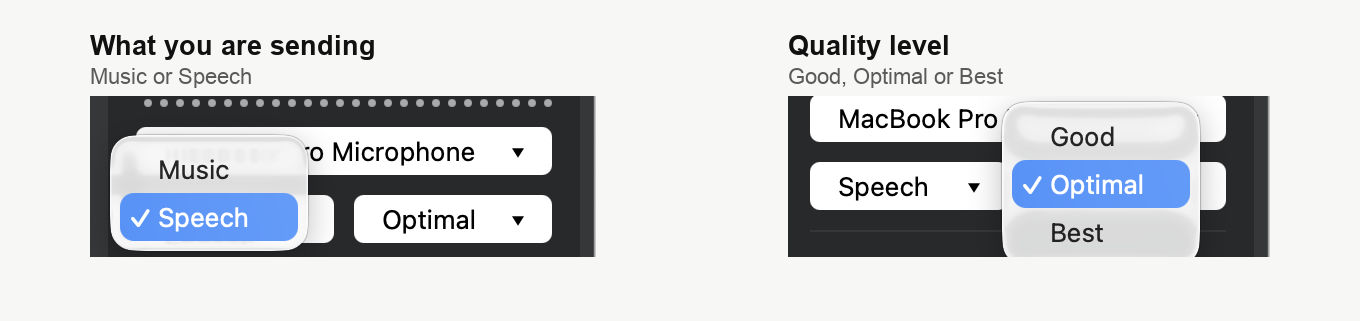
The first says what you are sending, either Speech or Music. The second sets the quality level, either Good, Optimal or Best. Speech with Optimal suits an ordinary presentation, and Music is the pairing to reach for when the sound is the point of the event rather than the vehicle for it, so a concert, a meditation session or anything where an instrument has to survive the trip.
What you give up for it
One thing goes the other way, and it is worth weighing before you choose the route. The app does not run the echo cancellation and noise suppression that the browsers apply. That is why "Microphone volume" stops being set for you and becomes an ordinary slider, which is useful, and it is also why echo starts more easily here than in the browser. Wear a headset on this route even if you get away without one in the browser, and what to do if there is an echo during a webinar covers the rest.
What the app does not change
The delay. On a healthy connection both routes sit in the same range of 100 to 600 milliseconds, which broadcast latency sets out in full. The app buys steadiness rather than speed, so reach for it when your sound arrives broken, not when it arrives late.
Nothing changes for your audience either. They join through their usual browser, they install nothing, and they never see which route you chose.
Still not right
If your microphone is good, the room is quiet and the tester says your line is healthy, open the online chat and tell us what your attendees are hearing. Attach the tester result, because it saves us both a round of questions.
Frequently asked questions
Do my attendees have to install the app too?
No, only the people who speak. Attendees join through their usual browser, install nothing and never see which route you chose. Everyone who goes on air in a room that has been switched over does need it, so tell your co-presenters before the day rather than during it.
Can I switch to the app once the webinar has started?
No, the switch is not yours to make from inside the room. Only the account owner can change it, and they do it in the dashboard beforehand, on the "General" tab of the webinar settings under "Streaming source". Alternative broadcasting technology walks through that and through installing the app on Windows and macOS, which are the two systems it runs on.
Will the app cut the delay my audience sees?
It will not. On a healthy connection both routes sit in the same range of 100 to 600 milliseconds, which broadcast latency sets out in full. The app buys steadiness rather than speed, so reach for it when your sound arrives broken, not when it arrives late.
Why can I not move the microphone slider?
Because on the browser route your level is set for you, and the place to change it is your system settings instead, which what to do if there is an echo during a webinar walks through. With the app carrying your stream, "Microphone volume" stops being set for you and becomes an ordinary slider. That is useful, though it is also part of why echo starts more easily on that route, so wear a headset there even if you get away without one in the browser.
Which figure in the tester matters if my audience says I break up?
The upload figure rather than the download one, because your voice travels in that direction. If it is weak, close downloads, video streaming and anything else competing for the same connection, and use a cable rather than wifi where you have the choice, since that does more for this than any setting. The connection tester is worth running days ahead too, while there is still time to buy a cable or a headset.
