
Full-screen mode
Full-screen mode gives your material the whole of the viewer's window and takes everything else away. You turn it on for the room at once, and you can turn it off the same way at any moment.
It costs your audience the chat, which is the part worth knowing before you reach for it.
Why the entry is not in your menu yet
The setting is not there all the time. It appears only while something is actually on the working area, which means a slide, a video or your screen. With nothing running, the room menu has no full-screen entry at all.
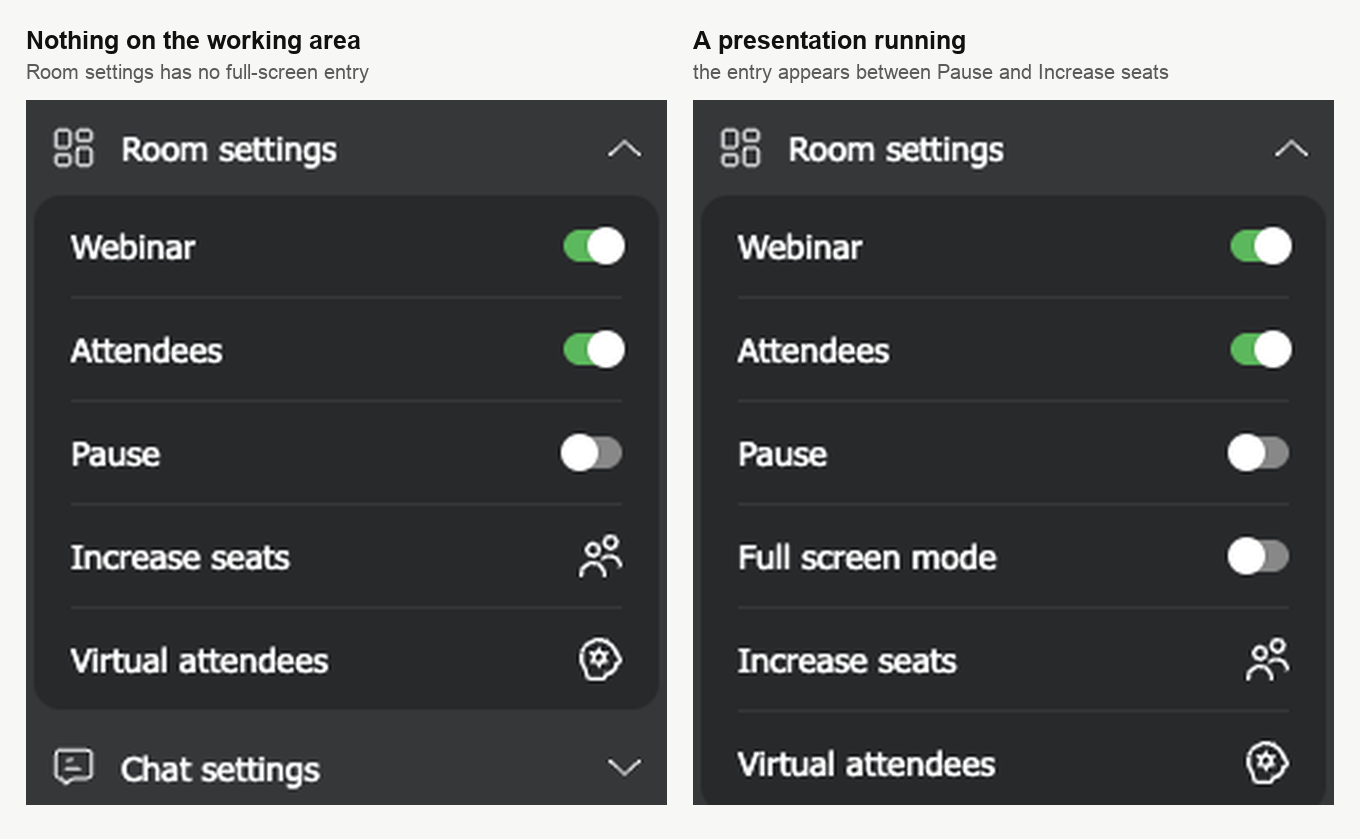
So start your presentation, your video or your screen sharing first. The entry then appears in "Room settings", between "Pause" and "Increase seats", and it disappears again the moment you stop showing.
Your attendees have an item with the same name in their own "Room settings", and it is a different thing. Theirs makes the room fill their own browser window and affects nobody else. Yours changes what the whole room sees.
Turning it on
Open the room menu with the icon in the top right corner, expand "Room settings" and switch "Full screen mode" on. The room explains itself before anything happens.
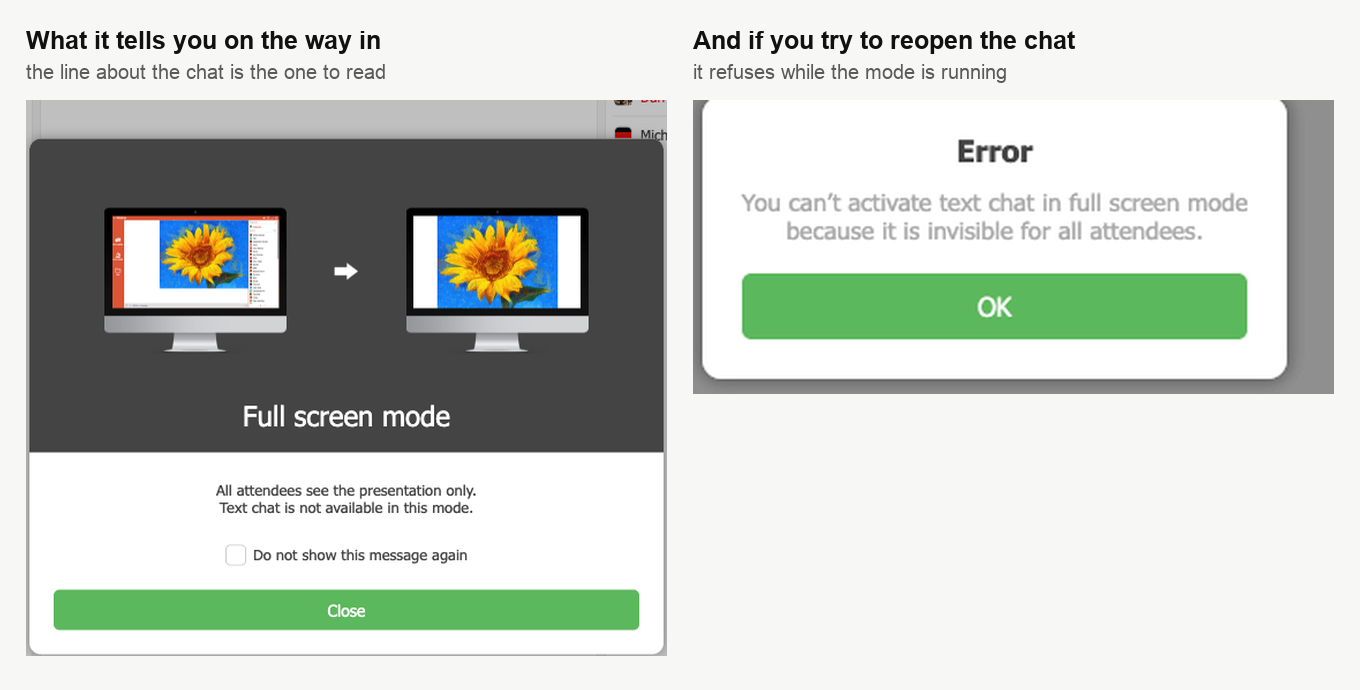
The second sentence is the one people miss. Text chat is not available in this mode, and it is not a side effect you can work around, as the second panel shows.
There is a "Do not show this message again" box on that notice. Leaving it unticked is worth doing if anyone else moderates your events.
What your attendees see
Everything except your material goes away. Not the chat alone, but the room around it, including their own menu and the header with the webinar name.
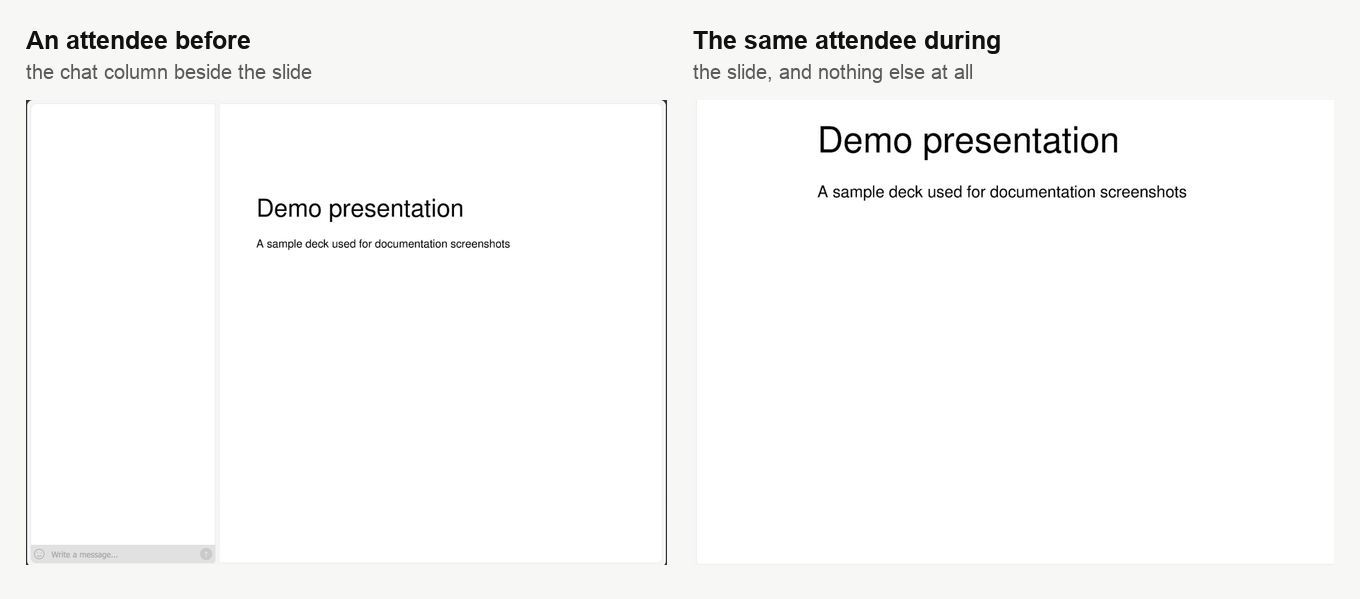
Underneath, their chat box is switched off and reads "Chat blocked", so anyone who was in the middle of typing a question loses the thread. Warn the room before you switch over, and give people a moment to send what they were writing.
The chat cannot come back until you leave
While the mode is running, the "Messaging" switch in "Chat settings" will not turn back on. The room refuses with an error saying the chat would be invisible to everyone anyway.
That is worth knowing in advance, because the instinct when questions dry up is to go and check the chat settings, and there is nothing wrong with them.
How to tell it is running
Your own view does change, in three places at once.
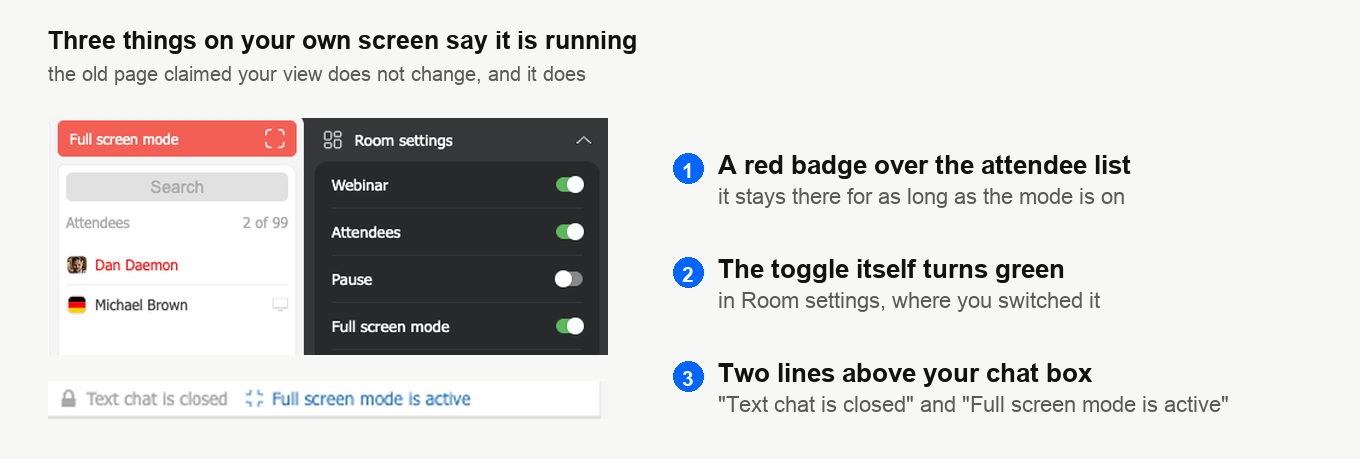
The red badge is the one you notice from across the room, and it stays for as long as the mode is on.
Turning it off
Flip the same switch back. Everything returns on its own, so the chat reopens for your attendees, their menu and the room header come back, and the "Messaging" switch goes back to where it was without you touching it.
When it earns its place
Use it for a dense slide, a demo where detail matters, or a moment when you want undivided attention. Its cost is the conversation, so it suits a stretch of the event rather than the whole of it.
If the questions matter more than the pixels, leave it off. Chat moderation covers the gentler ways to quieten a chat without closing it, and what a webinar room is walks through the parts of the room that this mode hides.
If the mode will not switch on, or your attendees report seeing something other than this, open the online chat and tell us the event and what was on the working area at the time.
Frequently asked questions
Can an attendee switch full-screen mode off at their end?
No. The item with the same name in their own "Room settings" is a different thing, because it only makes the room fill their own browser window and affects nobody else. While your mode is running their menu has gone anyway, along with the chat and the header with the webinar name. The mode ends when that switch goes back, and the switch sits in your menu rather than in theirs.
What happens to someone who is halfway through typing a question?
They lose the thread. Their chat box is switched off and reads "Chat blocked", so warn the room before you switch over and give people a moment to send what they were writing. Everything around your material goes at the same time, including their own menu and the header with the webinar name.
Do I have to turn the chat back on myself afterwards?
No. Flip the same switch back and everything returns on its own, so the chat reopens for your attendees and the "Messaging" switch goes back to where it was without you touching it. While the mode is still running that switch will not turn on at all, and the room refuses with an error saying the chat would be invisible to everyone anyway.
Should I tick "Do not show this message again" on the notice?
Leave it unticked if anyone else moderates your events. That notice is where the room says text chat is not available in this mode, and the second sentence is the one people miss, so hiding it means the next moderator switches "Full screen mode" on without knowing what it costs the room.
Why is there no "Full screen mode" entry in my room menu?
The setting appears only while something is actually on the working area, which means a slide, a video or your screen. Start your presentation, your video or your screen sharing first, and the entry turns up in "Room settings", between "Pause" and "Increase seats". It disappears again the moment you stop showing.
