
What is a webinar room
A webinar room is a virtual space for running events online, so training sessions, presentations, master classes and anything else where you speak to a live audience. On our platform the room is created automatically together with the webinar, and it needs no technical knowledge on your part. Everything required to go on air is already in place.
How the room works
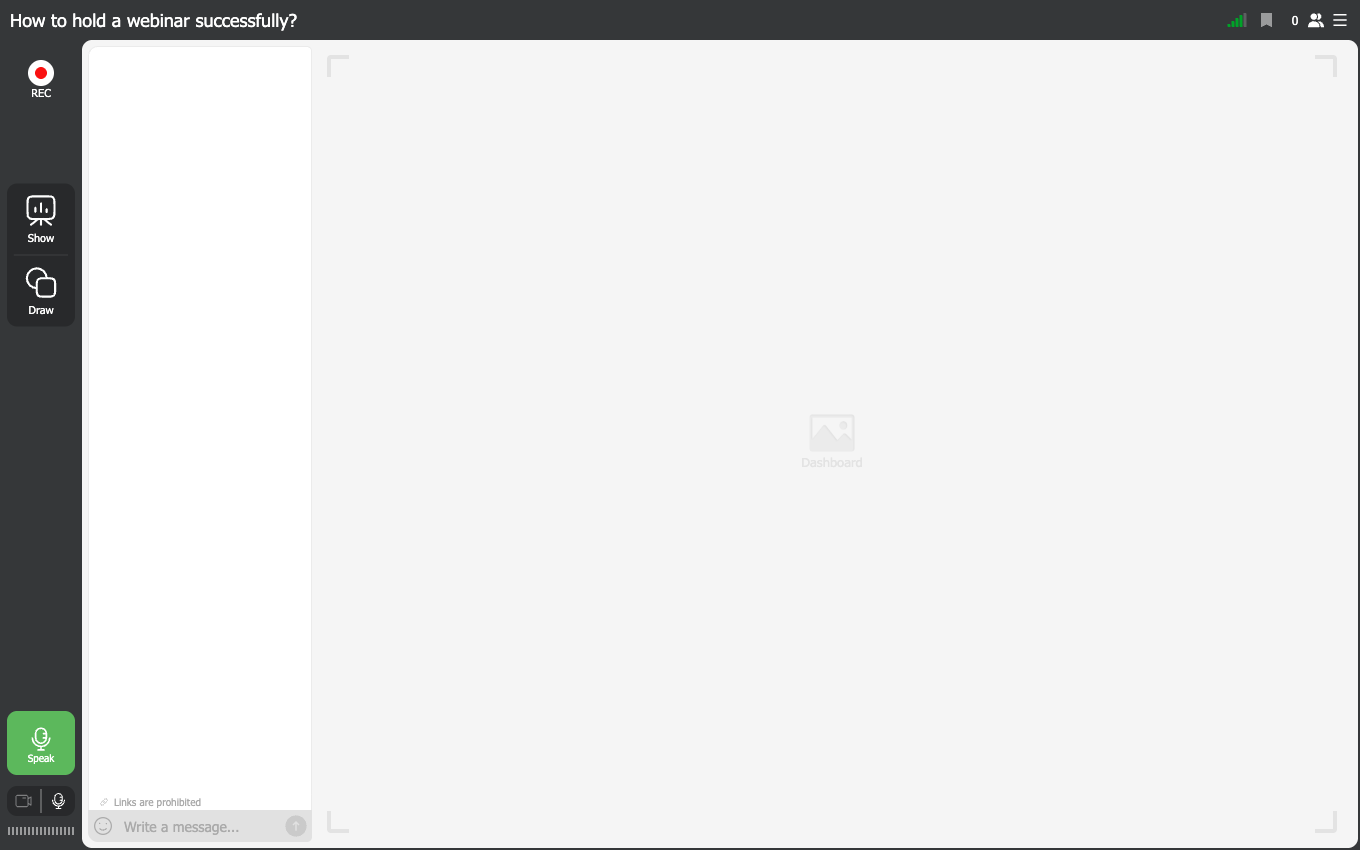
Once you enter, the tools are in front of you and there are not many of them. Down the left edge sit "REC" for the recording, "Show" for anything you want on the stage, "Draw" for marking it up, and the green "Speak" that puts you on air. The camera and microphone toggles are underneath. Chat runs down the left of the stage, and the row of icons in the top right covers connection quality, the attendee count and the room menu.
Nothing is installed. It all runs in the browser, whatever device you or your attendees are using.
"Show" is where an event stops being a talking head. It opens your materials in seven tabs, so presentations, media, your screen, earlier recordings, polls, surveys and calls to action, and whatever you pick appears on the stage for everyone.
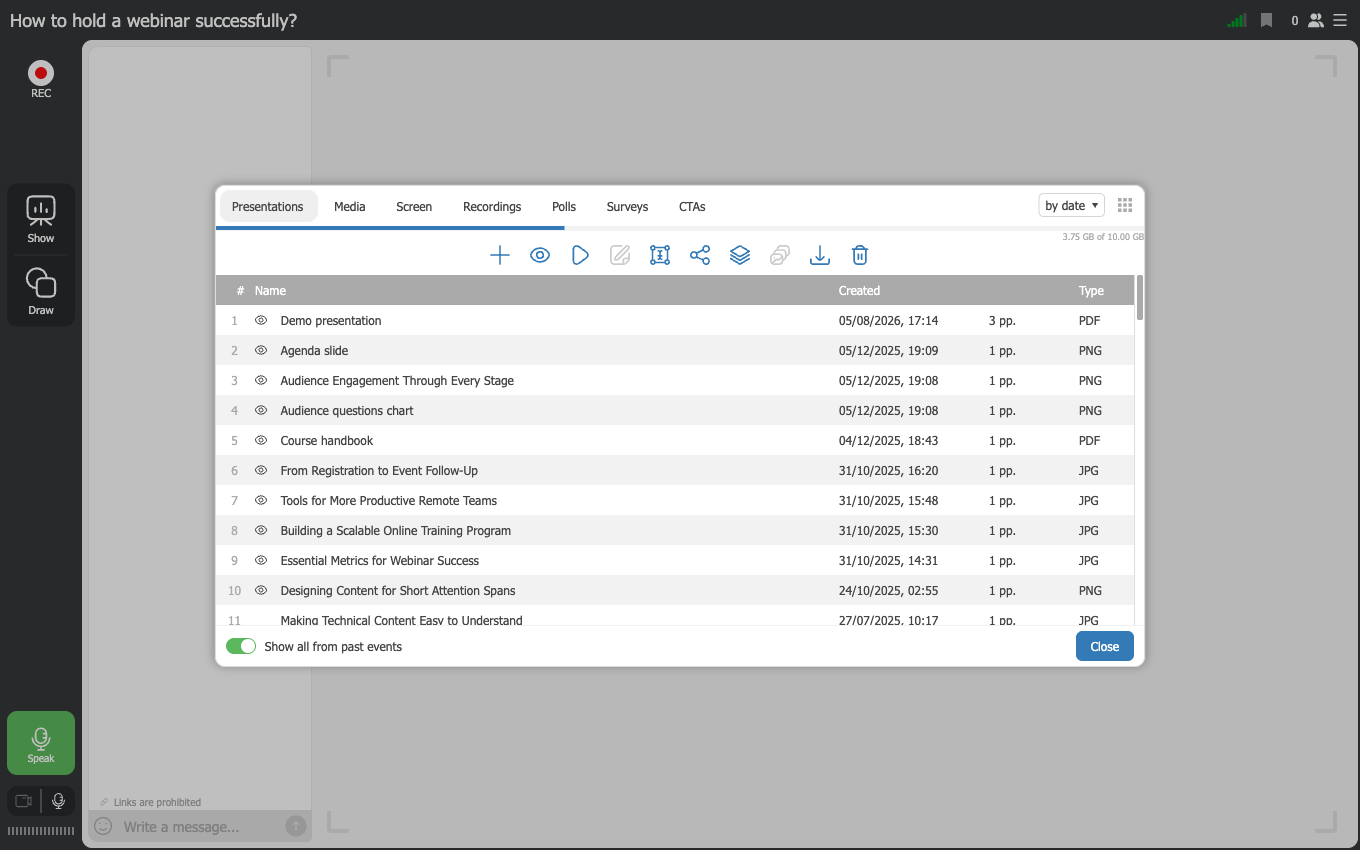
By default the panel lists only what is attached to this event. The "Show all from past events" switch at the bottom opens up every file in your account that you are allowed to see, which is what you want when the file you need was uploaded for an earlier webinar.
Recording, analytics and polls are built in, so the room is also where you gather feedback, see how active your audience was and produce material you can reuse. Recording quality follows your plan, so Starter reaches 1080p and plans from 500 attendees reach 2160p. Starter recordings stop at 20 minutes.
How many people fit
The room handles a small internal meeting and a large public broadcast equally well. The free Starter plan covers 5 attendees and 2 speakers on air at the same time. Paid plans go further, up to the sitewide maximum of 5,000 attendees.
A webinar or a meeting, and why it matters
The same room runs both, and which one you get is a single setting on the "General" tab of the event.
"Webinar" puts your audience in the role of viewers. They watch, they read, they write in the chat, and their cameras and microphones stay off unless a host invites somebody up to speak. This is what keeps a room of two hundred people from turning into noise, and it is the mode to pick unless you have a reason not to.
"Meeting" gives everybody a voice from the start, which suits a working session among people who all need to contribute.
You can move a room across afterwards, but only from the dashboard and not from inside the room, and everybody already in it has to reconnect when you do, so it is a decision worth making before you invite anyone. Planning a webinar covers this setting alongside the rest of the tab, and the webinar room for presenters covers what the label looks like once you are live.
Who can do what, and why the room stays quiet
A large session only turns into a free-for-all if the platform lets it, and in "Webinar" mode this one does not. It is worth knowing exactly where the lines are before you invite five hundred people.
Attendees arrive silent and stay silent. Their cameras and microphones are off when they enter and there is no control anywhere in their interface to turn either on. Nothing needs muting, because nothing was ever unmuted.
Attendees cannot share their screen at all. The whole attendee menu is "Feedback", "Room settings" with full-screen mode in it, "Chat settings", "Devices settings" and the language switch. Screen sharing, the broadcasting app and the other streaming sources belong to your side of the room and never appear on theirs.
Coming on air is your invitation, never their decision. An attendee can raise a hand with "Ask to speak" when you have allowed requests, and you can offer the floor without being asked, but either way the microphone opens only after you accept. Somebody you bring up this way speaks on camera through their browser and still has no screen sharing. If a guest genuinely needs to present, add them in the control panel under "Moderators" with the role "Guest speaker" before the event, and they arrive as a speaker rather than as a promoted viewer. Inviting an attendee to speak covers both routes, and moderator and presenter management covers the roles.
The chat is yours to shape, and its defaults already lean quiet. "Pre-moderation" holds every message until you let it through, so nothing reaches the room unread. "Links in messages" is off to begin with, which means your audience cannot post addresses unless you switch it on. "Anonymize attendee names" cuts names down to initials, the "Attendees" setting can take the participant list away from the audience altogether, and a separate question and answer section keeps questions in an orderly queue instead of letting them scroll past. You set all of this in advance on the "General" tab of the event and can still change it from "Chat settings" in the room menu while you are live. Chat moderation covers the six controls one by one.
How far the room scales is a matter of your plan rather than of the room, and that ceiling is not a wall either, because a host can widen the room from inside it while the event runs. How to choose and pay for a plan sets out the ceiling on each plan and what happens when more people turn up than you paid for.
Who it is for
Coaches and teachers, corporate trainers, HR specialists, marketers and anyone else who needs online interaction to work properly. Whatever your field, the setup underneath is the same, and the settings bend to the format you need.
Unlike a general video call in Zoom, a webinar room gives the host full control over what happens. You decide the structure of the session and what attendees are allowed to do.
To get started, create an event. The room will be ready for it. The step-by-step guide to setting up a webinar from scratch walks the whole route from a new account to a live room.
Still stuck
If anything in the room does not behave the way this describes, open the online chat and tell us the event and what you were doing at the time.
Frequently asked questions
Do I have to create the room separately from the webinar?
No. The room is created automatically together with the webinar, and it needs no technical knowledge on your part, because everything required to go on air is already in place. Create the event and the room will be ready for it.
Do my attendees have to install anything to join?
No. Nothing is installed at either end, because it all runs in the browser, whatever device you or your attendees are using. Once you enter, the tools are already in front of you and there are not many of them.
A file I uploaded for an earlier webinar is missing from the list. Where is it?
It is still in your account, just hidden. By default the panel behind "Show" lists only what is attached to this event, and the "Show all from past events" switch at the bottom opens up every file in your account that you are allowed to see. That switch is what you want when the file you need was uploaded for an earlier webinar.
Why does my recording stop after 20 minutes?
You are on the free Starter plan, where recordings stop at 20 minutes. Recording quality follows your plan in the same way, so Starter reaches 1080p and plans from 500 attendees reach 2160p. Recording, analytics and polls themselves are built into the room.
Can two of us present together on the free plan?
Yes. The free Starter plan covers 5 attendees and 2 speakers on air at the same time. Paid plans go further, up to the sitewide maximum of 5,000 attendees, and the room handles a small internal meeting and a large public broadcast equally well.
