
Planning an automated webinar
An automated webinar plays a video you prepared earlier to an audience that arrives at a scheduled time. Chat messages, virtual attendees and call to action buttons are all timed against that video, so the session runs without you sitting in it.
How to schedule an automated webinar
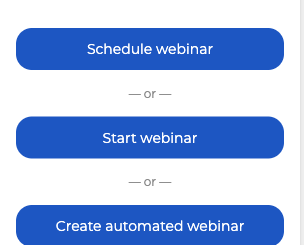
Open "Calendar" in your control panel. Below the month there are three buttons, and the one you want is "Create automated webinar".
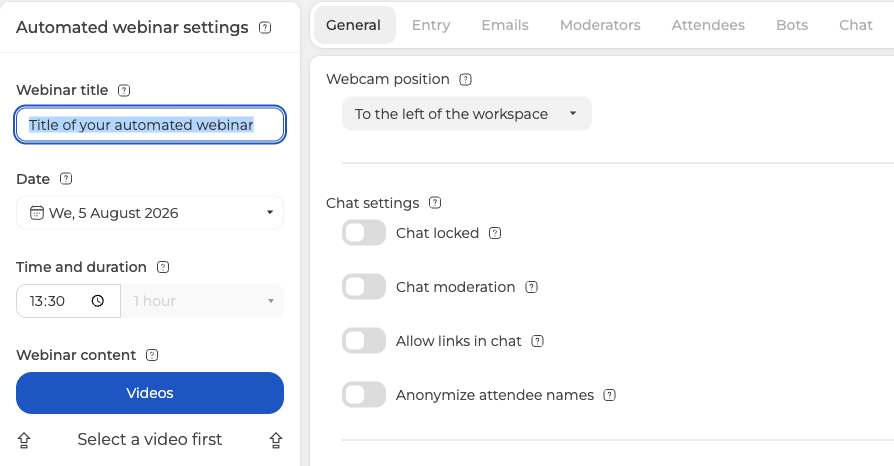
The window that opens is headed "Automated webinar settings", and at first only the "General" tab is available. Every other tab is greyed out, the "Done" button is missing, and the left column says "Select a video first".
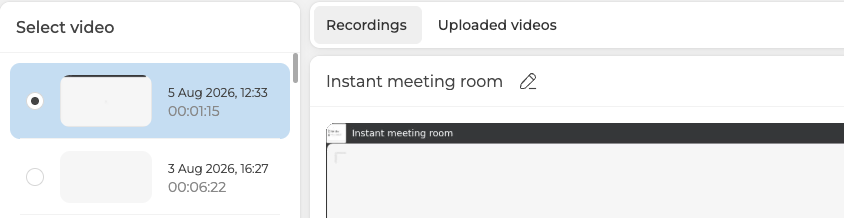
So start with the video, because nothing else unlocks until it is chosen. "Videos" opens a picker with two tabs, "Recordings" for your past webinars and "Uploaded videos" for anything you uploaded yourself. Pick one with the radio button on the left and click "Go back".
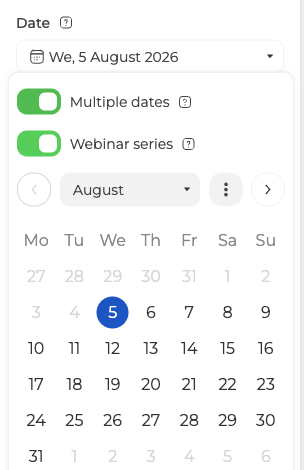
To show the same content on several dates, open the date field and switch on "Multiple dates". "Webinar series" turns itself on at the same moment, and you then mark every day the series runs on.
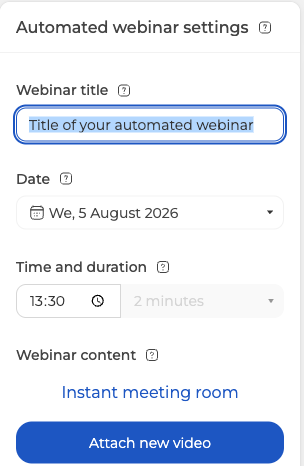
Back in the settings, the video now sits under "Webinar content" with "Attach new video" below it, and the whole tab strip has come alive. Notice that "Time and duration" filled itself in and stays read only, because the video decides how long the session runs.
The remaining tabs are "Entry", "Emails", "Moderators" and "Attendees", and they behave exactly as they do for a live webinar. Planning a webinar covers them in detail. An automated webinar has no "Record", "Files", "Polls" or "Tests" tab, and instead carries three of its own, which are "Bots", "Chat" and "CTA".
Adding virtual attendees
Virtual attendees show up in the participant list and make the room look busy. Open the "Bots" tab and click "+ New bot".
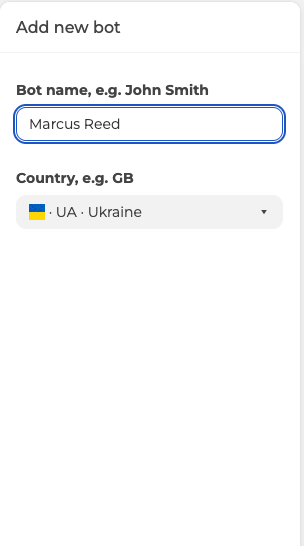
Give the bot a name and pick a country, then click "Add" and it joins the list on the right. For a bigger crowd, "Import" takes a whole file instead of one name at a time.
A virtual attendee is presence and nothing more. Its form asks only for a name and a country, with no text anywhere in it, so all it does is arrive and leave, and that alone reproduces the rhythm of a real audience. Anything actually said in the chat is scripted on the next tab, where every message carries its own sender name.
Scripting the chat
Chat messages are separate from the bots and live on the "Chat" tab. "New message" opens a form with five fields.
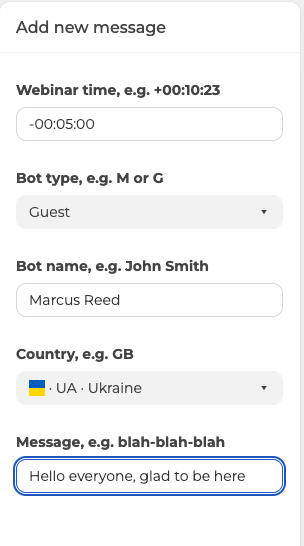
"Webinar time" is the one that needs explaining. It takes a single signed offset against the start of the webinar, as the field's own example shows with "+00:10:23". A plus places the message that far after the start, and a minus places it before. So "-00:05:00" puts the message on screen five minutes before the webinar begins, which is 5:55 PM for a 6:00 PM start.
"Bot type" decides whether the sender looks like a "Guest" or a "Moderator", and the name and country fields dress the sender the same way they dress a virtual attendee. Your messages then line up on the right with their timings.

Negative timings are what you need when you let people into the room early. They fill the waiting period with conversation instead of an empty chat. As on the "Bots" tab, "Import" loads a prepared list rather than typing them one by one.
Call to action buttons work the same way on the "CTA" tab, with "New CTA" in place of "New message".
Reusing the chat from a webinar you already ran
If you ran the webinar live and want to turn it into an automated one, you can export that session's chat and import it here. This part happens outside the settings window.
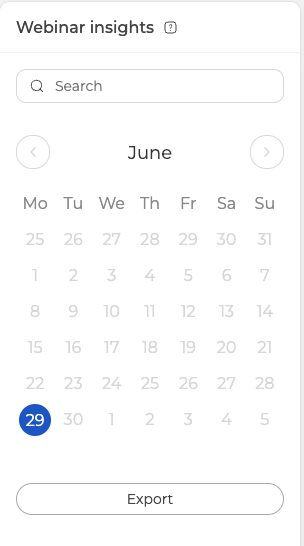
Open the webinar's own menu in the calendar and choose "Statistics". The panel is headed "Webinar insights", and "Chat" is the third of its four tabs. Pick the date in the calendar on the left, then click "Export".
At the bottom of the export panel, switch on "For automated webinar" before you export. Its hint says what it does, that the file comes out ready to be imported back into an automated webinar.
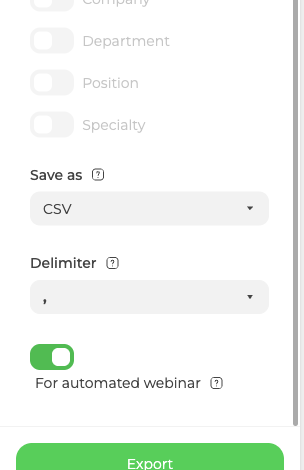
Use that file during the import on the "Chat" tab and your scripted chat will read like the real conversation it once was.
Still stuck
If an automated webinar does not run the way this describes, open the online chat and tell us the event name and the time it was due to start.
Frequently asked questions
Why is every tab except "General" greyed out?
Because no video is attached yet. Until you choose one, the left column says "Select a video first", every other tab stays greyed out and the "Done" button is missing. Pick a past recording or an uploaded file under "Videos", click "Go back", and the whole tab strip comes alive.
Can I set how long an automated webinar runs?
No. "Time and duration" fills itself in and stays read only, because the video decides how long the session runs. A different length therefore means a different video, and "Attach new video" sits under "Webinar content" in the settings.
Does an automated webinar have polls, tests and recording like a live one?
No. It has no "Record", "Files", "Polls" or "Tests" tab, and instead carries three of its own, which are "Bots", "Chat" and "CTA". The tabs it does share with a live webinar, which are "Entry", "Emails", "Moderators" and "Attendees", behave exactly as they do there, and Planning a webinar covers them in detail.
Do the virtual attendees say anything in the chat?
No. A virtual attendee is presence and nothing more, because its form asks only for a name and a country, with no text anywhere in it, so all it does is arrive and leave. Anything actually said in the chat is scripted separately on the "Chat" tab, where every message carries its own sender name.
Do I have to add every bot and every chat message one at a time?
No, both tabs take a prepared file through "Import". On "Bots" it loads a whole crowd instead of one name at a time, and on "Chat" it loads a prepared list of messages. If you already ran the event live, export that session's chat with "For automated webinar" switched on and import the real conversation.
