
What to do if webinar invitations go to spam
The platform sends notifications about your upcoming webinars automatically, and sometimes those messages land in Spam or Junk with no obvious reason. Some of the causes sit with the mailbox provider and are outside anyone's control. The rest sit in the two parts of the message you control, and those you can fix today.
Why invitations get filtered
Mail provider algorithms
Services like Gmail use complicated rules to decide what counts as spam. Even when our notification passes the receiving SMTP server and gets a "250 OK" response, that is not a promise of the inbox. Providers apply internal rules that no sender can see or control.
First contact
When we write to a person for the first time, the odds of the spam folder are higher. Any message from a sender a provider has not seen before is treated with suspicion by default.
Recipient behaviour
Providers watch what people do with your messages. If a recipient never opens the email, later messages are much more likely to be filtered. Gmail in particular now takes those signals into account.
A banner that is too big or too bright
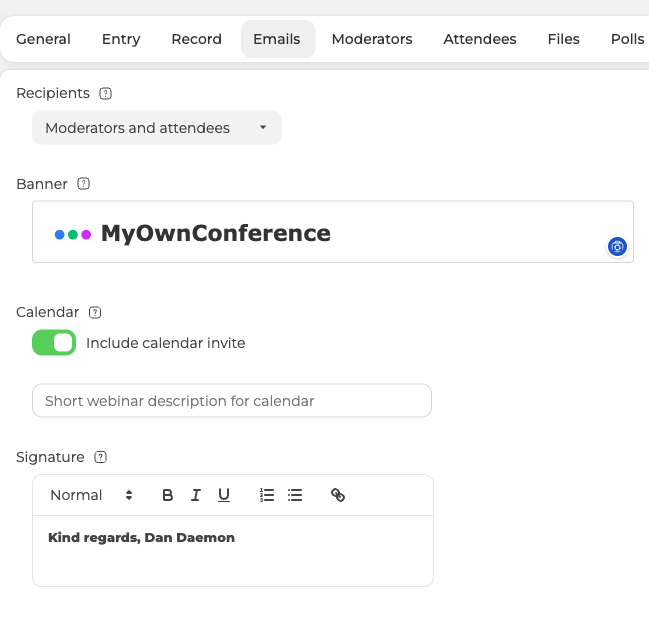
The image at the top of the invitation comes from the "Banner" field on the "Emails" tab of your webinar settings. If you replaced ours with your own, an oversized or very bright image can trigger filters. It also pushes some readers to unsubscribe from your invitations. Keep it visually calm and close in weight to the default banner rather than a full-width poster.
A low quality address list
Sending to people who never asked to hear from you produces spam complaints, which providers relay back to us as feedback loop (FBL) reports. Those complaints lower the reputation of our sending domain, and that affects delivery for every host on the platform. The only way back is to start using lists of people who genuinely expect your webinars.
A replaced signature with problems in it
The "Signature" field sits below the banner on the same tab, and it is a rich text editor, so it can carry formatting and links. If you swapped ours for your own, a few details in it can be enough to trip the filters.
- Too much text in the signature. Simplify it, keep it short and avoid typical spam words.
- Shortened links, for example from bit.ly and similar services. Use full links, or a shortener with a solid reputation.
- A signature written in a different language from the email. If the template is in English and the signature is in Russian, the mismatch looks wrong to a filter and to a reader. Keep both in the same language.
Those two fields are the whole of what you can change, because the body text of the notifications is fixed.
What we do on our side
We follow every current standard for sending email, including SPF, DKIM and DMARC. That is what keeps the reputation of our sending domain healthy and lowers the odds of the spam folder for everyone on the platform. We also test our own message templates for the technical faults that trigger filters.
If the block is at the provider level rather than the filter level, that is a different problem, and The email service is blocked covers it.
What you can do
- Ask the people who attend regularly to move one of our messages out of Spam and into the inbox. That teaches the provider to trust the rest.
- Suggest that they check the Spam folder before the webinar starts.
- Keep the two parts you control modest, which means a calm banner, a short signature, no shortened links and one language throughout.
- Send the ones that matter by hand. An automated mailing always carries some risk of the spam folder, while a message sent personally carries far less.
That last one is worth spelling out. Open the webinar settings, go to the "Attendees" tab and click the three dots at the end of the person's row.
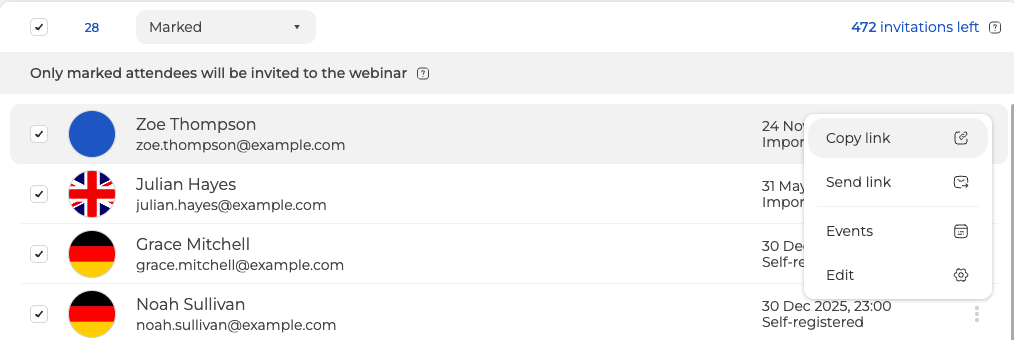
"Copy link" puts their unique join link on your clipboard, ready to paste into a messenger or an SMS, which is the point of doing it by hand. That link is theirs alone and works as a single ticket, which Personalized access links explains.
"Send link" sits under it and mails that one person their invitation again, never the whole list. It is worth trying once they have moved an earlier message out of Spam. If their mailbox is filtering everything from us, copy the link instead. When webinar email notifications are sent covers the rest of that menu.
If it still happens
No sender can eliminate the spam folder completely, because too many of the factors belong to the receiving provider. Following the points above and keeping in touch with your regular attendees is what moves delivery in the right direction over time. If invitations keep getting filtered after that, open the online chat in your control panel and we will look at your specific case.
Frequently asked questions
Can I change the wording of the invitation itself?
No, the body text of the notifications is fixed. The "Banner" and "Signature" fields on the "Emails" tab of your webinar settings are the whole of what you can change. The signature is a rich text editor, so keep it short, keep it in the same language as the rest of the message and use full links rather than shortened ones from bit.ly and similar services.
One attendee never receives the invitation. Can I resend it to that person alone?
Yes. Open the webinar settings, go to the "Attendees" tab, click the three dots at the end of their row and choose "Send link", which mails that one person their invitation again and never the whole list. It is worth trying once they have moved an earlier message out of Spam. If their mailbox is filtering everything from us, use "Copy link" instead and pass the link to them yourself.
Can I give the same join link to several people?
No. "Copy link" puts that one person's unique join link on your clipboard, and the link is theirs alone and works as a single ticket. Personalized access links explains how those links behave.
Does one recipient marking us as spam affect anybody else?
Yes. Providers relay complaints back to us as feedback loop (FBL) reports, those complaints lower the reputation of our sending domain, and that affects delivery for every host on the platform. The way back is to send only to lists of people who genuinely expect your webinars.
The receiving server accepted the message, so why is it not in the inbox?
A "250 OK" response means the message was accepted, not that it reached the inbox. Providers then apply internal rules that no sender can see or control, and a first message is more likely to be filtered because a sender the provider has not seen before is treated with suspicion by default. If the messages are being blocked at the provider level rather than filtered, that is a different problem and The email service is blocked covers it.
